
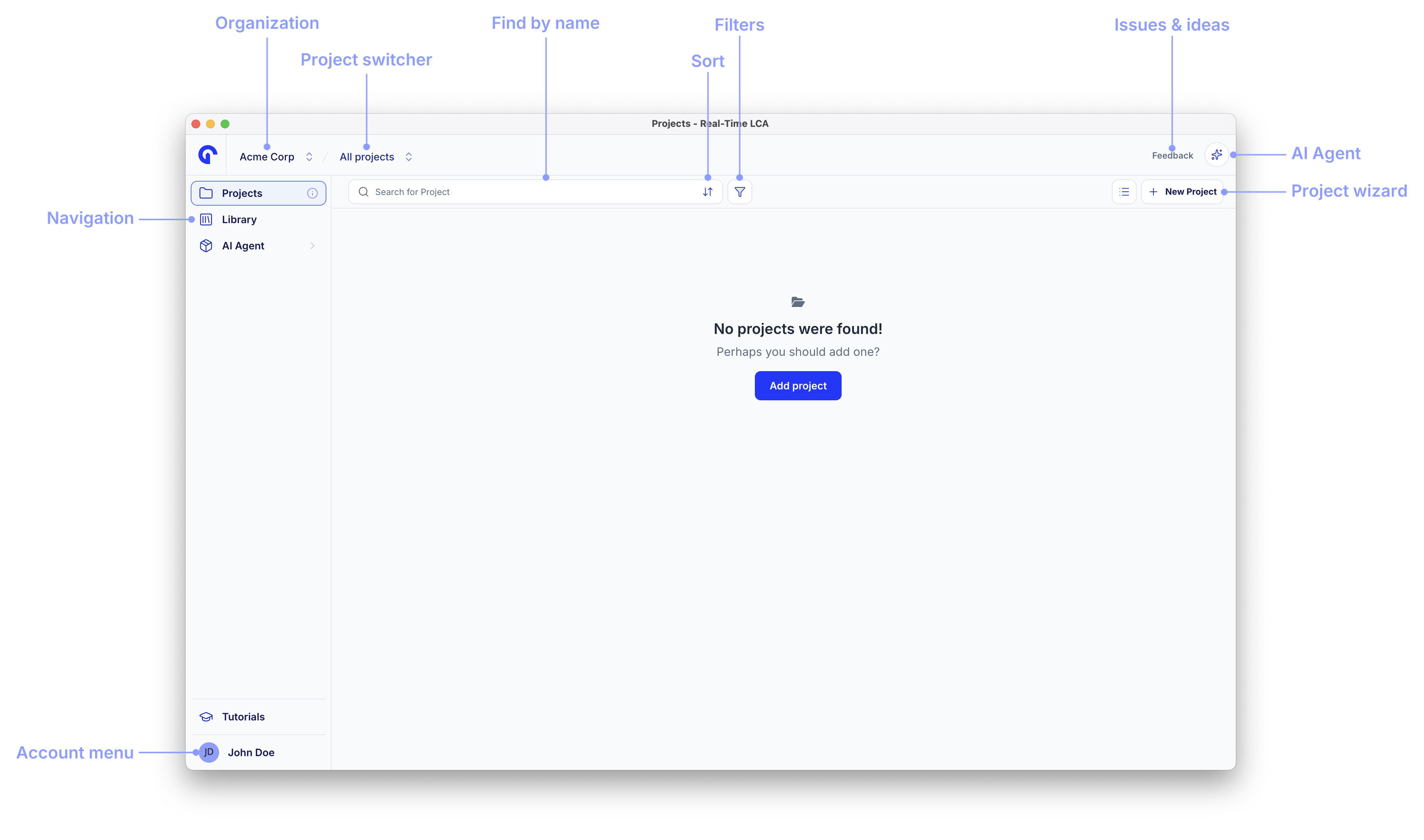
Empty state
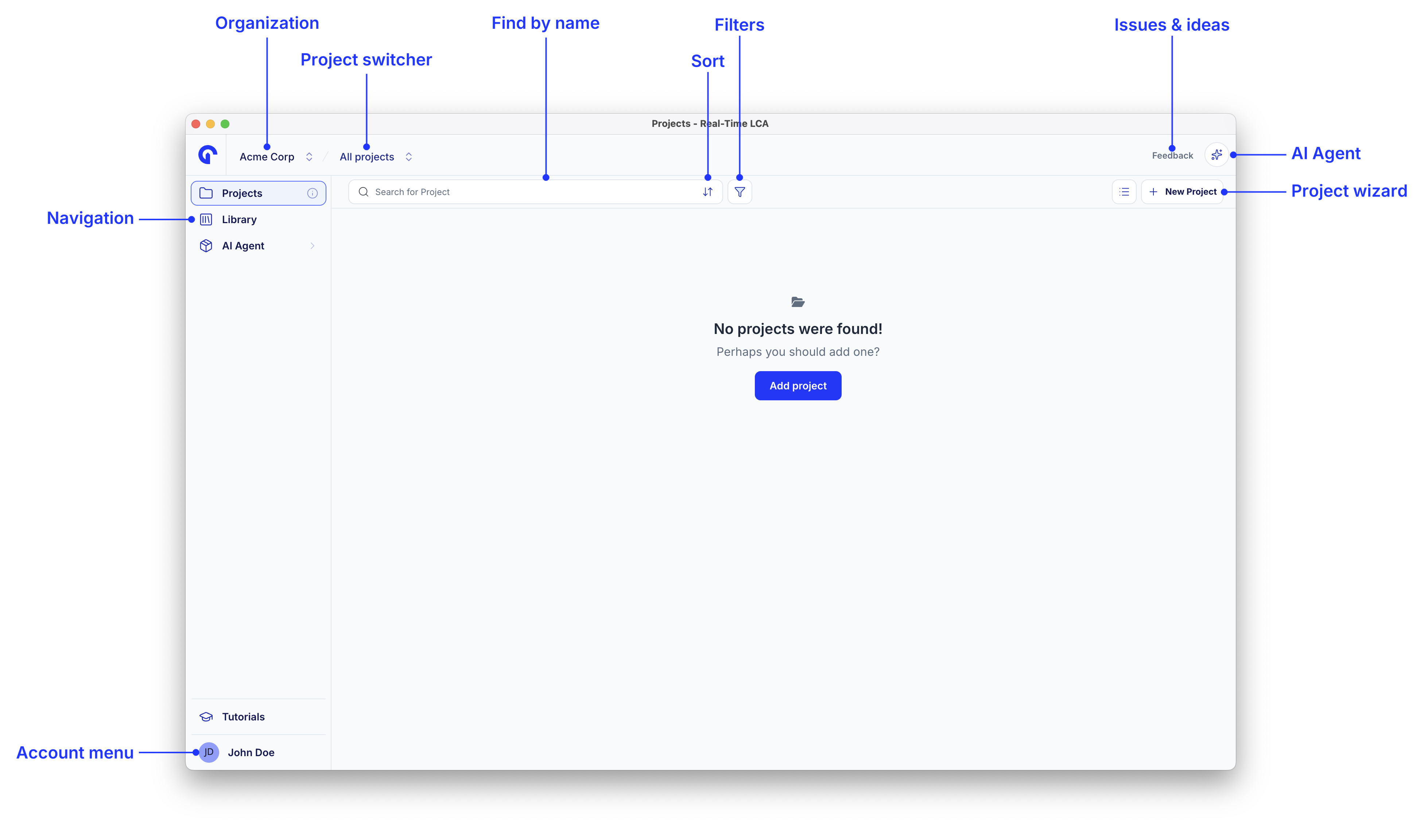
The first time you open Real-Time LCA, your organization has no projects yet. Click Add your first project in the center of the page — or the + Project button in the top-right corner — to start the project wizard.
Project card
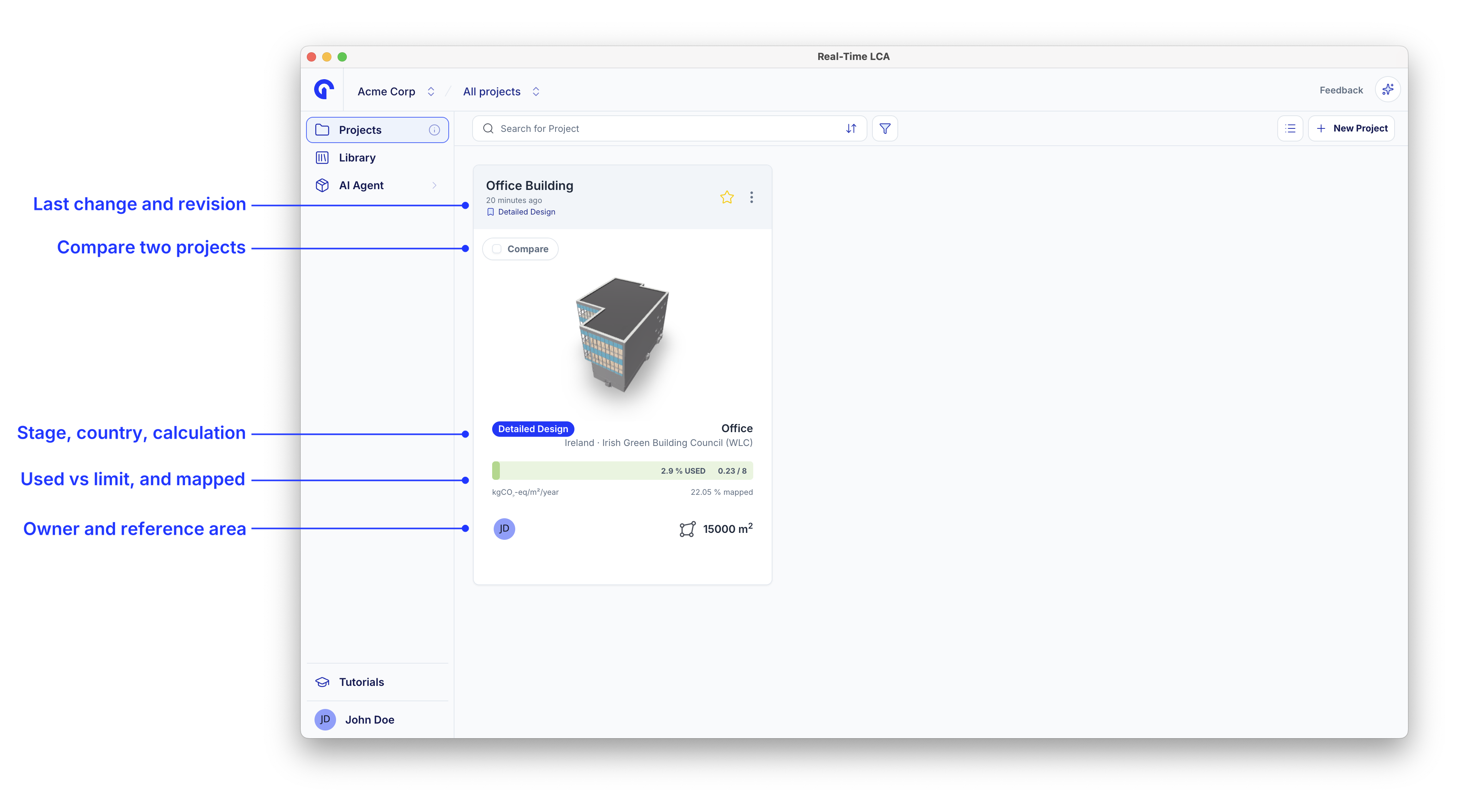
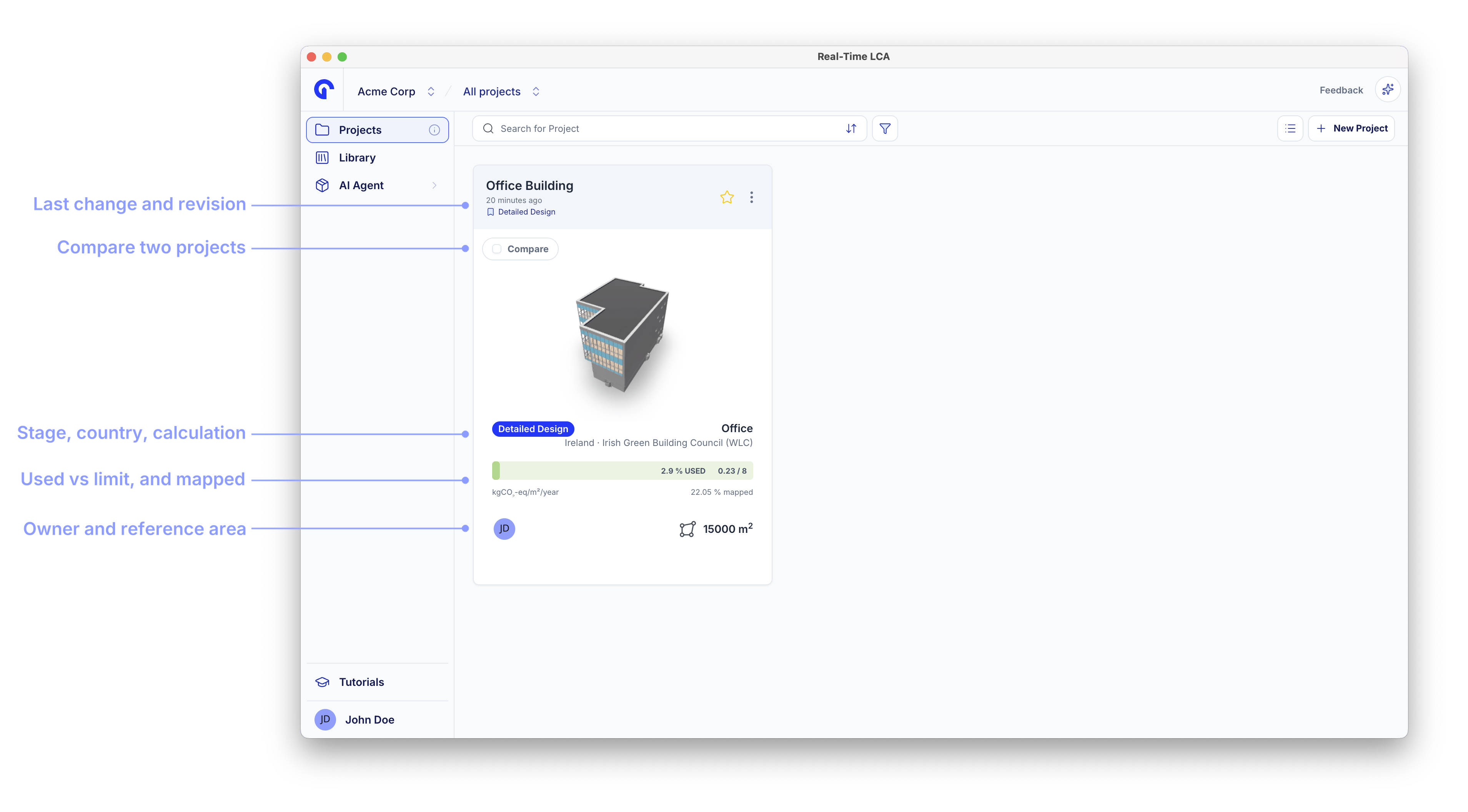
Once you have projects, each one is rendered as a card with everything you need at a glance.
- Project name and how long ago it was updated.
- The roles you hold on the project (for example, Admin).
- A thumbnail of the 3D model — or a placeholder when no model is connected yet.
- The stage chip (for example, Competition).
- Country and calculation type.
- A progress bar with % used of the threshold and kgCO₂-eq/m²/year spent versus the limit.
- The owner avatar, % mapped, and total reference area.
Card actions
The icons in the top-right of each card let you act on the project without opening it:- Copy link — copy a shareable URL to the project.
- Favorite (star) — pin the project to the top when sorting by Favorites.
- Settings (cog) — open the project’s quick actions menu.
Favorite a project
Click the star to toggle it. A favorited project shows a filled yellow star and surfaces first when you sort by Favorites or enable the Favorites only filter.
Quick actions from the card
Click the cog icon to open the card’s quick actions menu without leaving the overview.
| Action | What it does |
|---|---|
| Map materials | Jump straight into Material Mapping for the project. |
| Edit Project | Open the project wizard in edit mode. See Edit a project. |
| Manage Users | Open the project users modal. See Manage project users. |
Switch between card and list view
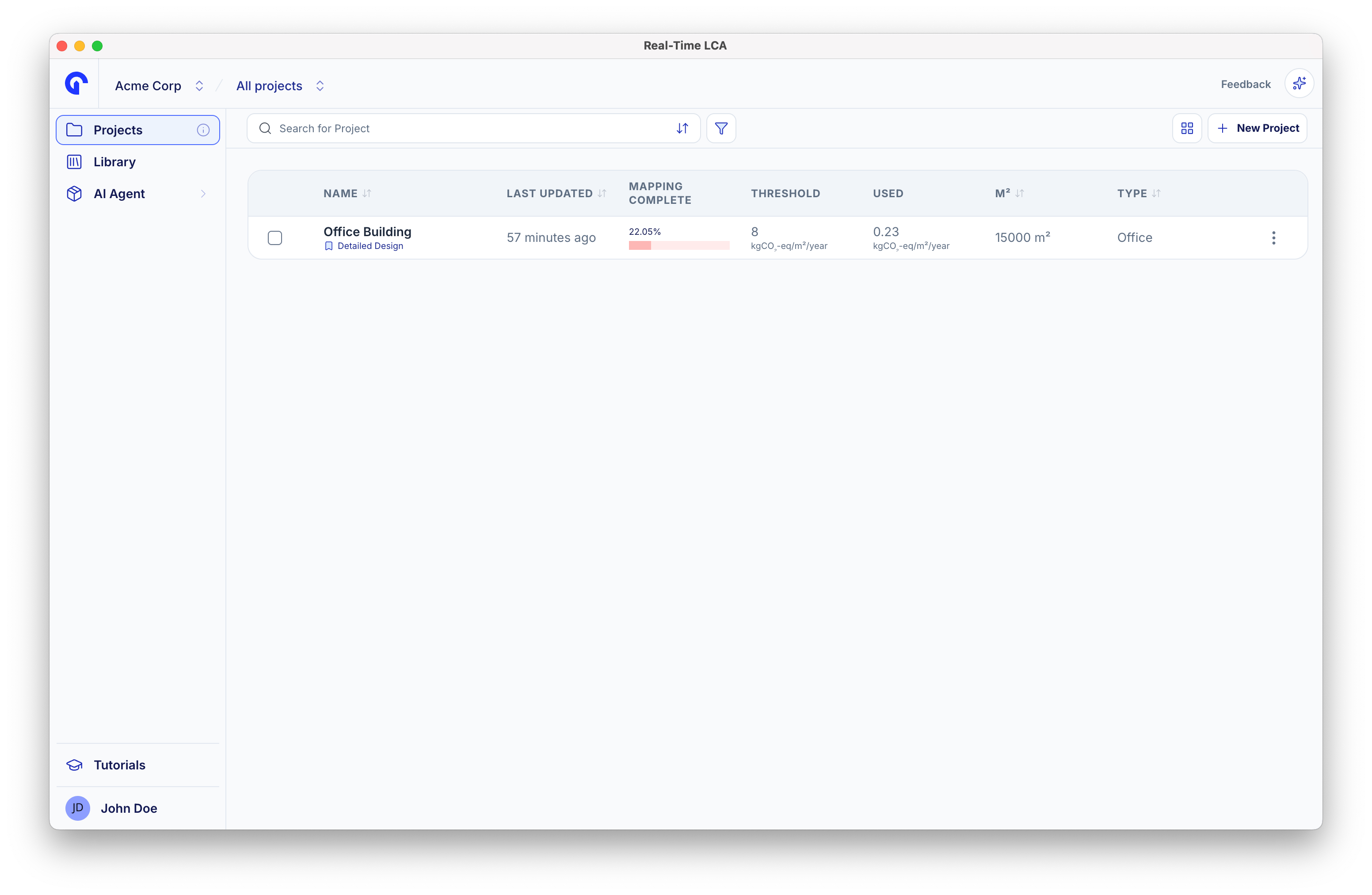
Use the view toggle in the top-right toolbar to choose how projects are displayed.

| Column | Description |
|---|---|
| Name | Project name. Click to open. |
| Last Updated | Time since the last change. |
| Mapping Complete | Percentage of the model that has been mapped to materials. |
| Threshold | The CO₂ threshold (kgCO₂-eq/m²/year) defined for the project. |
| Used | The current emission spend (kgCO₂-eq/m²/year). |
| m² | Total reference area. |
| Type | Building type (for example, Kontor). |
Reload the list
If a teammate just made changes, click Reload Projects in the toolbar to fetch the latest state without refreshing the browser.
Sort projects
Use the Sort dropdown on the left of the toolbar to control the order.
- Favorites — favorited projects first.
- Last Updated — newest activity first.
- Name — alphabetical.
- Total Area — by m².
- Type — grouped by building type.


Search and filter
Type in the Search for Project box to filter by name. Click the funnel icon next to the search to open the Filters panel.
Favorites only
Favorites only
Show only the projects you have starred from a card. Toggle it on for a focused workspace, off to see everything.
Calculation type
Calculation type
Narrow the list to projects that use a specific calculation framework, for example Custom, BR18 (2025), or Level(s).

Country
Country
Show projects located in a specific country.

Stage
Stage
Filter by project stage (for example, Competition).

Role
Role
Show only the projects where you hold a specific role — useful when you want to see everything you are responsible for as Admin.

Type
Type
Filter by building type (for example, Kontor).

Open a project
Click a card (or a row in list view) to enter the Project Dashboard — your hub for emissions, mapping, models, reports, and project-level settings.Next steps
Project Dashboard
Manage users, edit, clone, or delete the project from the Project menu.
Create a new project
Run through the project wizard end-to-end.