

Before you start
You need:- An activation email from
support@realtimelca.comwith the subject Activate your Real-Time LCA user. - Access to the inbox the email was sent to.
If you cannot find the email, check your spam folder. If it still does not appear, reach out to support@realtimelca.com and we will resend the invite.
Step 1: Open the activation email
Open the Activate your Real-Time LCA user email and click Activate your user. If the button does not work, copy the link below it and paste it into your browser.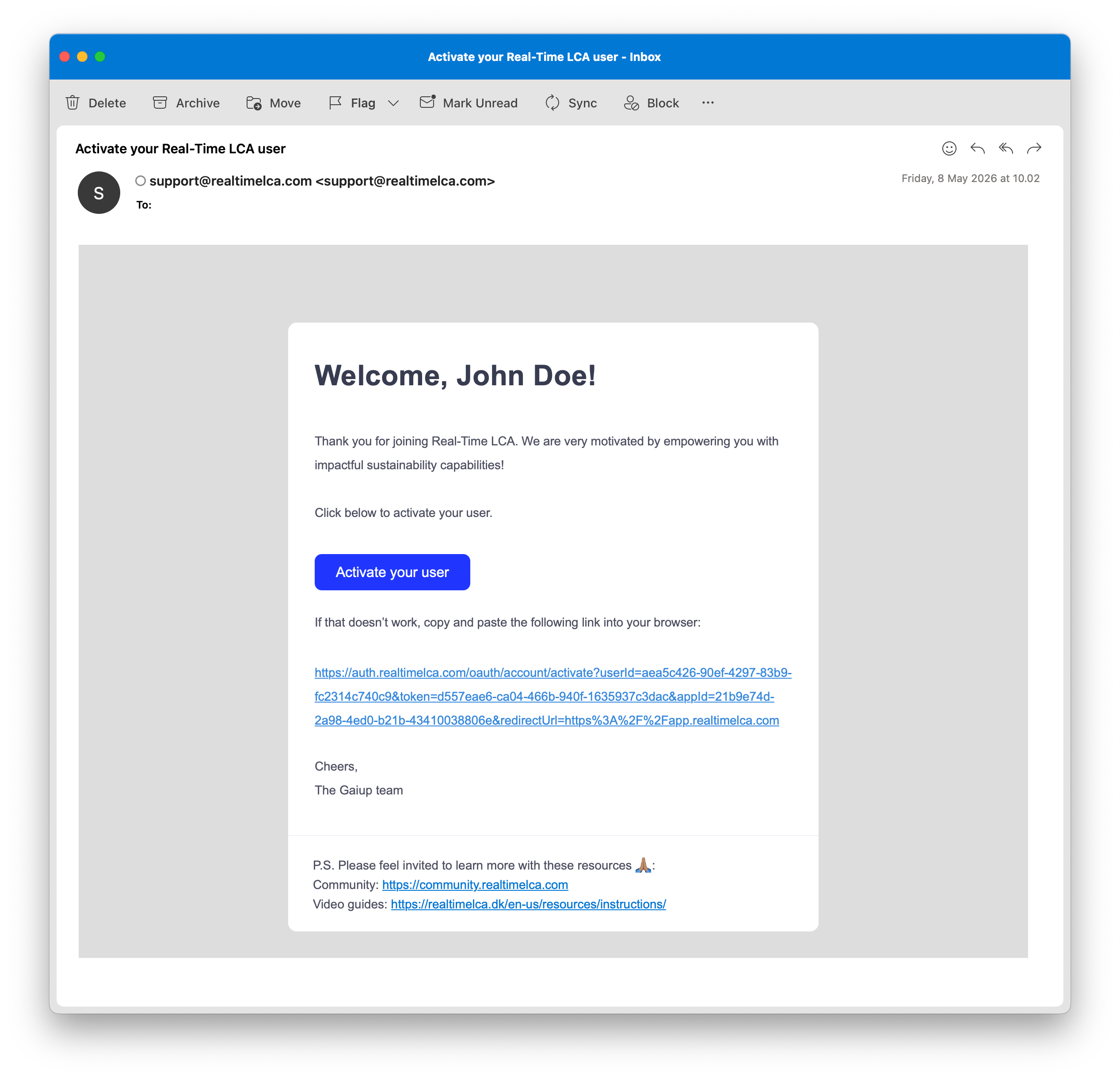
Activation email from support@realtimelca.com
Step 2: Choose how to activate
The activation link takes you to Activate your account. You can either set a Real-Time LCA password or activate with your Microsoft account.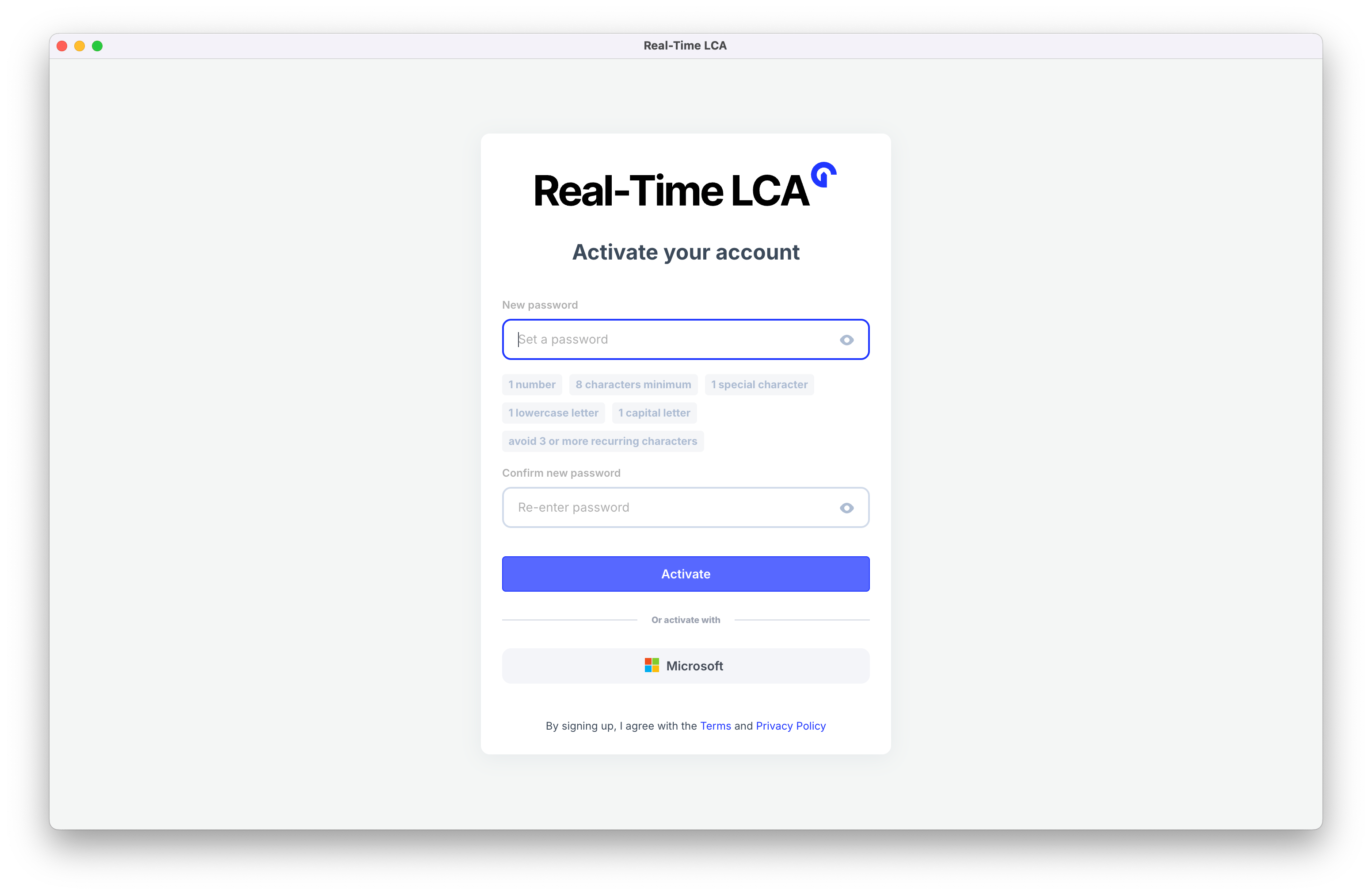
Empty activation form
- Set a password
- Use Microsoft
- Enter a password in New password.
- Re-enter the same password in Confirm new password.
- Click Activate.
Step 3: Meet the password requirements
As you type, each requirement turns green when satisfied. Your password must contain:- At least 8 characters
- At least 1 number
- At least 1 special character
- At least 1 lowercase letter
- At least 1 capital letter
- No 3 or more recurring characters
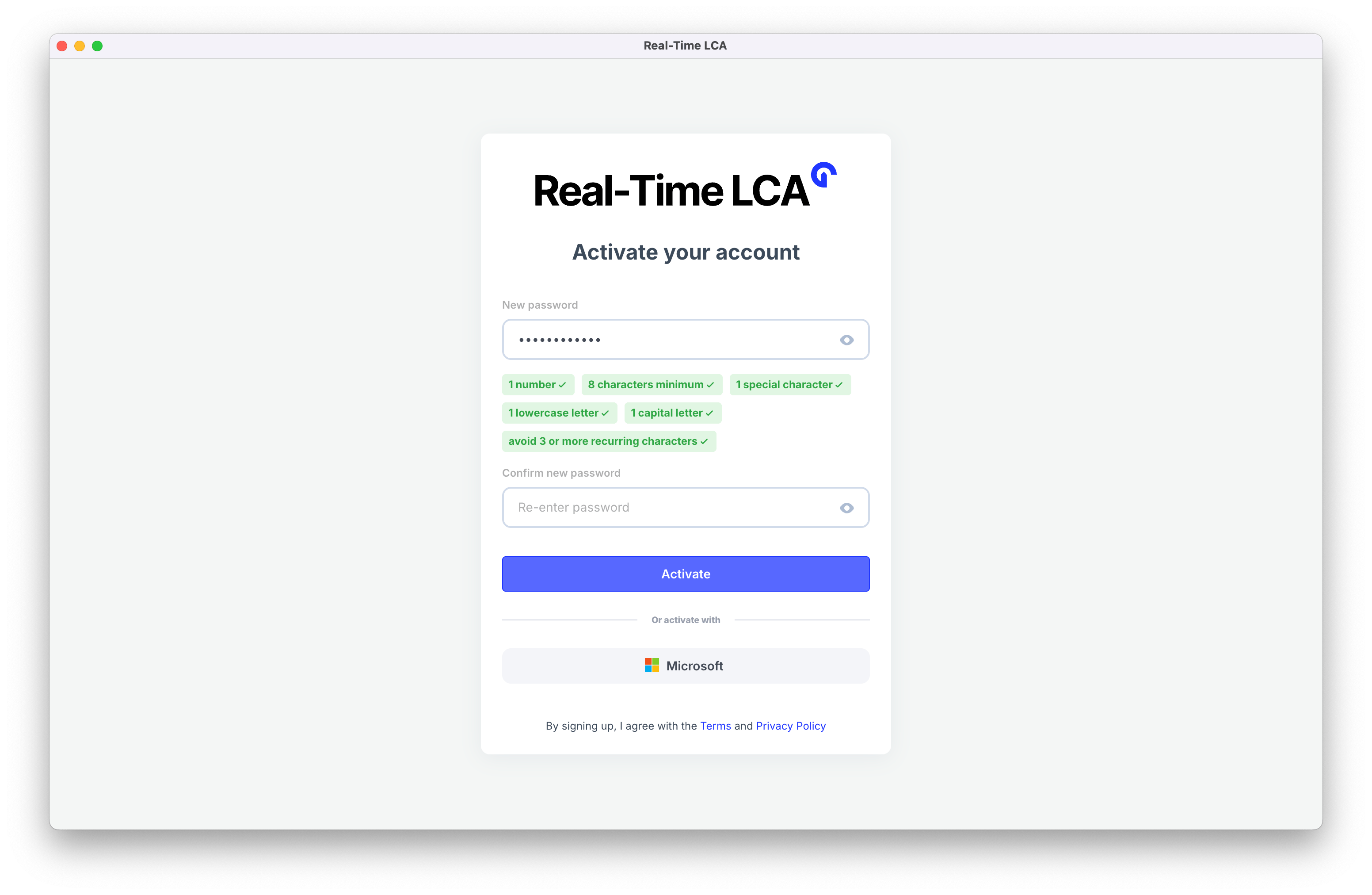
Password requirements update as you type
Step 4: Confirm activation
When activation succeeds you see a confirmation screen, and the browser redirects to the Real-Time LCA app shortly after.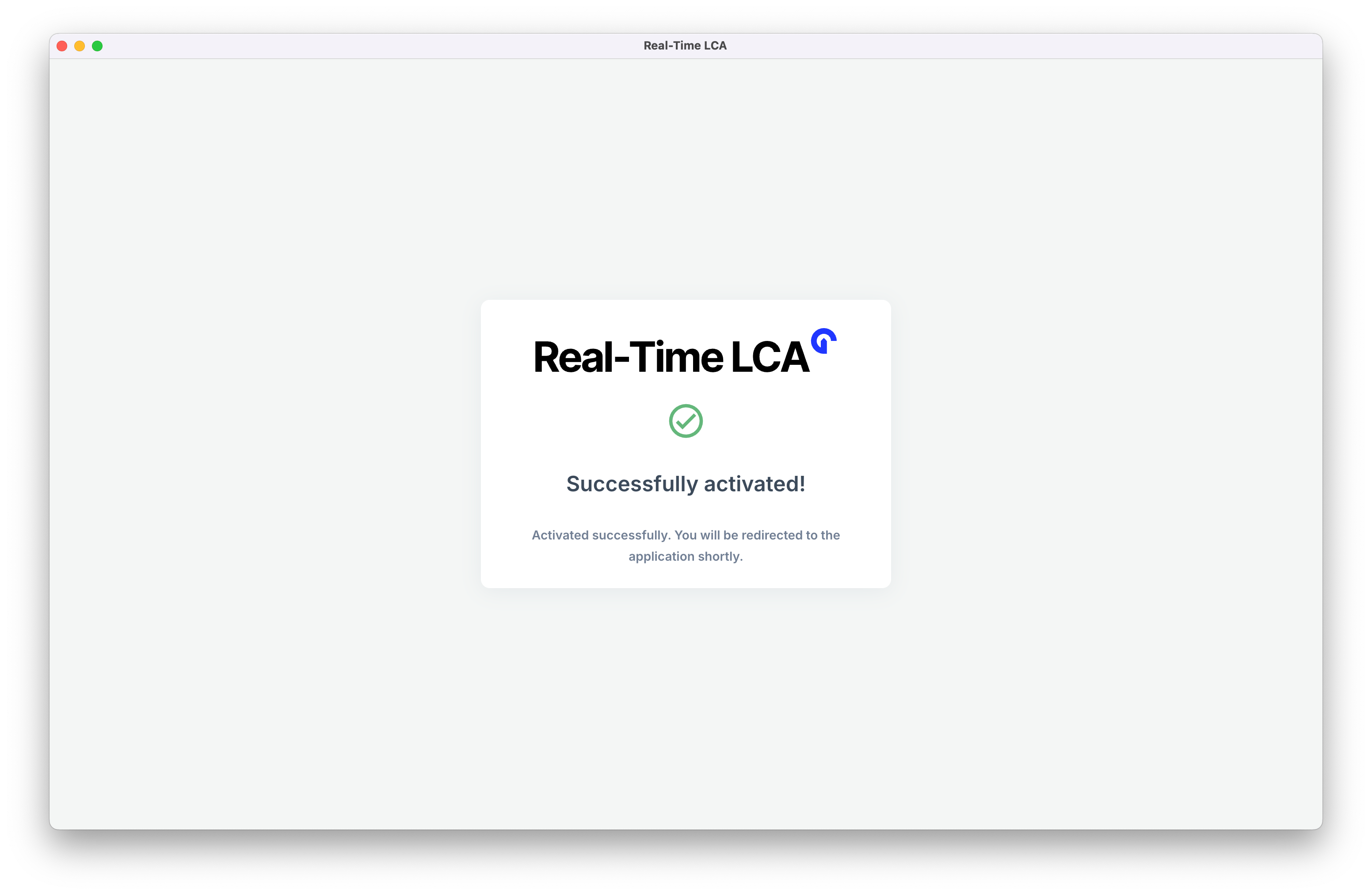
Account successfully activated
Step 5: Sign in
From then on you sign in at the Real-Time LCA sign-in page, with either your password or your Microsoft account.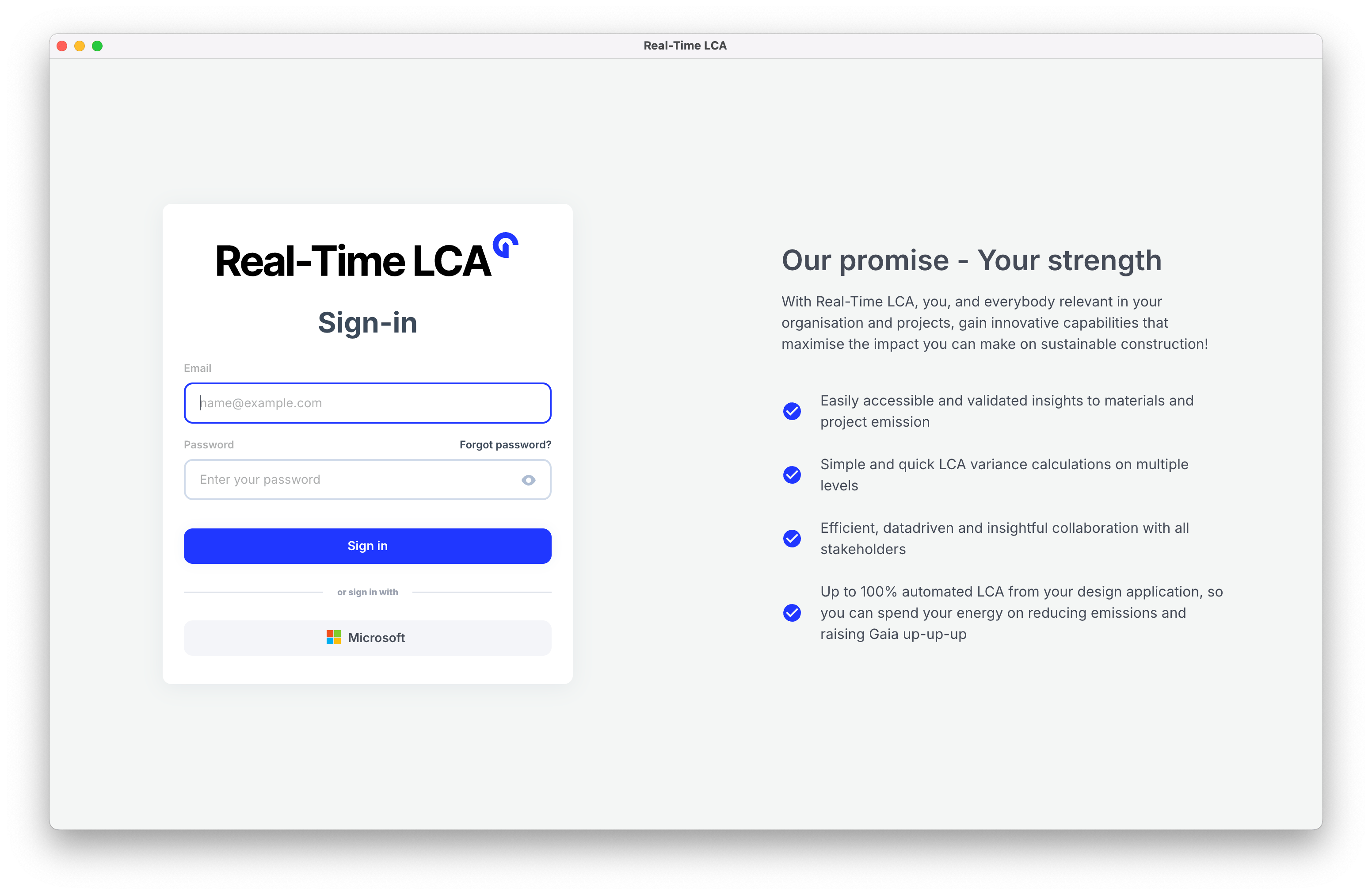
The sign-in page
Connecting a design tool later
If you plan to publish geometry from Revit, ArchiCAD, Rhino, or Grasshopper, you also need a Speckle account. It is not created for you at activation — you create it yourself from Account menu → Speckle, choosing the password you will use in the connector. See Speckle for that setup and how the pieces fit together.Next steps
Create your first project
Start the project wizard and run your first calculation.
Connect a design tool via Speckle
Create your Speckle account, then install the connector and publish a model.