
Page layout
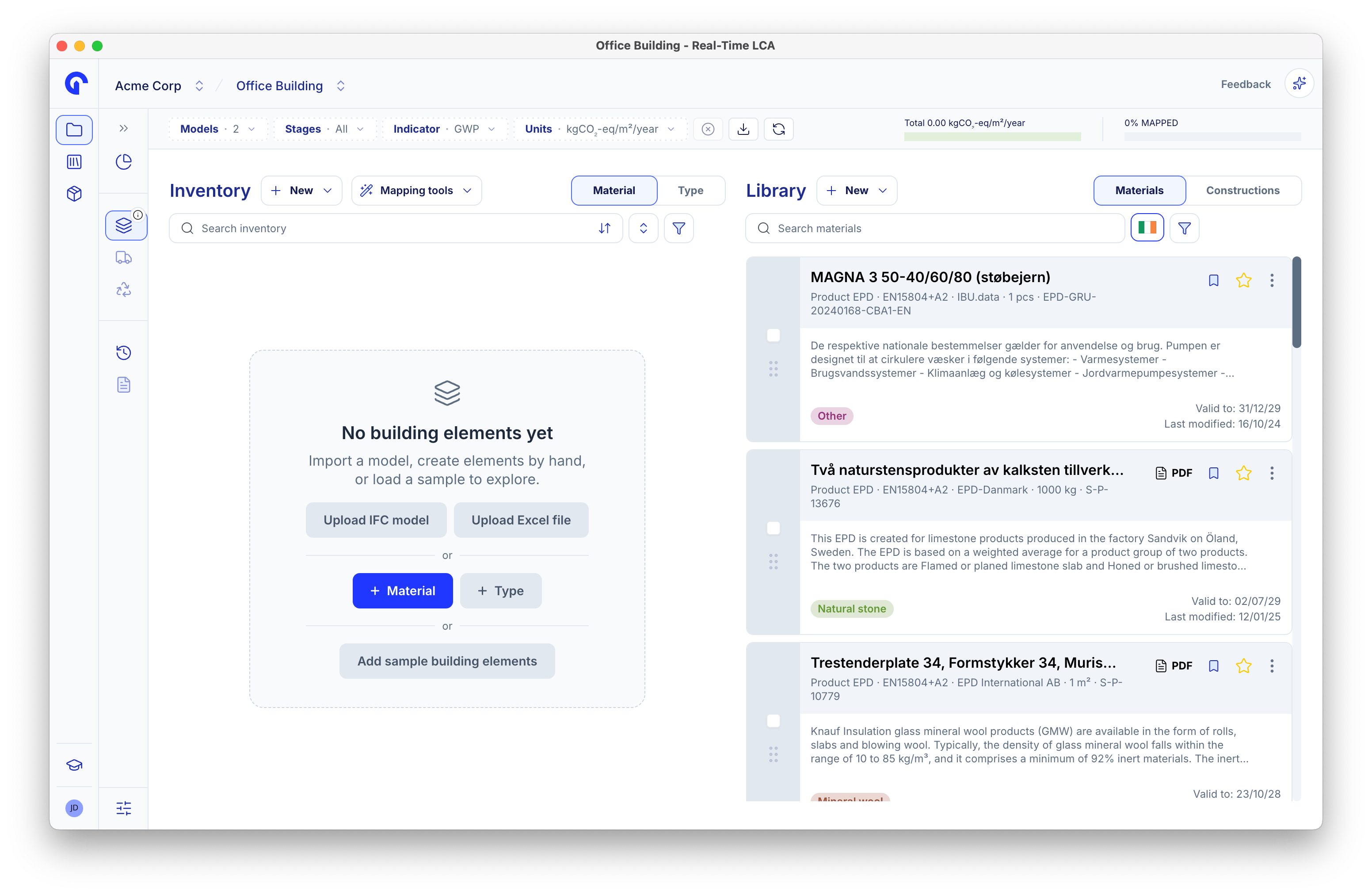
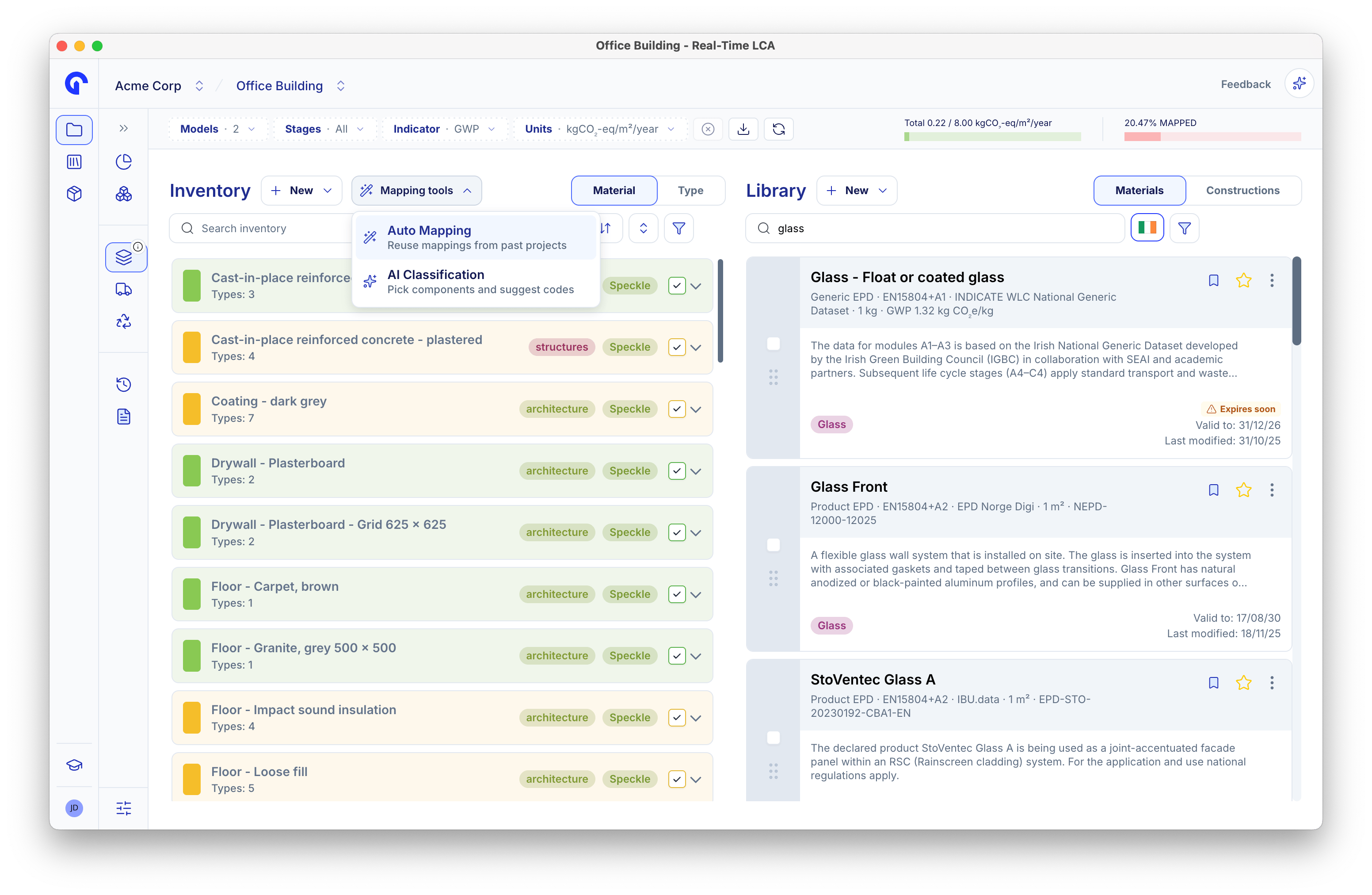
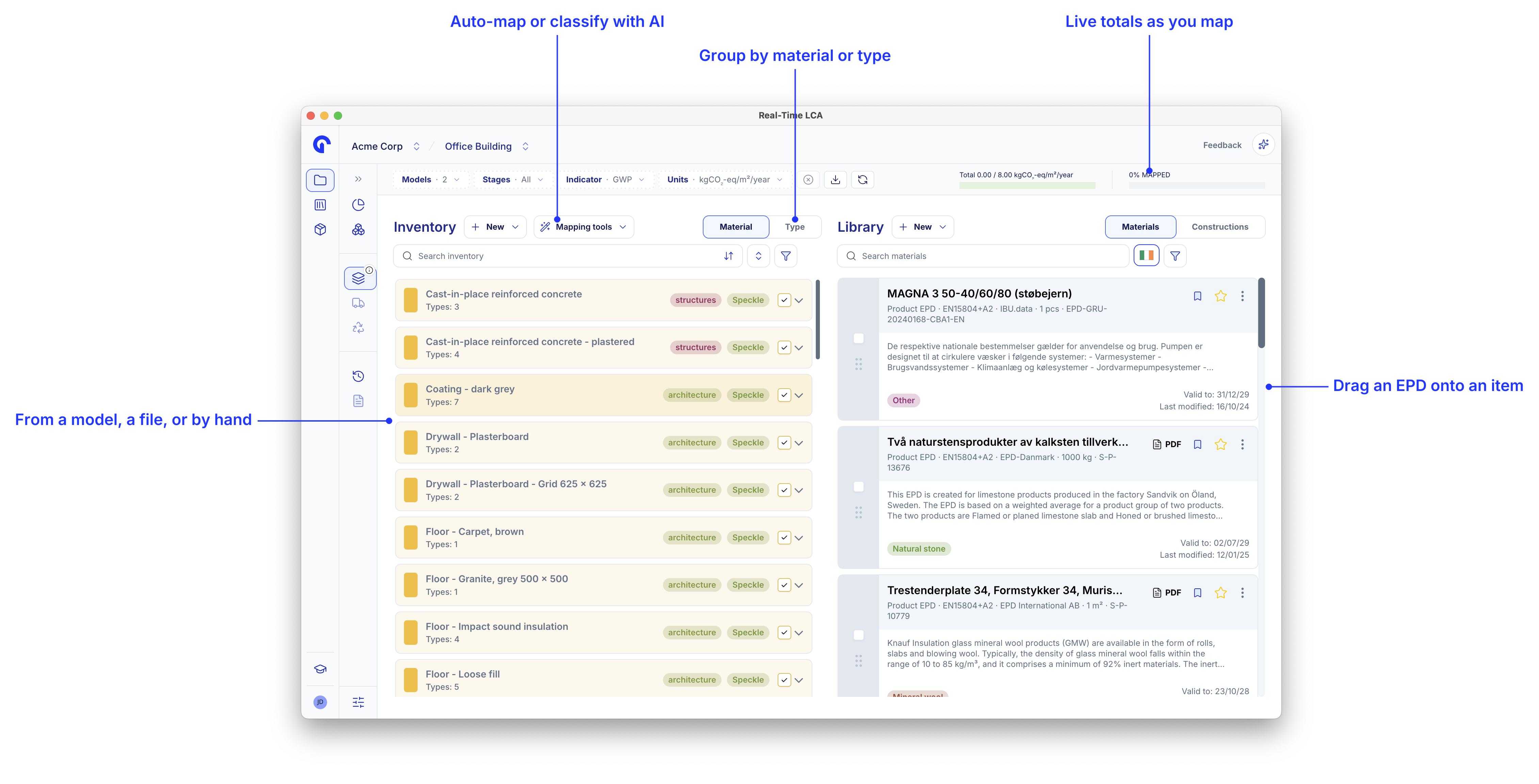
The page is split into two panels that work together:| Panel | Purpose |
|---|---|
| Building Component Inventory (left) | The items and groupings that came from your model or upload. This is what you need to map. |
| Library (right) | Materials and constructions you can drag onto inventory items. Switch between the Materials and Constructions tabs as needed. |
- % MAPPED β share of inventory items currently linked to a material.
- kgCOβ/mΒ²/year β current intensity based on what is already mapped.
The intensity unit (and the reference area it is divided by) is calculation-specific β it follows the framework selected for the project. See National compliance for the rules per country.
Building Component Inventory
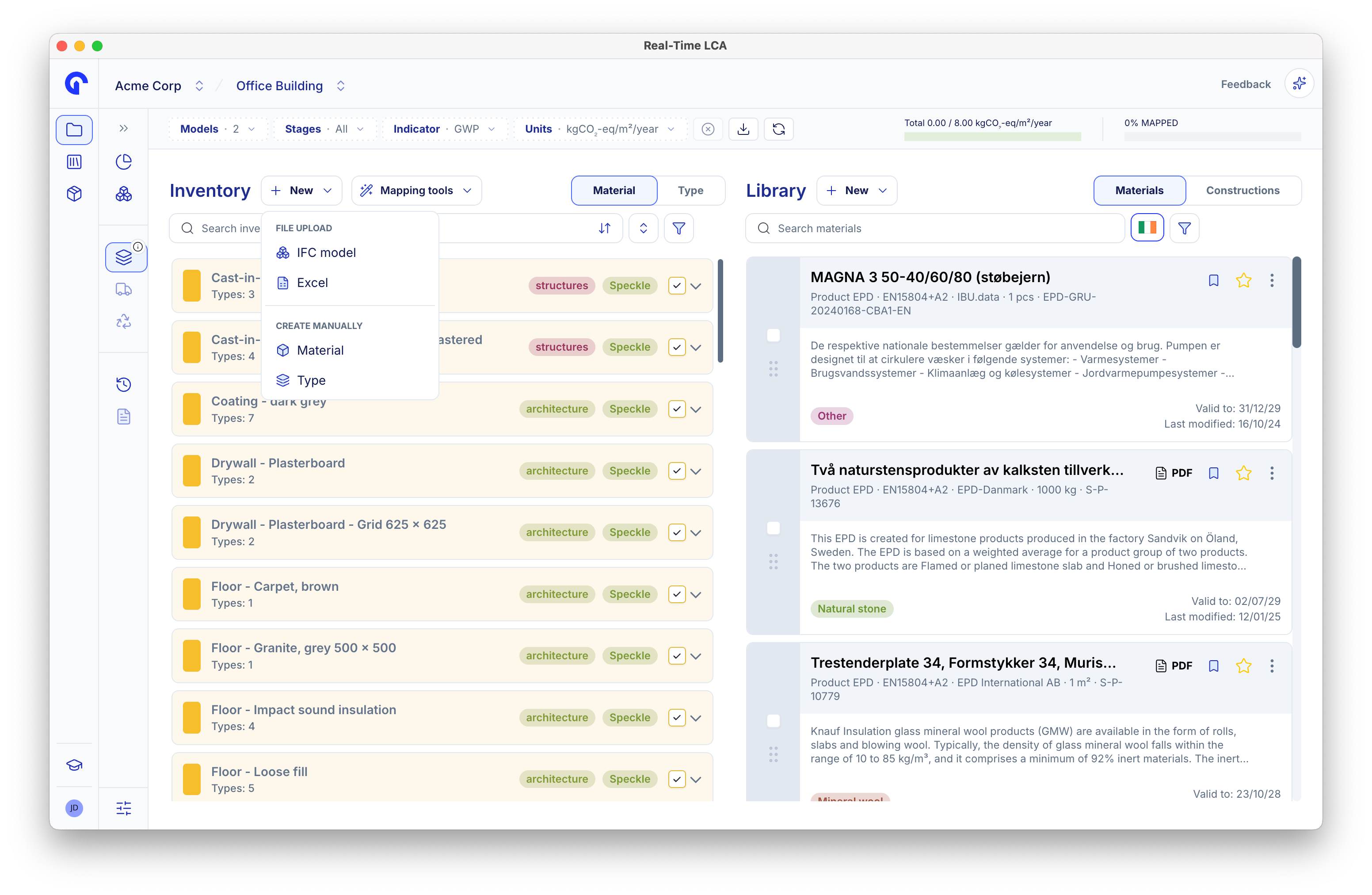
Group by material or by type
Use the Material / Type toggle at the top of the inventory to change how items are grouped.- Material β types are bundled by the material they share (for example, all Cast-in-place reinforced concrete types in one group). Map once at the group level and every type inside inherits the mapping.
- Type β every type is listed individually. Useful when you want to map types one by one or inspect a specific typeβs properties.

Inventory card information
Each inventory row carries one or more badges and chips that tell you something at a glance:| Label | Meaning |
|---|---|
| Model (e.g. Modelname) | The source model the item came from. When several models are linked to the project, this is how you can tell them apart on the row. |
| Data source β Speckle, Excel, or Custom | Where the item entered Real-Time LCA. Speckle comes from a connected Speckle model, Excel from an uploaded spreadsheet, and Custom from items added through the frontend or the REST API. |
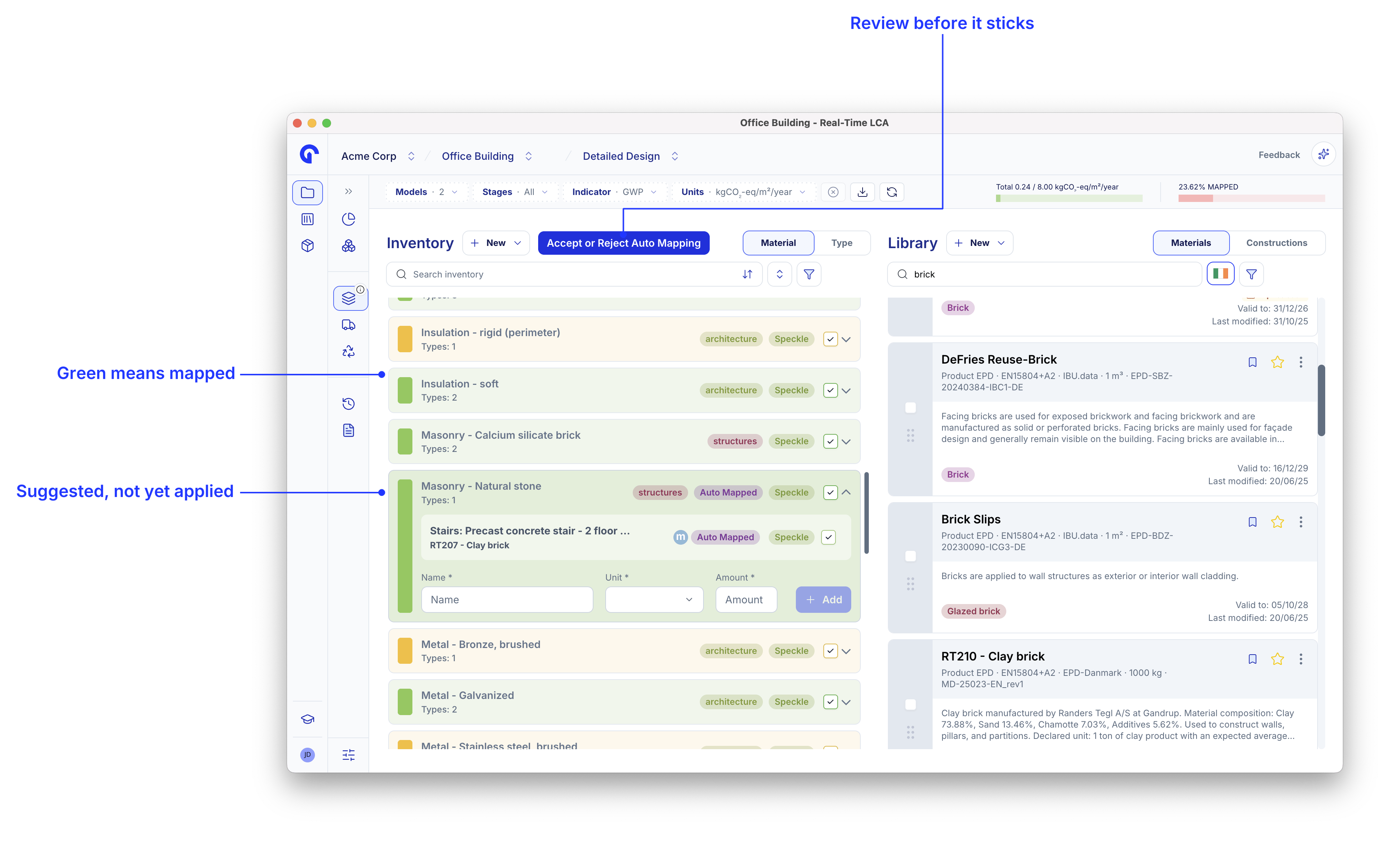
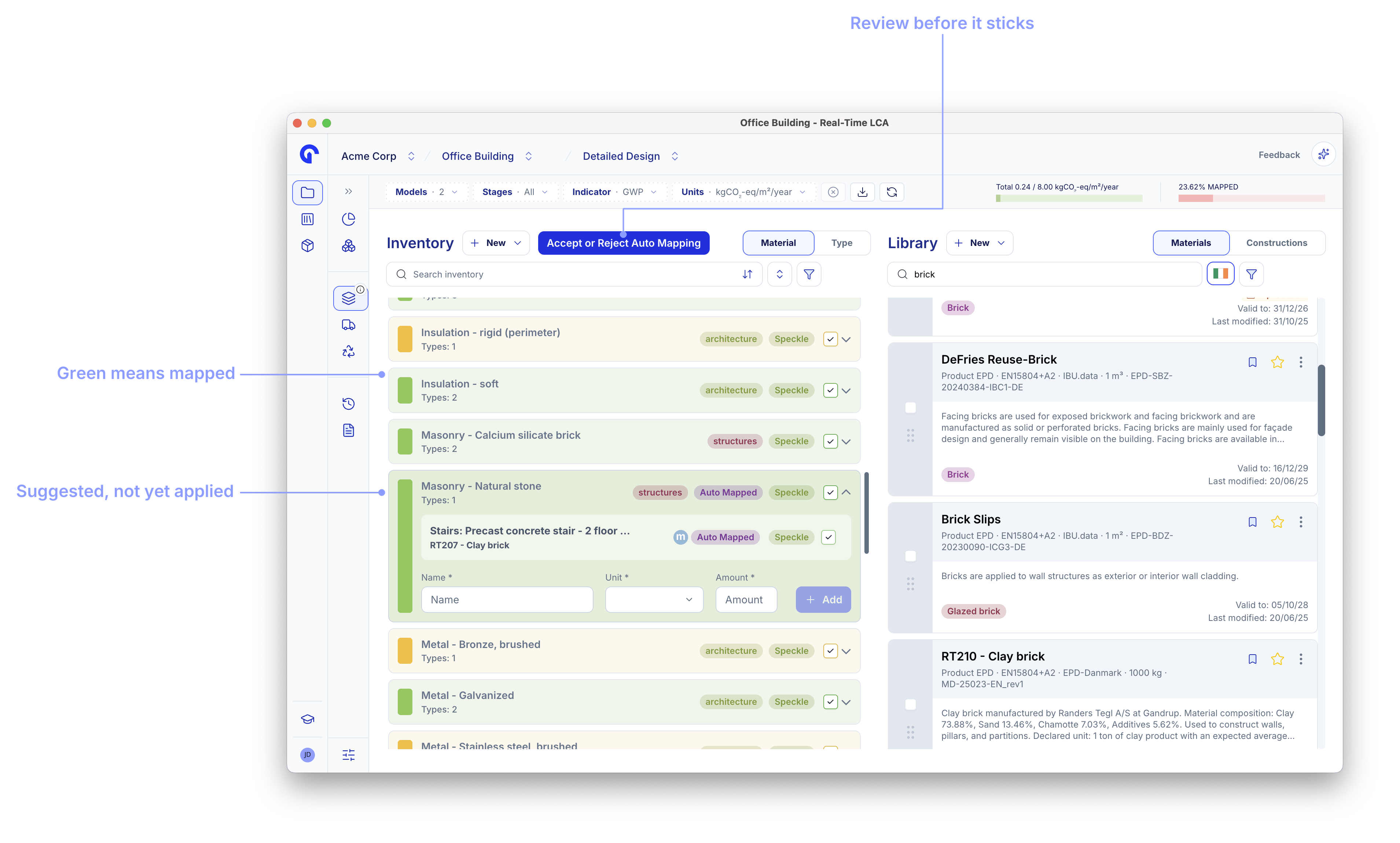
| Auto Mapped | The item was mapped by the auto-mapping flow and has not yet been accepted. |
| Unknown | The item came in from an authoring tool (Revit, Archicad, β¦) with geometry but no material assigned β there is nothing to identify it by, which is why we label it Unknown. Set a material and classification before mapping. |
| Material: N | Number of children inside the group, mapped or not. Lets you see the size of a group without expanding it. |

Search, sort, and filter
The toolbar above the inventory has four ways to narrow the list:- Search inventory β free-text search across item names.
- Sort β order the list by Name or Amount.
- Filter β combine filters across Models, Mappings, States, DataSources, and ClassificationCodes.
- Select β enter selection mode to act on multiple rows at once.


Item properties
Click an itemβs name (or its expand caret) to open the Item properties modal. This is where you set the data the calculation needs β lifetime, classification, and the unit that the mapped material is measured in.
| Field | What it does |
|---|---|
| Reuse | Mark the item as a reused element. Reused materials are accounted for differently in the calculation. |
| Lifetime (years) | Service lifetime used in the B4 replacement calculation. Leave at 0 to use the default from the Lifetime table. |
| Lifetime offset | Shift the start of the itemβs lifetime relative to the projectβs reference study period. |
| Classification | The classification code (for example, the BR18 Bygningsdelstabel code) used to look up defaults and group results in reports. |
| Type name / Material name | Display name shown in the inventory. The field label depends on the active grouping β it reads Type name when the inventory is grouped by Type, and Material name when grouped by Material. |
| Description | Free text β visible only inside this modal. |
| Preferred unit | The unit the mapped materialβs impact is multiplied by. Pick the row that matches how the item was quantified. |
Mark an item as reused
Flip the Reuse toggle on for components that are being kept from an existing building or reused from elsewhere. The itemβs color in the inventory changes so reused items are easy to spot.
Lifetime table
Click Lifetime table next to the lifetime field to open the default service lifetime reference for the active classification system. Pick a Structure group and a Material to read the default lifetime for that combination, then close the table to apply it.
Mapping a material
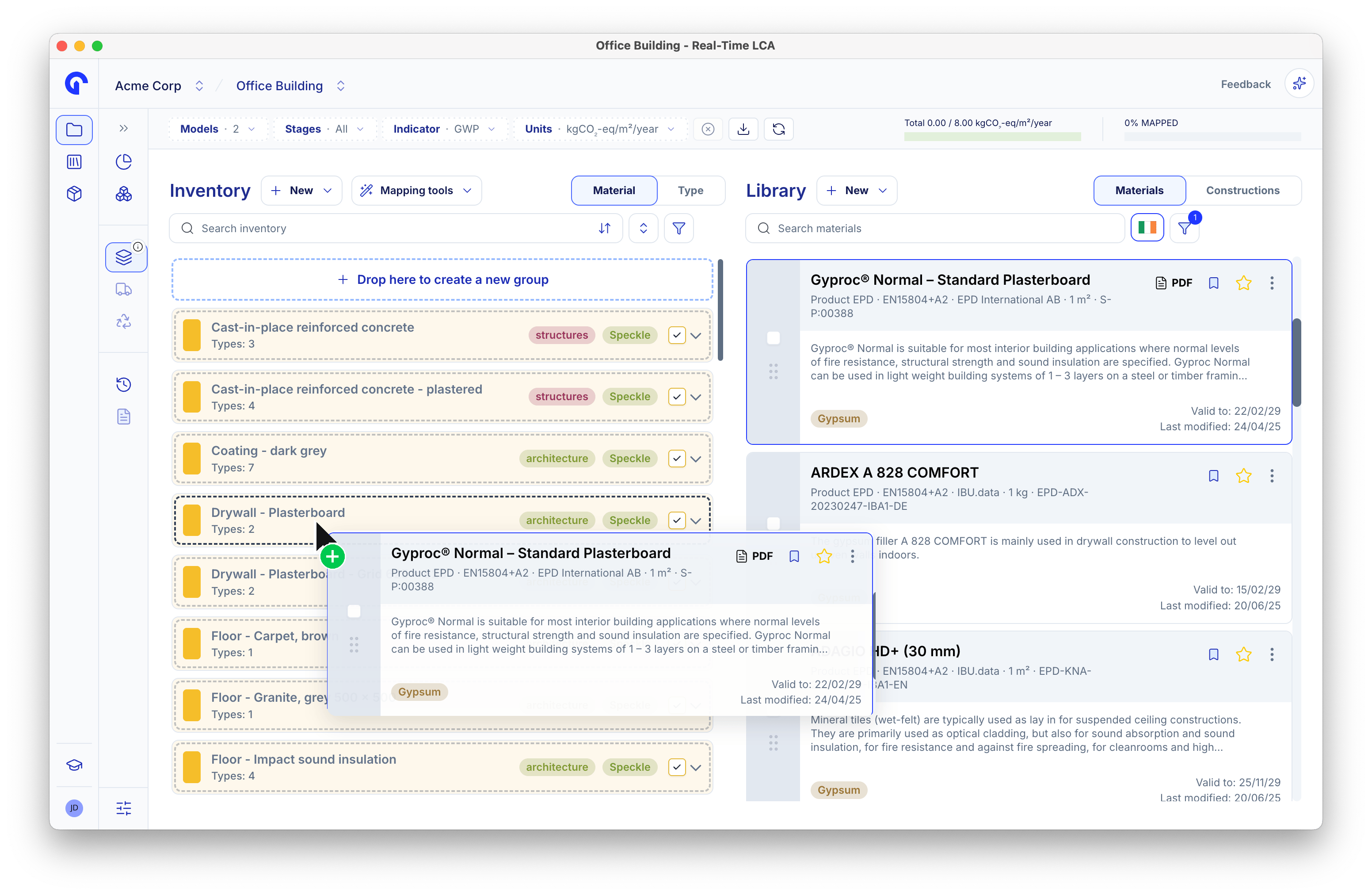
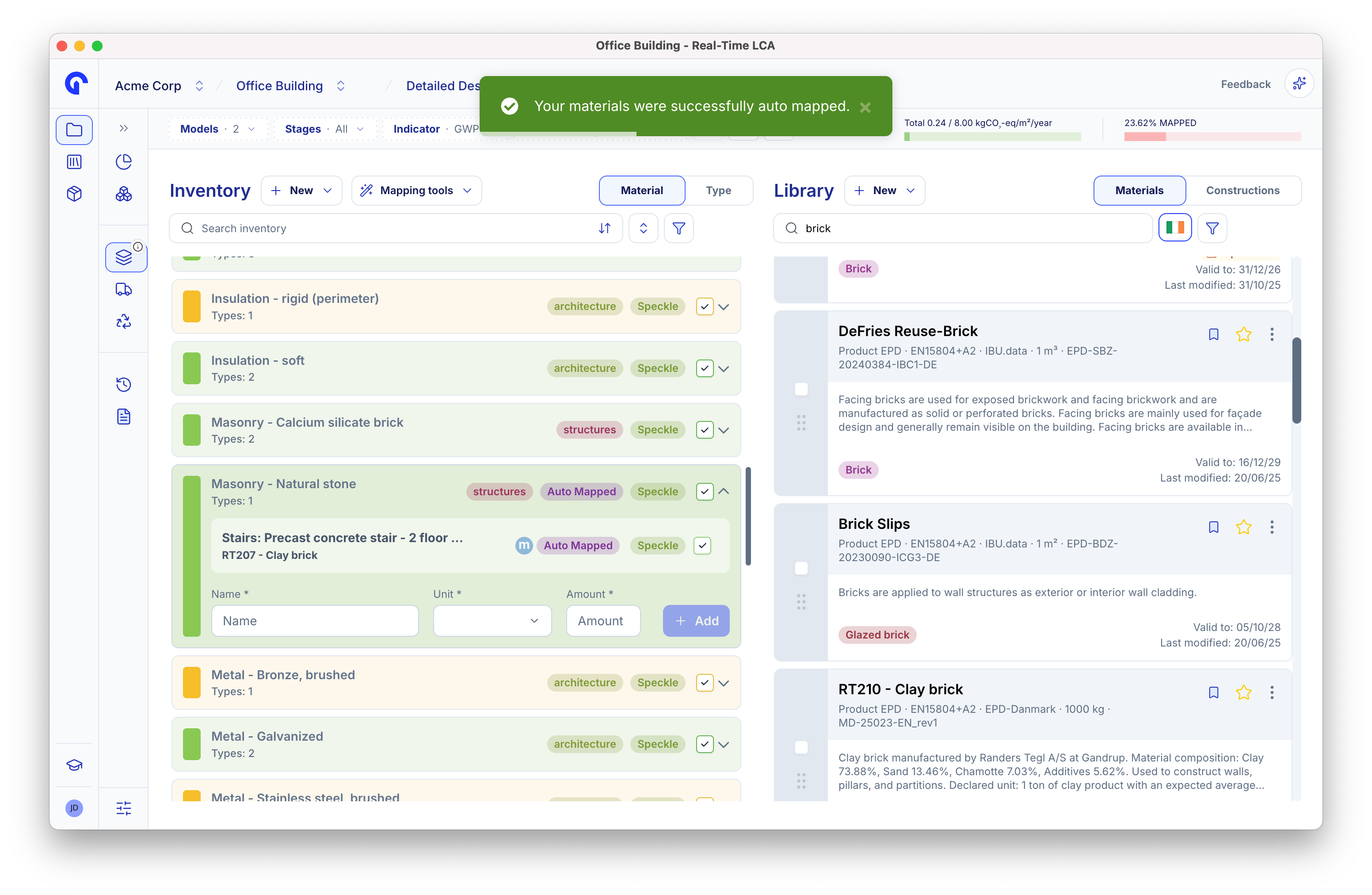
To map an item, drag a card from the Library panel onto the inventory. You can drop either onto a single type or onto a parent group β the target highlights green while you hover.Map a single type
Drop the library card directly on the type row to map only that one.
Map all types in a group
Drop the card on the parent row to apply the same material to every type inside the group at once. This is the fastest way to map repetitive items like all cast-in-place concrete floors.
Fill in any missing properties
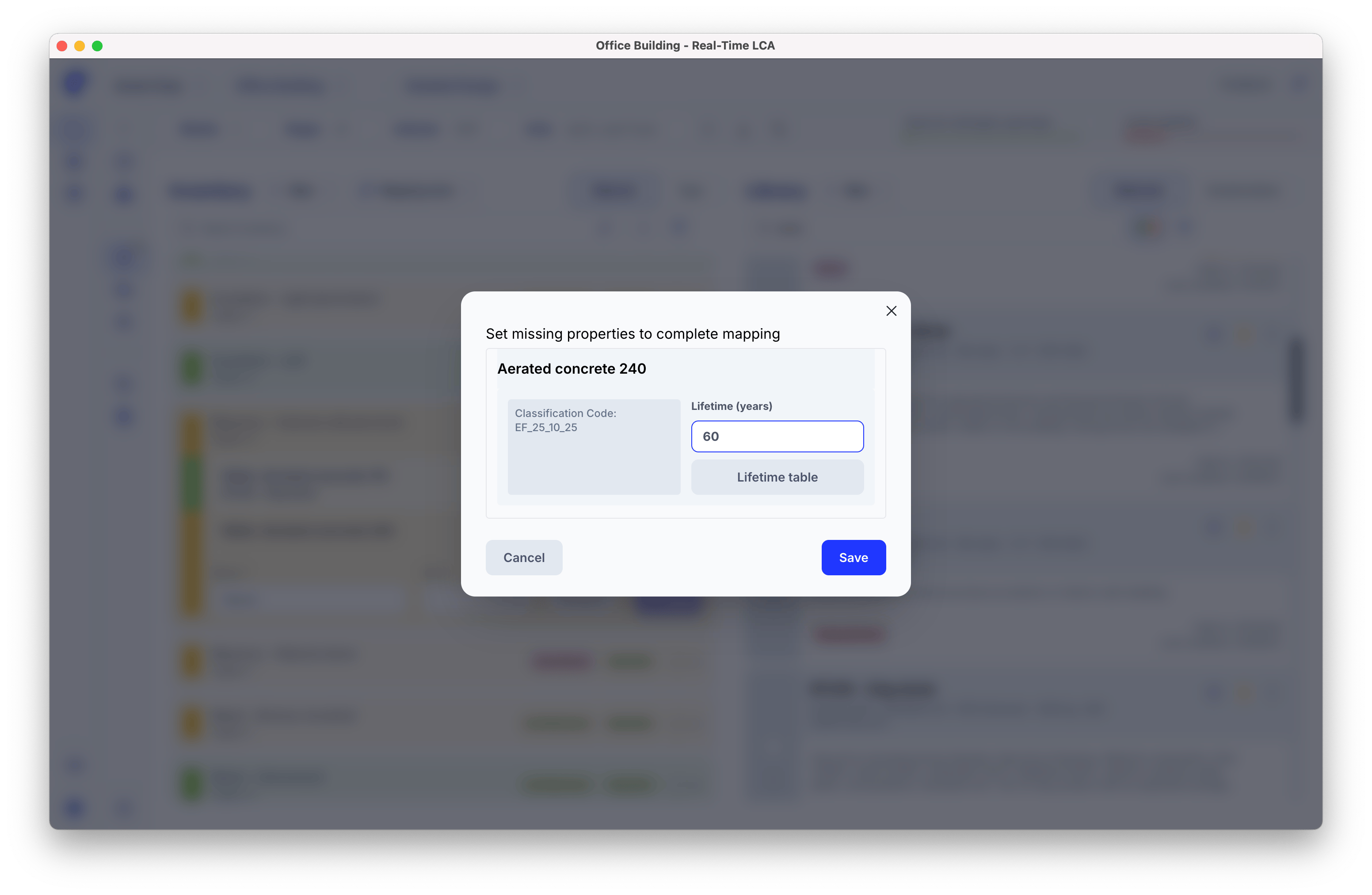
If the item is still missing required properties when you drop a material on it β most commonly the Lifetime β Real-Time LCA blocks the mapping and opens a Set missing properties to complete mapping modal that lists exactly what is missing.
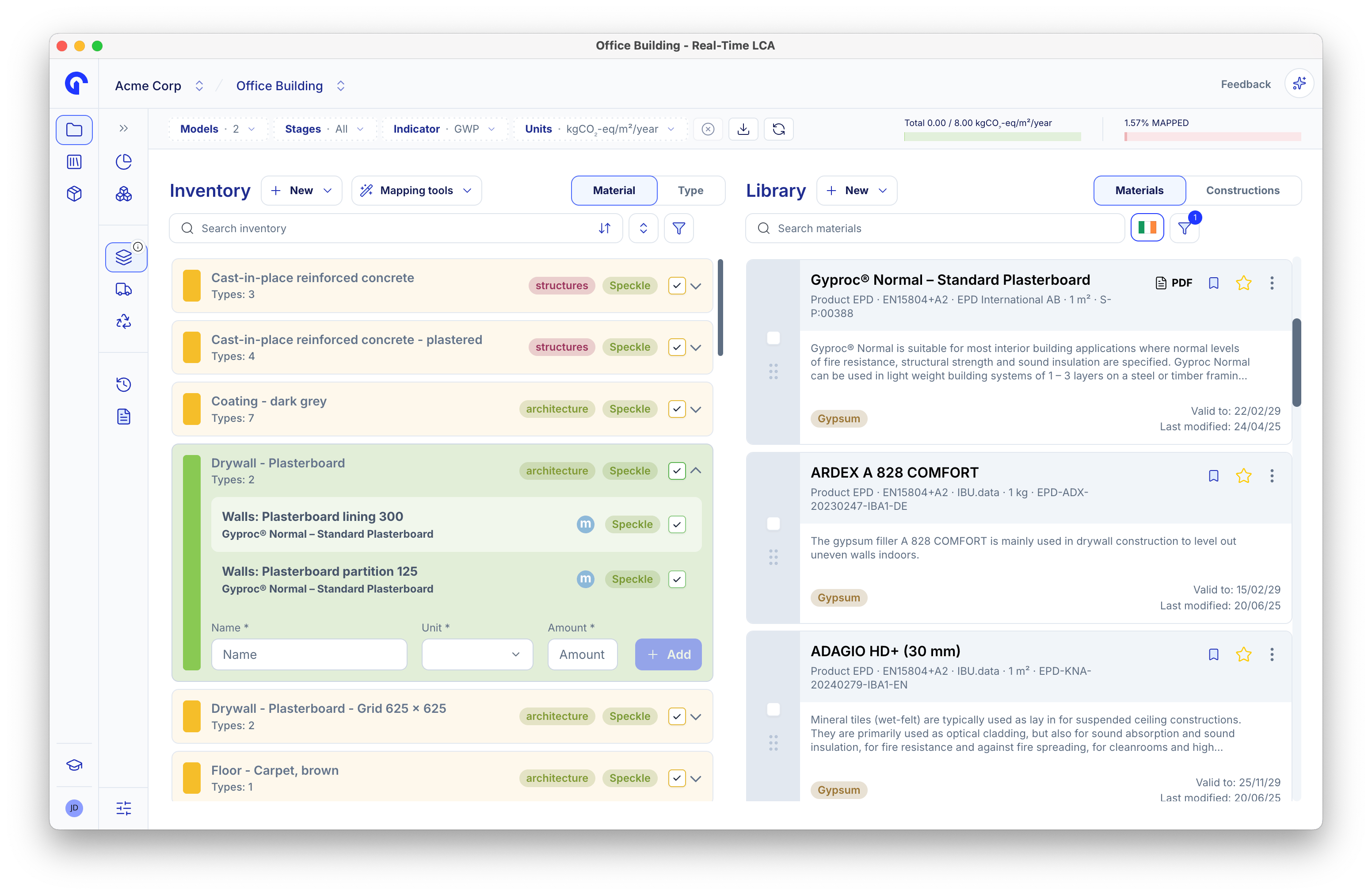
Linked state
Once mapped, the EPD name appears underneath the item and the row turns green. The unmapped chip on the parent group drops accordingly.

Inspect an EPD
Click an EPD card in the Library (or the linked EPD name on a mapped item) to open the full EPD details modal β declaration data, validity, indicator values, and the per-stage GWP chart.
Hotspot chart on mapped items
Open the Item properties for a mapped item and the modal expands to show a GWP Hotspot chart on the right β the life-cycle stages where this specific itemβs emissions concentrate. Use it to spot whether A1βA3 (production), B4 (replacement), or C/D dominates, and to compare alternatives before committing.
Include or exclude an item from the calculation
The checkmark control on the right of each inventory row toggles whether the item counts in the running total. A green check means included; clearing it excludes the item without removing its mapping. Handy for what-if comparisons or for setting aside elements that are out of scope.
Auto mapping
When a project has many similar elements β or when you already have a comparable project mapped β Auto Mapping can do most of the work for you. It scans the inventory and proposes mappings based on prior data, which you then review and accept or reject as a whole. Click Auto Mapping in the top-left of the page to open the dialog.Choose a method
Auto mapping offers three methods. Pick the one that fits your data.


| Method | Use it when |
|---|---|
| Most frequent | You want the safest pick across your workspace β the EPD that has been chosen most often for each type-material pair. |
| Most recent | Your teamβs defaults change over time and you want to follow the newest decisions. |
| By project | You already have a similar project mapped and want this one to mirror it (variant comparisons, phased buildings, building twins). |
Select a reference project
When By project is selected, choose the source in Select building project reference. Only projects you have access to appear in the dropdown.
Overwrite existing mappings
By default auto mapping only fills in unmapped items so your existing work is safe. Flip Overwrite currently mapped materials if you want the reference project to replace what is already there.
Review the preview
After clicking Start auto map the dialog closes and you return to the mapping page in a preview state β auto-mapped rows are marked with an Auto Mapped badge and a banner at the top reminds you that nothing has been committed yet.
Accept or reject
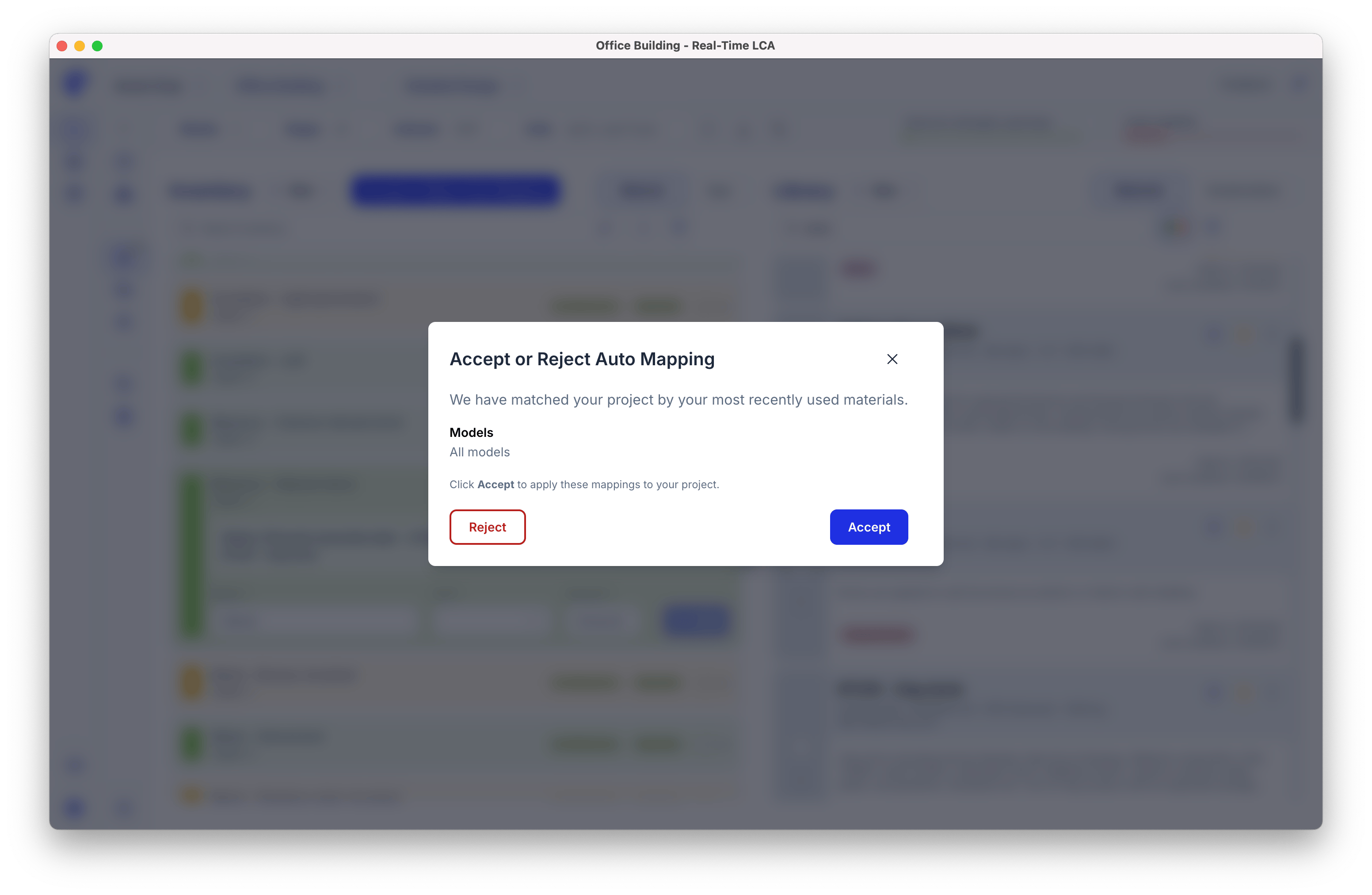
When you are happy, click Accept or Reject Auto Mapping in the top-left to open the decision modal.
- Accept β commit every proposed mapping in one go.
- Reject β discard the entire preview and return to where you started.

AI Classification
AI Classification suggests the right building-element classification codes for inventory items whose BIM source code is missing or incorrect. It runs on a selection you choose β not the whole inventory β so you stay in control of where AI is applied.Select materials to classify
The AI Classification button in the top-left stays gray until you pick items. Use the Select bar above the inventory to enter selection mode and tick the rows you want to classify, then click AI Classification to run on that selection.Review and apply results
Classification takes a moment. When it finishes, the suggested codes appear in a review table β accept the suggestions as-is or overwrite any code you disagree with before applying.AI Classification uses third-party AI models from Anthropic, OpenAI, or Mistral. AI-generated codes are labelled and should be reviewed before they are applied.
Not all classification systems are currently supported.
Request access to AI Classification
AI Classification is an open beta β enabled per organisation on request.