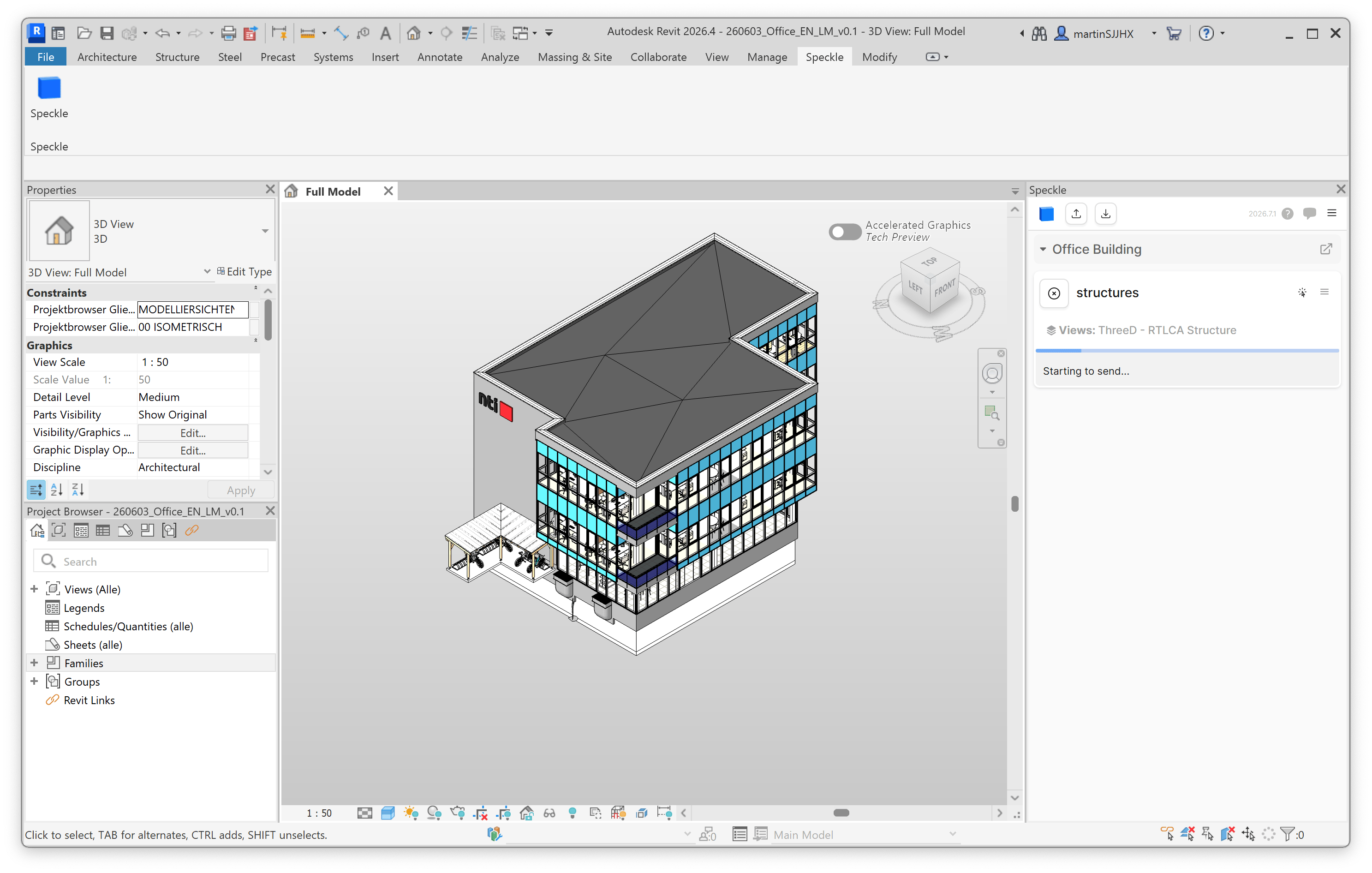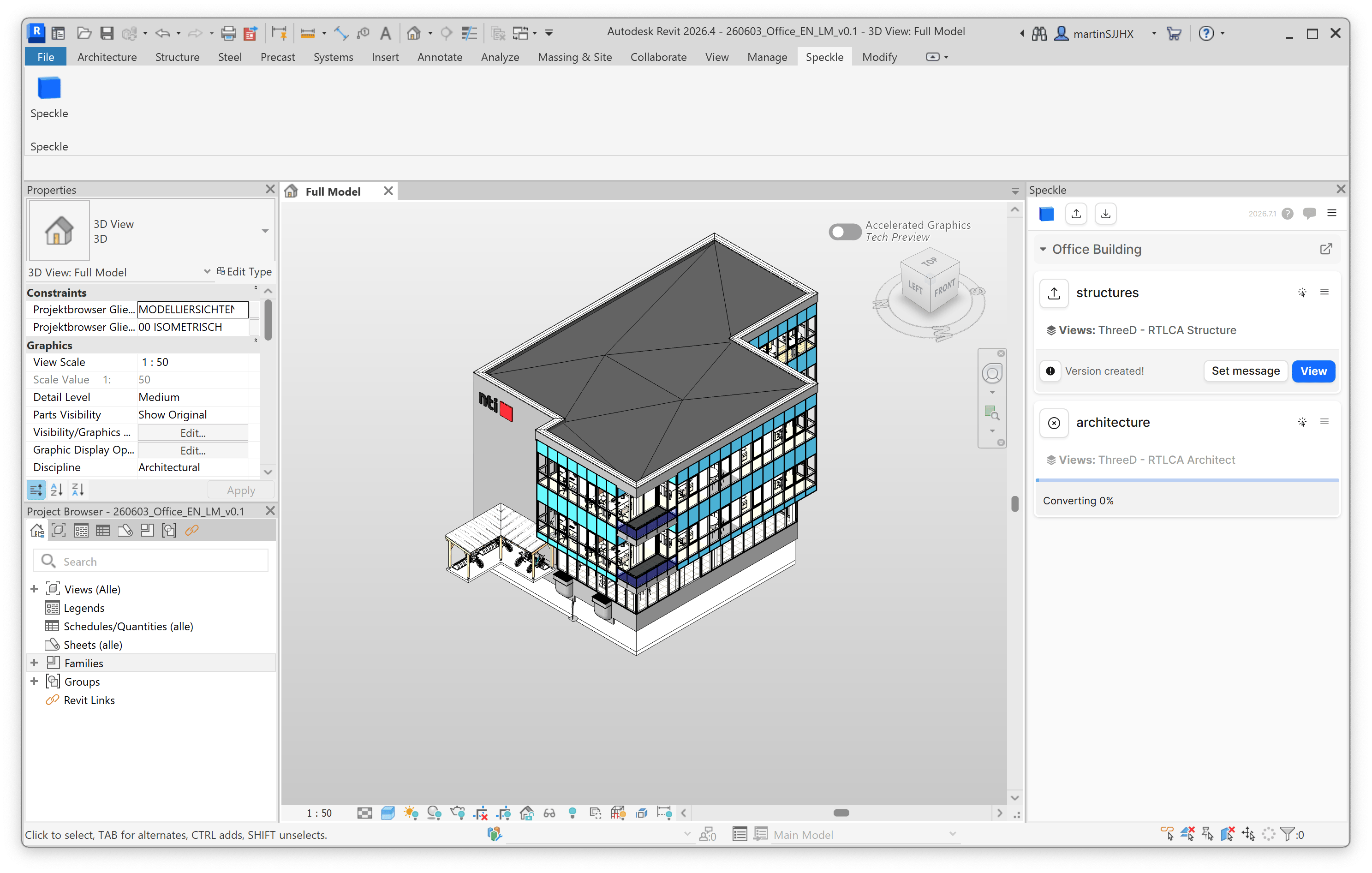

Use the Speckle Connector for Revit to publish your model to a Speckle project that a Real-Time LCA project listens to. After publishing, Real-Time LCA picks up the new version automatically and refreshes the BIM types and quantities.

Prerequisites

  • A Revit installation supported by the Speckle Connector — Revit 2023, 2024, 2025, 2026, or 2027 New.
  • Your Real-Time LCA Speckle credentials for https://api.realtimelca.com (sent by email when you activated your account — see Introduction to Speckle).
  • A Real-Time LCA project configured with a Speckle Connection (see Create a new project).

Install the connector

Install the Speckle Connector for Revit from releases.speckle.systems. Restart Revit after installation — the connector appears as a Speckle tab in the ribbon.

Sign in to the Real-Time LCA Speckle server

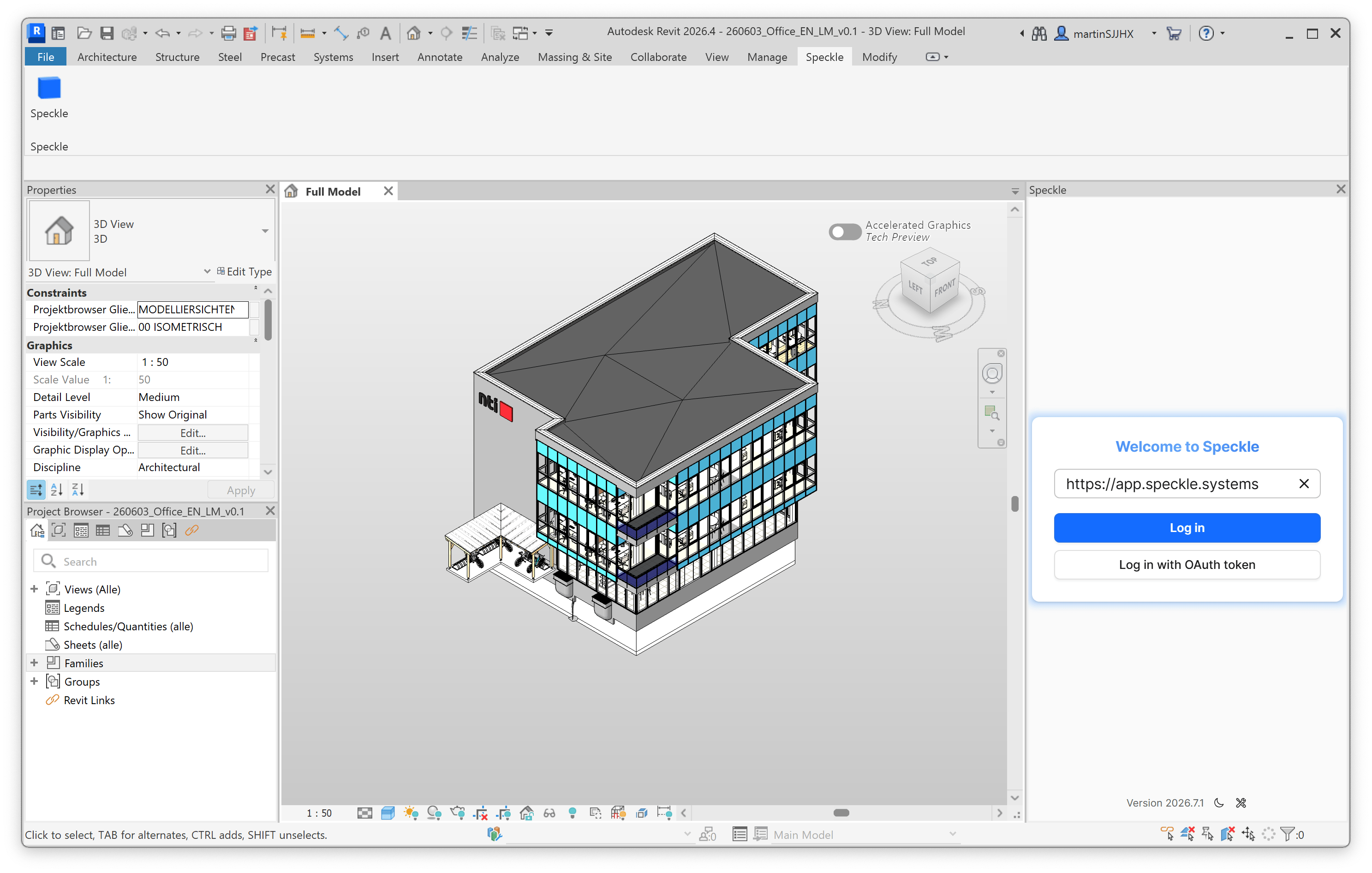
The first time you launch the connector, the Welcome to Speckle dialog opens with the public Speckle server (https://app.speckle.systems) pre-filled.
Speckle for Revit welcome dialog with https://app.speckle.systems in the server URL field.
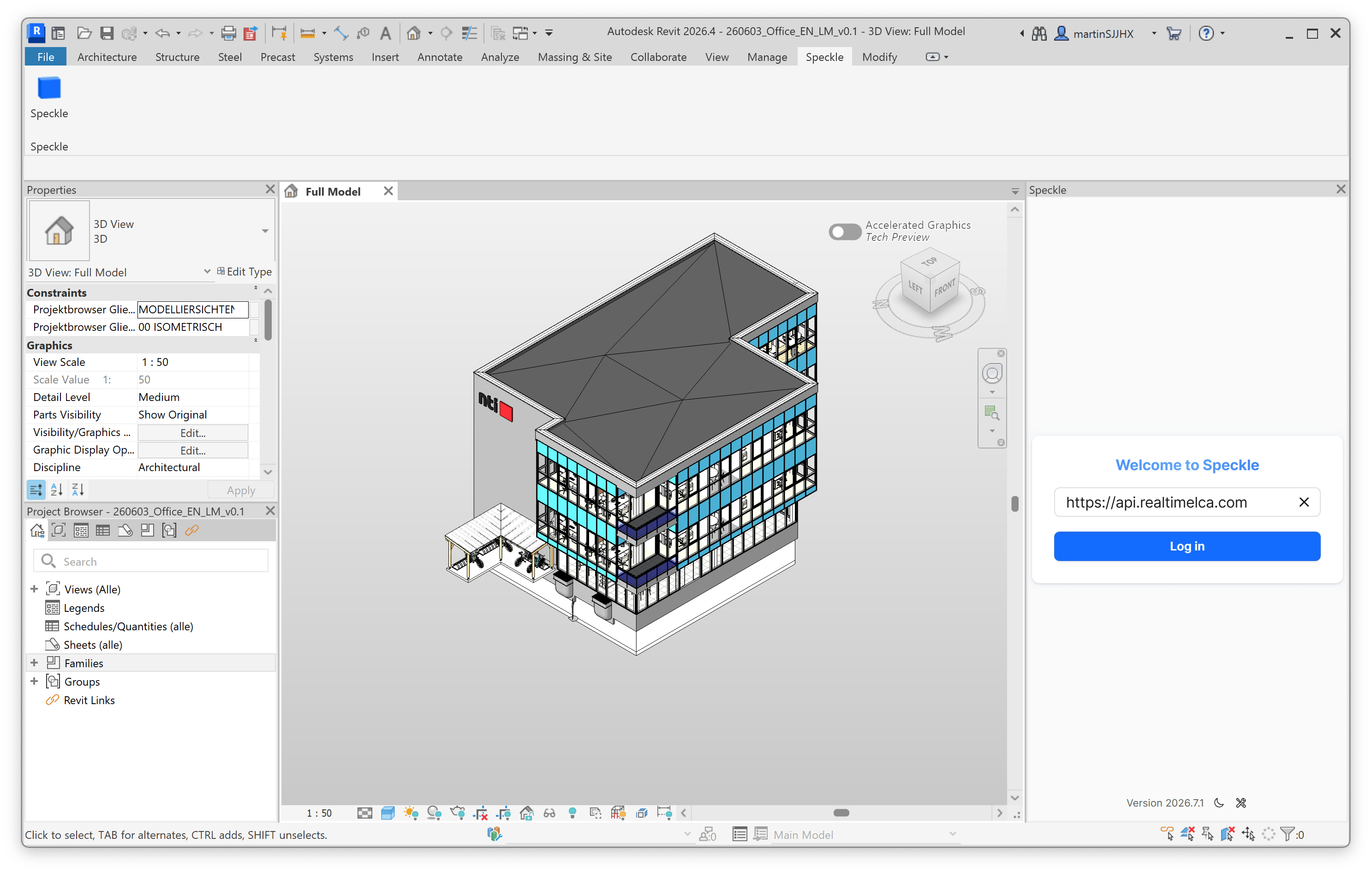
Replace it with the Real-Time LCA Speckle server URL:
https://api.realtimelca.com
Welcome dialog with https://api.realtimelca.com entered in the server URL field.
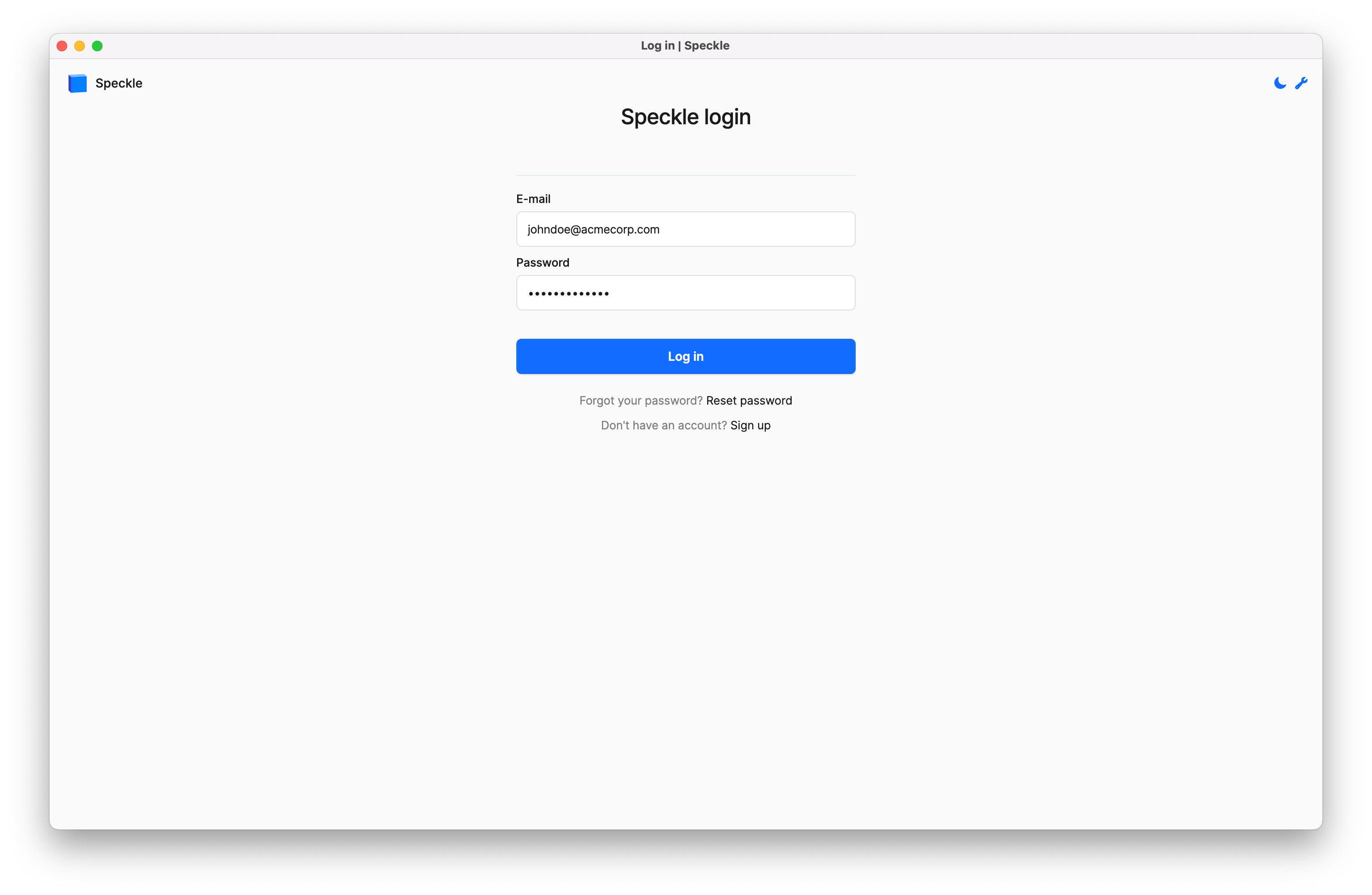
Click Log in. The connector opens your browser on the Speckle login page hosted at api.realtimelca.com/authn/login.
Speckle login page at api.realtimelca.com asking for E-mail and Password.
Enter the email and temporary password from your Speckle credentials email and click Log in.
Lost the email? Use Reset password at the bottom of the login form, or contact support@realtimelca.com.

Authorize the connector

After logging in, Speckle asks you to authorize Desktop Connectors to access your account.
Authorize application screen showing John Doe and a request from Desktop Connectors with Deny and Authorize buttons.
Click Authorize. Speckle confirms the connection and instructs you to return to Revit.
Authorize application success screen confirming Desktop Connectors is connected to your Speckle account.
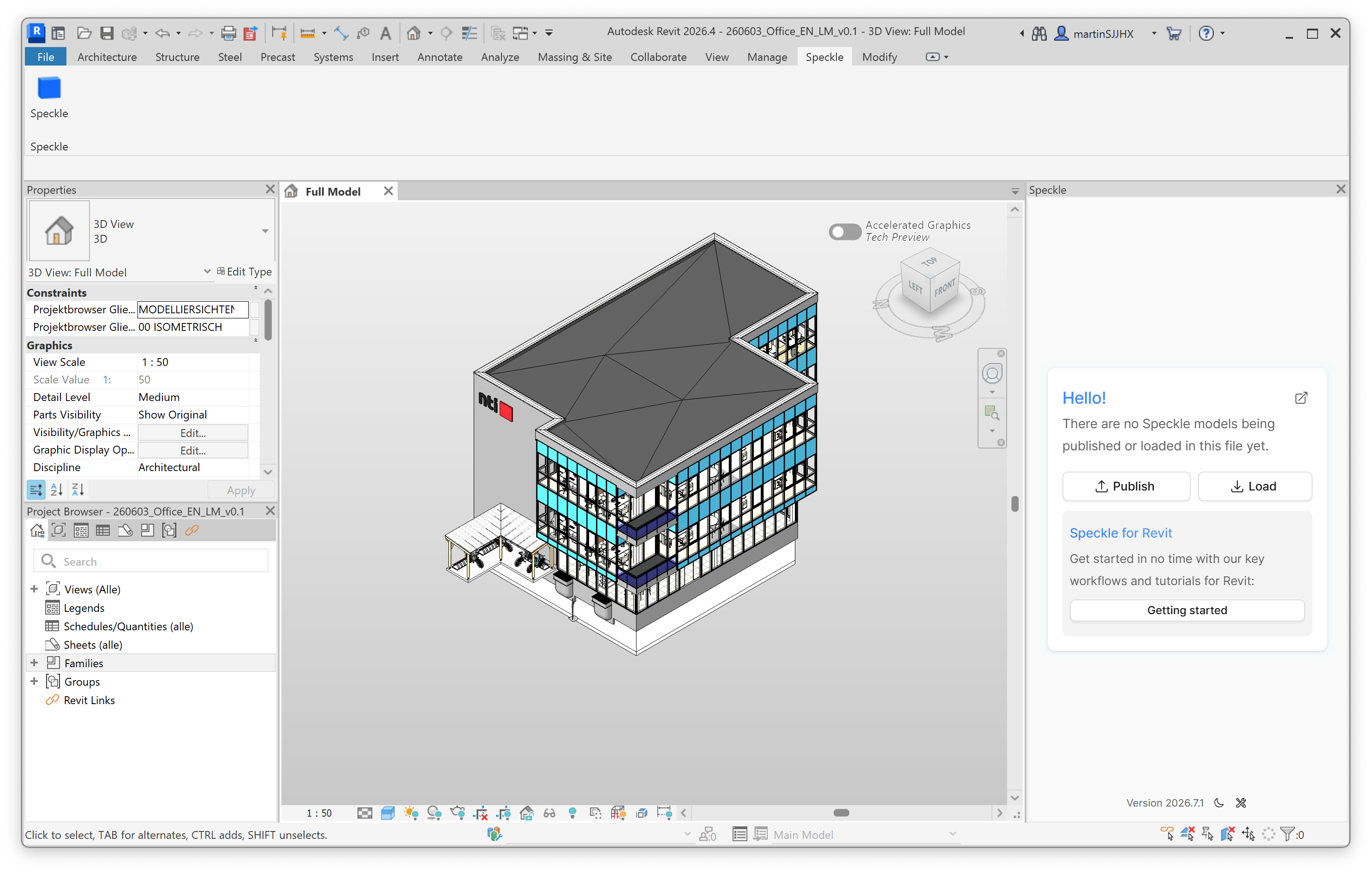
Switch back to Revit — the connector now shows the Hello! screen with Publish and Load options.
Speckle for Revit Hello screen with Publish and Load buttons and a Getting started link.

Publish a model

Step 1: Pick a Speckle project

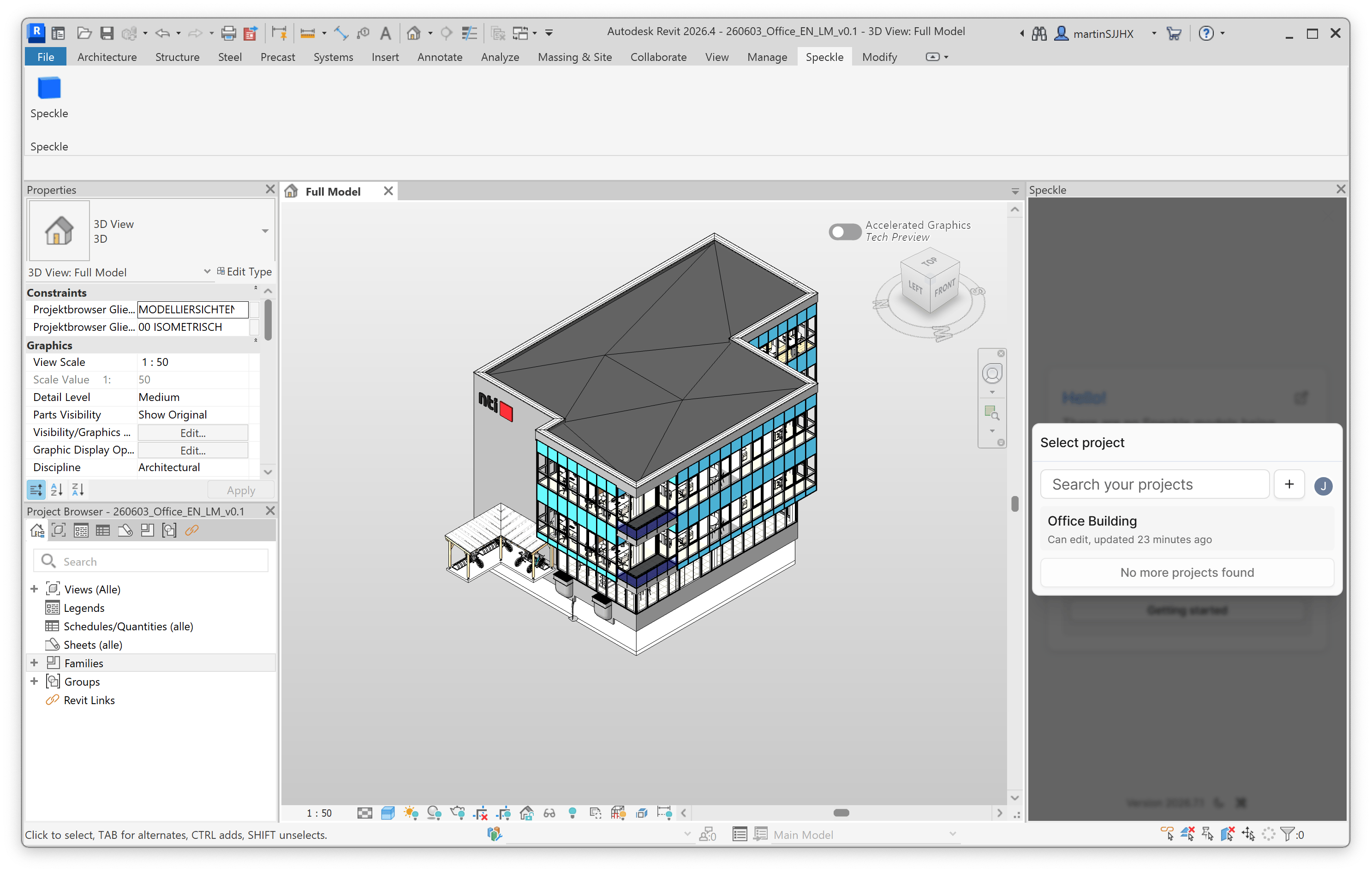
Click Publish on the Hello screen. The connector shows every Speckle project your user can edit on the Real-Time LCA server.
Select project dialog listing NTI New Headquarter as a project the user can edit.
Choose the project that matches the one you configured in Real-Time LCA. Use Search your projects to narrow the list when you have many.

Step 2: Pick a model

Each Speckle project contains one or more models — for example, structural or architectural — that map to the discipline models you selected during Speckle model configuration.
Select model dialog under NTI New Headquarter listing structural and architectural models.
Click the model you want to publish into.

Step 3: Choose what to send

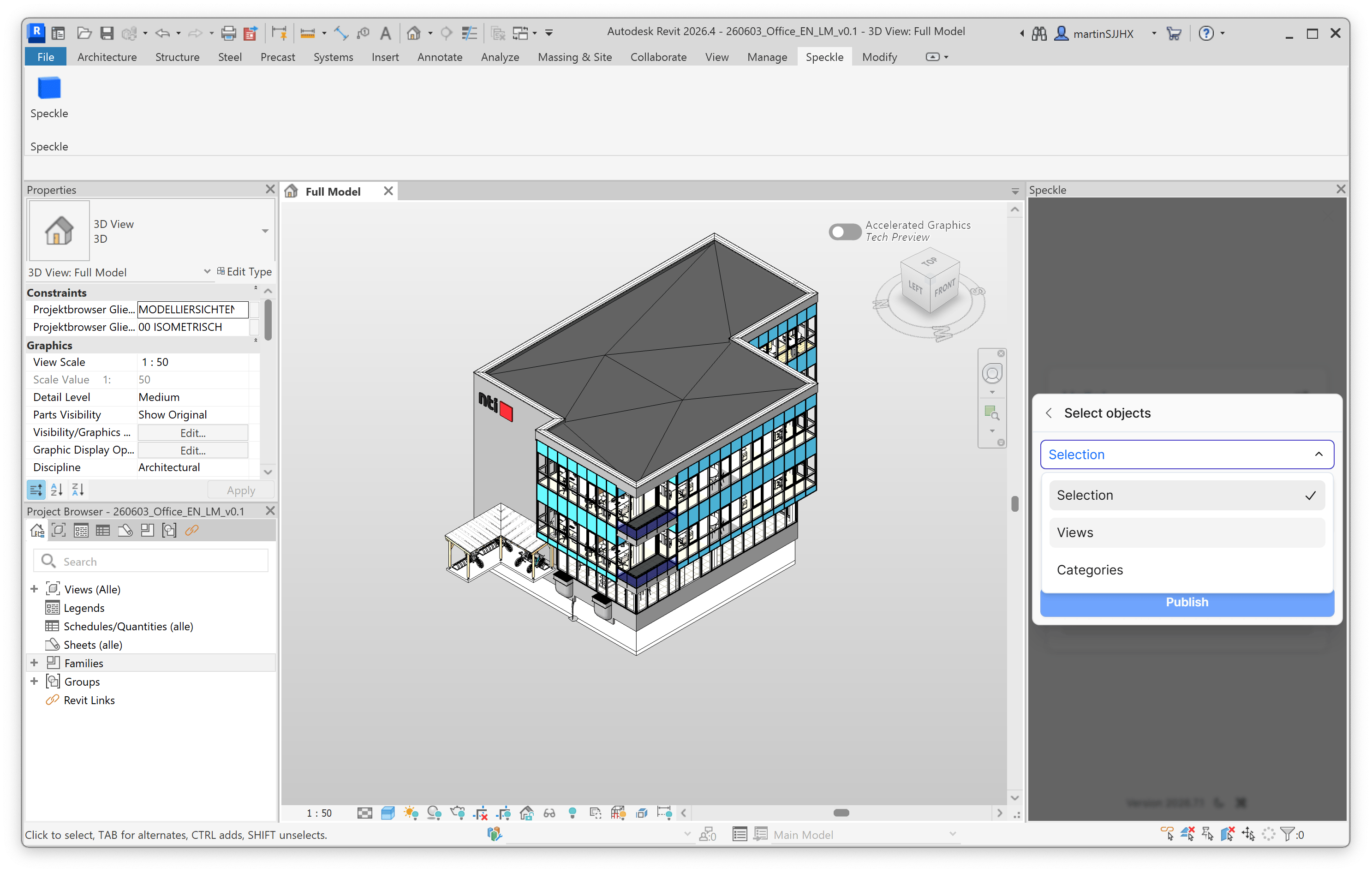
The Select objects dialog lets you decide which part of the Revit model is sent.
Select objects dropdown with Selection, Views, and Categories options.
You can publish from:
  • Selection — the elements currently selected in Revit.
  • Views — every element visible in a specific view (the recommended option for Real-Time LCA, because the view defines the scope of the calculation).
  • Categories — every element of one or more Revit categories (for example, Walls, Floors, Columns).
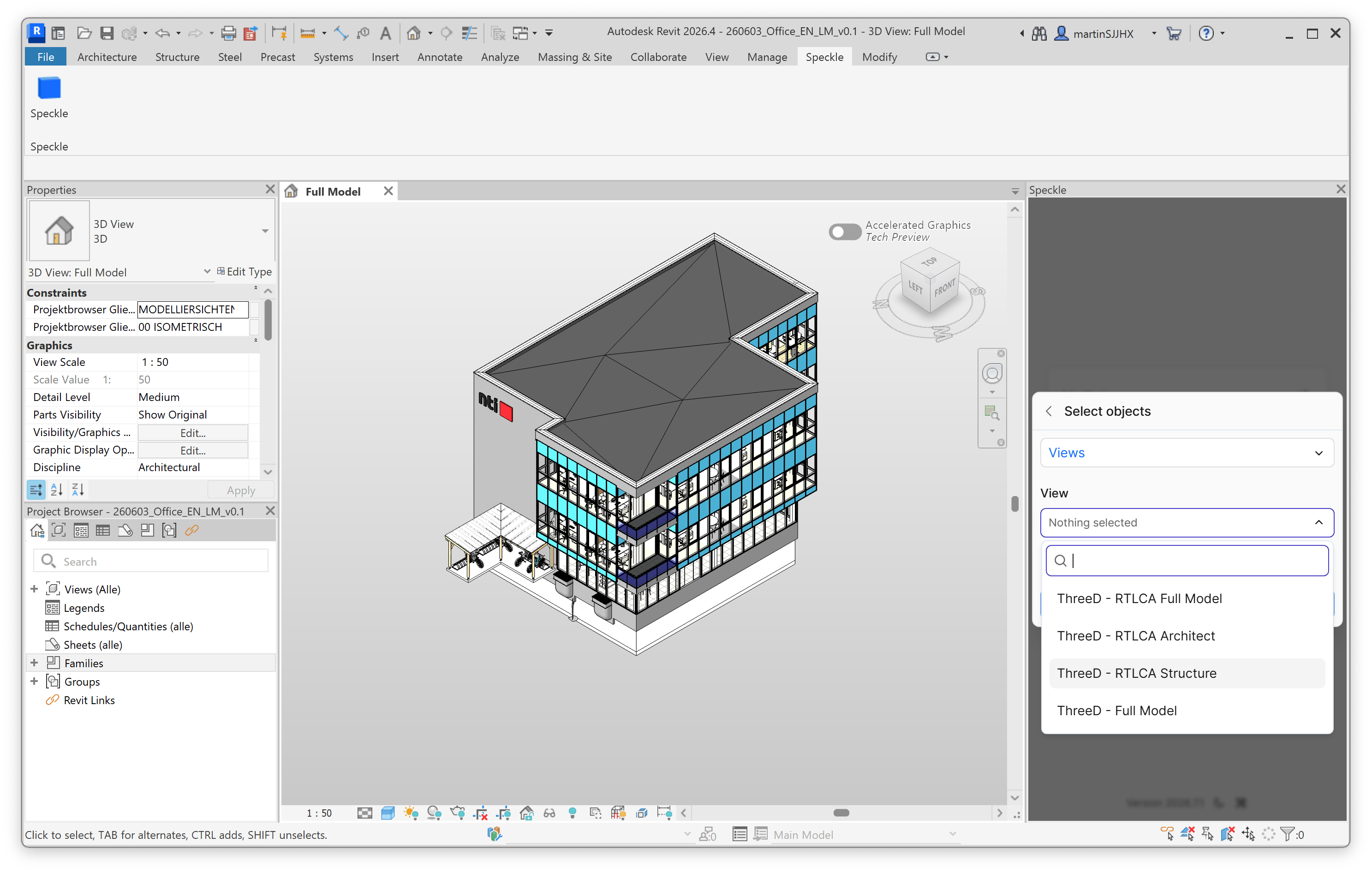
For Real-Time LCA we recommend creating a dedicated 3D view that contains only the elements you want to assess, then publishing Views → that view.
Select objects in Views mode with the View dropdown open and ThreeD - Real-Time LCA - Structural selected.

Step 4: Confirm publish settings

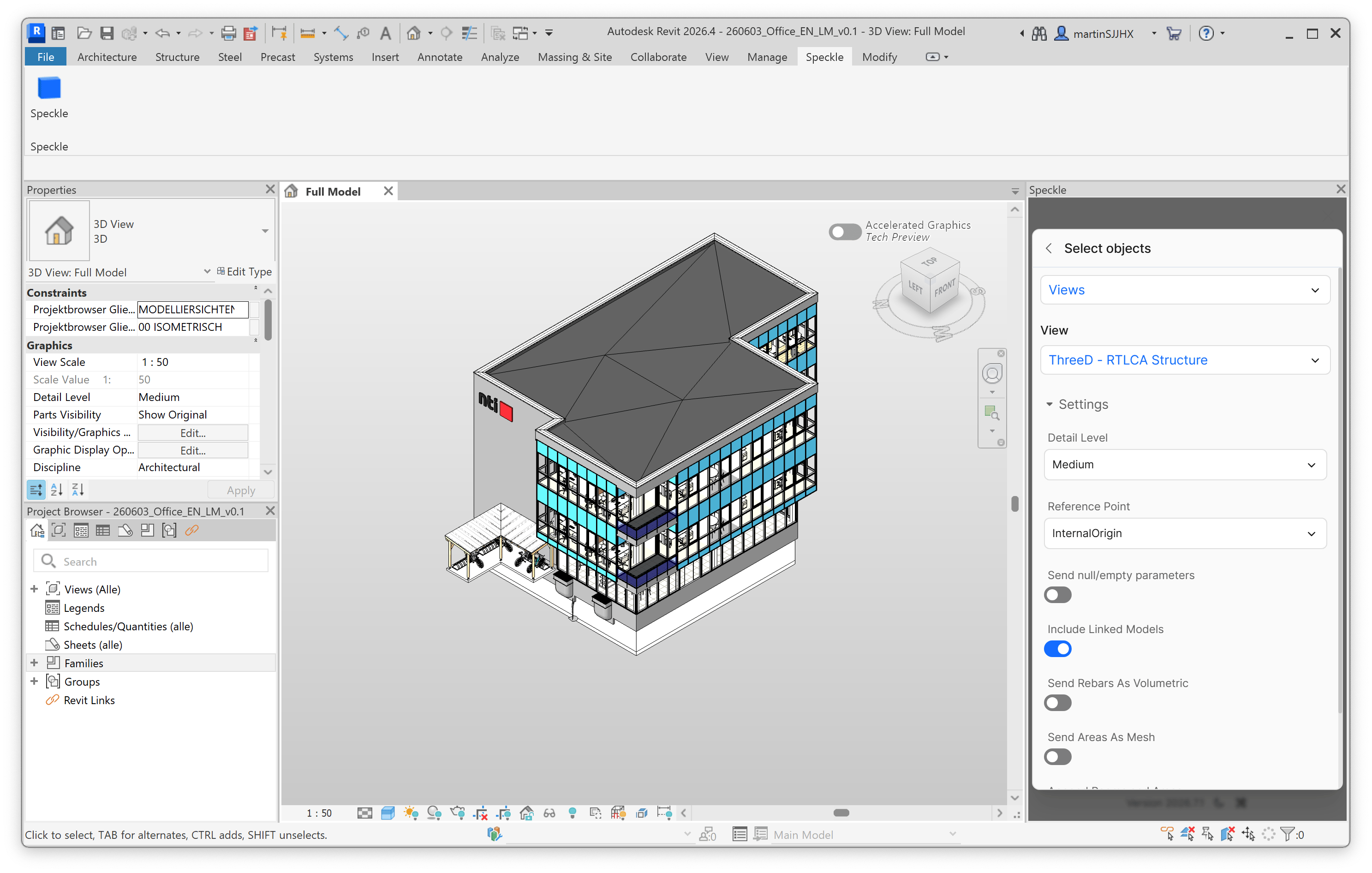
Scroll down in the dialog to review the publish settings before sending.
Publish settings panel with Detail Level Medium, Reference Point InternalOrigin, Include Linked Models on, and a Publish button at the bottom.
SettingRecommended value
Detail LevelMedium — balances geometry fidelity with publish time.
Reference PointInternalOrigin — keeps the geometry aligned with the Revit project origin.
Send null/empty parametersOff — keeps payload small.
Include Linked ModelsOn if your assessment covers linked models.
Send Rebars As VolumetricOff — better performance.
Send Areas As MeshOff unless you specifically need mesh-based areas.
Click Publish to send the model. The Real-Time LCA project receives the new version automatically and refreshes the BIM types and quantities.

Parameter mapping

Real-Time LCA looks for the parameter configured on the project (by default BIMTypeCode) to group elements into BIM types. Make sure this parameter is populated on your Revit elements before publishing — see Speckle model configuration for how the mapping is set on the project side.