

When to use Excel upload
- Concept and feasibility studies before a model exists.
- Renovation and refurbishment projects driven by quantity take-offs.
- Filling gaps when the BIM model is incomplete (e.g., MEP, finishes).
Open the upload menu
Open the project’s Materials page and choose New → Excel in the Inventory header.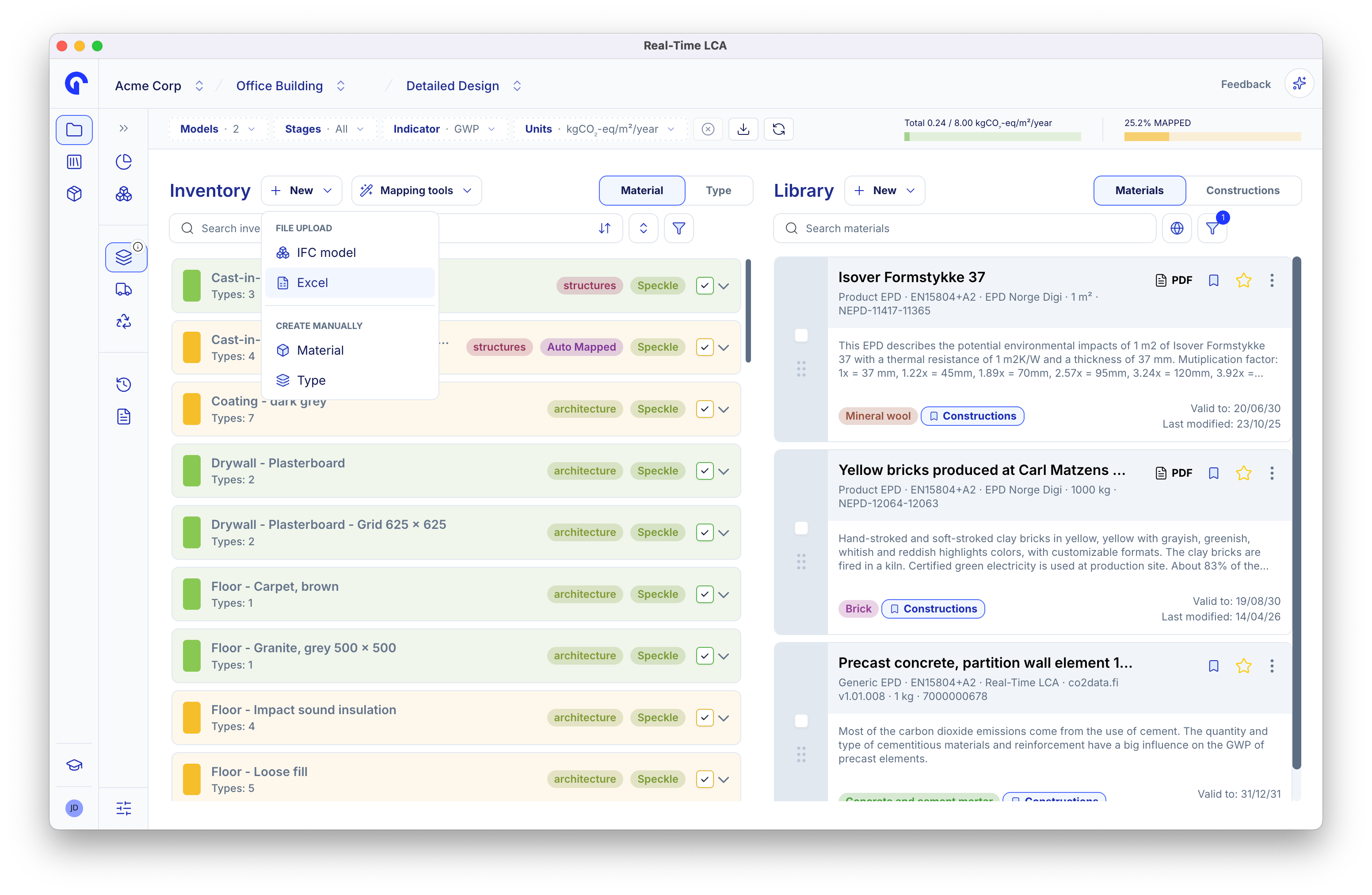
The New menu on the Inventory
Download the template
The Upload Excel file modal opens. Click Download Template to get the official spreadsheet — it has the columns Real-Time LCA expects and a few example rows to copy.
The Upload Excel file dialog
materials-template.xlsx
Download the latest template directly.
Filling in the template
The template has two sheets:- ImportData — the sheet Real-Time LCA reads when you import. Put your real data here.
- Example — a worked example you can copy from. It is ignored on import.
Step 1: Pick a classification system
Cell A1 is a dropdown. Open it and choose the classification system you want to use for column A across the whole sheet.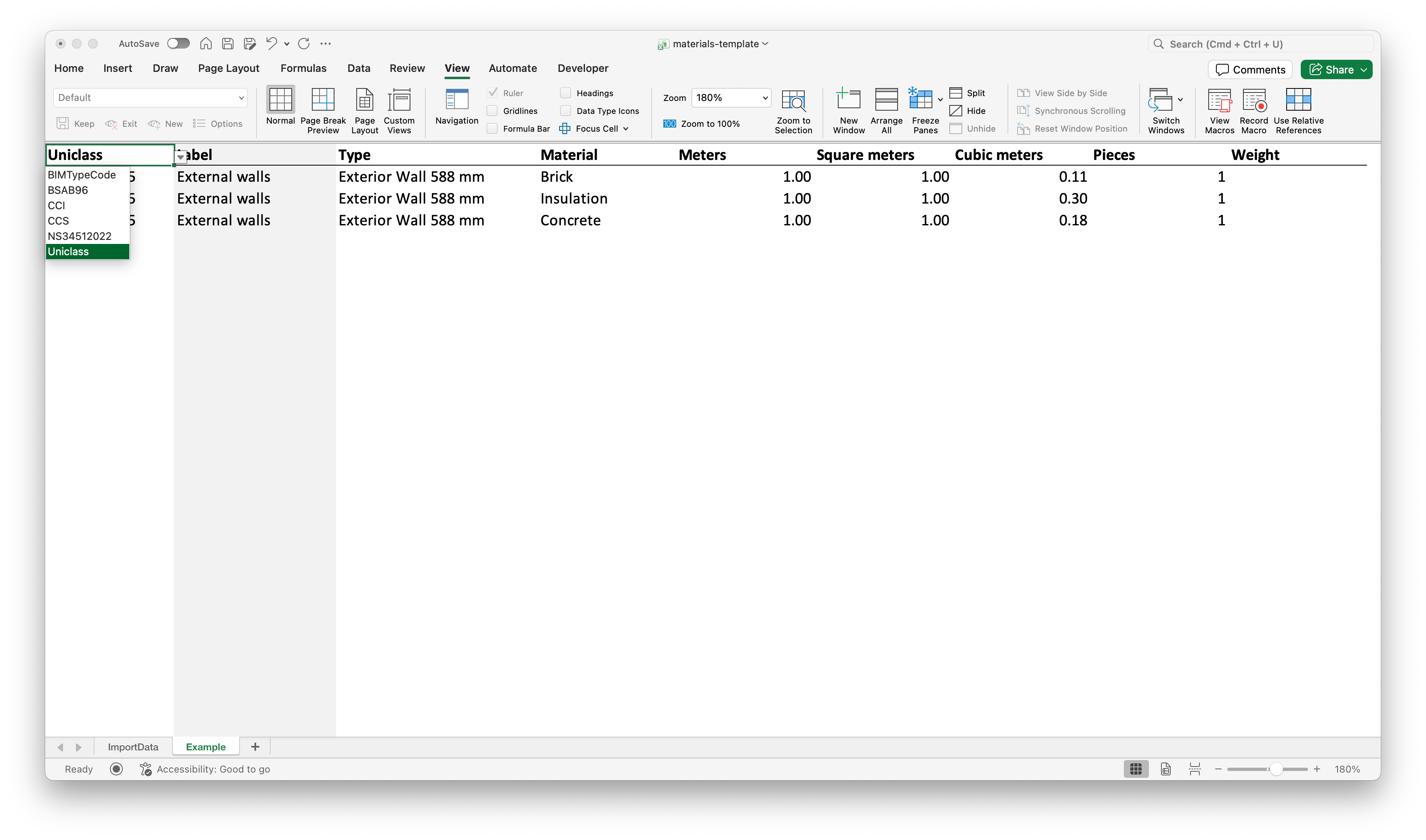
Classification system dropdown in cell A1
Pick the system that matches the one set in the project’s Classification settings — otherwise the rows will not group into types correctly.
Step 2: Enter a code per row
Cells A2 and below become validated dropdowns scoped to the classification system from A1. Pick the code for each row.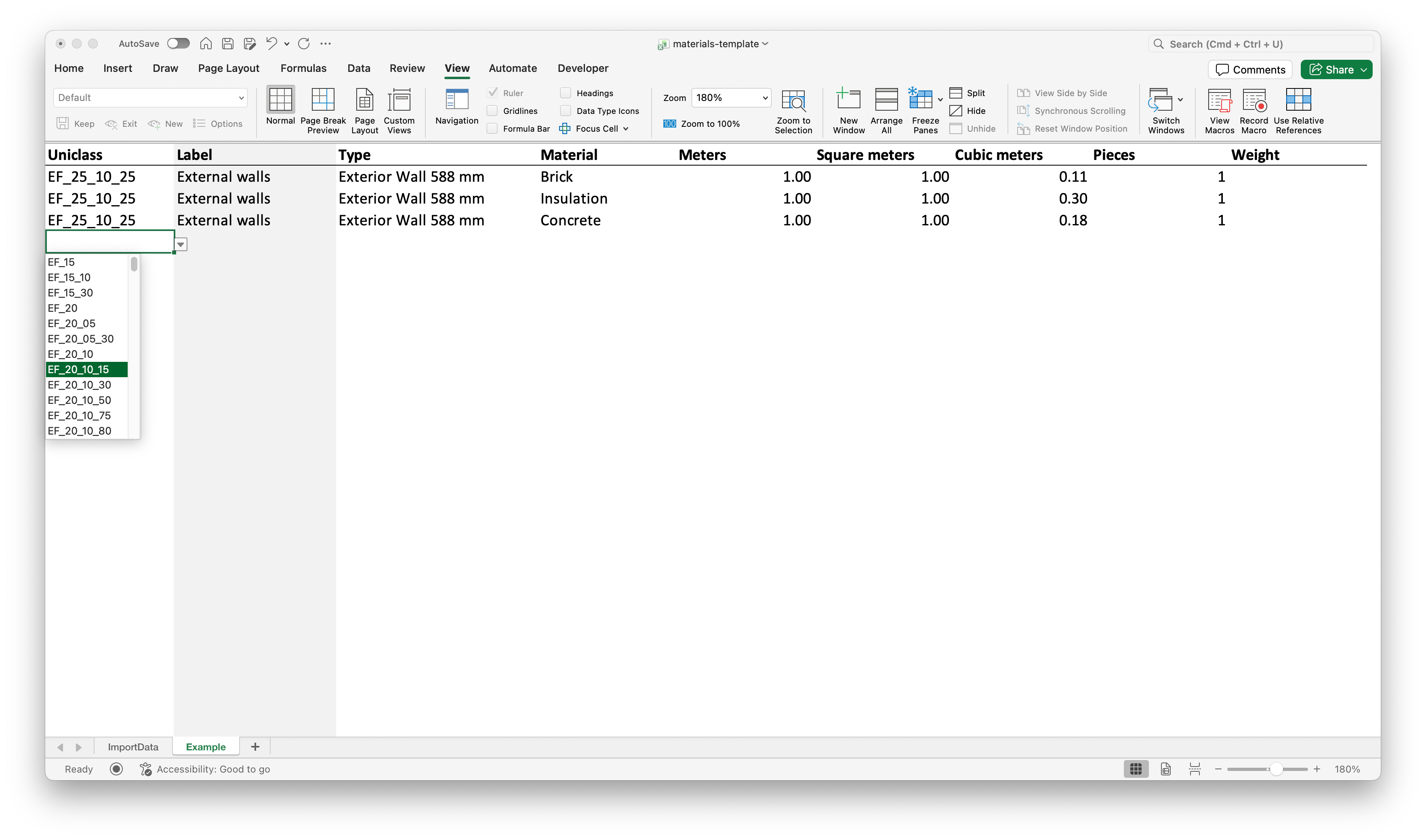
Code dropdown for the chosen classification system (Uniclass)
Step 3: Fill in the remaining columns
Each row describes one material layer. To build a multi-layer type, repeat the same Classification Code and Type on consecutive rows and change only the Material and quantities — that tells Real-Time LCA those layers belong to the same construction.
Use only the quantity columns that apply to the layer — leave the rest at
0 or blank.
Example: a three-layer external wall
The three rows share the same classification code and type, so Real-Time LCA stacks them as layers of one Exterior Wall 588 mm construction.
Save the workbook when you are done.
Upload the file
Back in the Upload Excel file dialog:-
Pick the model under Upload to model — the rows are attached to it, so choose the discipline the take-off belongs to.

Choosing the model
- Tick Overwrite existing materials to replace what was previously imported for that model. Leave it clear to add to what is already there.
-
Drop your
.xlsxfile in the drop zone, or click to browse. - Click Import — Cancel or × aborts without changes.

Importing
After the import
Imported rows appear in the Inventory tagged Excel upload, so it is obvious which items came from a spreadsheet rather than a model.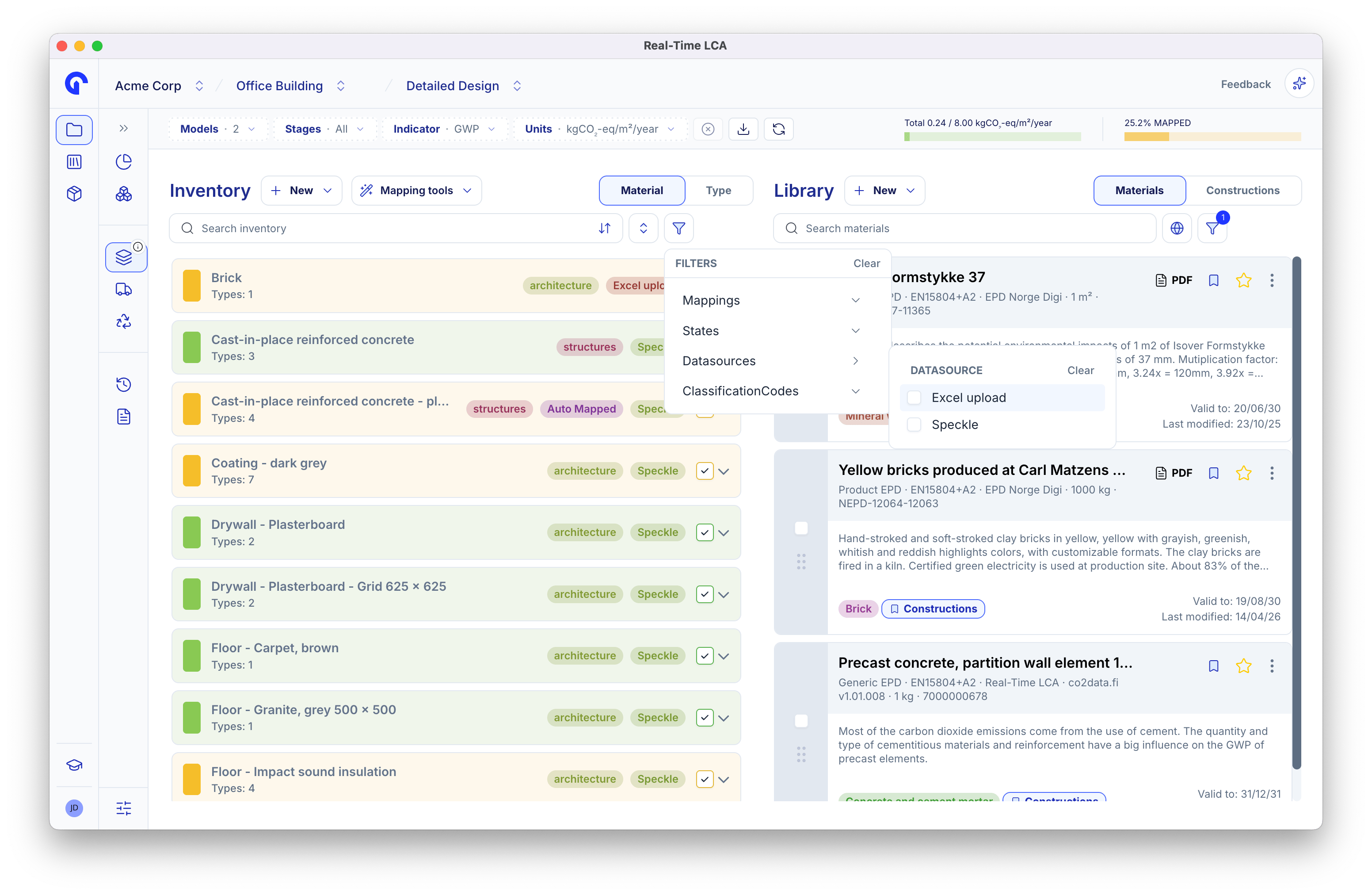
Imported rows, and filtering by source
Correcting a quantity
Open an imported item and switch to its Quantity tab. The panel is badged Imported from Excel upload and shows the quantity alongside the original value from the sheet, so an edit never hides what was uploaded.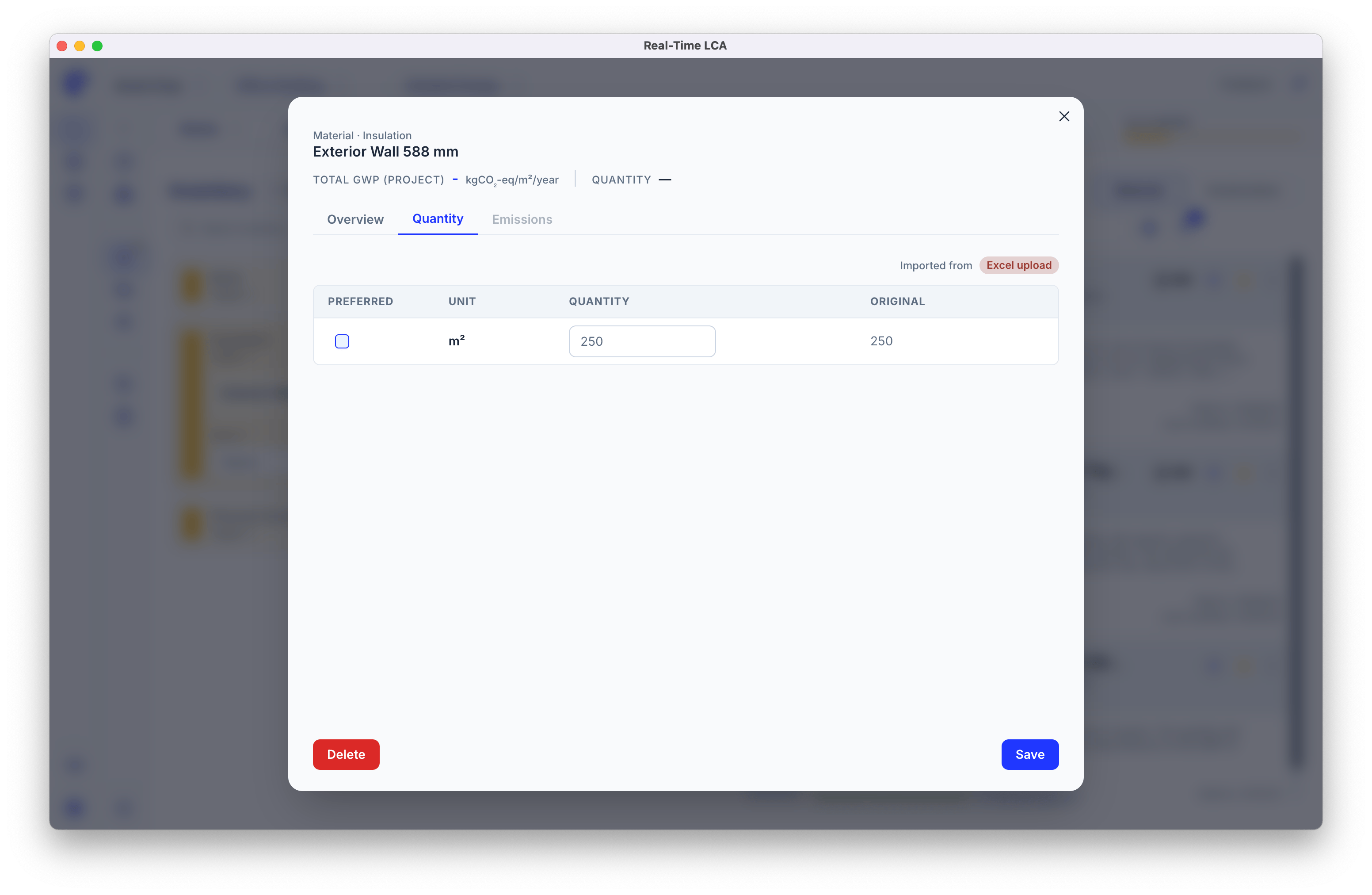
An imported quantity