
A verified EPD is a material that is backed by a published Environmental Product Declaration document. Use this option when you have the EPD PDF, the declaration number, and the publication and validity dates. Make sure the Published tab is selected at the top of the Create Material form.
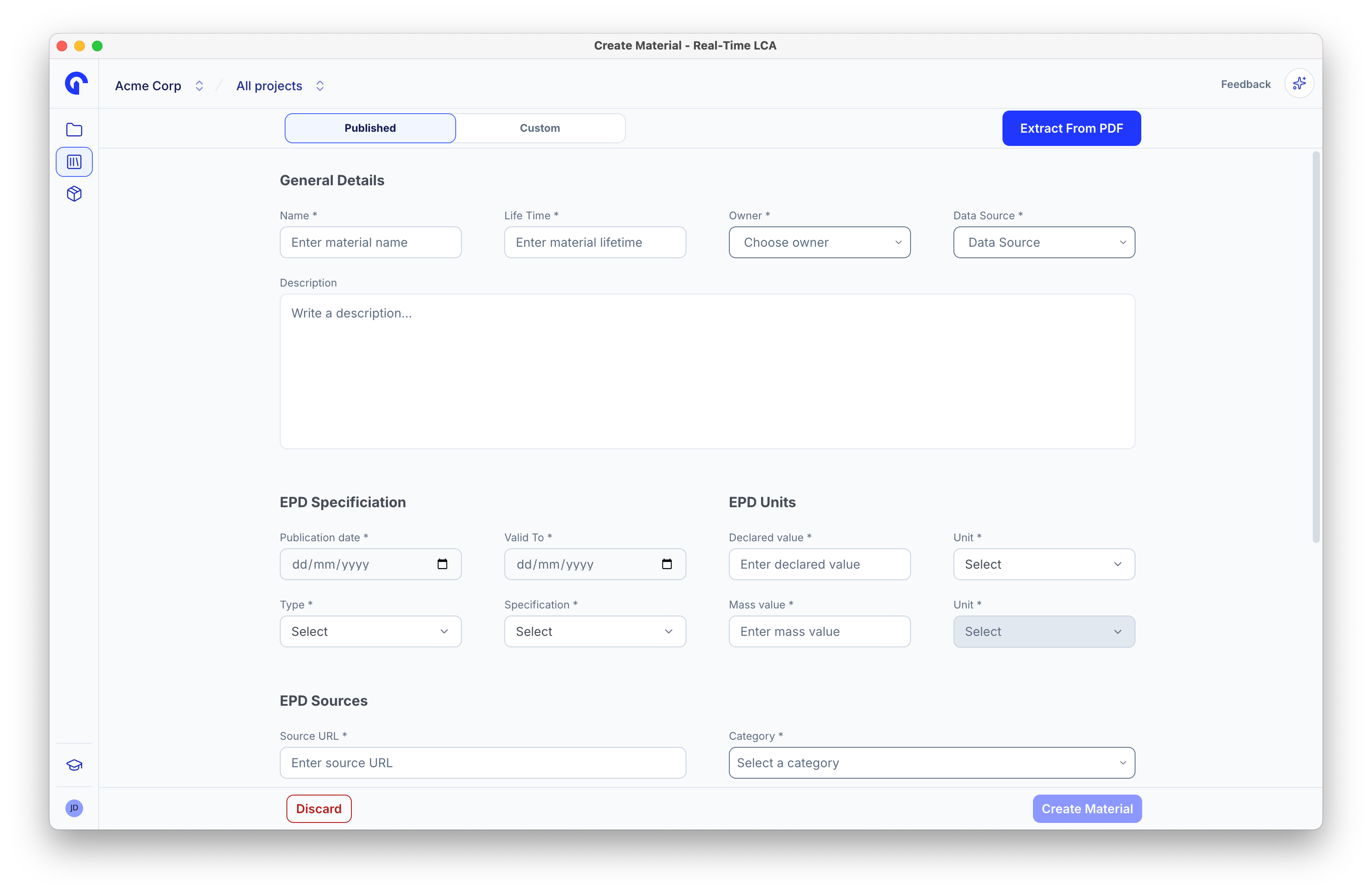
Create Material form with Published tab selected, showing General Details, EPD Specification, and EPD Units sections.

Step 1: General details

FieldNotes
Name (required)The name shown in the Library. Use the same name as the EPD.
Life Time (required)Expected service life in years.
Owner (required)The manufacturer or organization that issued the EPD.
Data Source (required)The upstream database, for example EPD Danmark or Ökobaudat.
DescriptionA short text shown on the material detail panel.

Step 2: EPD specification

FieldNotes
Publication date (required)The EPD’s official publication date.
Valid To (required)The end of the EPD’s validity window.
Type (required)Product, Industry, or Generic.
Specification (required)The standard the EPD follows, for example EN15804+A2.

Step 3: EPD units

FieldNotes
Declared value (required)The numerical declared quantity from the EPD.
Unit (required)Unit for the declared value (for example, m², m³, kg).
Mass value (required)The mass per declared unit.
Unit (required)Mass unit (typically kg).

Step 4: EPD sources

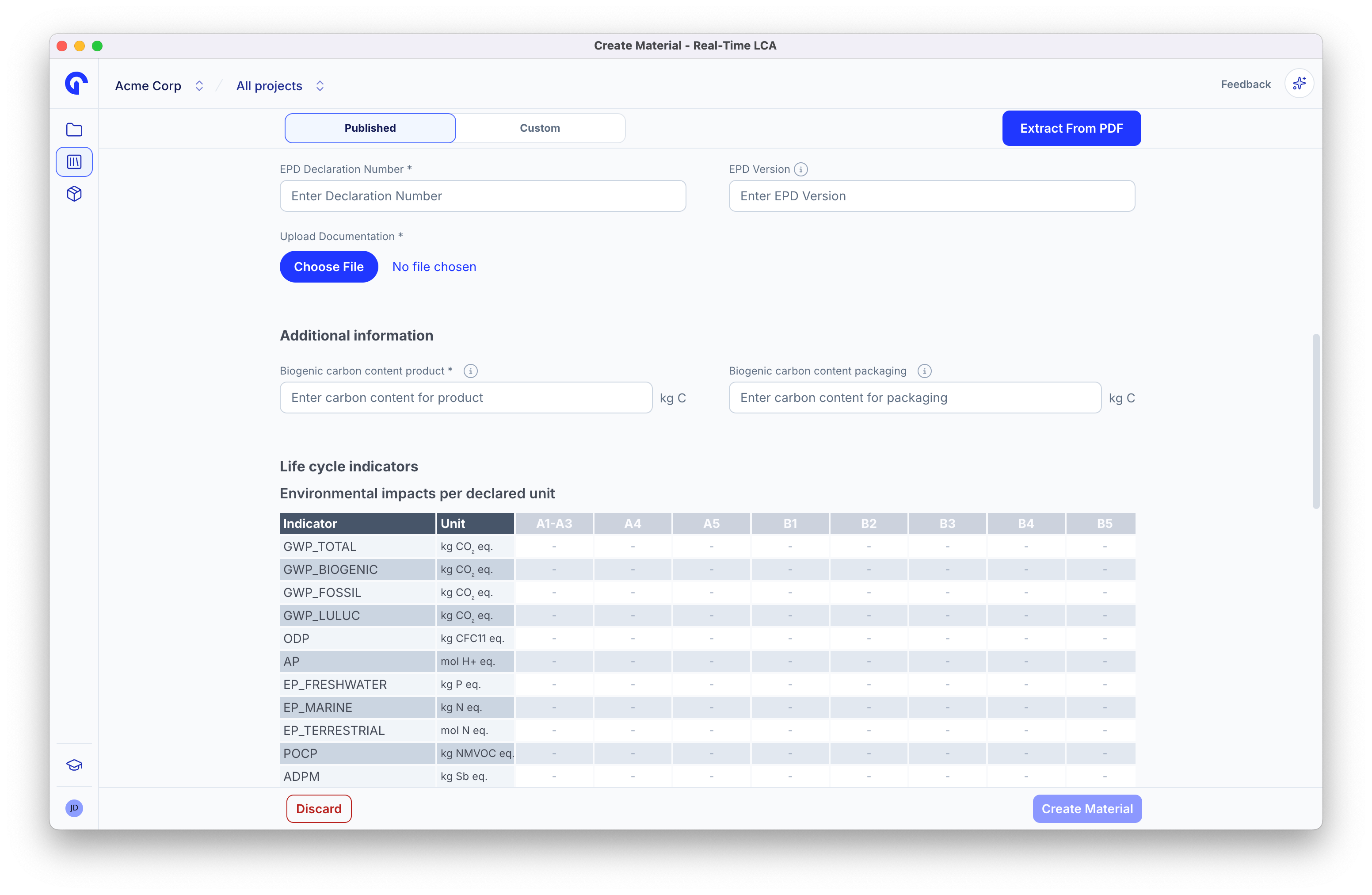
EPD Sources section with Source URL, Category, EPD Declaration Number, EPD Version, Upload Documentation; followed by Additional information for biogenic carbon and the Life cycle indicators table.
FieldNotes
Source URL (required)A link to the EPD page or registry entry.
Category (required)The material category that drives filtering and grouping.
EPD Declaration Number (required)The unique identifier from the EPD document (for example, S-P-06627).
EPD VersionThe version printed on the EPD.
Upload Documentation (required)Click Choose File and upload the EPD PDF. This is what readers see when they click the PDF badge on the material row.

Step 5: Additional information

FieldNotes
Biogenic carbon content productKilograms of biogenic carbon per declared unit, used for reporting.
Biogenic carbon content packagingKilograms of biogenic carbon in packaging per declared unit.

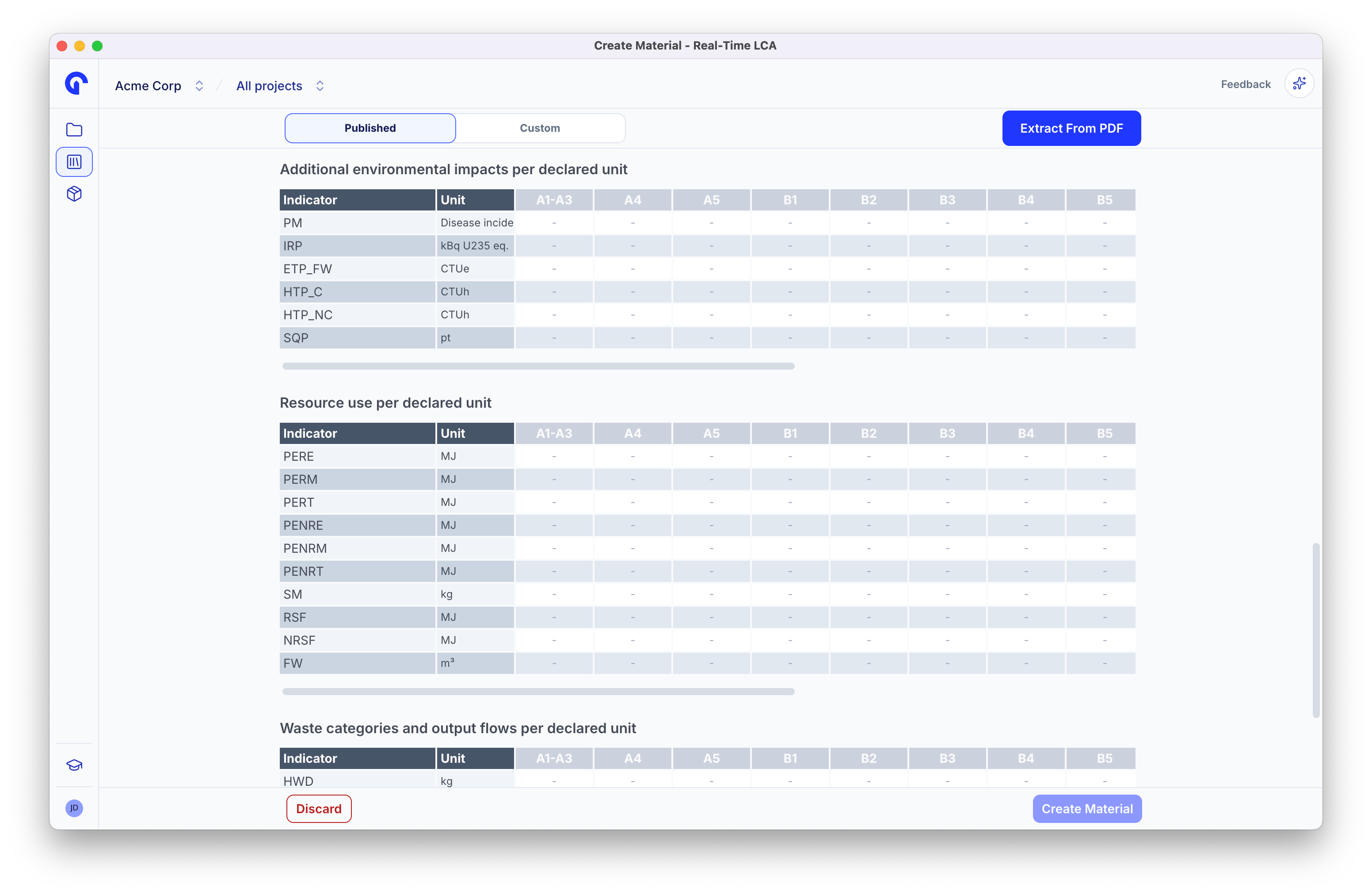
Step 6: Life cycle indicators

Fill in Environmental impacts per declared unit and Waste categories and output flows per declared unit by entering the values from the EPD for each module (A1–A3, A4, A5, B1–B7, C1–C4, D). Leave a cell as - when the EPD does not report that combination. The table is wider than the screen — scroll horizontally to reach the later modules.

Step 7: Save

When you are ready, click Create Material at the bottom of the form. The material appears in the Library immediately with a PDF badge linking to the document you uploaded.
Bottom of the Create Material form with Discard on the left and Create Material on the right.
Use Discard to abandon the form. Real-Time LCA confirms before throwing away your entries.