> ## Documentation Index
> Fetch the complete documentation index at: https://docs.realtimelca.com/llms.txt
> Use this file to discover all available pages before exploring further.
# Transport Mapping
> Assign transport emission factors to the inventory so A4 (transport to site) is calculated per material.
**Transport Mapping** is where you tell Real-Time LCA how each material reaches the construction site. Once the inventory rows are mapped, the A4 (transport) emissions roll into the project total alongside production (A1–A3) and end-of-life (C) results.
Open it by clicking the **Transport Mapping** tab in the [Project Dashboard](/user-guide/project/project-dashboard) header.
 The data sources available in the dropdowns and the way A4 is calculated depend on the project's country and calculation type. See [Methodology & Compliance](/methodology-and-compliance) for the rules.
## Page layout
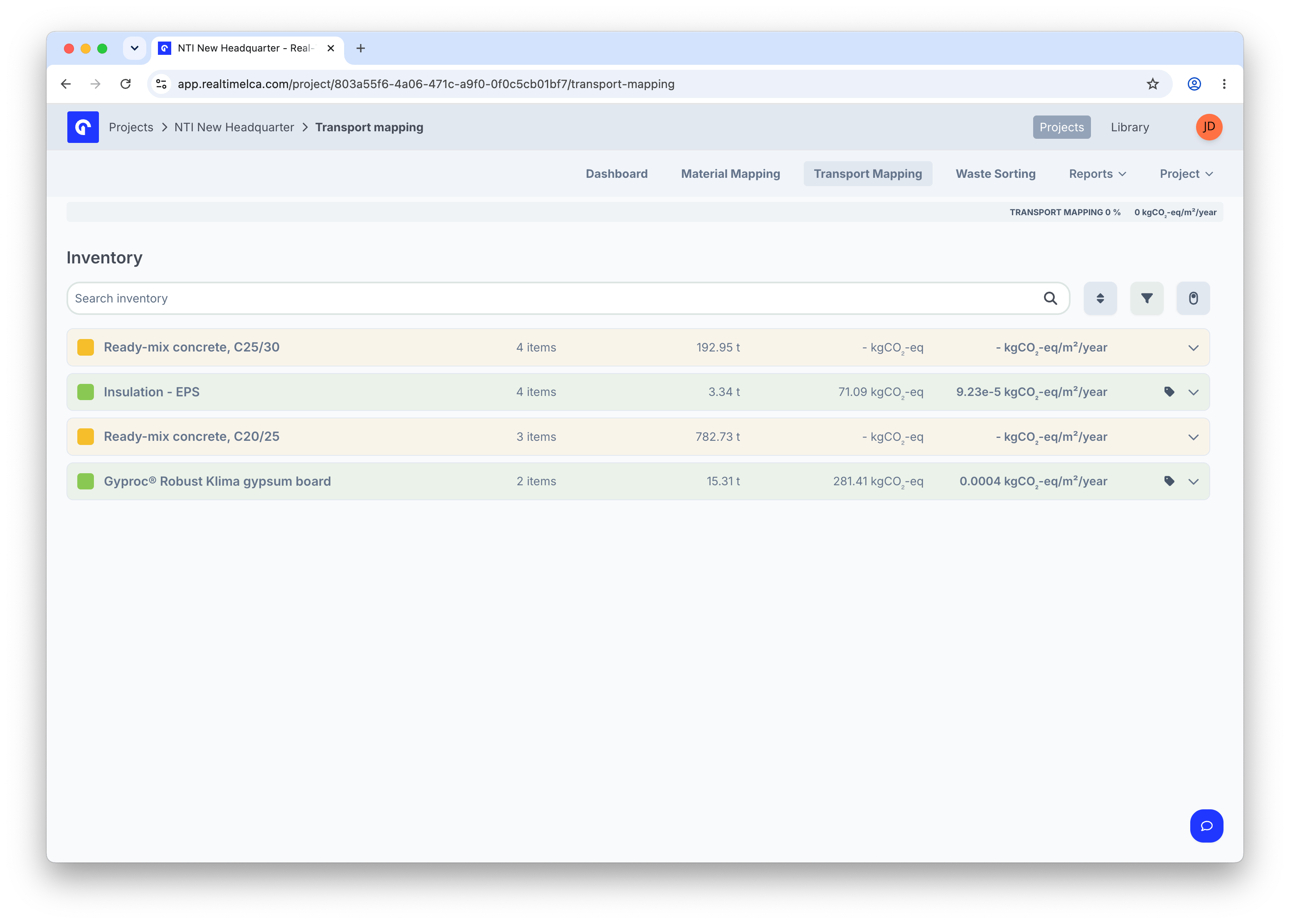
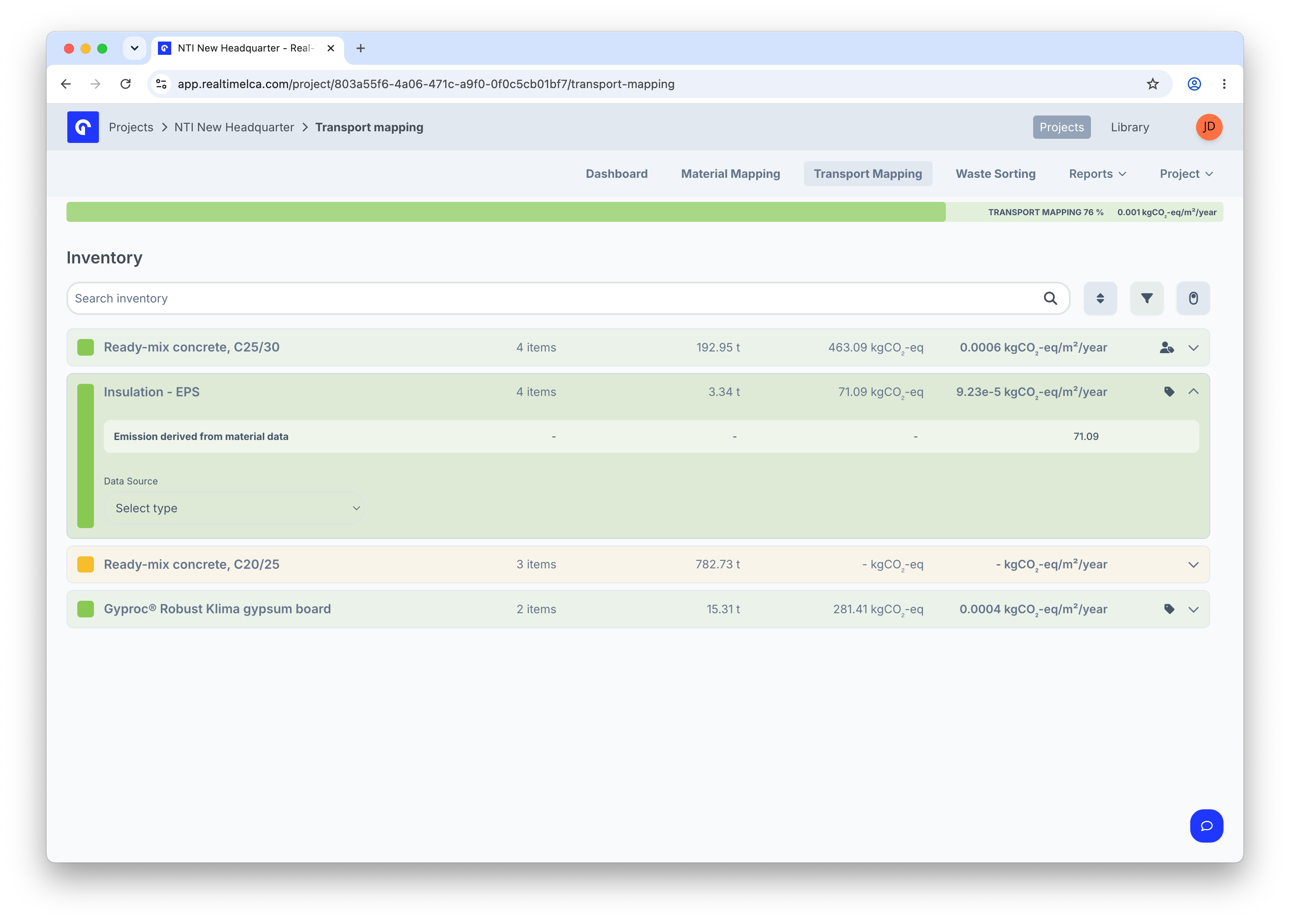
Transport Mapping uses a single panel — there is no Library to drag from. Each row in the **Inventory** is one of the materials already mapped in [Material Mapping](/user-guide/project/material-mapping), with a quantity and a colour that tells you the row's state at a glance.
The header strip shows two live numbers:
* **TRANSPORT MAPPING %** — share of inventory rows that have a transport assignment.
* **kgCO₂-eq/m²/year** — current A4 intensity based on what is already mapped.
Both update as you map or unmap rows.
### Row states
| Colour | Meaning |
| ---------- | ---------------------------------------------------------------------------------------------------------------------------------------------------------------------------------- |
| **Green** | A4 emissions are covered — either by an assigned transport type or because the EPD's data already includes A4 (see [Material-derived data source](#material-derived-data-source)). |
| **Yellow** | The row is unmapped. A4 will be zero until you assign a transport type. |
The data sources available in the dropdowns and the way A4 is calculated depend on the project's country and calculation type. See [Methodology & Compliance](/methodology-and-compliance) for the rules.
## Page layout
Transport Mapping uses a single panel — there is no Library to drag from. Each row in the **Inventory** is one of the materials already mapped in [Material Mapping](/user-guide/project/material-mapping), with a quantity and a colour that tells you the row's state at a glance.
The header strip shows two live numbers:
* **TRANSPORT MAPPING %** — share of inventory rows that have a transport assignment.
* **kgCO₂-eq/m²/year** — current A4 intensity based on what is already mapped.
Both update as you map or unmap rows.
### Row states
| Colour | Meaning |
| ---------- | ---------------------------------------------------------------------------------------------------------------------------------------------------------------------------------- |
| **Green** | A4 emissions are covered — either by an assigned transport type or because the EPD's data already includes A4 (see [Material-derived data source](#material-derived-data-source)). |
| **Yellow** | The row is unmapped. A4 will be zero until you assign a transport type. |
 ## Map a transport type
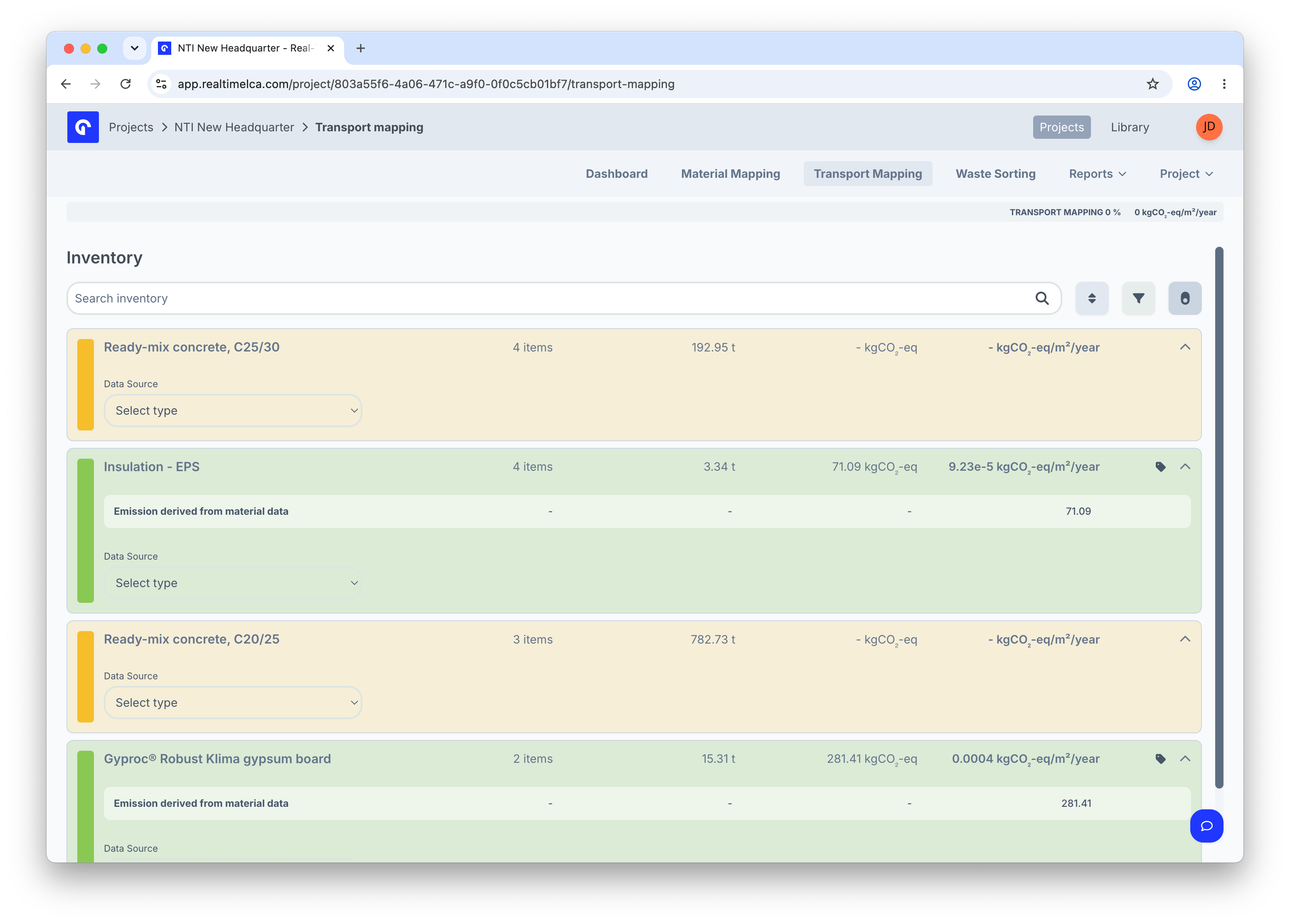
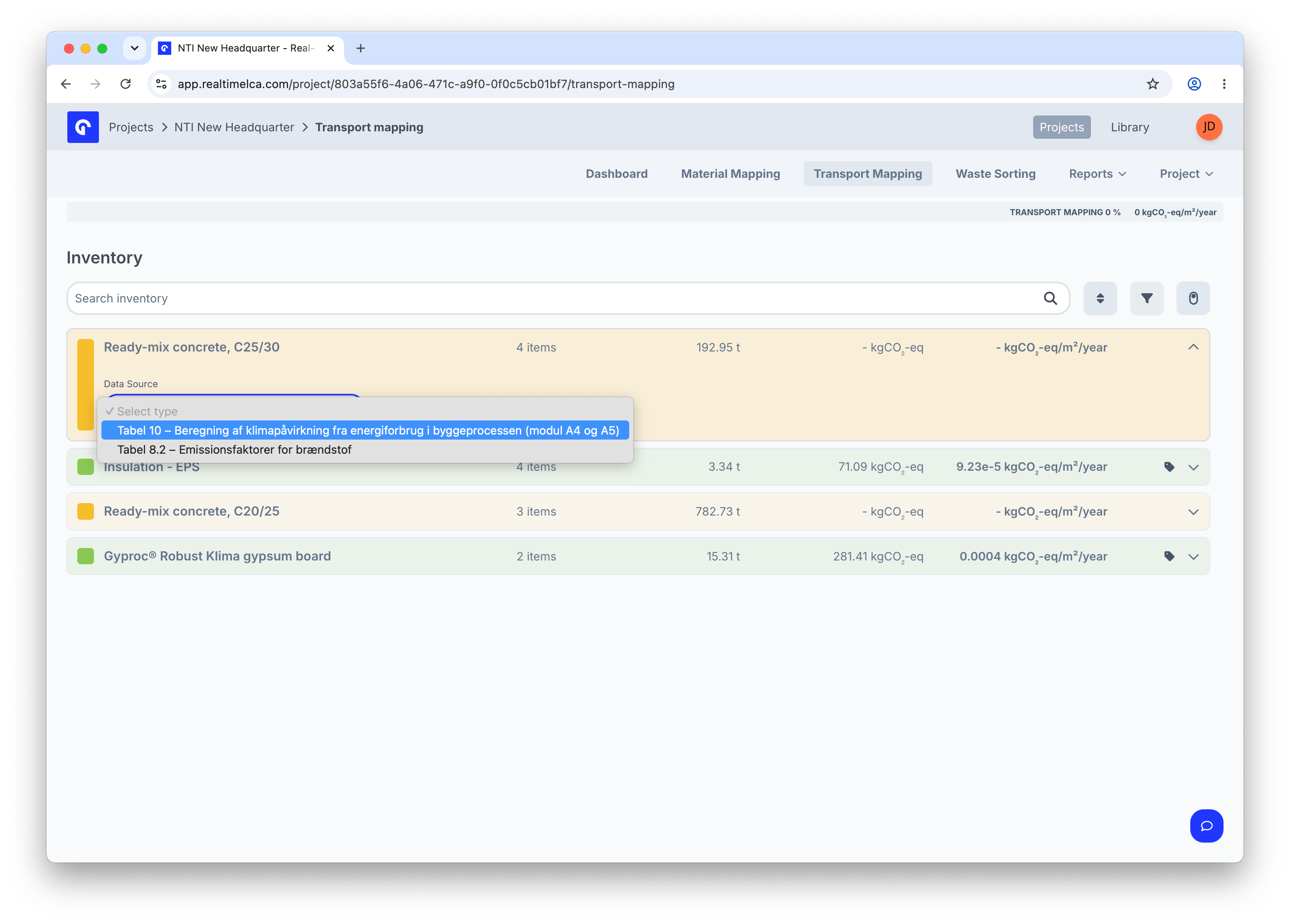
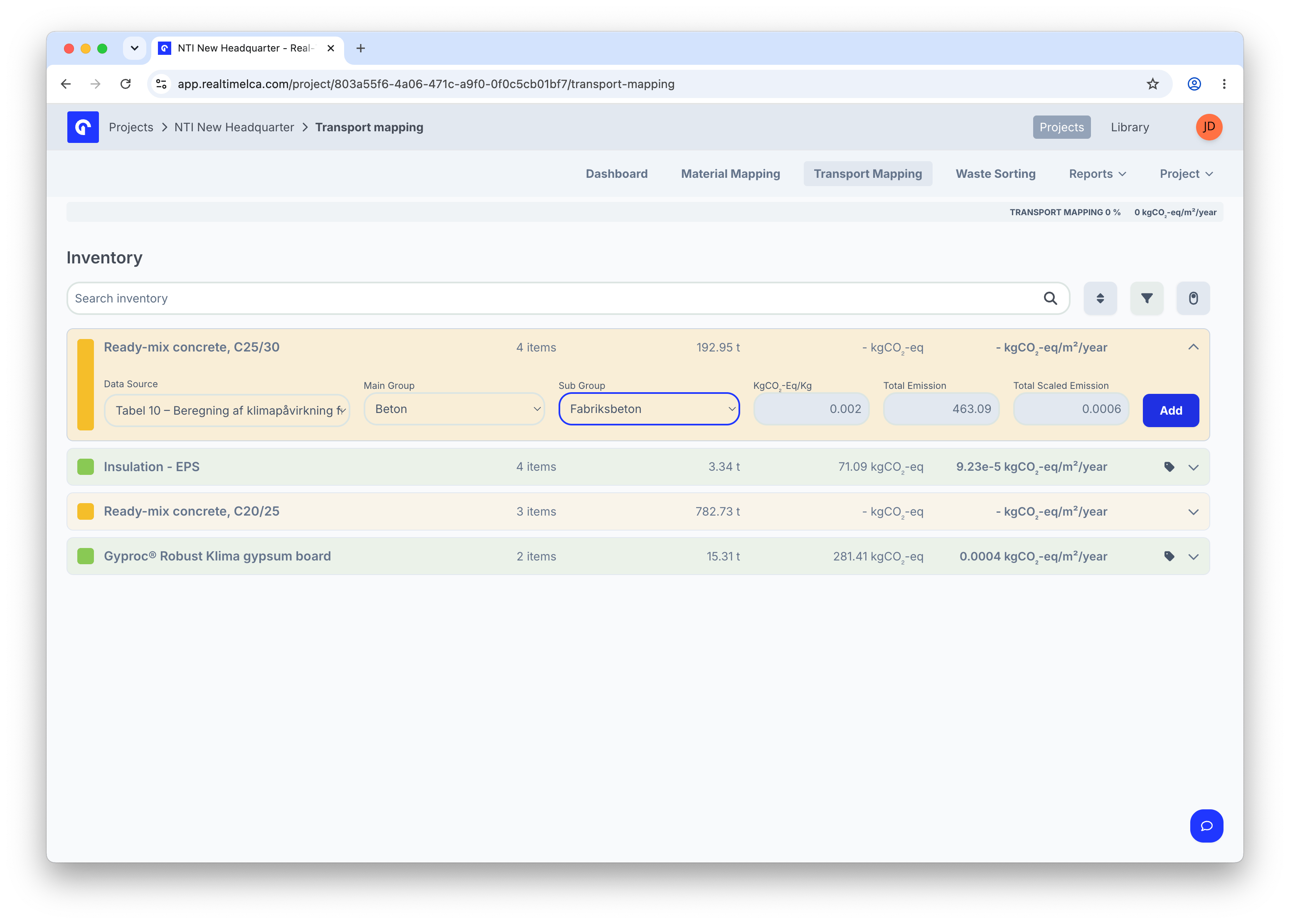
Expand a row to open the assignment form. The flow is:
1. Pick a **Data Source** — the table the emission factor comes from (for example, a distance-based table or a fuel-based table).
2. Pick a **Main Group** and **Sub Group** to narrow down to a specific transport type.
3. Review the calculated **kgCO₂-eq/Kg**, **Total Emission**, and **Total Scaled Emission** columns.
4. Click **Add** to commit.
## Map a transport type
Expand a row to open the assignment form. The flow is:
1. Pick a **Data Source** — the table the emission factor comes from (for example, a distance-based table or a fuel-based table).
2. Pick a **Main Group** and **Sub Group** to narrow down to a specific transport type.
3. Review the calculated **kgCO₂-eq/Kg**, **Total Emission**, and **Total Scaled Emission** columns.
4. Click **Add** to commit.
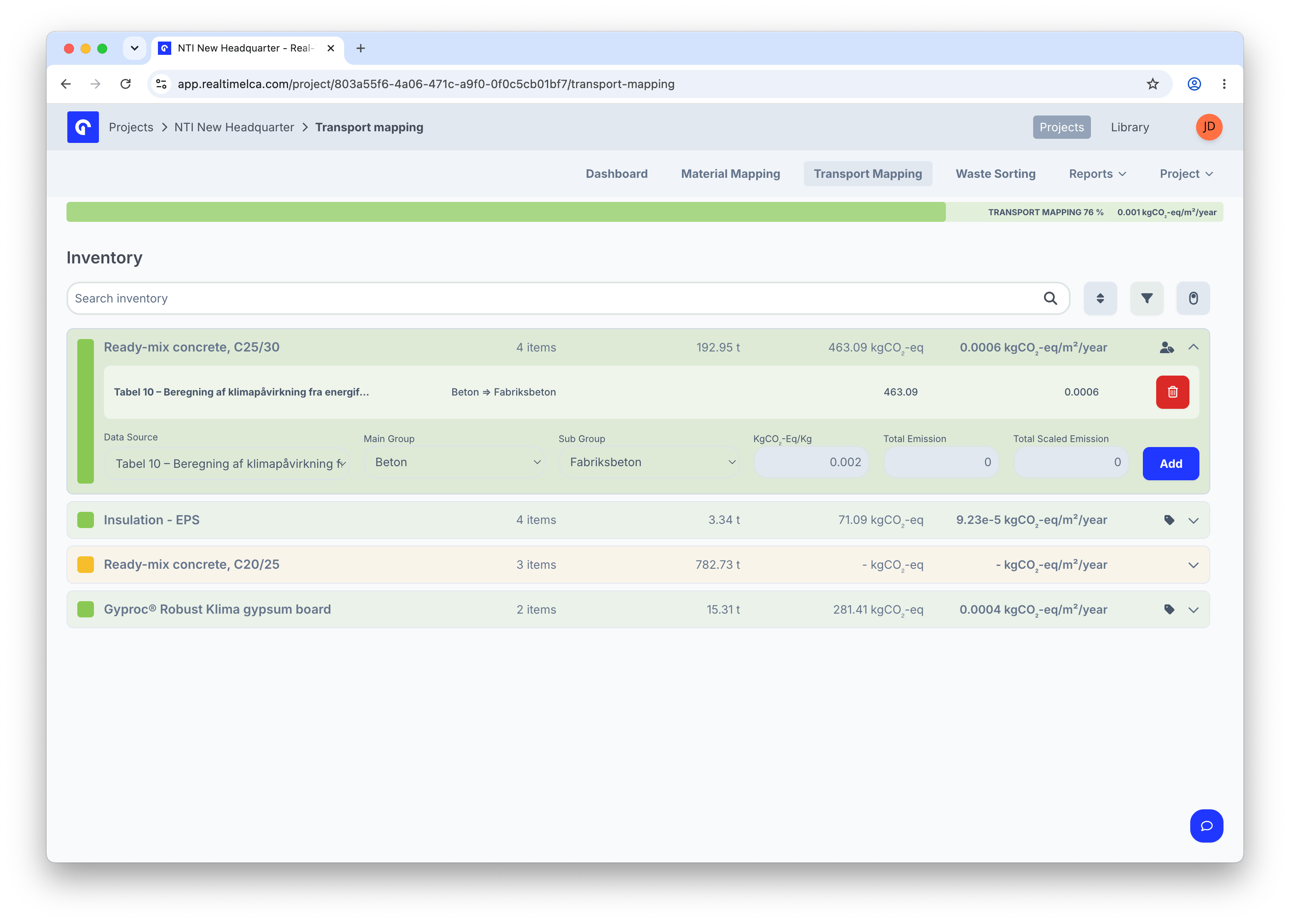
 Once committed, the row turns green and shows the picked transport type as a chip underneath the material name. The header counters update.
 ### Fuel-based emissions
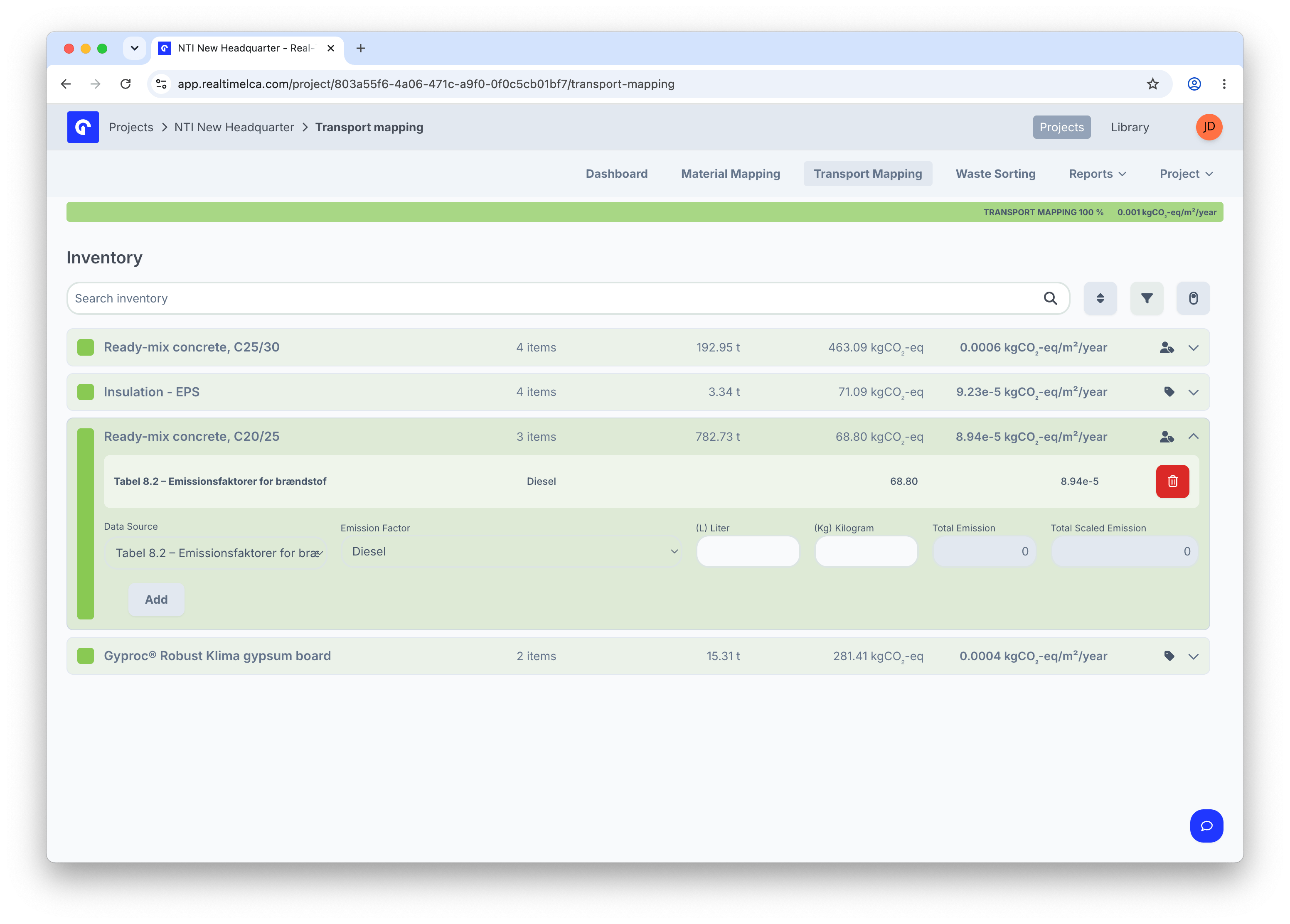
Some regulations expose a fuel-based table — the emission is calculated from the volume or mass of fuel consumed per material instead of from a distance. Pick the fuel data source, choose an **Emission Factor** (for example, *Diesel*), and enter litres or kilograms.
### Fuel-based emissions
Some regulations expose a fuel-based table — the emission is calculated from the volume or mass of fuel consumed per material instead of from a distance. Pick the fuel data source, choose an **Emission Factor** (for example, *Diesel*), and enter litres or kilograms.
 ### Material-derived data source
When a material's EPD already includes module A4, Transport Mapping inherits the value automatically. The row shows an **Emission derived from material data** label and the Data Source picker is disabled — there is nothing to assign because the EPD already covers it.
### Material-derived data source
When a material's EPD already includes module A4, Transport Mapping inherits the value automatically. The row shows an **Emission derived from material data** label and the Data Source picker is disabled — there is nothing to assign because the EPD already covers it.
 ## Search, sort, and filter
The toolbar above the inventory has the same shape as Material Mapping:
* **Search inventory** — free-text search across material names.
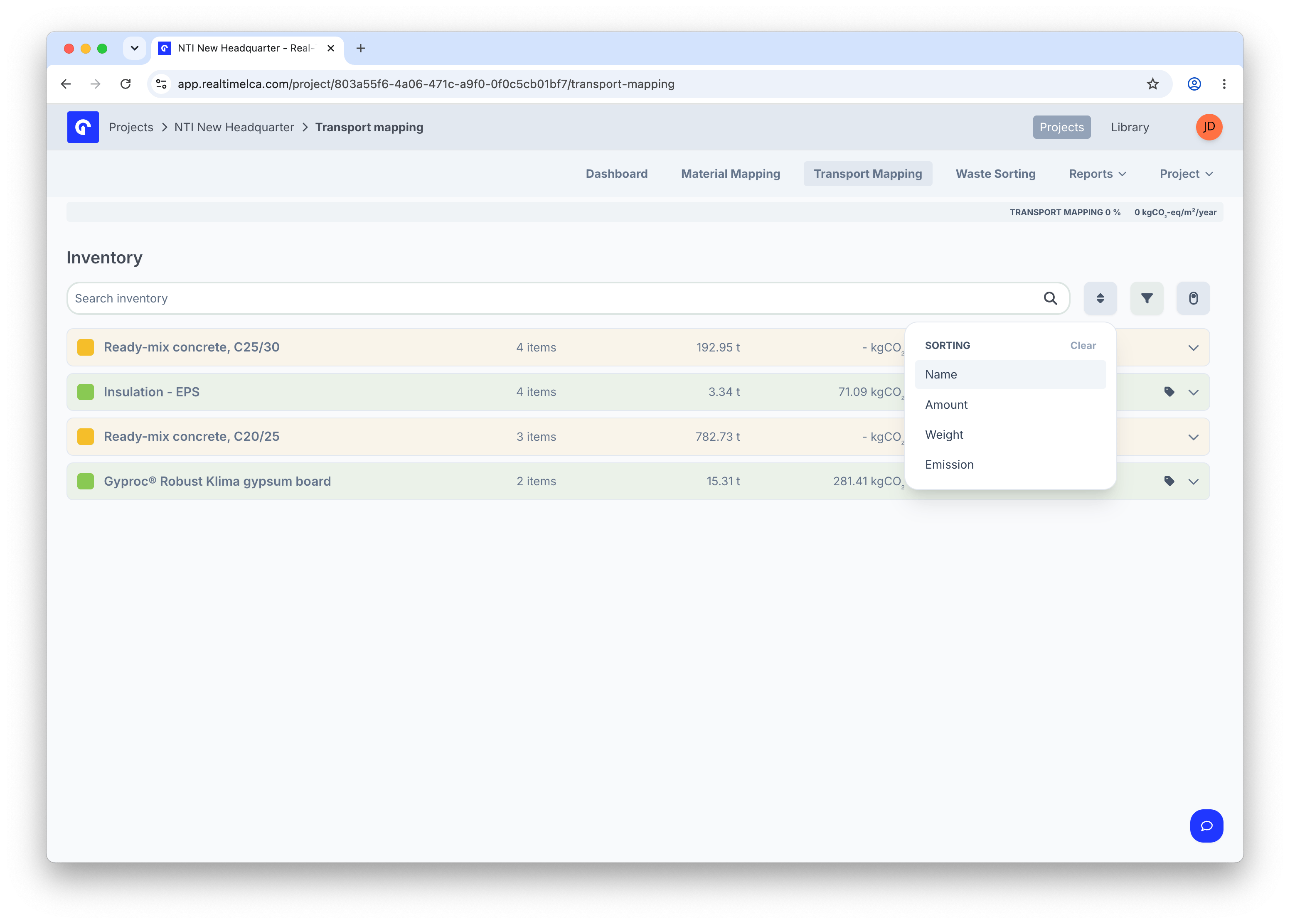
* **Sort** — order the list by **Name**, **Amount**, **Weight**, or **Emission**.
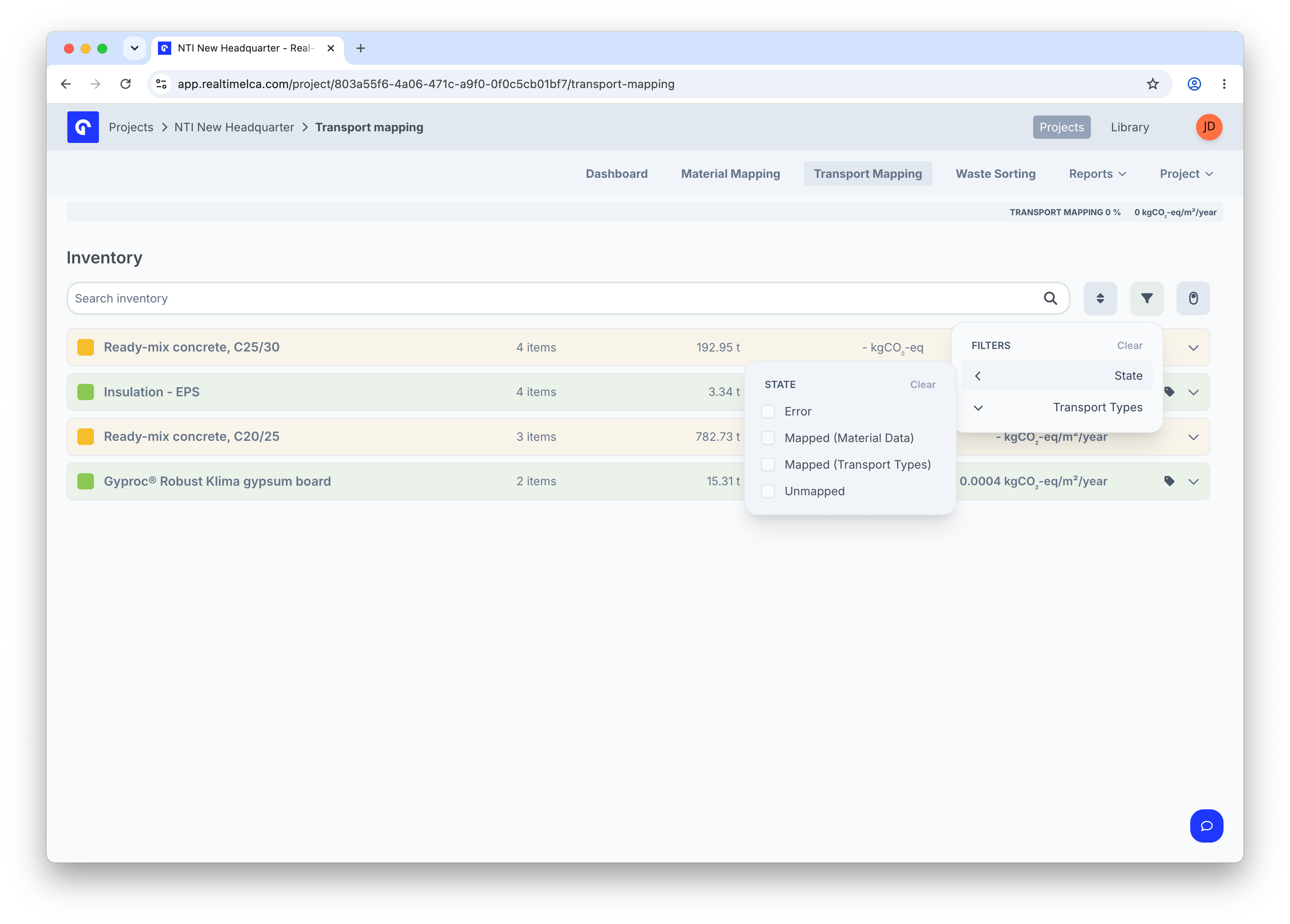
* **Filter** — narrow by **State** (*Error*, *Mapped (Material Data)*, *Mapped (Transport Types)*, *Unmapped*) and **Transport Types**.
## Search, sort, and filter
The toolbar above the inventory has the same shape as Material Mapping:
* **Search inventory** — free-text search across material names.
* **Sort** — order the list by **Name**, **Amount**, **Weight**, or **Emission**.
* **Filter** — narrow by **State** (*Error*, *Mapped (Material Data)*, *Mapped (Transport Types)*, *Unmapped*) and **Transport Types**.