> ## Documentation Index
> Fetch the complete documentation index at: https://docs.realtimelca.com/llms.txt
> Use this file to discover all available pages before exploring further.
# Create a new project
> Step through the Real-Time LCA project wizard from Location to Speckle Connection.
The project wizard guides you through up to ten steps. The first five — **Location**, **Project Details**, **Building Details**, and **Calculation Prerequisites** — are the same in every country. After that, the wizard inserts additional country-specific tabs (**Reference Area**, **Standard Values**, **Special Conditions**, **A5 Installation**, **Operational Energy Use (B6)**) when the regulation selected on the previous steps requires them, and finishes with **Speckle Connection**.
You can move forward with **Next**, return with **Back**, or stop at any time with **Discard**. Required fields are marked with an asterisk (`*`).
Which tabs you see — and which fields and dropdown values they contain — depends on the country resolved from the address on Step 2 and the calculation type you pick on Step 5. See [Methodology & Compliance](/methodology-and-compliance) for the per-country rules.
## Step 1: Start a new project
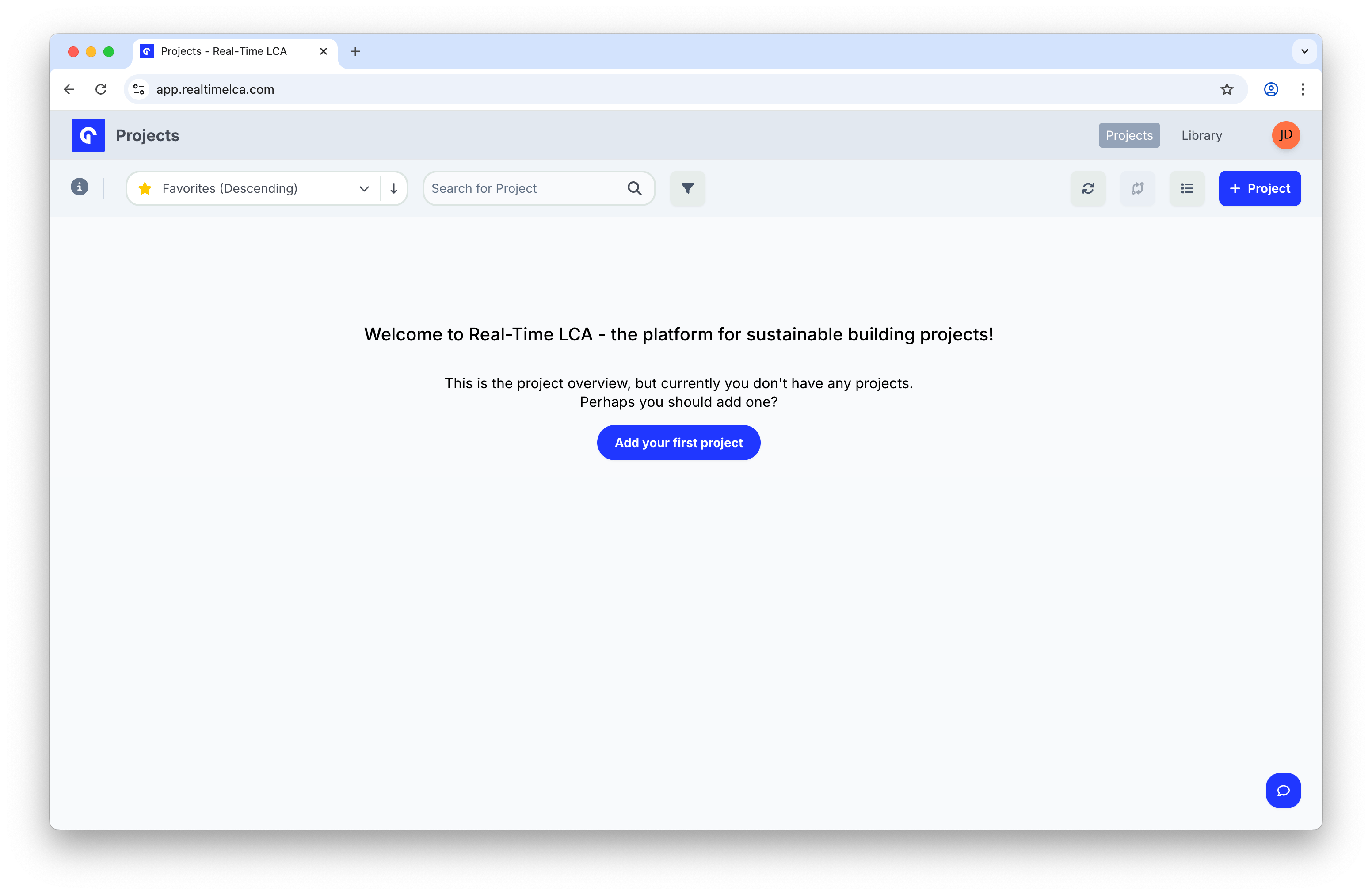
From the **Projects** overview, open the wizard:
* If you have no projects yet, click **Add your first project**.
* Otherwise, click the **+ Project** button in the top-right corner.
 ## Step 2: Set the location
The location determines which national building regulation, stages, and standards apply to your project.
1. Start typing the project address in **Address**.
2. Pick a result from the autocomplete suggestions.
3. Confirm that the pin on the map matches the building's location.
## Step 2: Set the location
The location determines which national building regulation, stages, and standards apply to your project.
1. Start typing the project address in **Address**.
2. Pick a result from the autocomplete suggestions.
3. Confirm that the pin on the map matches the building's location.
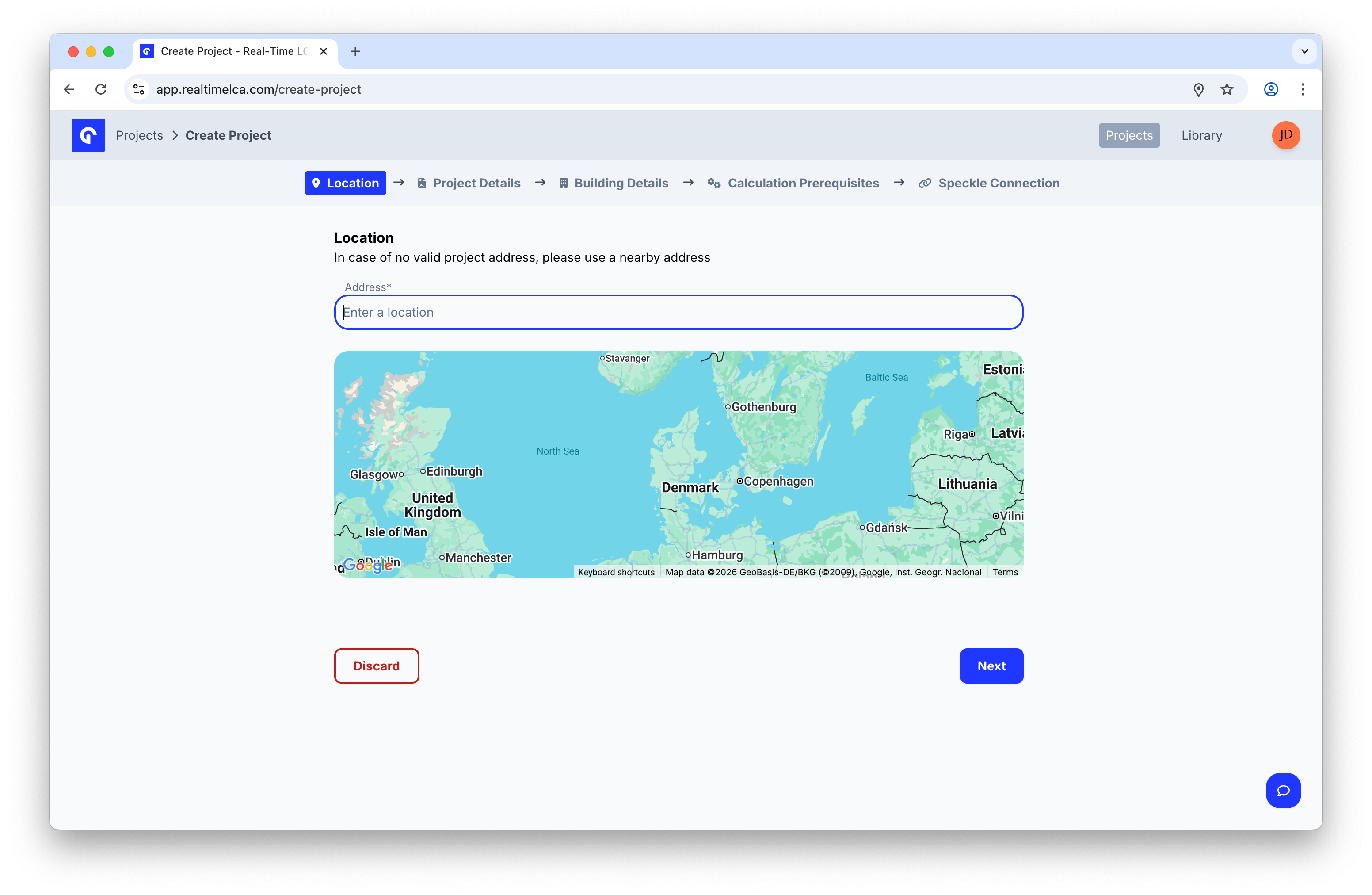 When a valid address is selected, Real-Time LCA shows the regulation, included stages, and standards that apply to that country.
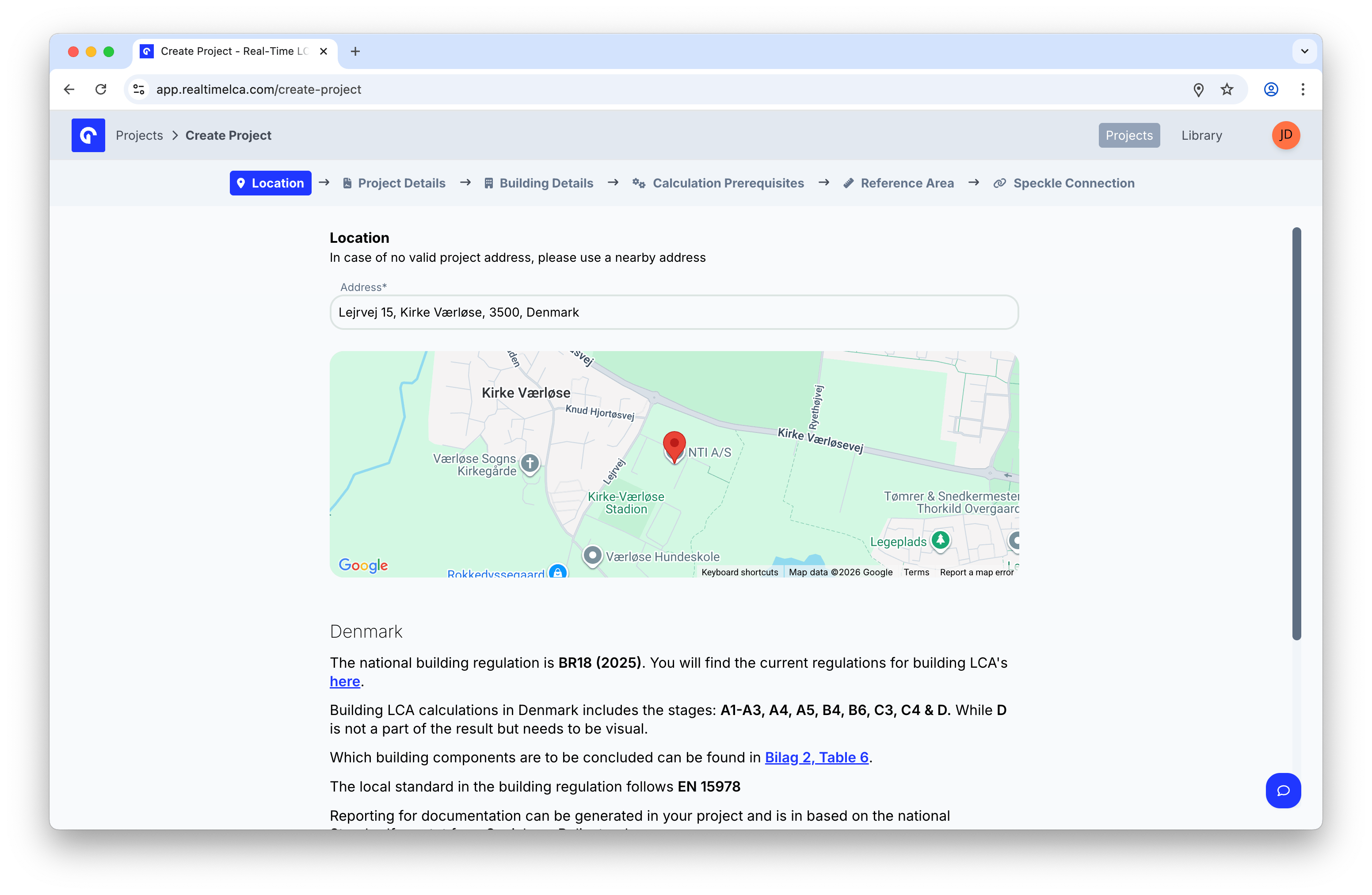 If the address cannot be resolved to a street number and postal code, the wizard shows validation errors and the **Next** button stays disabled. Adjust the address until both validations pass.
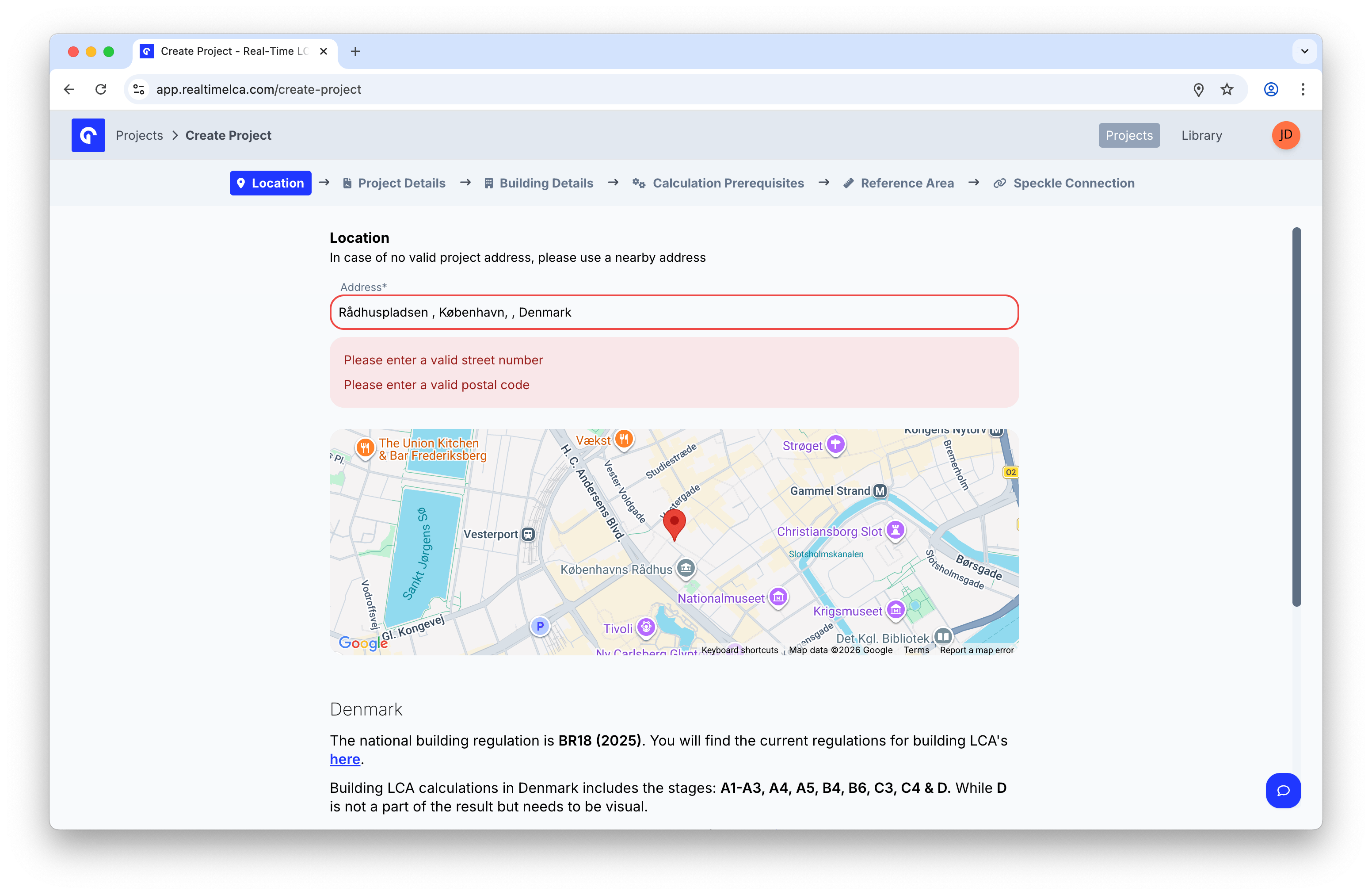 If your project does not have a real address yet, use a nearby address. The regulation framework is based on the country, not the exact street.
## Step 3: Fill in project details
Project details identify the project for collaborators and reports.
If your project does not have a real address yet, use a nearby address. The regulation framework is based on the country, not the exact street.
## Step 3: Fill in project details
Project details identify the project for collaborators and reports.
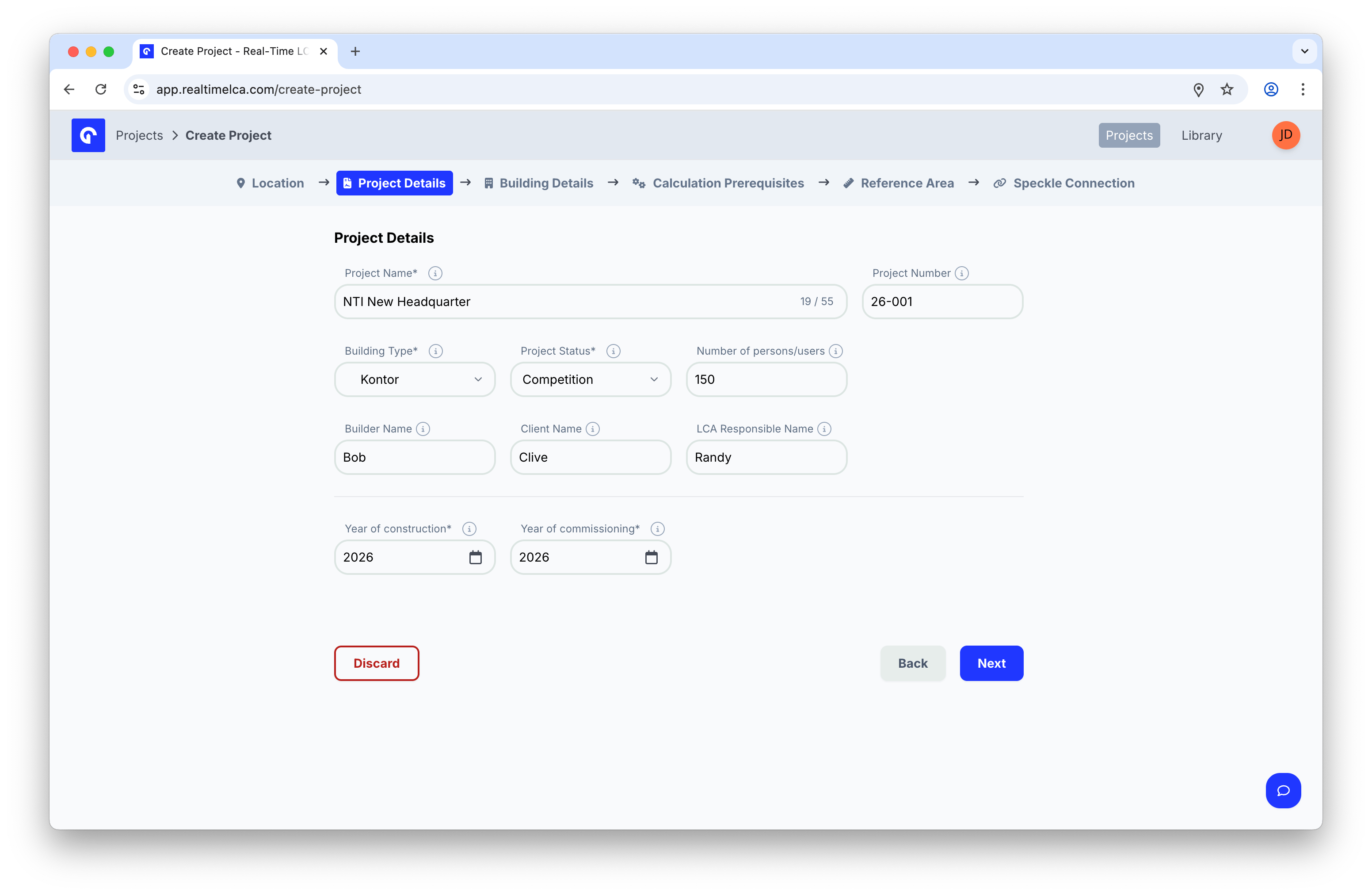 | Field | Description |
| -------------------------------------- | --------------------------------------------------------------------- |
| **Project Name** *(required)* | A short, recognizable name. Up to 55 characters. |
| **Project Number** | Your internal project or job number. |
| **Building Type** *(required)* | The primary use of the building (for example, *Kontor*). |
| **Project Status** *(required)* | Where the project sits in your workflow (for example, *Competition*). |
| **Number of persons/users** | Expected occupancy — used by some calculation types. |
| **Builder Name** | Name of the builder or contractor. |
| **Client Name** | The client commissioning the project. |
| **LCA Responsible Name** | The person responsible for the LCA work in your team. |
| **Year of construction** *(required)* | The year construction is expected to complete. |
| **Year of commissioning** *(required)* | The year the building is put into use. |
## Step 4: Enter building details
The building details capture the heated areas that feed into operational emissions (B6).
| Field | Description |
| -------------------------------------- | --------------------------------------------------------------------- |
| **Project Name** *(required)* | A short, recognizable name. Up to 55 characters. |
| **Project Number** | Your internal project or job number. |
| **Building Type** *(required)* | The primary use of the building (for example, *Kontor*). |
| **Project Status** *(required)* | Where the project sits in your workflow (for example, *Competition*). |
| **Number of persons/users** | Expected occupancy — used by some calculation types. |
| **Builder Name** | Name of the builder or contractor. |
| **Client Name** | The client commissioning the project. |
| **LCA Responsible Name** | The person responsible for the LCA work in your team. |
| **Year of construction** *(required)* | The year construction is expected to complete. |
| **Year of commissioning** *(required)* | The year the building is put into use. |
## Step 4: Enter building details
The building details capture the heated areas that feed into operational emissions (B6).
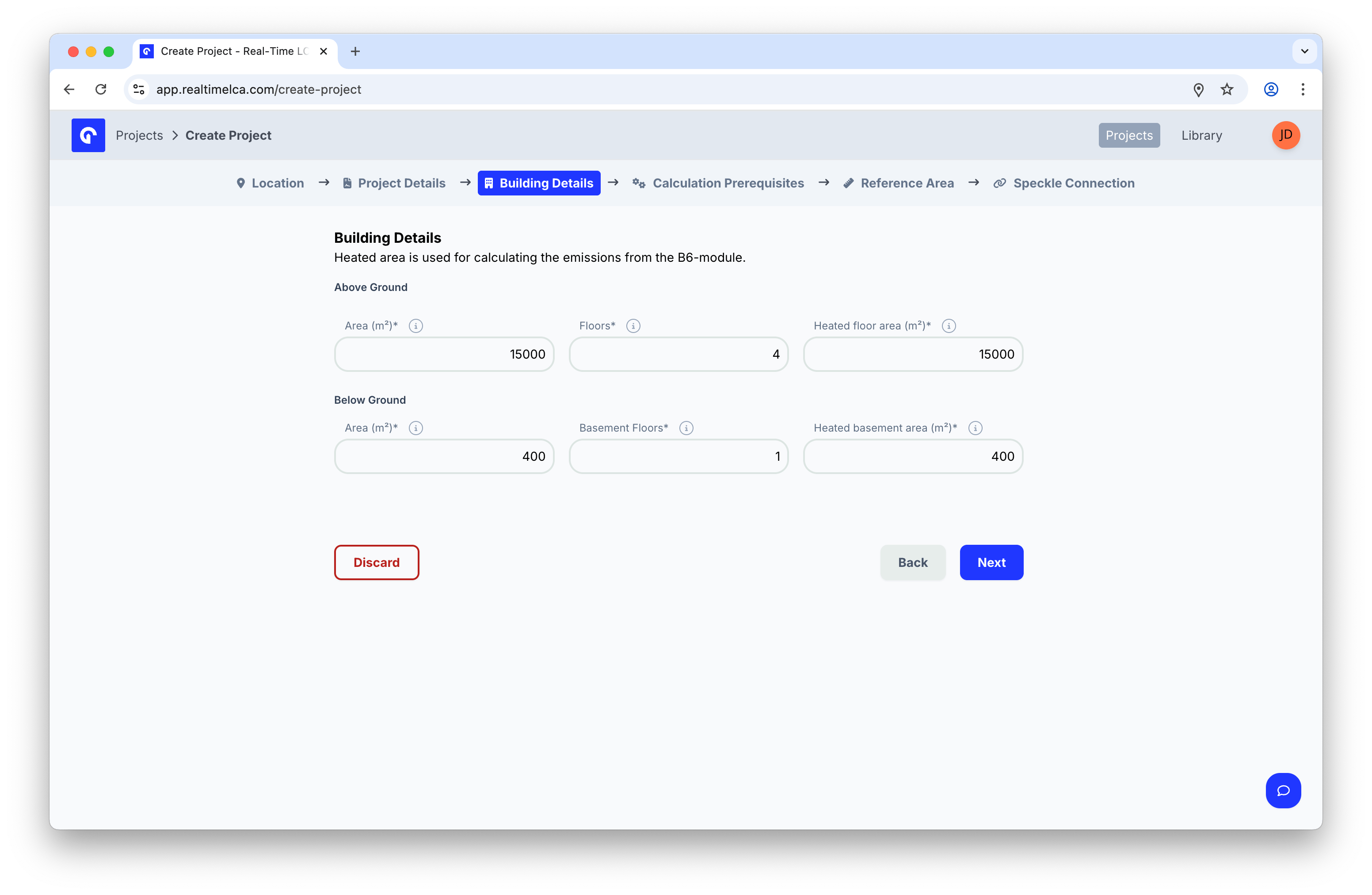 Provide values for both **Above Ground** and **Below Ground** where they apply:
* **Area (m²)** — Footprint area on that level.
* **Floors** / **Basement Floors** — Number of stories.
* **Heated floor area (m²)** / **Heated basement area (m²)** — The portion of the area that is heated. Used for B6 (operational energy) calculations.
If your building has no basement, leave the **Below Ground** values at `0`.
## Step 5: Set the calculation prerequisites
Choose the regulation or methodology that your calculation should follow. The **Calculation Type** controls which life-cycle stages are included, the consideration period, and the CO₂ threshold limit.
Provide values for both **Above Ground** and **Below Ground** where they apply:
* **Area (m²)** — Footprint area on that level.
* **Floors** / **Basement Floors** — Number of stories.
* **Heated floor area (m²)** / **Heated basement area (m²)** — The portion of the area that is heated. Used for B6 (operational energy) calculations.
If your building has no basement, leave the **Below Ground** values at `0`.
## Step 5: Set the calculation prerequisites
Choose the regulation or methodology that your calculation should follow. The **Calculation Type** controls which life-cycle stages are included, the consideration period, and the CO₂ threshold limit.
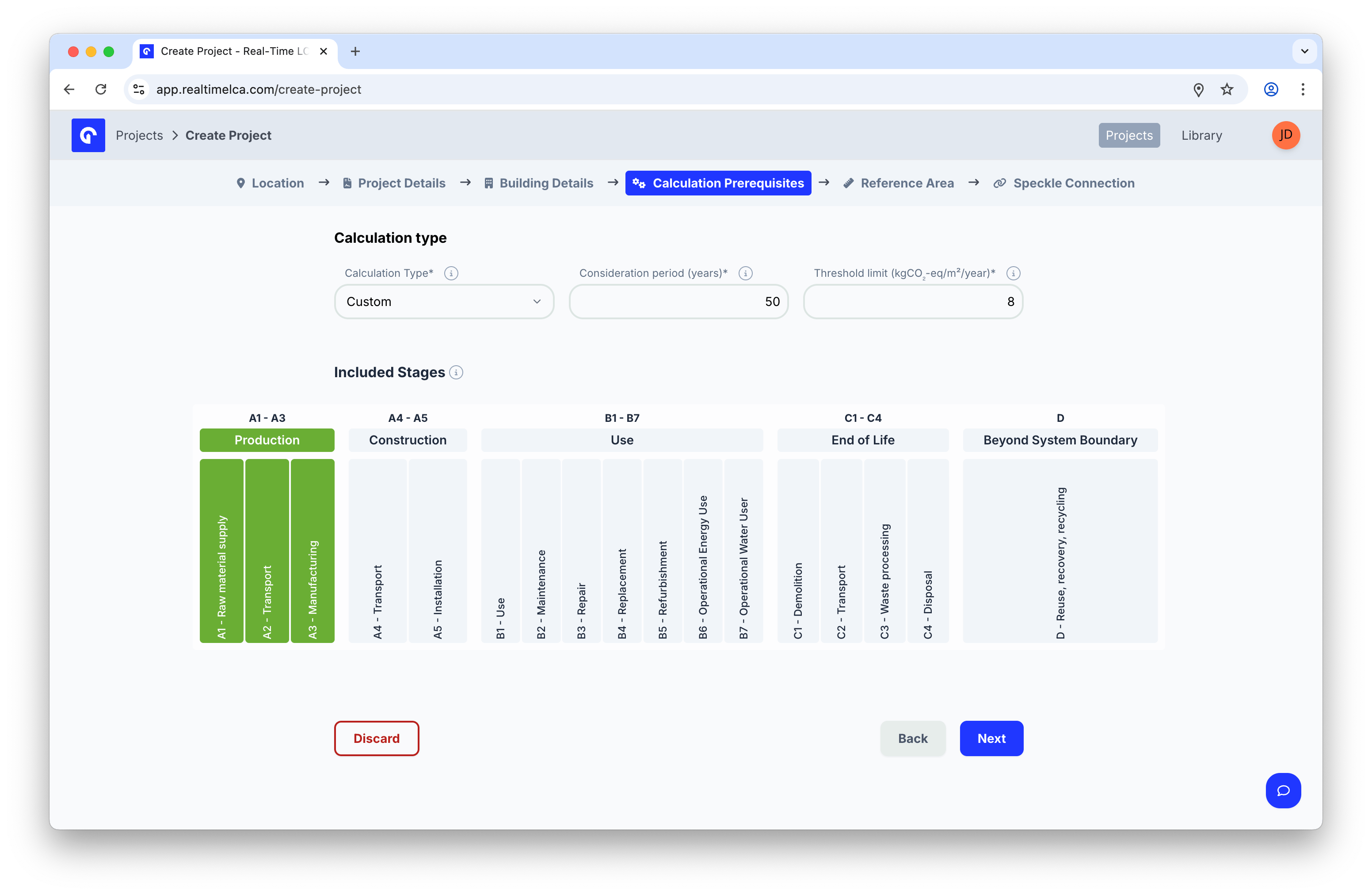
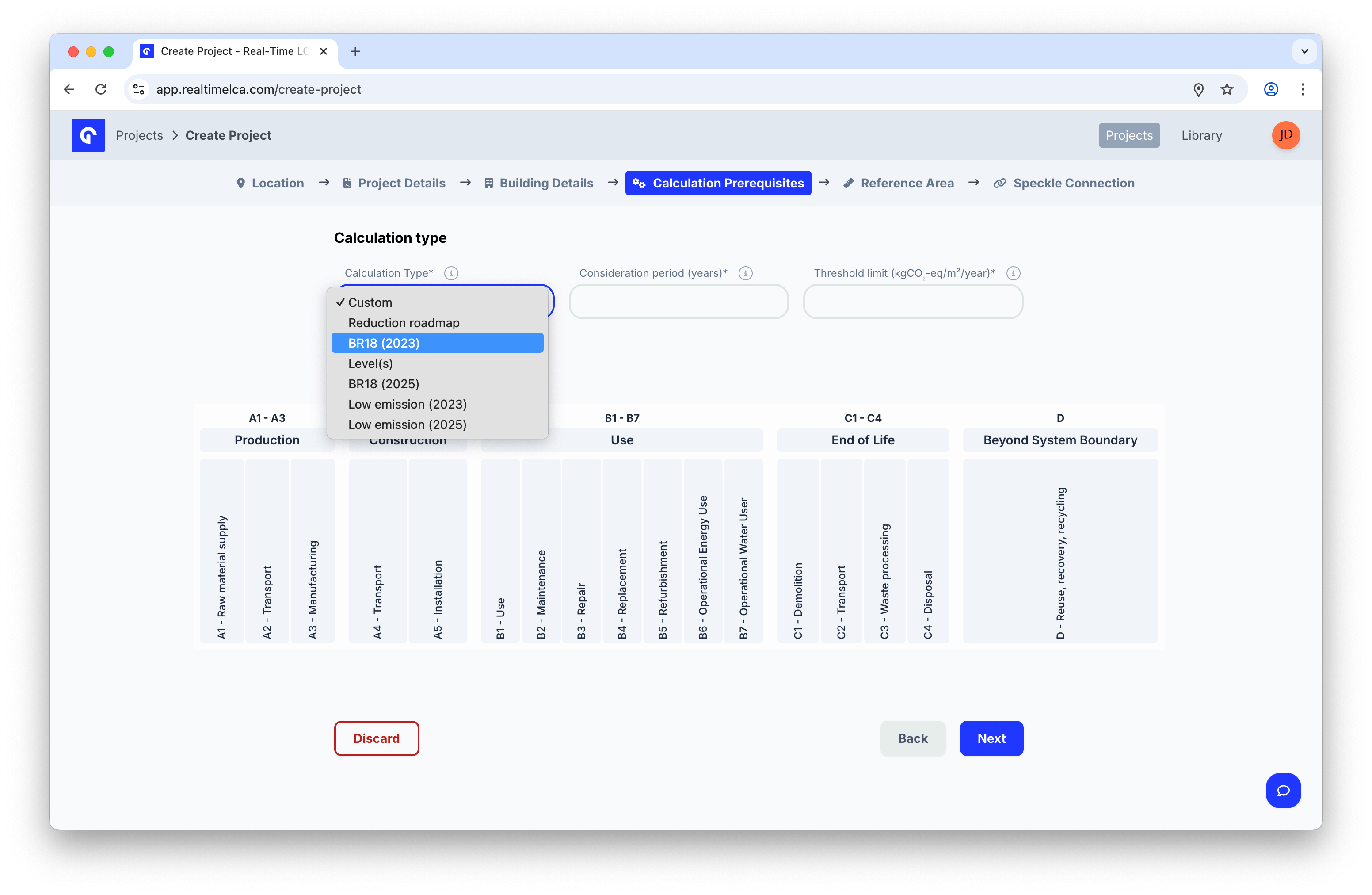 The dropdown lists **only** the calculation types available in the country resolved from the address on Step 2. Pick one, and the wizard locks the **Consideration period (years)**, **Threshold limit (kgCO₂-eq/m²/year)**, and **Included Stages** to that regulation's requirements. Pick **Custom** to define them yourself.
For the full list of calculation types per country — and the rules each one applies — see [Methodology & Compliance](/methodology-and-compliance) and the [National compliance](/methodology-and-compliance#national-compliance) table. The [EU Level(s) framework](/methodology-and-compliance/levels) is available in every country.
The dropdown lists **only** the calculation types available in the country resolved from the address on Step 2. Pick one, and the wizard locks the **Consideration period (years)**, **Threshold limit (kgCO₂-eq/m²/year)**, and **Included Stages** to that regulation's requirements. Pick **Custom** to define them yourself.
For the full list of calculation types per country — and the rules each one applies — see [Methodology & Compliance](/methodology-and-compliance) and the [National compliance](/methodology-and-compliance#national-compliance) table. The [EU Level(s) framework](/methodology-and-compliance/levels) is available in every country.
 ## Step 6: Confirm the reference area
The reference area is what the threshold is measured against. Real-Time LCA prefills it from the heated areas you entered in **Building Details**.
Whether the tab is shown, and which conditions are allowed, depends on the country resolved from Step 2. The screenshot below shows the Danish Building Regulations example. See [Methodology & Compliance](/methodology-and-compliance) for the per-country rules.
## Step 6: Confirm the reference area
The reference area is what the threshold is measured against. Real-Time LCA prefills it from the heated areas you entered in **Building Details**.
Whether the tab is shown, and which conditions are allowed, depends on the country resolved from Step 2. The screenshot below shows the Danish Building Regulations example. See [Methodology & Compliance](/methodology-and-compliance) for the per-country rules.
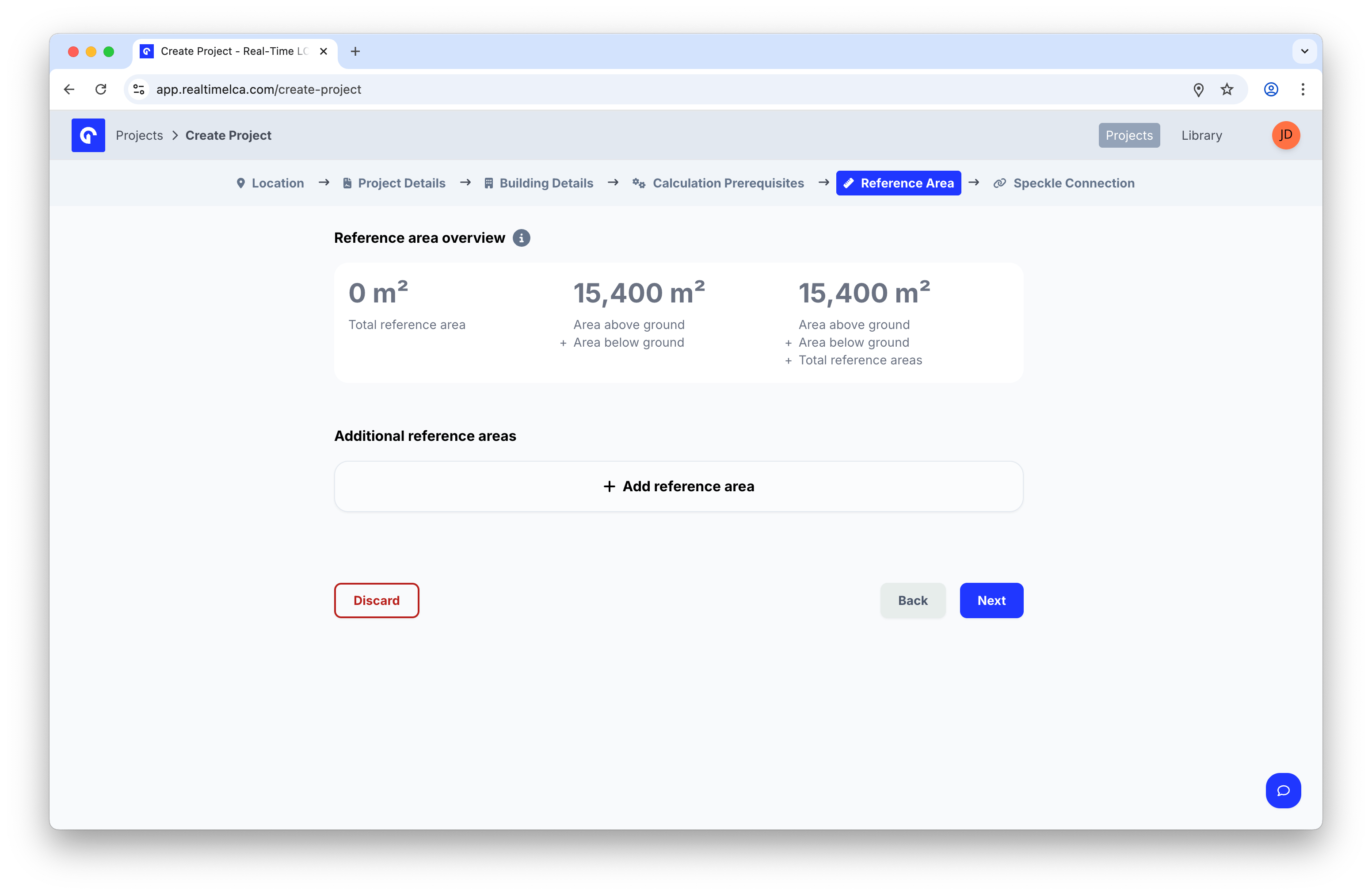 If your reporting requires additional reference areas (for example, a separate area for a parking facility), click **+ Add reference area** and fill in the details.
## Step 7: Activate standard values
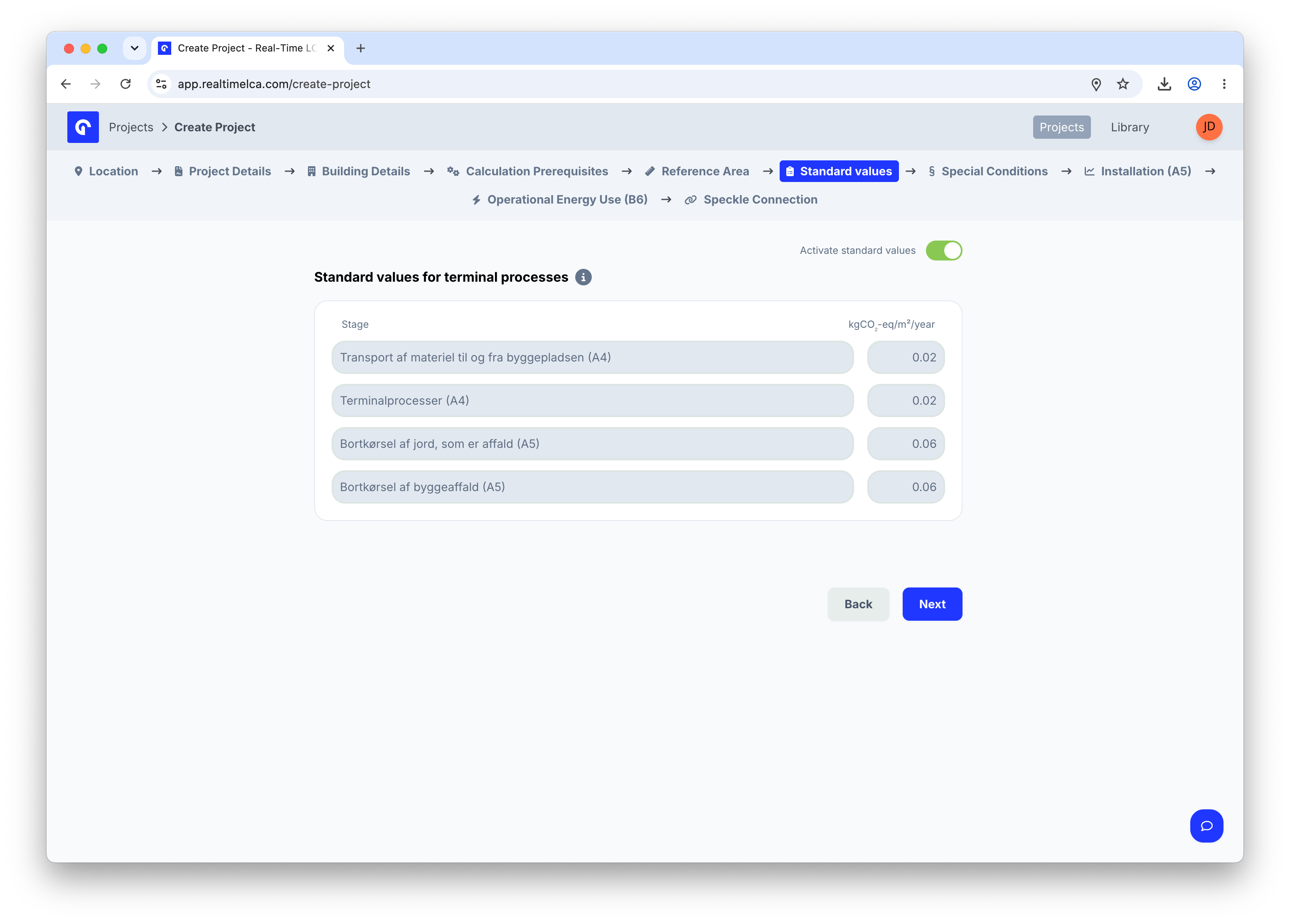
The **Standard Values** tab is where the wizard pre-populates the terminal-process emission factors that the selected regulation expects — typically the construction-site logistics and waste-removal stages (A4 and A5). The values are read-only defaults from the regulation; flip **Activate standard values** on to apply them to the project.
The factors, stages, and units shown on this tab come from the country's regulation. See [Methodology & Compliance](/methodology-and-compliance) for the rules behind each value. If the selected country has no standard values, this tab is skipped.
If your reporting requires additional reference areas (for example, a separate area for a parking facility), click **+ Add reference area** and fill in the details.
## Step 7: Activate standard values
The **Standard Values** tab is where the wizard pre-populates the terminal-process emission factors that the selected regulation expects — typically the construction-site logistics and waste-removal stages (A4 and A5). The values are read-only defaults from the regulation; flip **Activate standard values** on to apply them to the project.
The factors, stages, and units shown on this tab come from the country's regulation. See [Methodology & Compliance](/methodology-and-compliance) for the rules behind each value. If the selected country has no standard values, this tab is skipped.
 ## Step 8: Set special conditions
**Special Conditions** lets the project exclude the additional material impact caused by site-specific constraints — for example, ground or foundation conditions called out in the national regulation. Approval is usually case-specific, so only enable this if you can document that your building qualifies.
Whether the tab is shown, and which conditions are allowed, depends on the country resolved from Step 2. The screenshot below shows the Danish Building Regulations example. See [Methodology & Compliance](/methodology-and-compliance) for the per-country rules.
## Step 8: Set special conditions
**Special Conditions** lets the project exclude the additional material impact caused by site-specific constraints — for example, ground or foundation conditions called out in the national regulation. Approval is usually case-specific, so only enable this if you can document that your building qualifies.
Whether the tab is shown, and which conditions are allowed, depends on the country resolved from Step 2. The screenshot below shows the Danish Building Regulations example. See [Methodology & Compliance](/methodology-and-compliance) for the per-country rules.
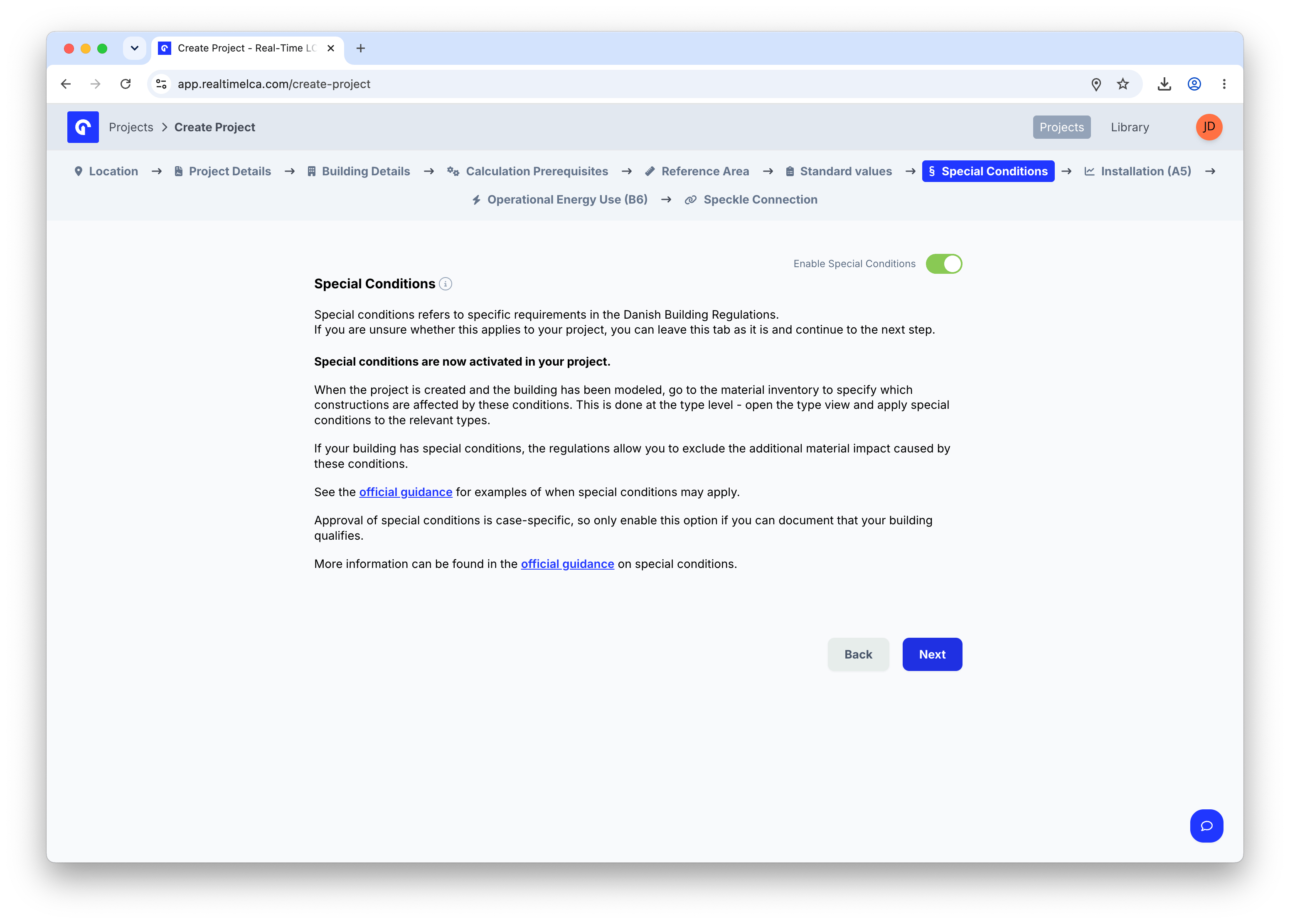 Once the project is created and the building has been modeled, open [Material Mapping](/user-guide/project/material-mapping) to mark the specific construction types that the special conditions apply to.
## Step 9: Enter A5 installation data
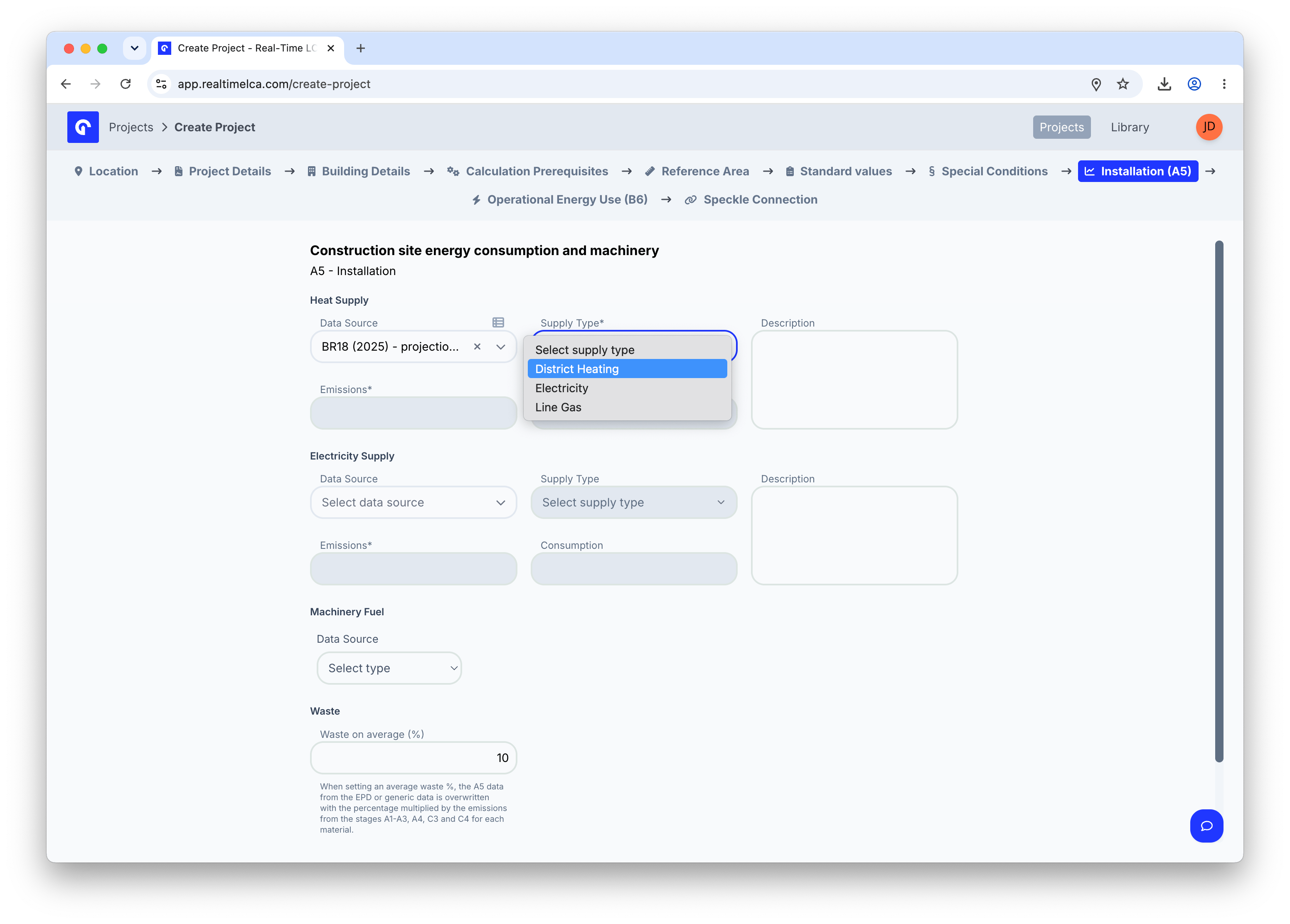
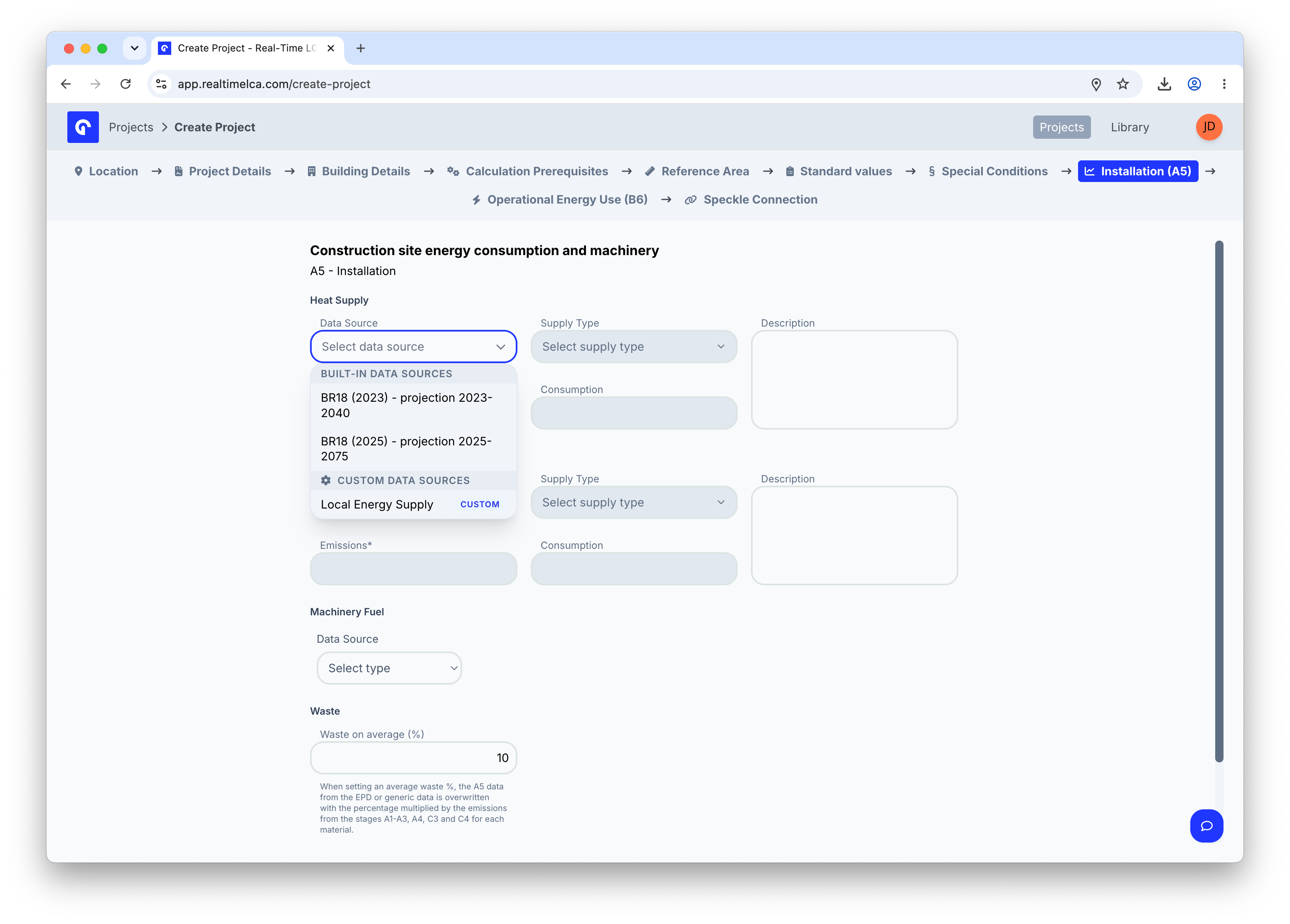
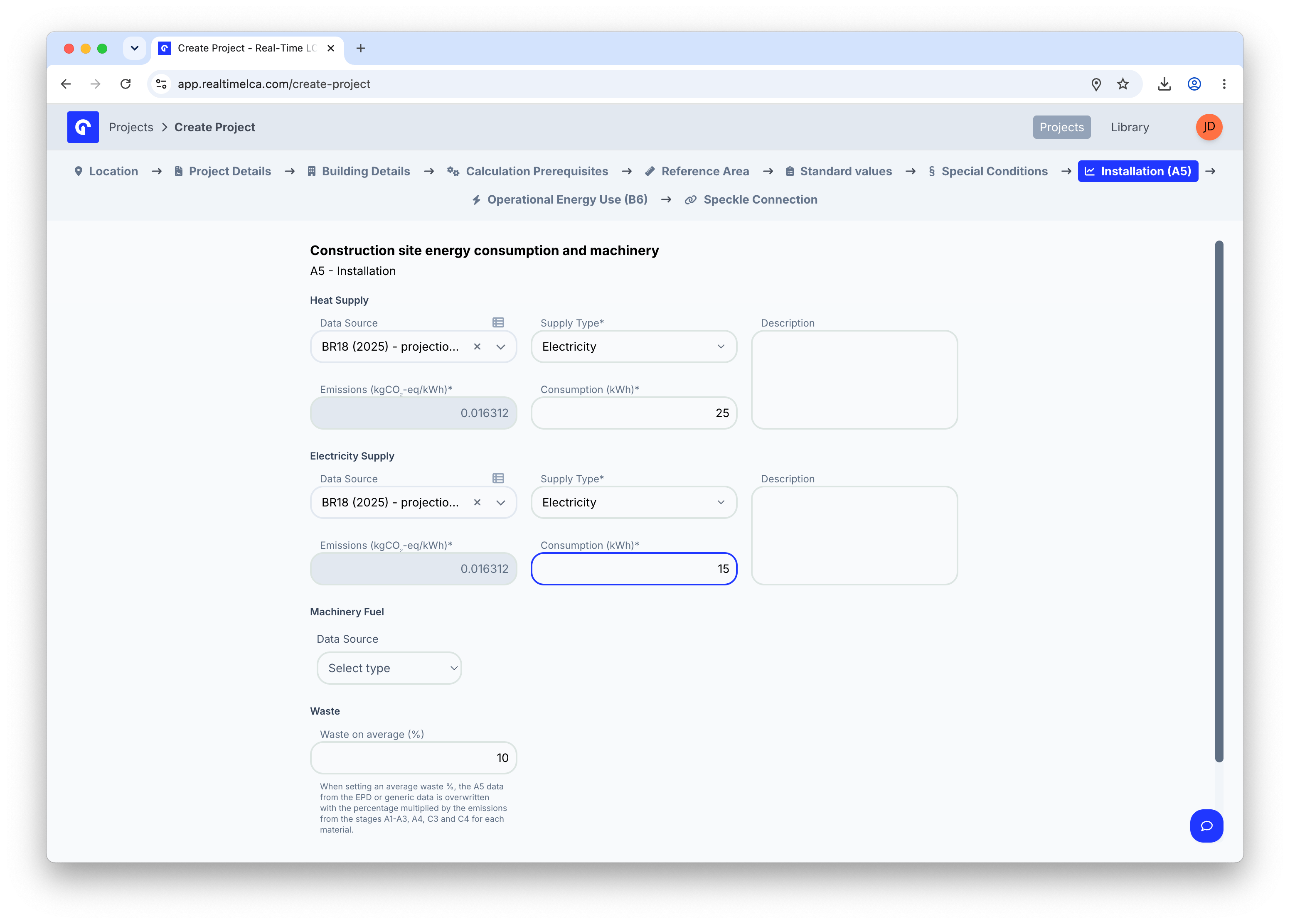
The **Installation (A5)** tab captures the energy and waste generated on the construction site itself — heat supply, electricity supply, machinery fuel, and the average waste percentage.
The data sources available in each dropdown, the supply types you can pick, and whether all three sub-blocks (heat, electricity, machinery) are required depend on the selected country and calculation type. See [Methodology & Compliance](/methodology-and-compliance) for the rules behind A5.
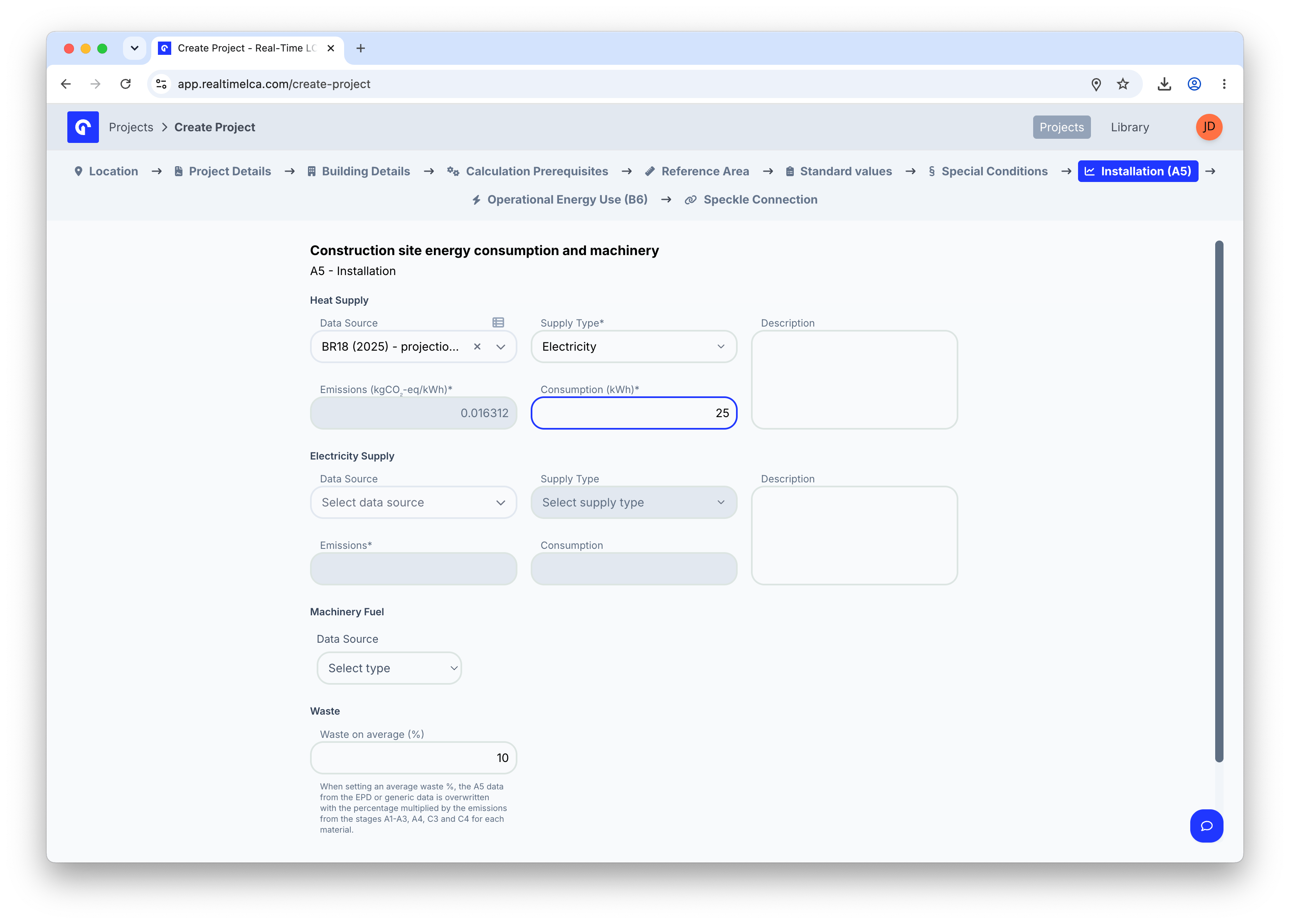
### Heat supply
Pick a **Data Source** to load the emission factor, then choose the matching **Supply Type** (for example, *District Heating*, *Electricity*, or *Line Gas*) and enter the expected **Consumption (kWh)**. The **Emissions (kgCO₂-eq/kWh)** field auto-fills from the data source.
Once the project is created and the building has been modeled, open [Material Mapping](/user-guide/project/material-mapping) to mark the specific construction types that the special conditions apply to.
## Step 9: Enter A5 installation data
The **Installation (A5)** tab captures the energy and waste generated on the construction site itself — heat supply, electricity supply, machinery fuel, and the average waste percentage.
The data sources available in each dropdown, the supply types you can pick, and whether all three sub-blocks (heat, electricity, machinery) are required depend on the selected country and calculation type. See [Methodology & Compliance](/methodology-and-compliance) for the rules behind A5.
### Heat supply
Pick a **Data Source** to load the emission factor, then choose the matching **Supply Type** (for example, *District Heating*, *Electricity*, or *Line Gas*) and enter the expected **Consumption (kWh)**. The **Emissions (kgCO₂-eq/kWh)** field auto-fills from the data source.
 ### Electricity supply
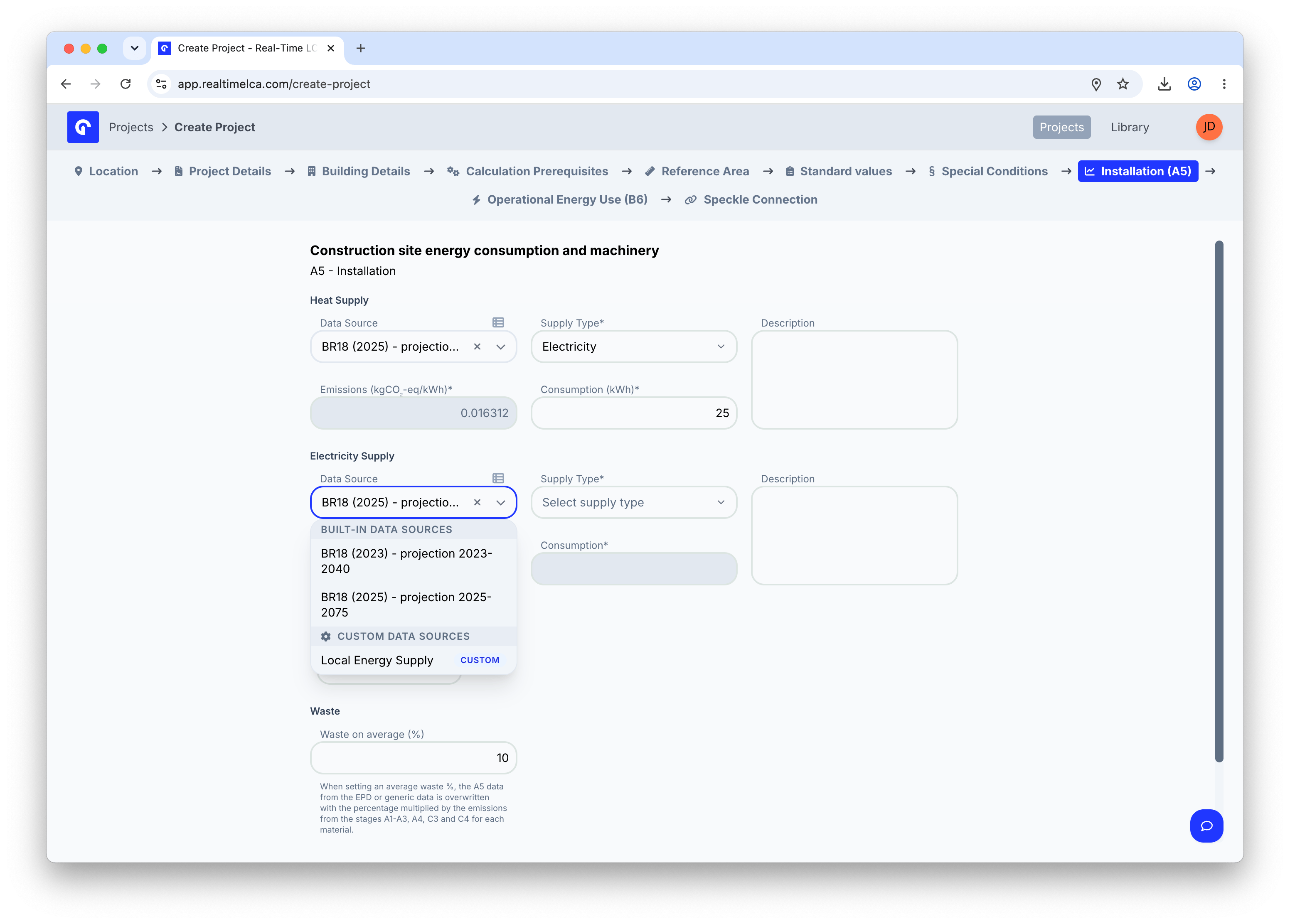
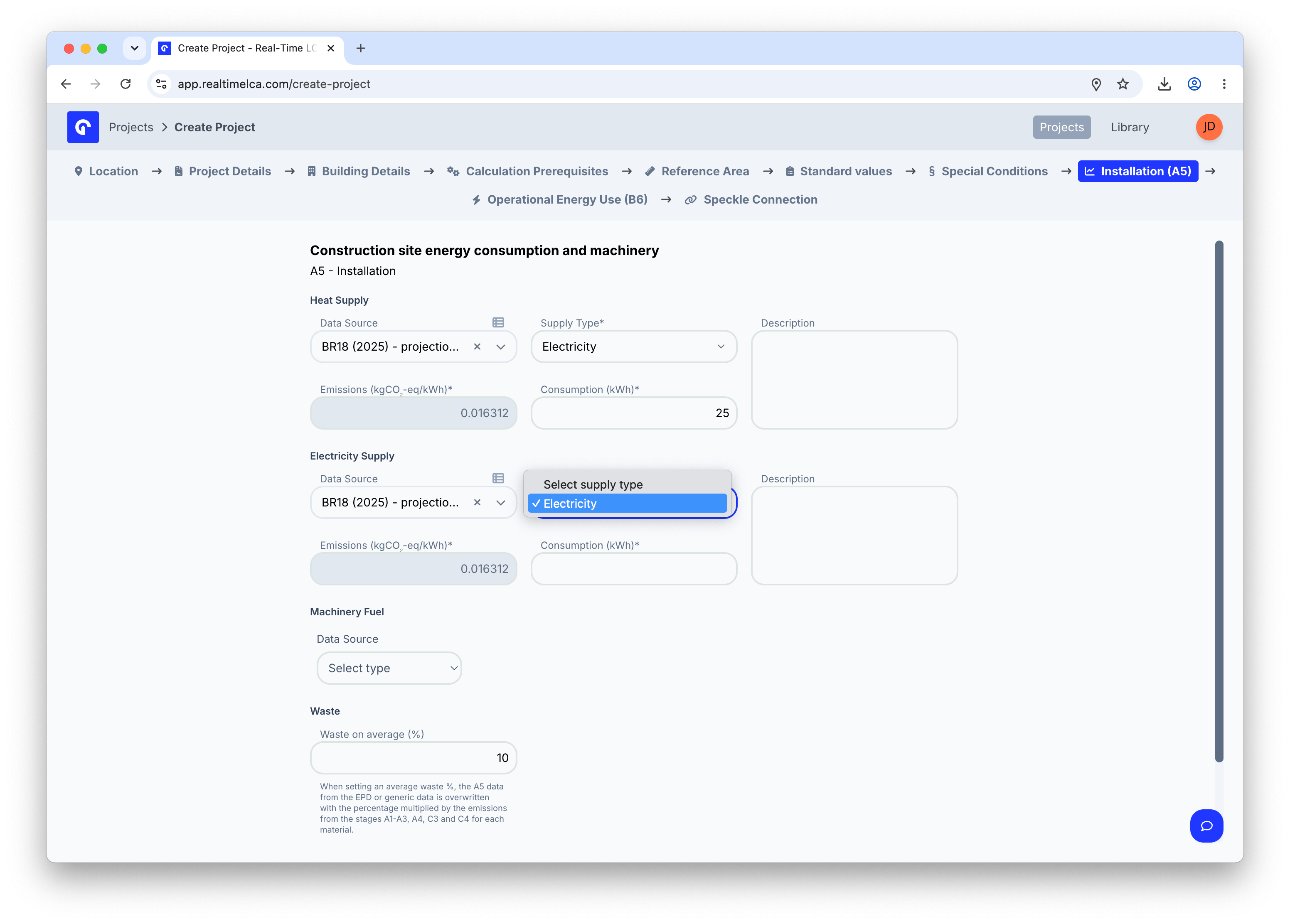
Use the same Data Source / Supply Type / Consumption pattern for site electricity.
### Electricity supply
Use the same Data Source / Supply Type / Consumption pattern for site electricity.
 ### Machinery fuel
If the project tracks machinery fuel separately, pick a Data Source for the fuel emission factor.
### Machinery fuel
If the project tracks machinery fuel separately, pick a Data Source for the fuel emission factor.
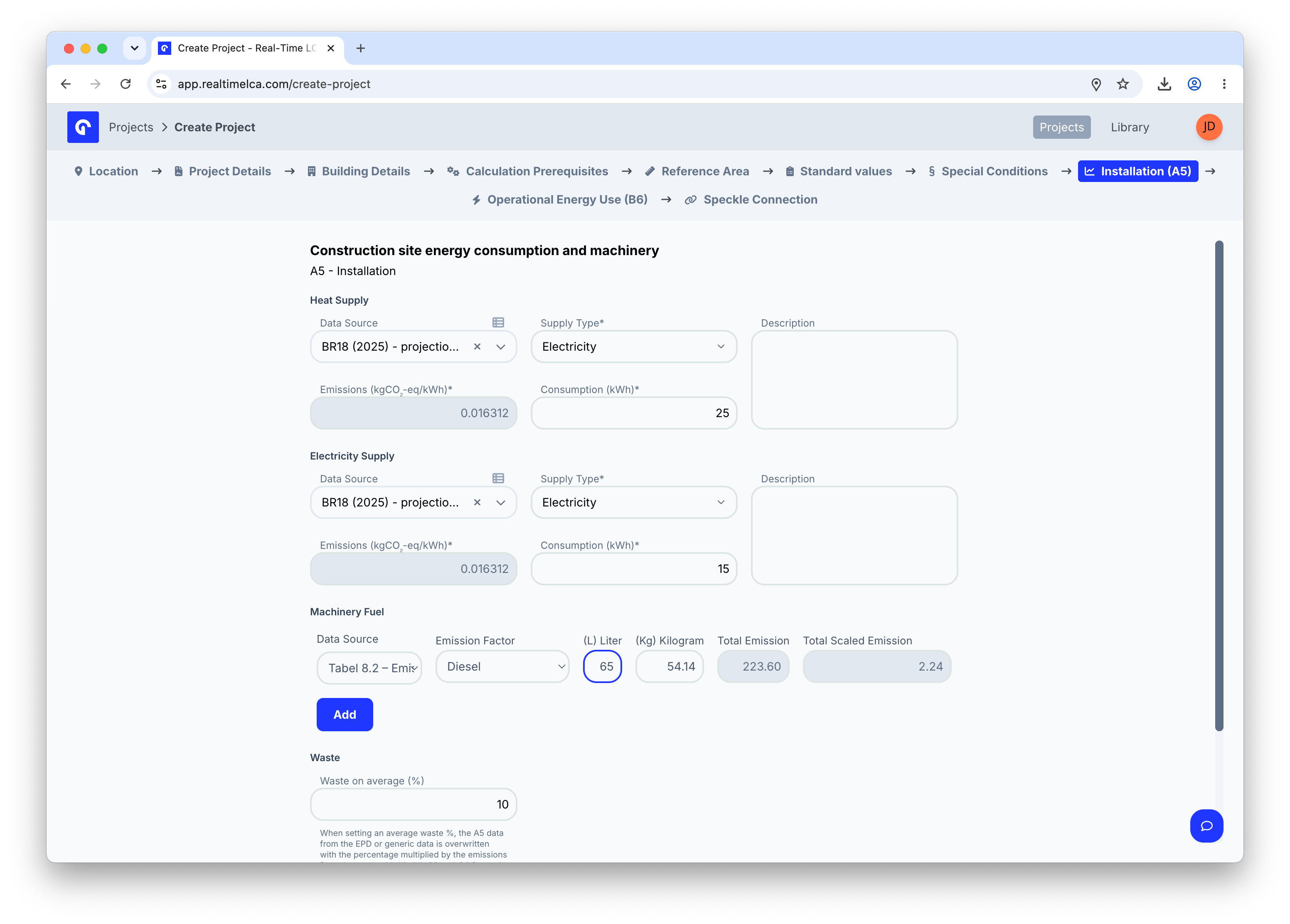
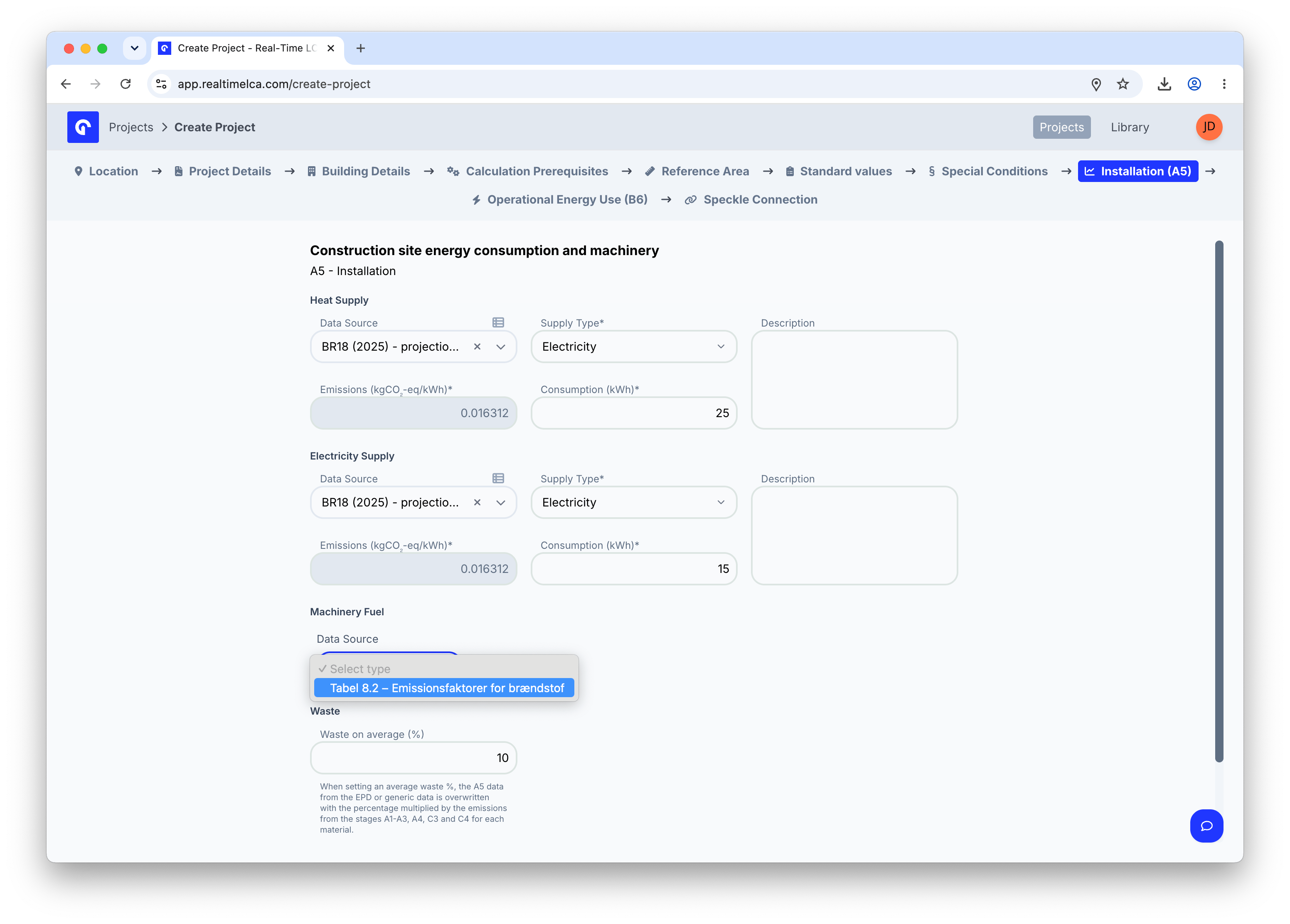 Then choose an **Emission Factor** (for example, *Diesel*) and enter the volume in **(L) Liter** or the mass in **(Kg) Kilogram**. The wizard fills in **Total Emission** and **Total Scaled Emission** for you — click **Add** to commit the row.
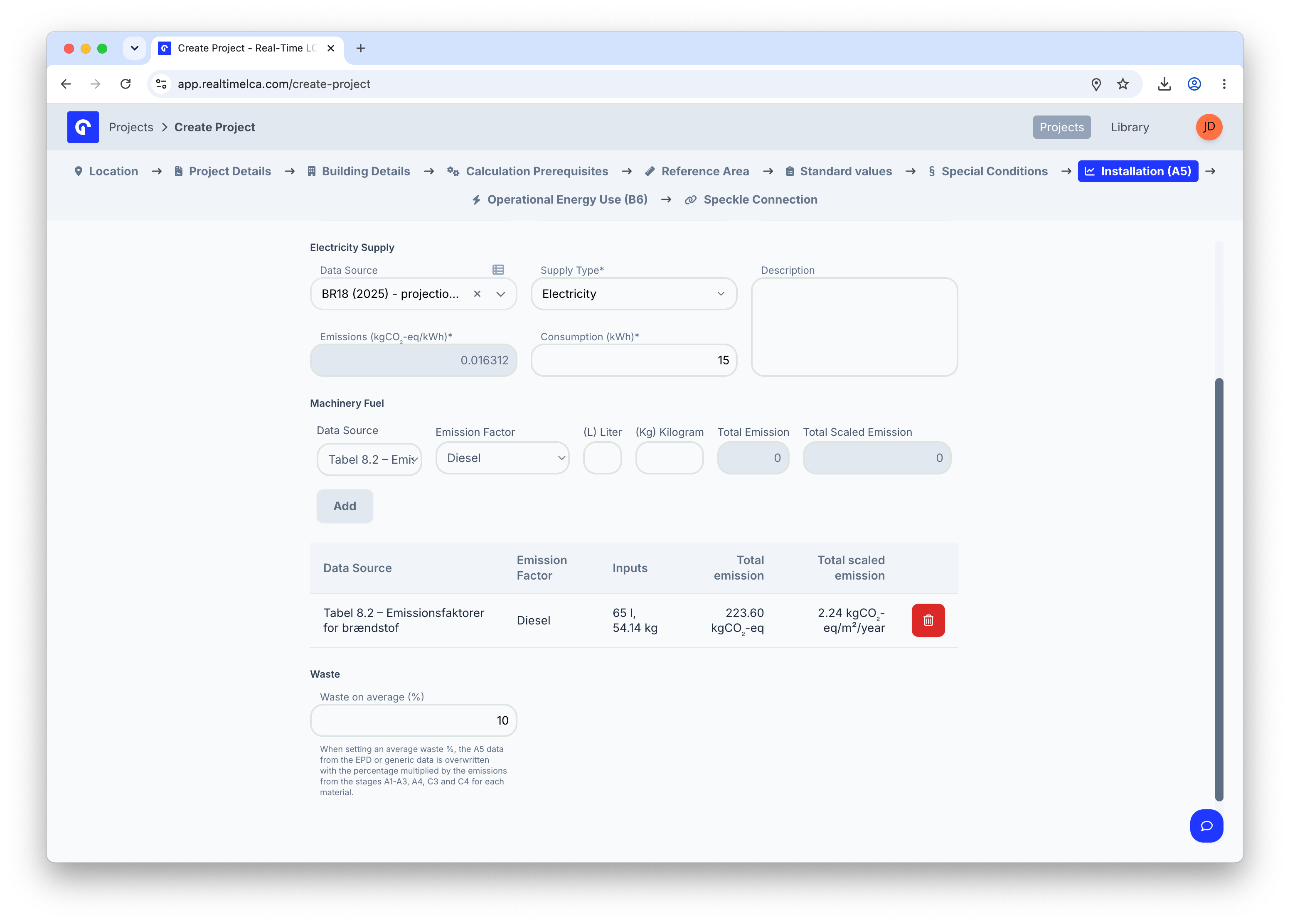
 Added fuel rows show up underneath the form. Use the bin icon to remove a row.
 ### Waste on average (%)
The trailing **Waste on average (%)** field captures the project's average construction waste. When set, the A5 data from each material's EPD (or the generic fallback) is overwritten by this percentage multiplied by the emissions from A1–A3, A4, C3, and C4 for that material.
## Step 10: Enter operational energy use (B6)
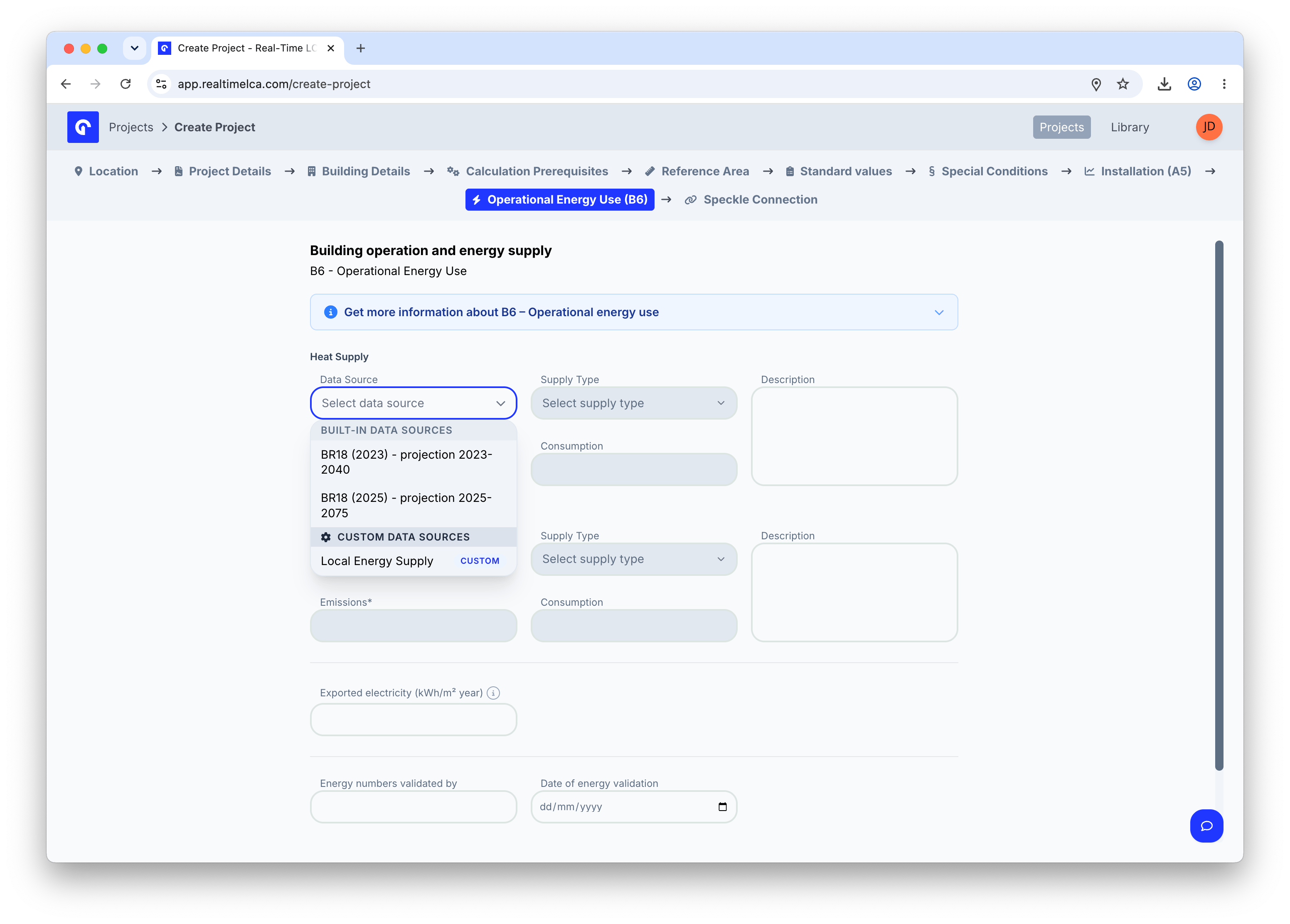
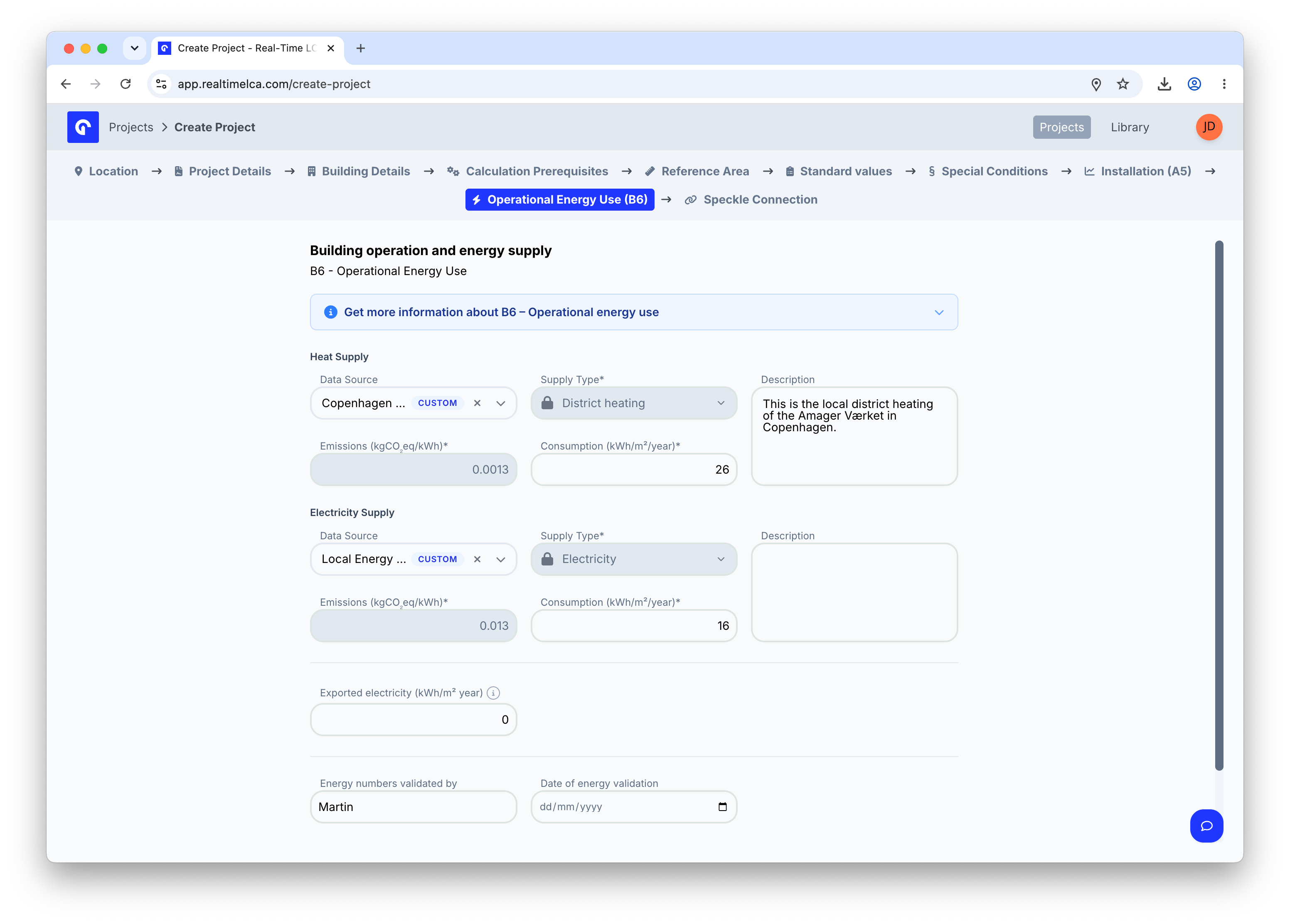
The **Operational Energy Use (B6)** tab is where you record the building's expected operational heat and electricity demand. Real-Time LCA uses these to calculate B6 over the consideration period.
Whether B6 is required, which supply types are available, and which data sources apply depend on the selected country and calculation type. See [Methodology & Compliance](/methodology-and-compliance) for the rules behind B6.
For both **Heat Supply** and **Electricity Supply** the form follows the same shape as A5: pick a **Data Source**, choose the matching **Supply Type**, enter the annual **Consumption (kWh/m²/year)**, and optionally add a **Description**.
### Waste on average (%)
The trailing **Waste on average (%)** field captures the project's average construction waste. When set, the A5 data from each material's EPD (or the generic fallback) is overwritten by this percentage multiplied by the emissions from A1–A3, A4, C3, and C4 for that material.
## Step 10: Enter operational energy use (B6)
The **Operational Energy Use (B6)** tab is where you record the building's expected operational heat and electricity demand. Real-Time LCA uses these to calculate B6 over the consideration period.
Whether B6 is required, which supply types are available, and which data sources apply depend on the selected country and calculation type. See [Methodology & Compliance](/methodology-and-compliance) for the rules behind B6.
For both **Heat Supply** and **Electricity Supply** the form follows the same shape as A5: pick a **Data Source**, choose the matching **Supply Type**, enter the annual **Consumption (kWh/m²/year)**, and optionally add a **Description**.
 Two additional fields sit beneath the supply blocks:
* **Exported electricity (kWh/m²/year)** — annual electricity exported back to the grid, subtracted from the B6 total.
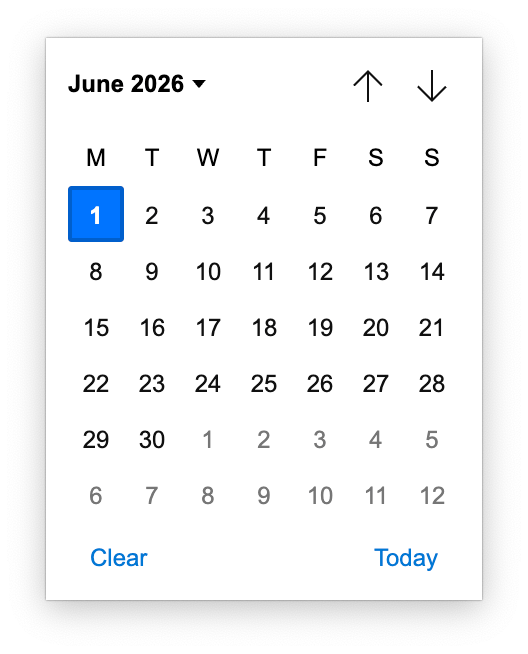
* **Energy numbers validated by** + **Date of energy validation** — record who signed off on the input numbers and when.
Two additional fields sit beneath the supply blocks:
* **Exported electricity (kWh/m²/year)** — annual electricity exported back to the grid, subtracted from the B6 total.
* **Energy numbers validated by** + **Date of energy validation** — record who signed off on the input numbers and when.
 ### Using custom data sources
Both the A5 and B6 Data Source dropdowns are grouped into two sections: **Built-in data sources** (the regulation's own projections) and **Custom data sources** (factors your tenant has created). Custom factors are useful when you have a verified local emission factor — for example, the district heating utility in your project's region — that the regulation's default does not reflect.
### Using custom data sources
Both the A5 and B6 Data Source dropdowns are grouped into two sections: **Built-in data sources** (the regulation's own projections) and **Custom data sources** (factors your tenant has created). Custom factors are useful when you have a verified local emission factor — for example, the district heating utility in your project's region — that the regulation's default does not reflect.
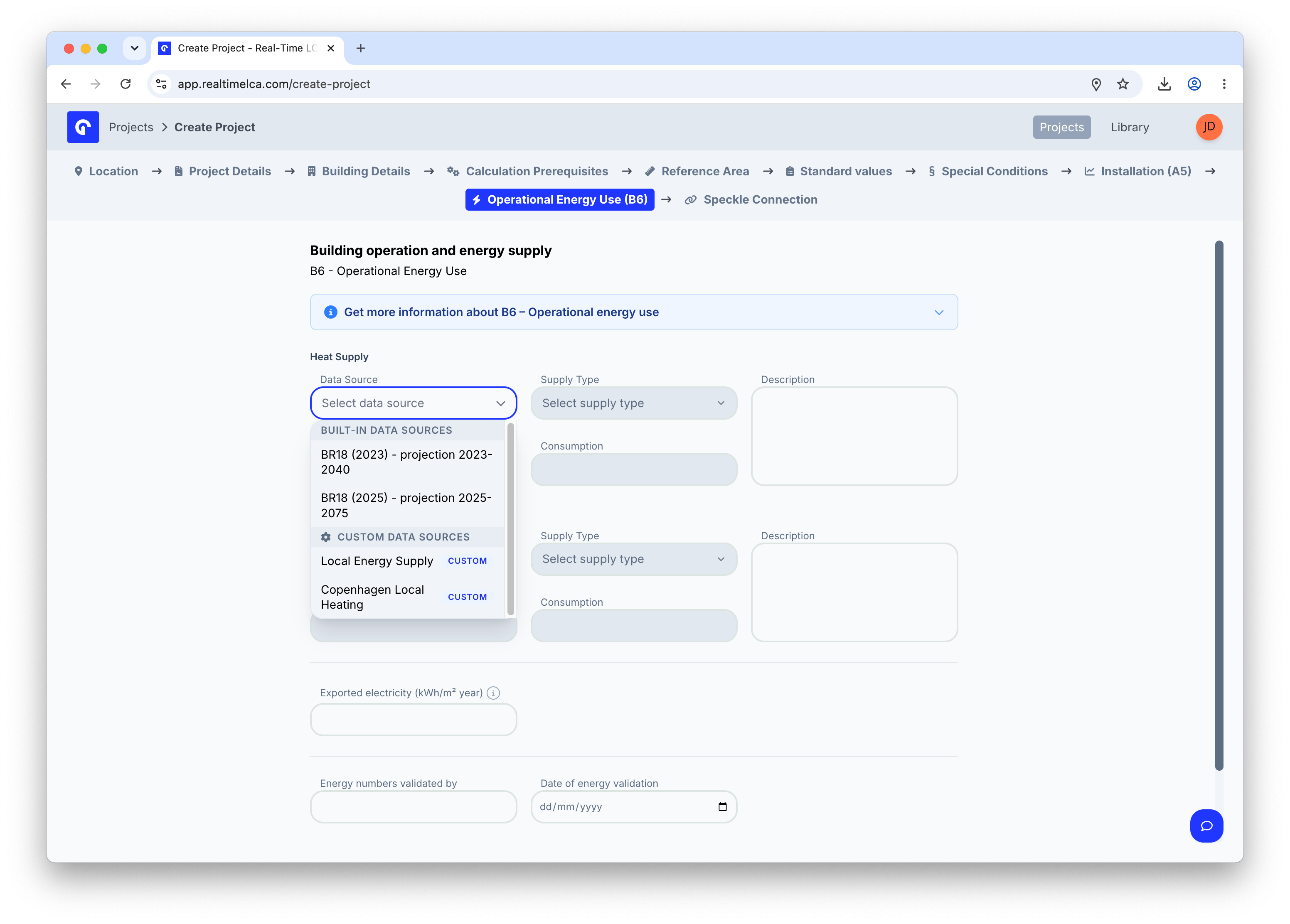 To add or edit a custom data source, open **Manage custom data sources** from the footer of the dropdown.
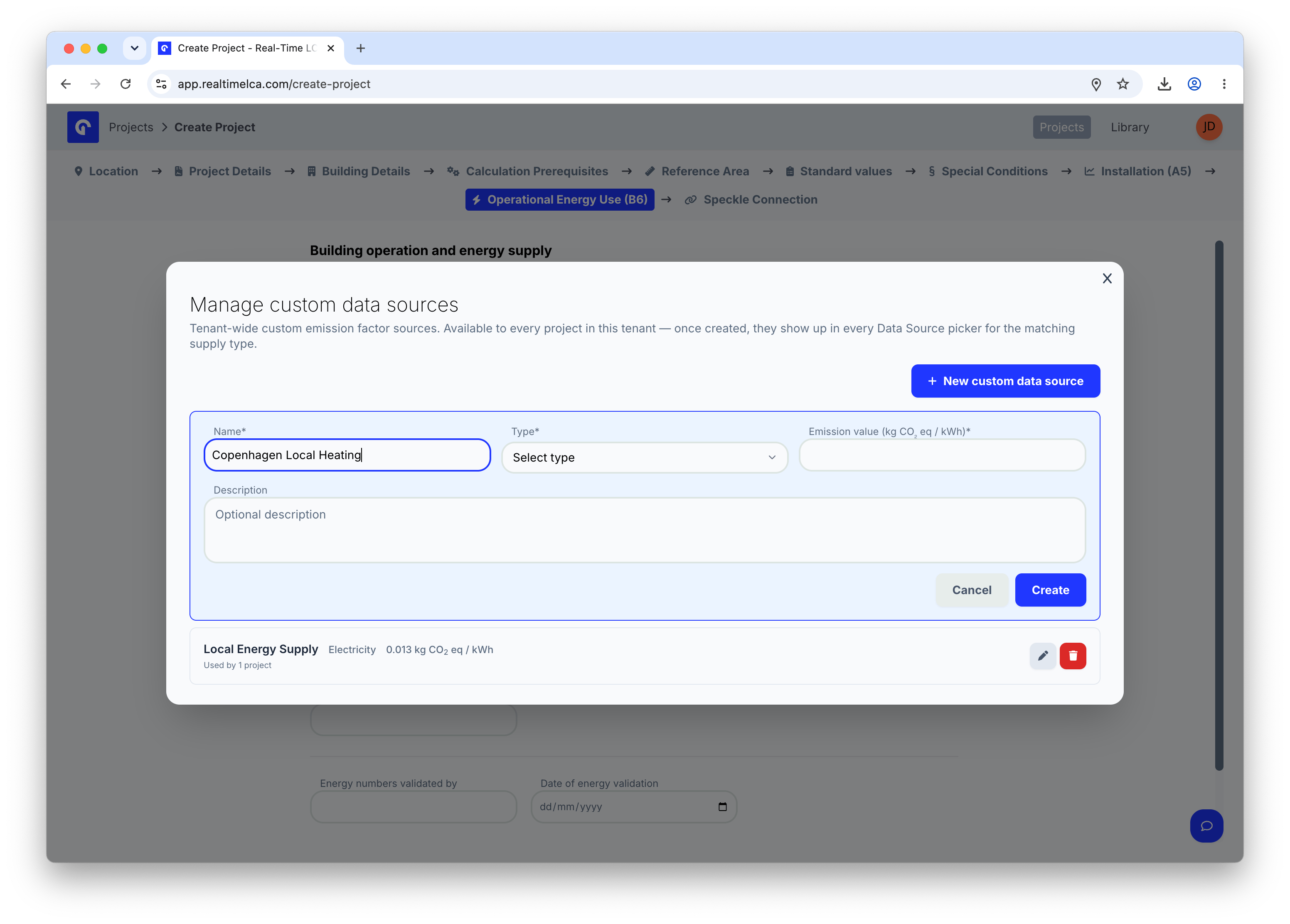 Click **+ New custom data source**, pick a **Type** (the supply type the factor applies to), enter the **Name**, **Emission value (kgCO₂-eq/kWh)**, and an optional **Description**, then click **Create**.
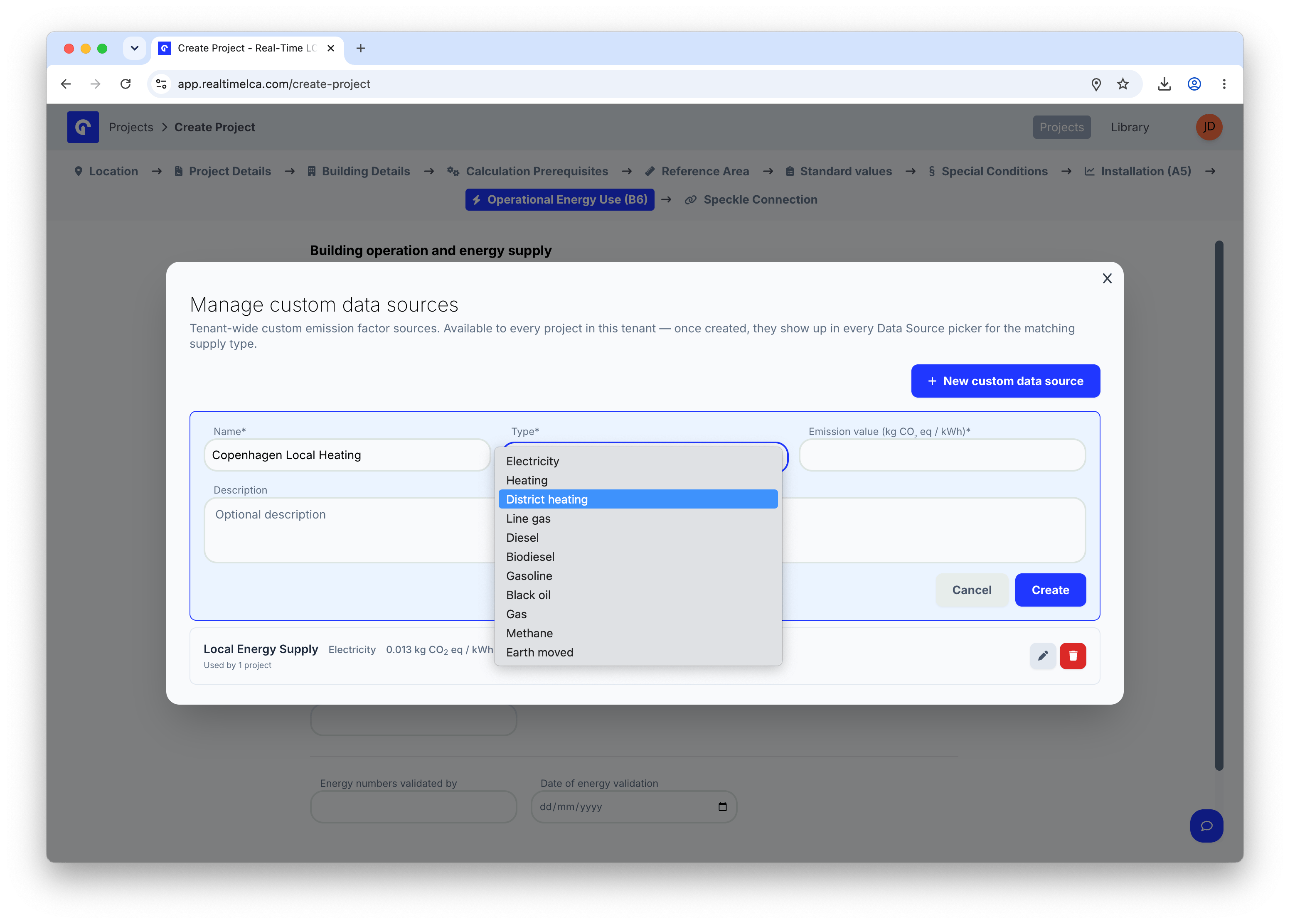
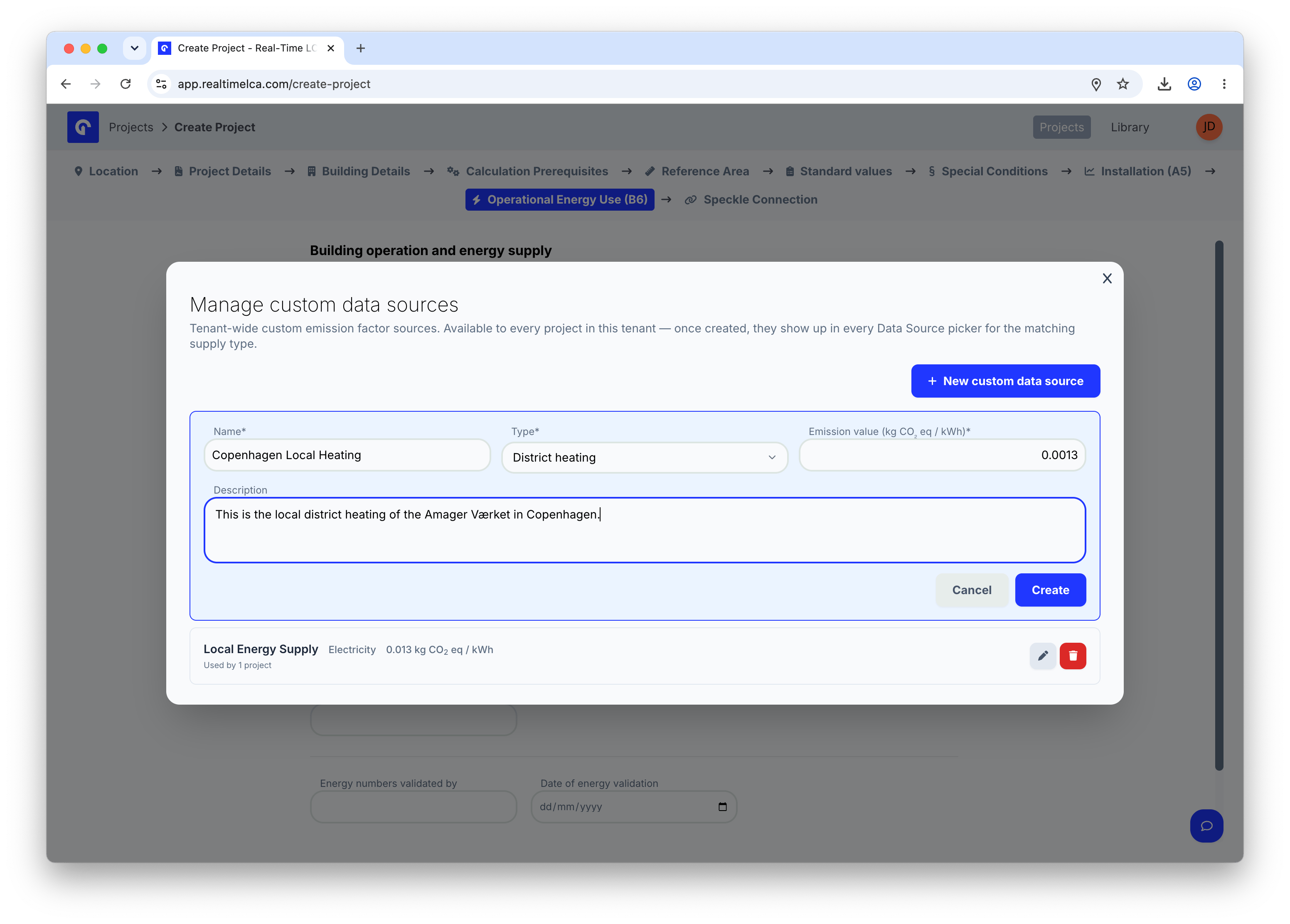
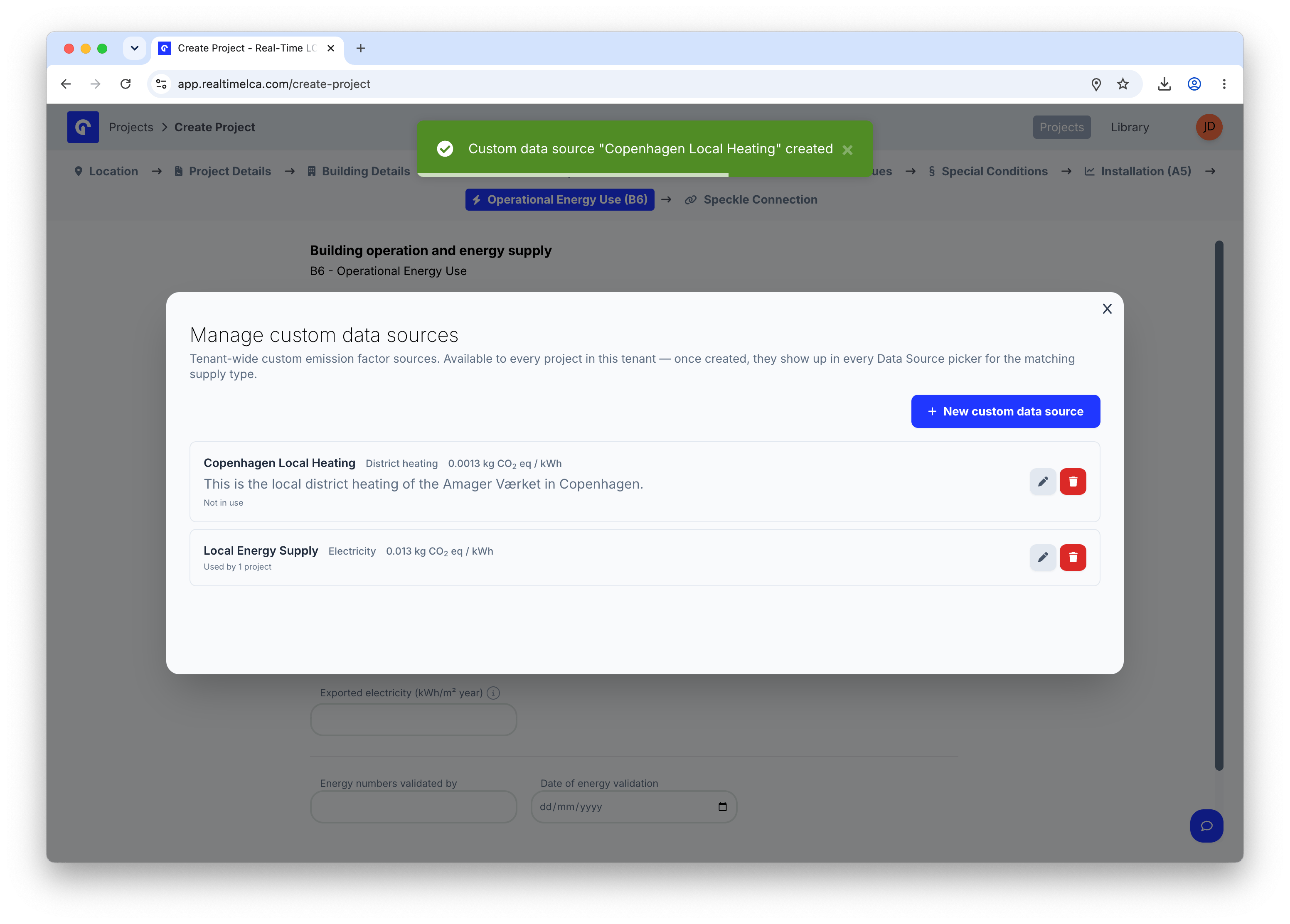 Custom data sources are **tenant-wide**. Once created they show up in every project's Data Source dropdown that matches the supply type — across A5, B6, and any future project.
## Step 11: Choose a Speckle connection
The last step decides how 3D model data flows into the project.
Custom data sources are **tenant-wide**. Once created they show up in every project's Data Source dropdown that matches the supply type — across A5, B6, and any future project.
## Step 11: Choose a Speckle connection
The last step decides how 3D model data flows into the project.
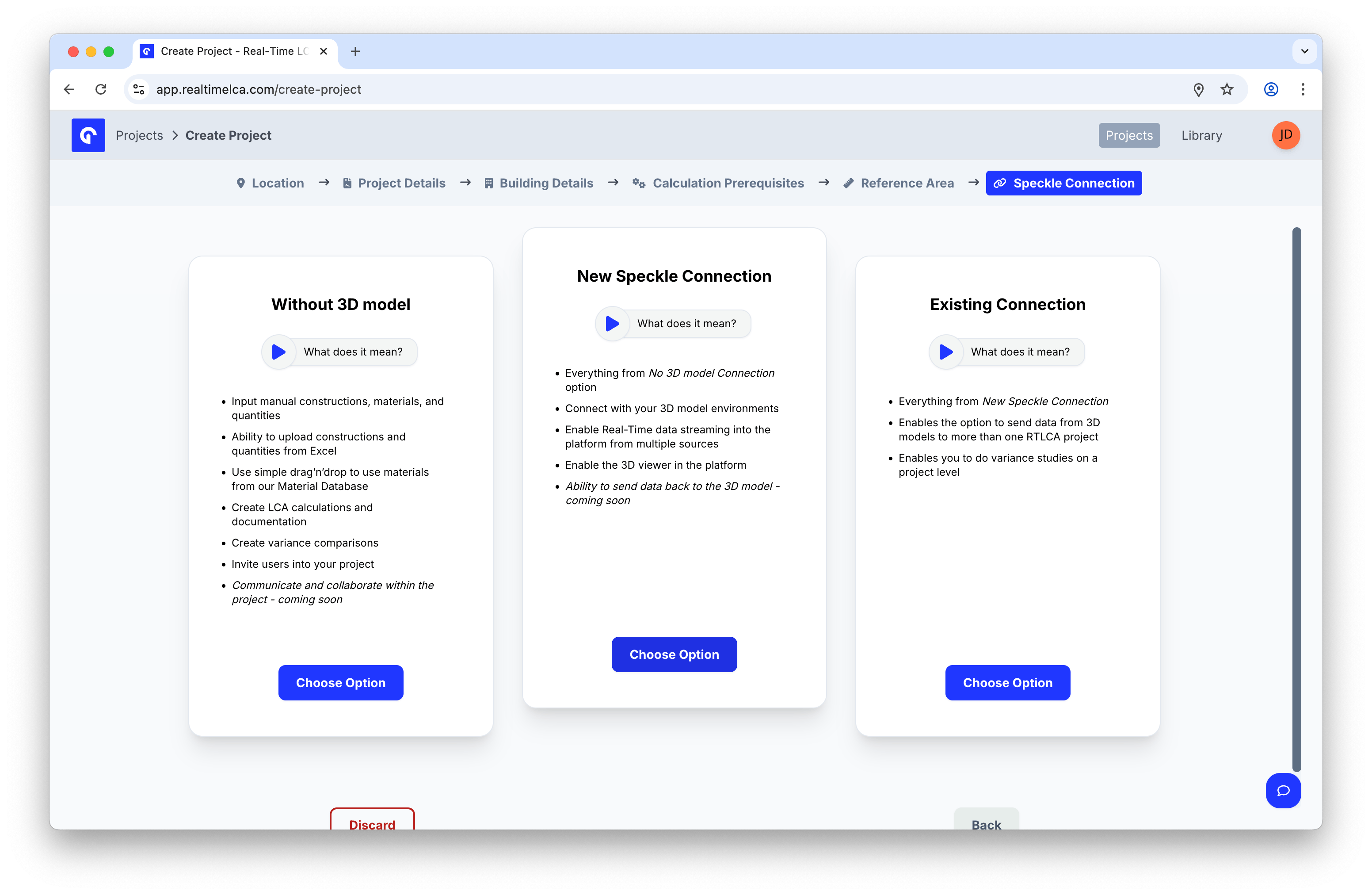 Best for early-phase or non-modeled projects.
* Input manual constructions, materials, and quantities.
* Upload constructions and quantities from Excel.
* Drag and drop materials from the material database.
* Create LCA calculations and documentation.
* Create variance comparisons.
* Invite users into your project.
Connect this project to a fresh Speckle stream.
* Everything from **Without 3D model**.
* Connect with your 3D modeling environments.
* Enable Real-Time data streaming into the platform from multiple sources.
* Enable the 3D viewer in the platform.
* Send data back to the 3D model *(coming soon)*.
Reuse a Speckle connection that is already used by another project.
* Everything from **New Speckle Connection**.
* Send data from 3D models to more than one Real-Time LCA project.
* Run variance studies across projects.
Click **Choose Option** on the card that matches your case.
### Configure the Speckle models
If you chose **New Speckle Connection** or **Existing Connection**, configure which Speckle models the project should listen to.
Best for early-phase or non-modeled projects.
* Input manual constructions, materials, and quantities.
* Upload constructions and quantities from Excel.
* Drag and drop materials from the material database.
* Create LCA calculations and documentation.
* Create variance comparisons.
* Invite users into your project.
Connect this project to a fresh Speckle stream.
* Everything from **Without 3D model**.
* Connect with your 3D modeling environments.
* Enable Real-Time data streaming into the platform from multiple sources.
* Enable the 3D viewer in the platform.
* Send data back to the 3D model *(coming soon)*.
Reuse a Speckle connection that is already used by another project.
* Everything from **New Speckle Connection**.
* Send data from 3D models to more than one Real-Time LCA project.
* Run variance studies across projects.
Click **Choose Option** on the card that matches your case.
### Configure the Speckle models
If you chose **New Speckle Connection** or **Existing Connection**, configure which Speckle models the project should listen to.
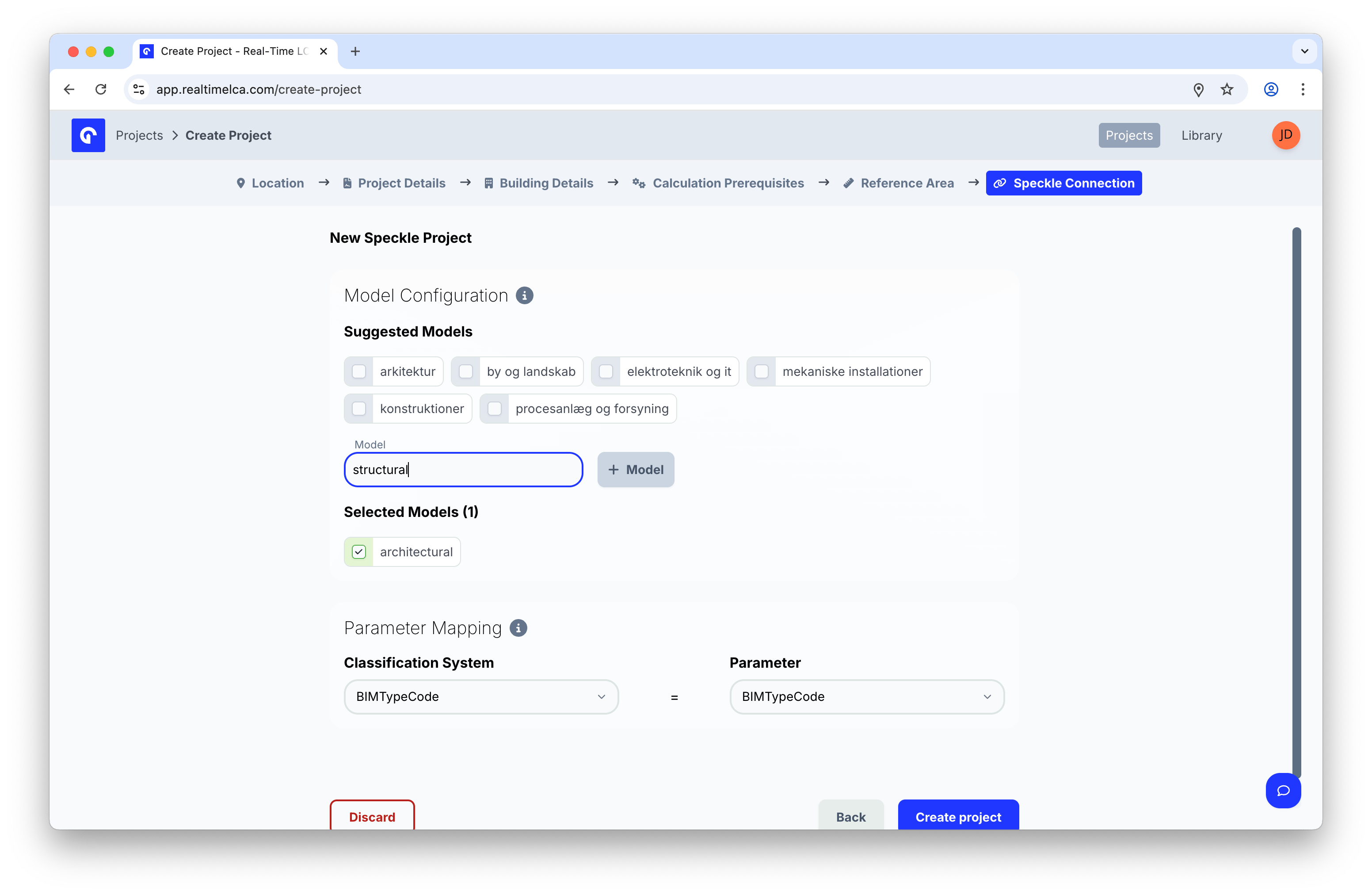 1. Under **Suggested Models**, tick any of the common discipline models that apply (for example, *arkitektur*, *konstruktioner*, *mekaniske installationer*).
2. To add a model that is not in the suggestions, type its name in **Model** and click **+ Model**.
3. Review the list under **Selected Models** and untick anything you do not need.
4. Under **Parameter Mapping**, choose which **Classification System** in your model maps to the Real-Time LCA **Parameter**. The default mapping is `BIMTypeCode = BIMTypeCode`.
## Step 12: Create the project
When all steps are complete, click **Create project**. Real-Time LCA processes the configuration — this can take a moment.
1. Under **Suggested Models**, tick any of the common discipline models that apply (for example, *arkitektur*, *konstruktioner*, *mekaniske installationer*).
2. To add a model that is not in the suggestions, type its name in **Model** and click **+ Model**.
3. Review the list under **Selected Models** and untick anything you do not need.
4. Under **Parameter Mapping**, choose which **Classification System** in your model maps to the Real-Time LCA **Parameter**. The default mapping is `BIMTypeCode = BIMTypeCode`.
## Step 12: Create the project
When all steps are complete, click **Create project**. Real-Time LCA processes the configuration — this can take a moment.
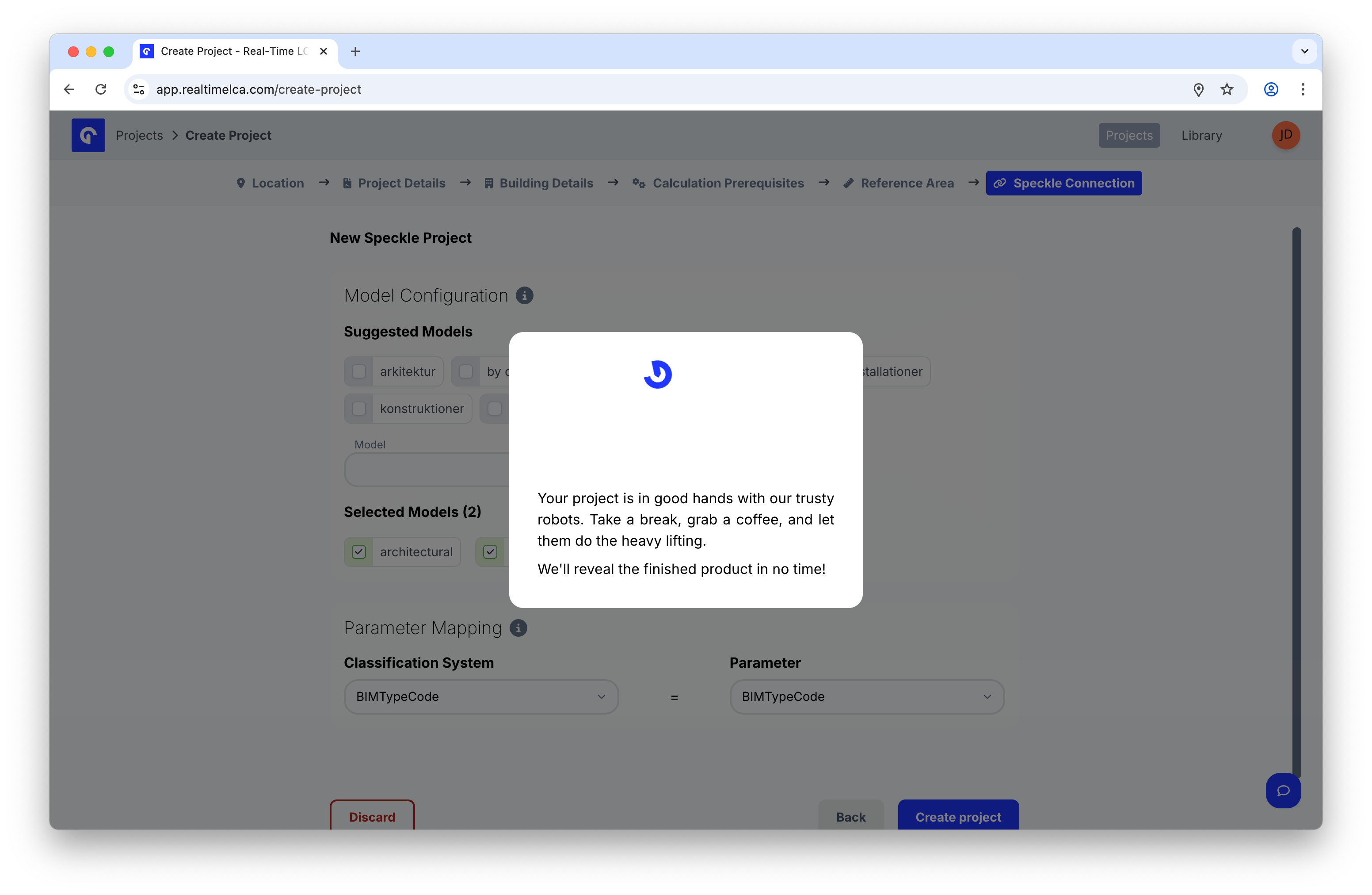 When the project is ready, you land on the **Ready to save** screen.
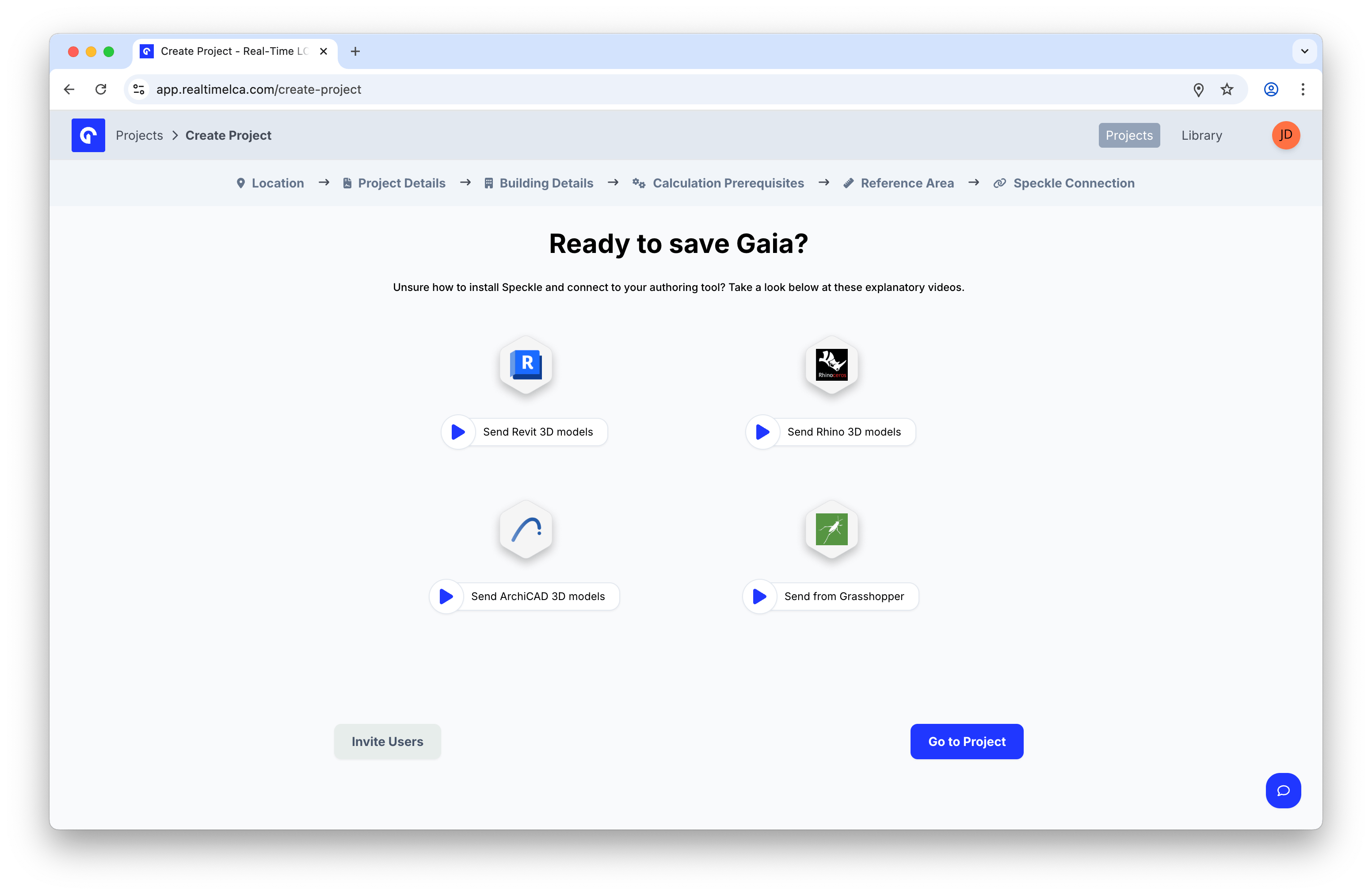 From here you can:
* Watch a short video on how to send 3D models from **Revit**, **Rhino**, **ArchiCAD**, or **Grasshopper**.
* Click **Invite Users** to add collaborators.
* Click **Go to Project** to open the project dashboard.
From here you can:
* Watch a short video on how to send 3D models from **Revit**, **Rhino**, **ArchiCAD**, or **Grasshopper**.
* Click **Invite Users** to add collaborators.
* Click **Go to Project** to open the project dashboard.