> ## Documentation Index
> Fetch the complete documentation index at: https://docs.realtimelca.com/llms.txt
> Use this file to discover all available pages before exploring further.
# Create materials
> Add a new material to your Library — either a verified EPD or a custom (non-verified) entry.
If a product you need is not in the Library yet, you can add it yourself. Real-Time LCA supports two kinds of new materials:
* **Verified EPDs** — backed by a real Environmental Product Declaration document. Use this when you have the EPD PDF and its declaration number.
* **Non-verified (Custom)** — built from values you enter manually. Use this for early-phase estimates or when no EPD exists yet.
## Open the Create Material form
Click **+ Material** in the top-right of the Library.
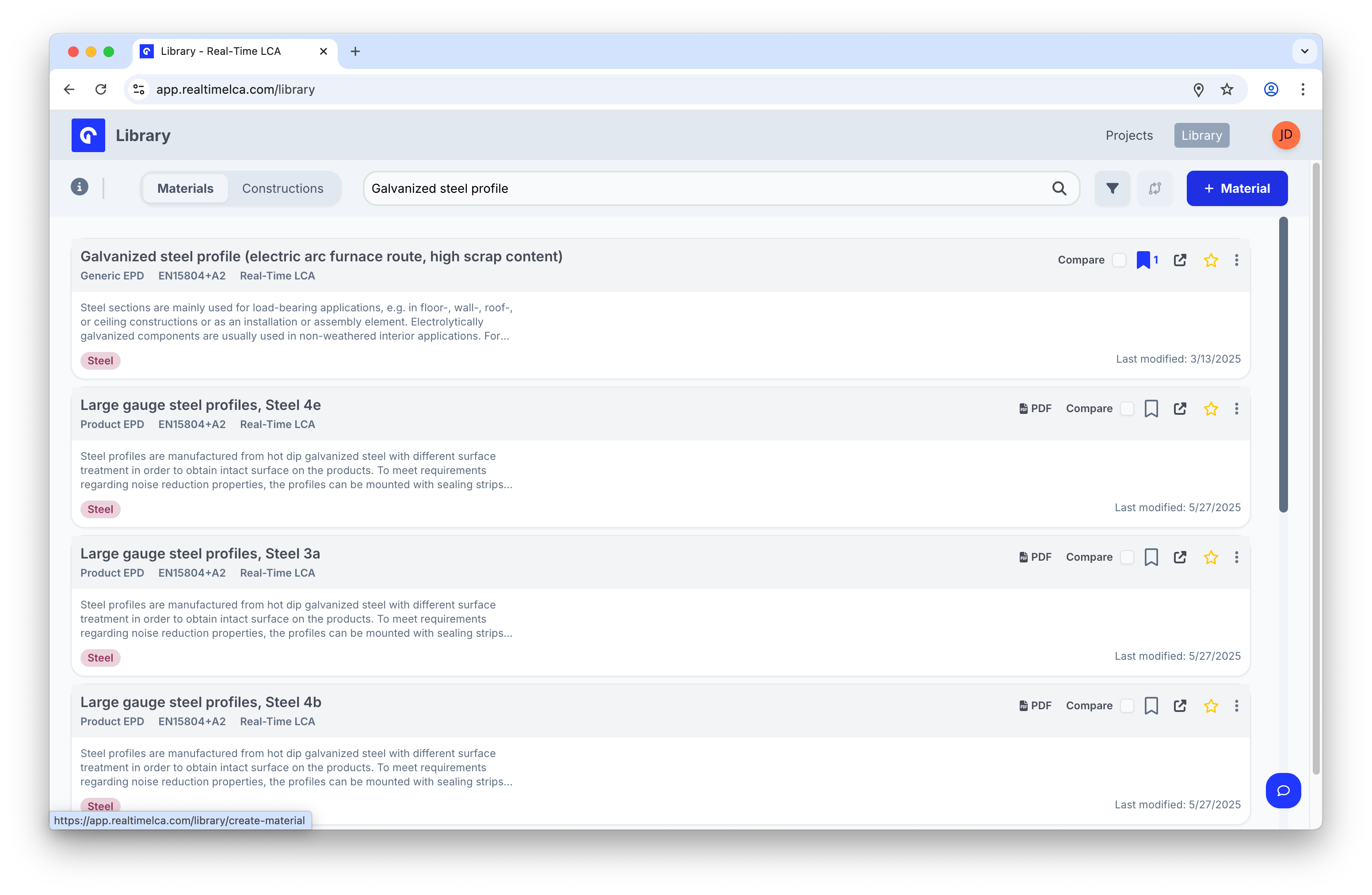 You land on the **Create Material** page with two tabs at the top: **Published** and **Custom**. Switch between them at any time before saving.
## Choose the right type
Add a published EPD with the source URL, declaration number, and document.
Add a custom material with manually entered indicator values.
Need a starting point? Open an existing material's overflow menu in the Library and choose **Clone**. The Create Material form opens prefilled with the source material's values.
You land on the **Create Material** page with two tabs at the top: **Published** and **Custom**. Switch between them at any time before saving.
## Choose the right type
Add a published EPD with the source URL, declaration number, and document.
Add a custom material with manually entered indicator values.
Need a starting point? Open an existing material's overflow menu in the Library and choose **Clone**. The Create Material form opens prefilled with the source material's values.