> ## Documentation Index
> Fetch the complete documentation index at: https://docs.realtimelca.com/llms.txt
> Use this file to discover all available pages before exploring further.
# Collections
> Group the materials your team reuses across projects.
**Collections** are bookmarks for materials. They give your team a shared shortlist — for example, a *Low Carbon Collection* with the products you have pre-approved — so people can find the right material in seconds instead of searching the entire Library every time.
A material can belong to any number of collections, and you can filter the Materials list by collection from the [Filters panel](/user-guide/library/materials/browse-materials#filter).
## Add a material to a collection
1. In the Materials list, click the **bookmark** icon on the row you want to save.
2. The **My Collections** popover opens next to the row. If you have not made any collections yet, you will see *No collections yet — create one below*.
3. Type a name in the input at the bottom and click **Add**.
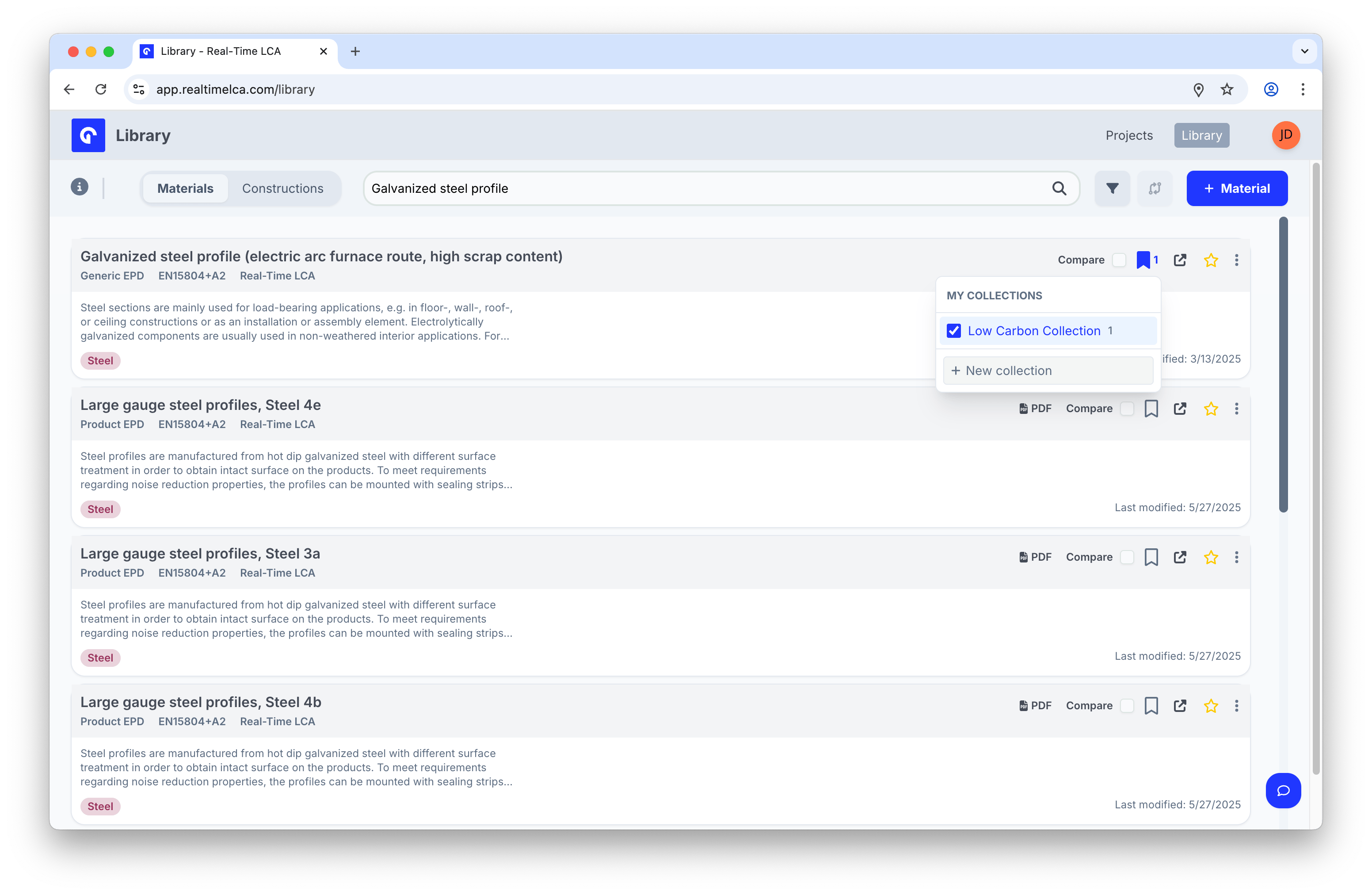
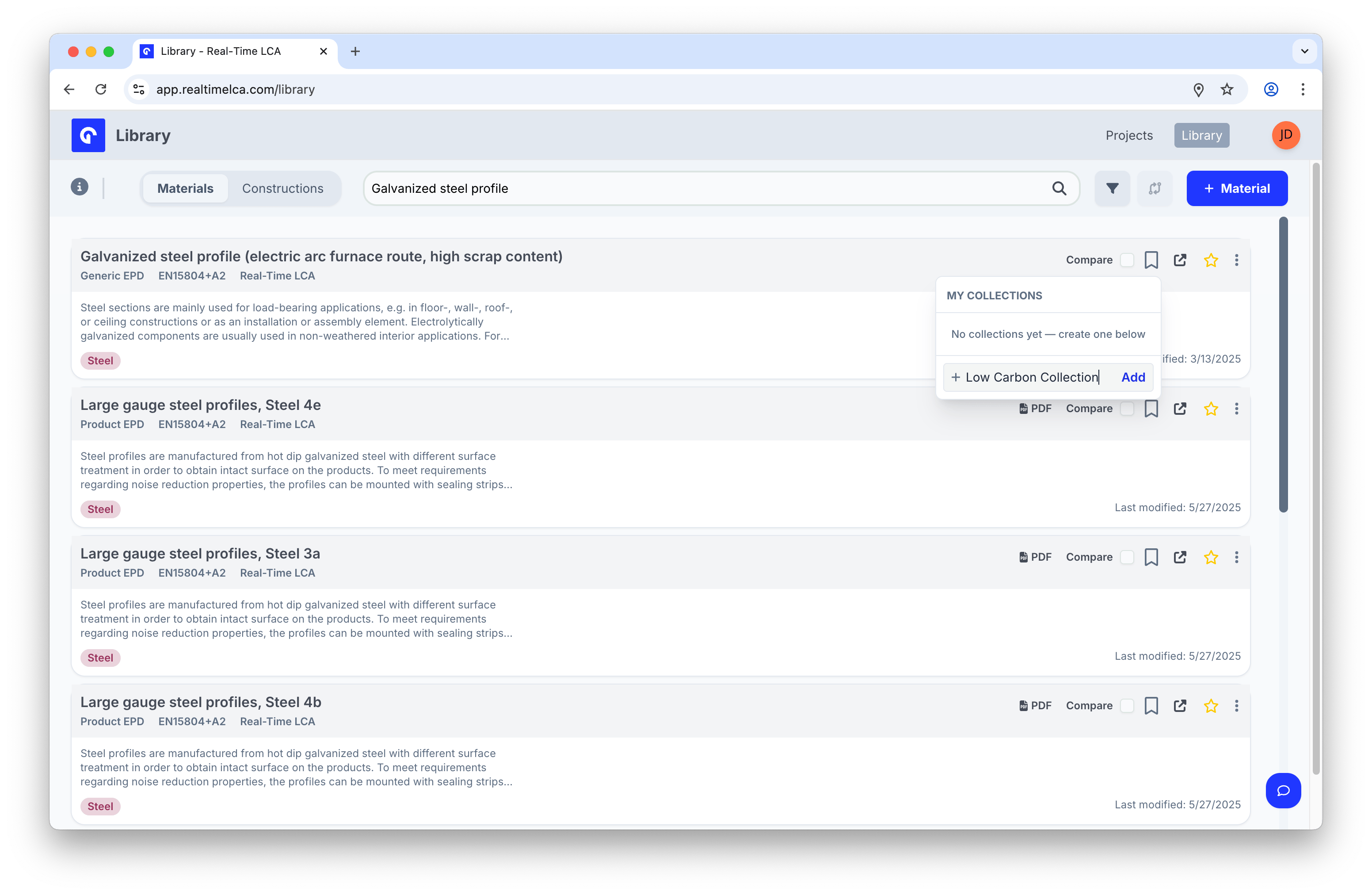 The new collection is created immediately and the material is added to it. Saved materials show a filled bookmark with a counter for how many collections they belong to.
 ## Add a material to multiple collections
Re-open the bookmark popover on the same row to tick or untick additional collections. Click **+ New collection** at the bottom to add a brand-new one without leaving the popover.
## Find materials by collection
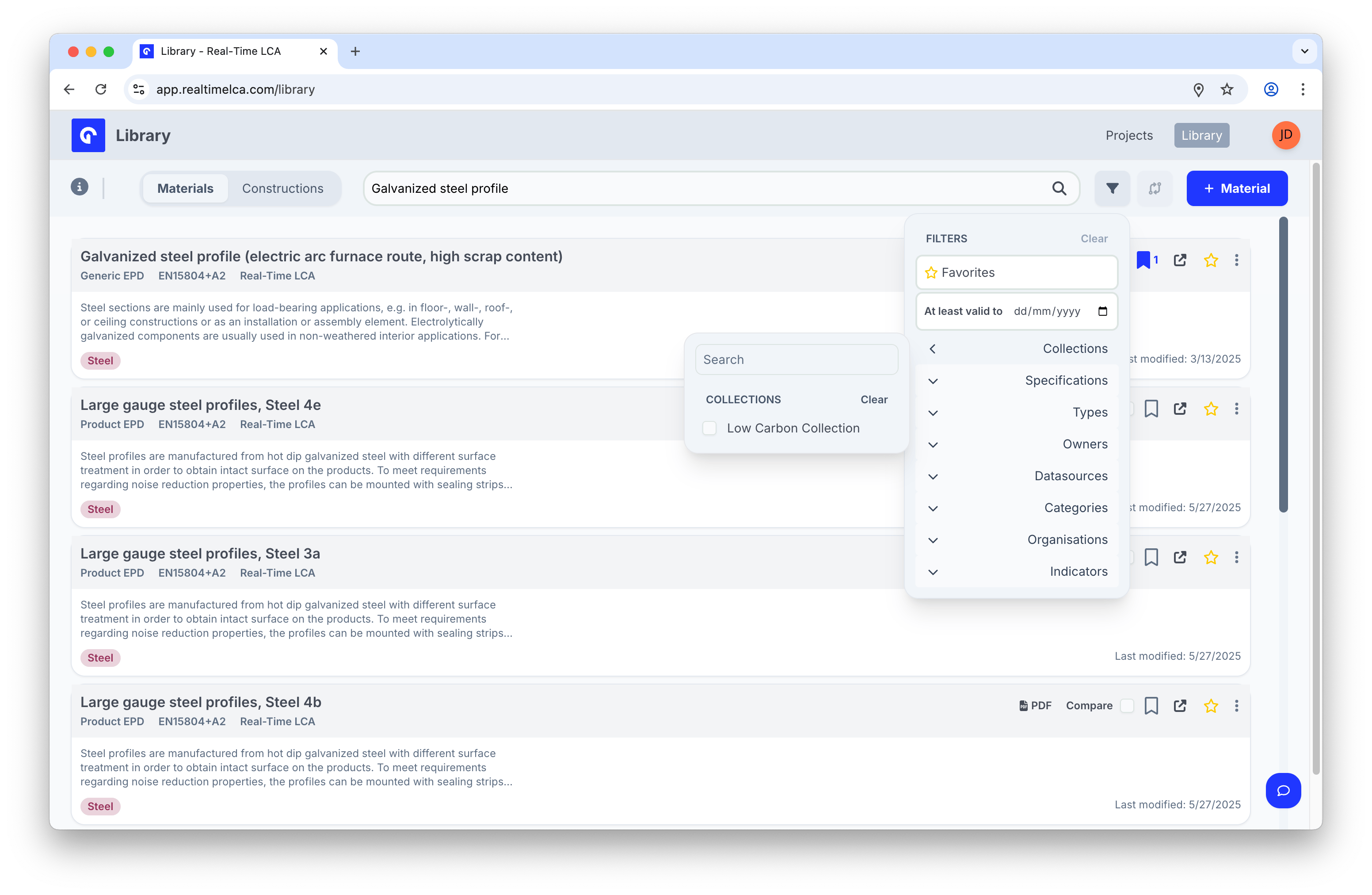
Use the **Collections** filter in the [Filters panel](/user-guide/library/materials/browse-materials#filter) to show only the materials saved to one or more collections.
## Add a material to multiple collections
Re-open the bookmark popover on the same row to tick or untick additional collections. Click **+ New collection** at the bottom to add a brand-new one without leaving the popover.
## Find materials by collection
Use the **Collections** filter in the [Filters panel](/user-guide/library/materials/browse-materials#filter) to show only the materials saved to one or more collections.
 ## Remove a material from a collection
Click the bookmark icon on the row, then untick the collection in the popover. The material is removed instantly.
## Remove a material from a collection
Click the bookmark icon on the row, then untick the collection in the popover. The material is removed instantly.