> ## Documentation Index
> Fetch the complete documentation index at: https://docs.realtimelca.com/llms.txt
> Use this file to discover all available pages before exploring further.
# Browse constructions
> View the Constructions list and inspect a build-up's layers and indicator values.
Open the **Constructions** tab at the top of the Library to switch the list from individual materials to multi-layer build-ups.
 ## Reading a construction row
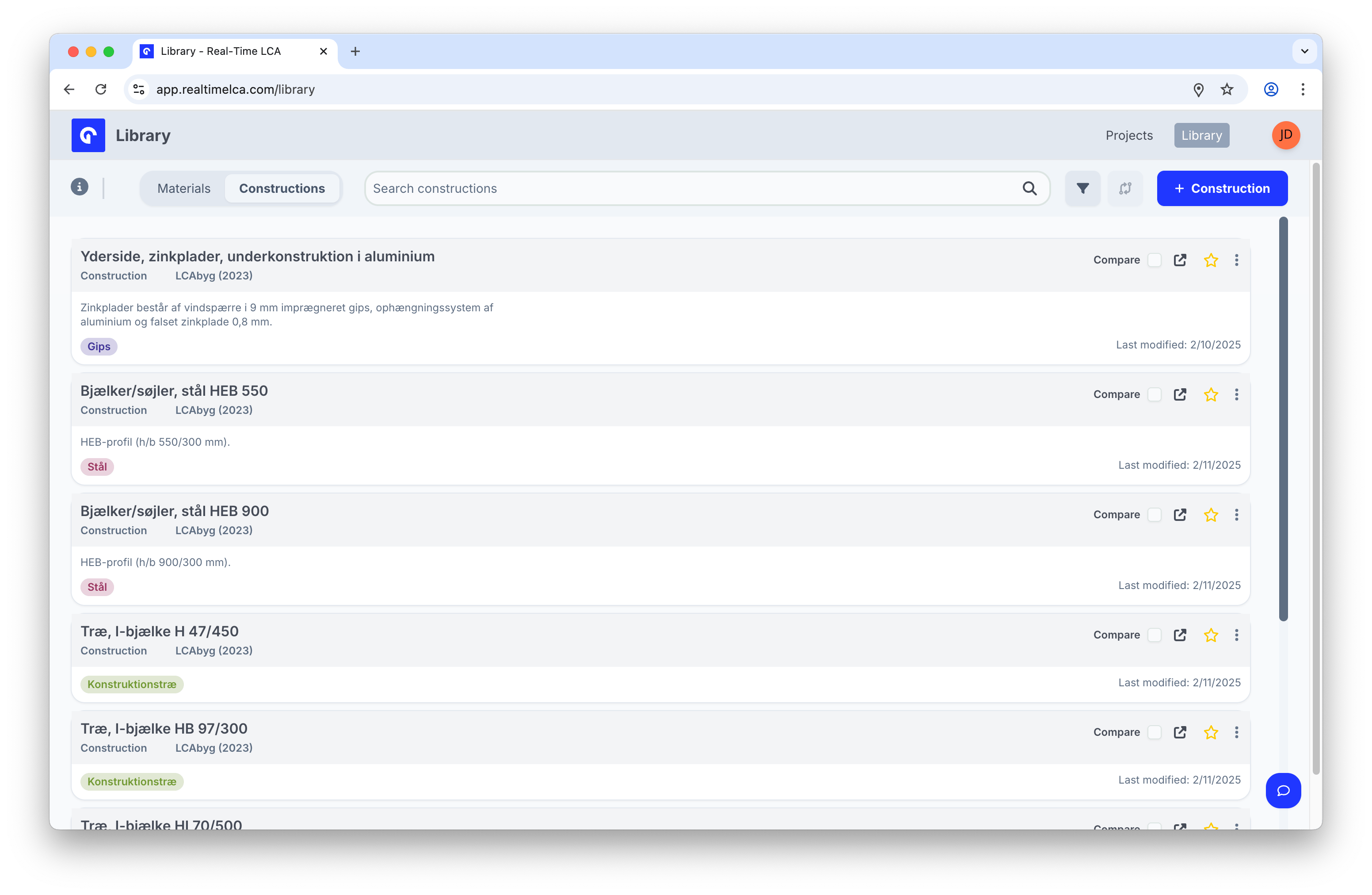
Each row gives you everything needed to decide whether the construction is the right fit:
* **Name** — the build-up's name (for example, *Yderside, zinkplader, underkonstruktion i aluminium*).
* **Standard tag** — *Construction*, plus the calculation framework it follows (for example, *LCAbyg (2023)*).
* **Short description** — typical materials and thicknesses.
* **Tags** — the dominant material category, such as *Gips*, *Stål*, or *Konstruktionstræ*.
* **Last modified** date.
* **Compare**, **open in tab**, **favorite**, and the **⋮** overflow menu — the same row-level actions you have on materials.
The toolbar above the list — search, filter, and **+ Construction** — also mirrors the Materials tab. Search and filters apply to the active tab only.
## Inspect a construction
Click a row to open the **construction detail panel** as an overlay on the list.
## Reading a construction row
Each row gives you everything needed to decide whether the construction is the right fit:
* **Name** — the build-up's name (for example, *Yderside, zinkplader, underkonstruktion i aluminium*).
* **Standard tag** — *Construction*, plus the calculation framework it follows (for example, *LCAbyg (2023)*).
* **Short description** — typical materials and thicknesses.
* **Tags** — the dominant material category, such as *Gips*, *Stål*, or *Konstruktionstræ*.
* **Last modified** date.
* **Compare**, **open in tab**, **favorite**, and the **⋮** overflow menu — the same row-level actions you have on materials.
The toolbar above the list — search, filter, and **+ Construction** — also mirrors the Materials tab. Search and filters apply to the active tab only.
## Inspect a construction
Click a row to open the **construction detail panel** as an overlay on the list.
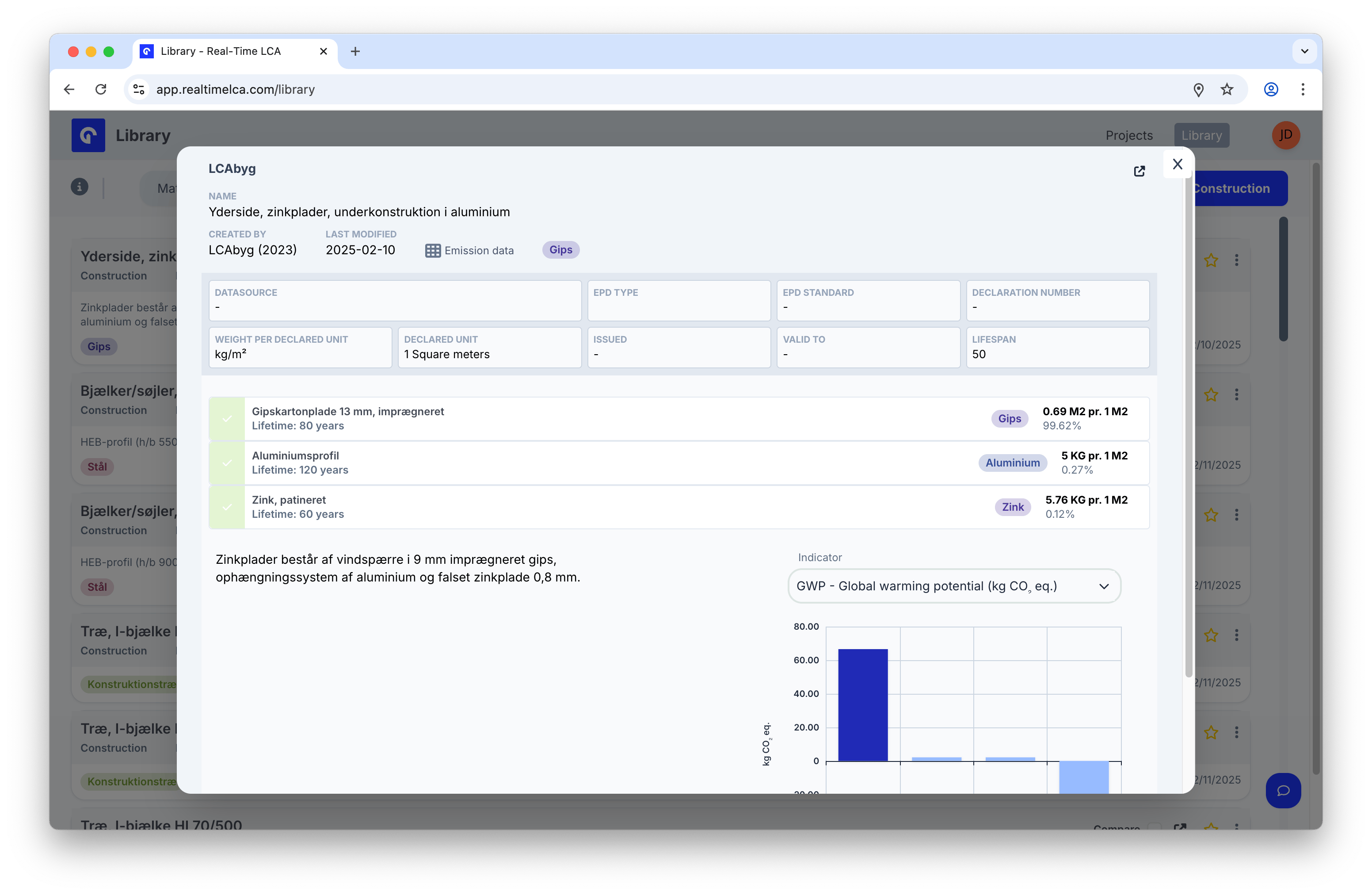 The panel has the same header you see on a material — **Name**, **Created by**, **Last modified**, links to **Emission data**, the category tag, and the data facts row (**Datasource**, **EPD type**, **EPD standard**, **Declaration number**, **Weight per declared unit**, **Declared unit**, **Issued**, **Valid to**, **Lifespan**).
### Layers
The middle section lists the **layers** that make up the construction. Each layer shows:
* The **material name** and its **lifetime** in years.
* A **category tag** (for example, *Gips*, *Aluminium*, *Zink*).
* The **mass per declared unit** (m²) for that layer and its share of the total weight.
In the example above, the build-up is 13 mm impregnated plasterboard plus an aluminium sub-structure and 0.8 mm zinc cladding — at the bottom of the panel is the same plain-language description shown on the row.
### Indicator chart
On the right, the **Indicator** dropdown lets you switch between environmental indicators (GWP, ODP, AP, POCP, ADPF, …) just like on a material. The chart shows the construction's combined values across the EN 15804 modules (A1–A3, A4, A5, B1–B7, C1–C4, D).
### Open in a tab or expand
The icon in the top-right of the panel opens the construction as a full standalone page — useful for sharing a direct link with a teammate or printing.
## Search and filter
The search bar and filters work the same way as on the [Materials tab](/user-guide/library/materials/browse-materials#search). They are scoped to the active tab, so a search you start on **Constructions** does not leak into **Materials** when you switch.
## Favorite and compare
The star and **Compare** actions on each row behave exactly like they do for materials — favorites are recalled via the **Favorites** filter, and Compare opens the side-by-side view for the constructions you have selected.
The panel has the same header you see on a material — **Name**, **Created by**, **Last modified**, links to **Emission data**, the category tag, and the data facts row (**Datasource**, **EPD type**, **EPD standard**, **Declaration number**, **Weight per declared unit**, **Declared unit**, **Issued**, **Valid to**, **Lifespan**).
### Layers
The middle section lists the **layers** that make up the construction. Each layer shows:
* The **material name** and its **lifetime** in years.
* A **category tag** (for example, *Gips*, *Aluminium*, *Zink*).
* The **mass per declared unit** (m²) for that layer and its share of the total weight.
In the example above, the build-up is 13 mm impregnated plasterboard plus an aluminium sub-structure and 0.8 mm zinc cladding — at the bottom of the panel is the same plain-language description shown on the row.
### Indicator chart
On the right, the **Indicator** dropdown lets you switch between environmental indicators (GWP, ODP, AP, POCP, ADPF, …) just like on a material. The chart shows the construction's combined values across the EN 15804 modules (A1–A3, A4, A5, B1–B7, C1–C4, D).
### Open in a tab or expand
The icon in the top-right of the panel opens the construction as a full standalone page — useful for sharing a direct link with a teammate or printing.
## Search and filter
The search bar and filters work the same way as on the [Materials tab](/user-guide/library/materials/browse-materials#search). They are scoped to the active tab, so a search you start on **Constructions** does not leak into **Materials** when you switch.
## Favorite and compare
The star and **Compare** actions on each row behave exactly like they do for materials — favorites are recalled via the **Favorites** filter, and Compare opens the side-by-side view for the constructions you have selected.