> ## Documentation Index
> Fetch the complete documentation index at: https://docs.realtimelca.com/llms.txt
> Use this file to discover all available pages before exploring further.
# Introduction to Speckle
> Stream BIM models from your authoring tool into Real-Time LCA via Speckle.
[Speckle](https://speckle.systems) is the live data layer that connects your BIM authoring tool to Real-Time LCA. Instead of exporting a file every time you make a change, you publish a **stream** from your modeling tool and the project listens to that stream — geometry, quantities, and BIM parameters stay in sync as the design evolves.
Real-Time LCA runs its own Speckle server, so you don't need a separate Speckle account — your Real-Time LCA user is provisioned on our Speckle server when your account is [activated](/user-guide/activate-account).
 ## Get set up with Speckle
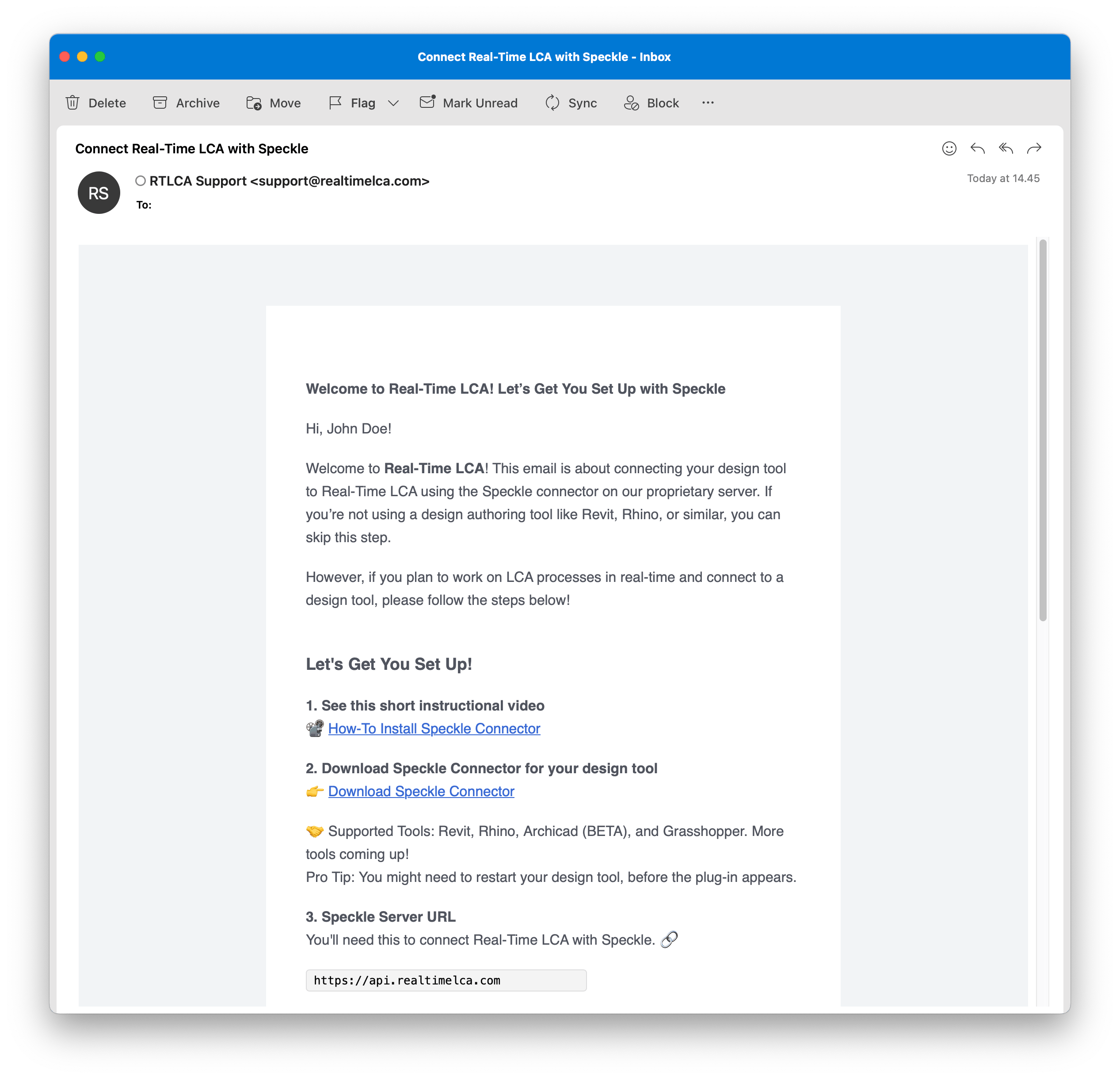
When your Real-Time LCA account is activated, we automatically create a matching Speckle user on our Speckle server and email you the credentials and a how-to. If you're not using a design authoring tool like Revit, Rhino, or ArchiCAD, you can skip this — you can still upload [IFC](/user-guide/integrations/ifc-file-upload) or [Excel](/user-guide/integrations/excel-file-upload) files instead.
A short walkthrough of installing the Speckle Connector for your design tool: [How-To Install Speckle Connector](https://realtimelca.com/en-us/instructions/#install-speckle-revit-connector).
Get the connector for your design tool from [releases.speckle.systems](https://releases.speckle.systems/).
Supported tools: **Revit**, **Rhino**, **ArchiCAD**, and **Grasshopper** (WIP). More tools coming.
You may need to restart your design tool before the connector appears in its menu or ribbon.
In the Speckle Connector, add a new server account using this URL:
```
https://api.realtimelca.com
```
Use the email address tied to your Real-Time LCA account and the **temporary password** from your welcome email. Change the password the first time you sign in.
Lost the email or password? Write to [support@realtimelca.com](mailto:support@realtimelca.com).
Once the connector is signed in, you're ready to publish a model — see the page for your authoring tool below.
## Supported authoring tools
Send Revit models to Real-Time LCA via the Speckle Connector for Revit.
Publish ArchiCAD projects through the Speckle Connector for ArchiCAD.
Stream Rhino geometry into Real-Time LCA.
Parametric workflows from Grasshopper — work in progress.
## How it fits into a project
When you create a project, the wizard's **Speckle Connection** step lets you attach one or more Speckle models. Once connected, Real-Time LCA reads BIM types and quantities from the stream and you can map them to materials and constructions in the Library.
See [Create a new project](/user-guide/project/create-new-project) for the full wizard walkthrough.
## Get set up with Speckle
When your Real-Time LCA account is activated, we automatically create a matching Speckle user on our Speckle server and email you the credentials and a how-to. If you're not using a design authoring tool like Revit, Rhino, or ArchiCAD, you can skip this — you can still upload [IFC](/user-guide/integrations/ifc-file-upload) or [Excel](/user-guide/integrations/excel-file-upload) files instead.
A short walkthrough of installing the Speckle Connector for your design tool: [How-To Install Speckle Connector](https://realtimelca.com/en-us/instructions/#install-speckle-revit-connector).
Get the connector for your design tool from [releases.speckle.systems](https://releases.speckle.systems/).
Supported tools: **Revit**, **Rhino**, **ArchiCAD**, and **Grasshopper** (WIP). More tools coming.
You may need to restart your design tool before the connector appears in its menu or ribbon.
In the Speckle Connector, add a new server account using this URL:
```
https://api.realtimelca.com
```
Use the email address tied to your Real-Time LCA account and the **temporary password** from your welcome email. Change the password the first time you sign in.
Lost the email or password? Write to [support@realtimelca.com](mailto:support@realtimelca.com).
Once the connector is signed in, you're ready to publish a model — see the page for your authoring tool below.
## Supported authoring tools
Send Revit models to Real-Time LCA via the Speckle Connector for Revit.
Publish ArchiCAD projects through the Speckle Connector for ArchiCAD.
Stream Rhino geometry into Real-Time LCA.
Parametric workflows from Grasshopper — work in progress.
## How it fits into a project
When you create a project, the wizard's **Speckle Connection** step lets you attach one or more Speckle models. Once connected, Real-Time LCA reads BIM types and quantities from the stream and you can map them to materials and constructions in the Library.
See [Create a new project](/user-guide/project/create-new-project) for the full wizard walkthrough.