> ## Documentation Index
> Fetch the complete documentation index at: https://docs.realtimelca.com/llms.txt
> Use this file to discover all available pages before exploring further.
# IFC file upload
> Bring a model into Real-Time LCA by uploading an IFC export.
If you can't (or don't want to) stream your model through Speckle, you can upload an **IFC** export instead. Real-Time LCA reads the IFC entities, groups them into BIM types, and exposes their quantities for material mapping — just like a Speckle stream.
## When to use IFC upload
* Your authoring tool doesn't have a Speckle connector available.
* You're working with a model handed over by an external consultant.
* You want a quick one-off LCA from a static export rather than a live design link.
## Prepare the export
* Use **IFC 4** (or IFC 2x3) when possible.
* Include the property sets that carry your type identifier (the parameter Real-Time LCA uses to group elements, by default `BIMTypeCode`).
* Export quantities (`BaseQuantities`) so Real-Time LCA can read areas, volumes, and lengths directly from the file.
## Open the upload menu
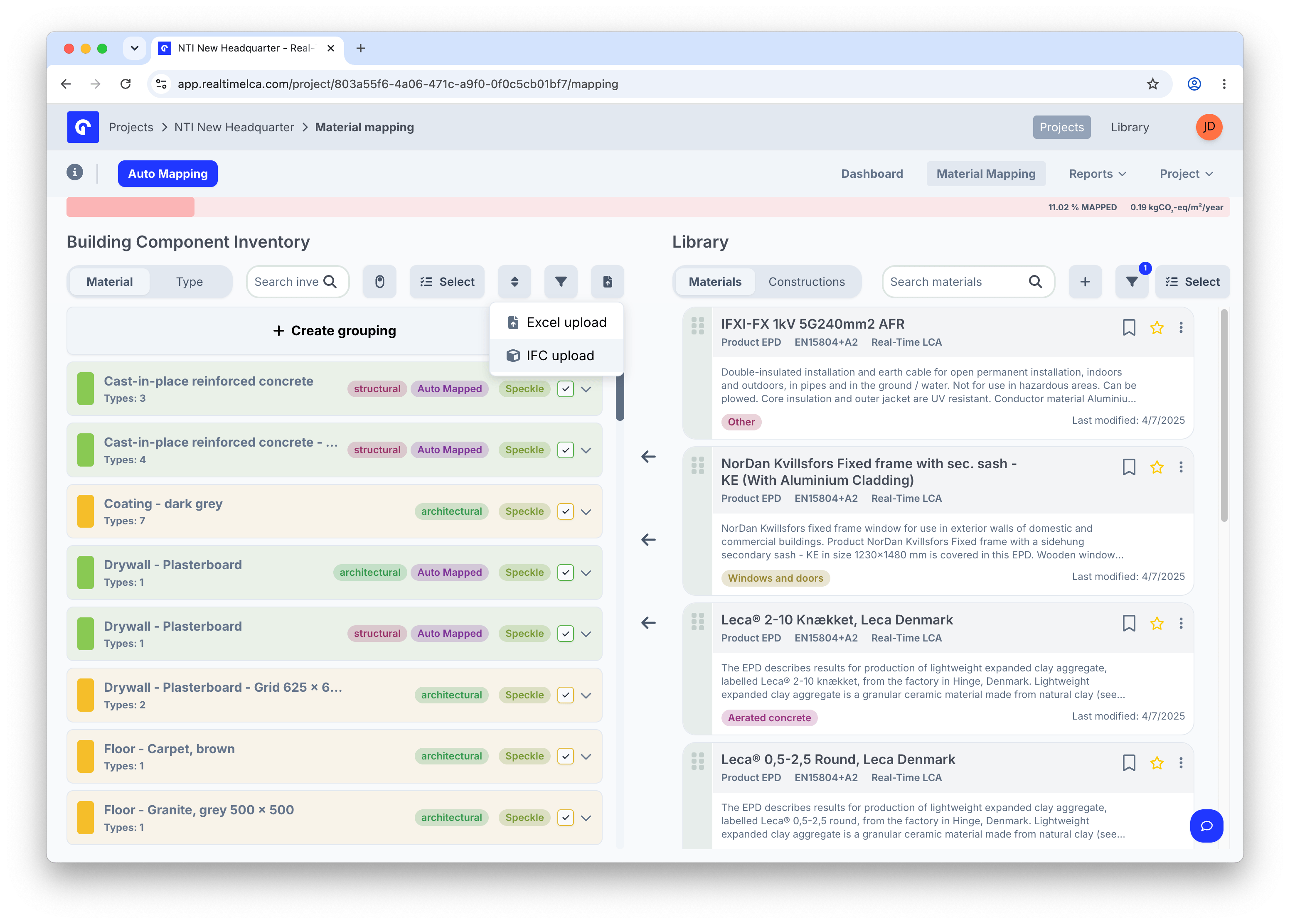
Open the project and switch to the **Material Mapping** tab. Click the upload icon next to **Select** above the Building Component Inventory to open the menu, then choose **IFC upload**.
 ## Choose the model
The **Upload IFC file** modal opens. Use the **Upload to model** dropdown to pick which Speckle model the IFC should be attached to — the file's BIM types will be added to that model's slice of the Building Component Inventory.
## Choose the model
The **Upload IFC file** modal opens. Use the **Upload to model** dropdown to pick which Speckle model the IFC should be attached to — the file's BIM types will be added to that model's slice of the Building Component Inventory.
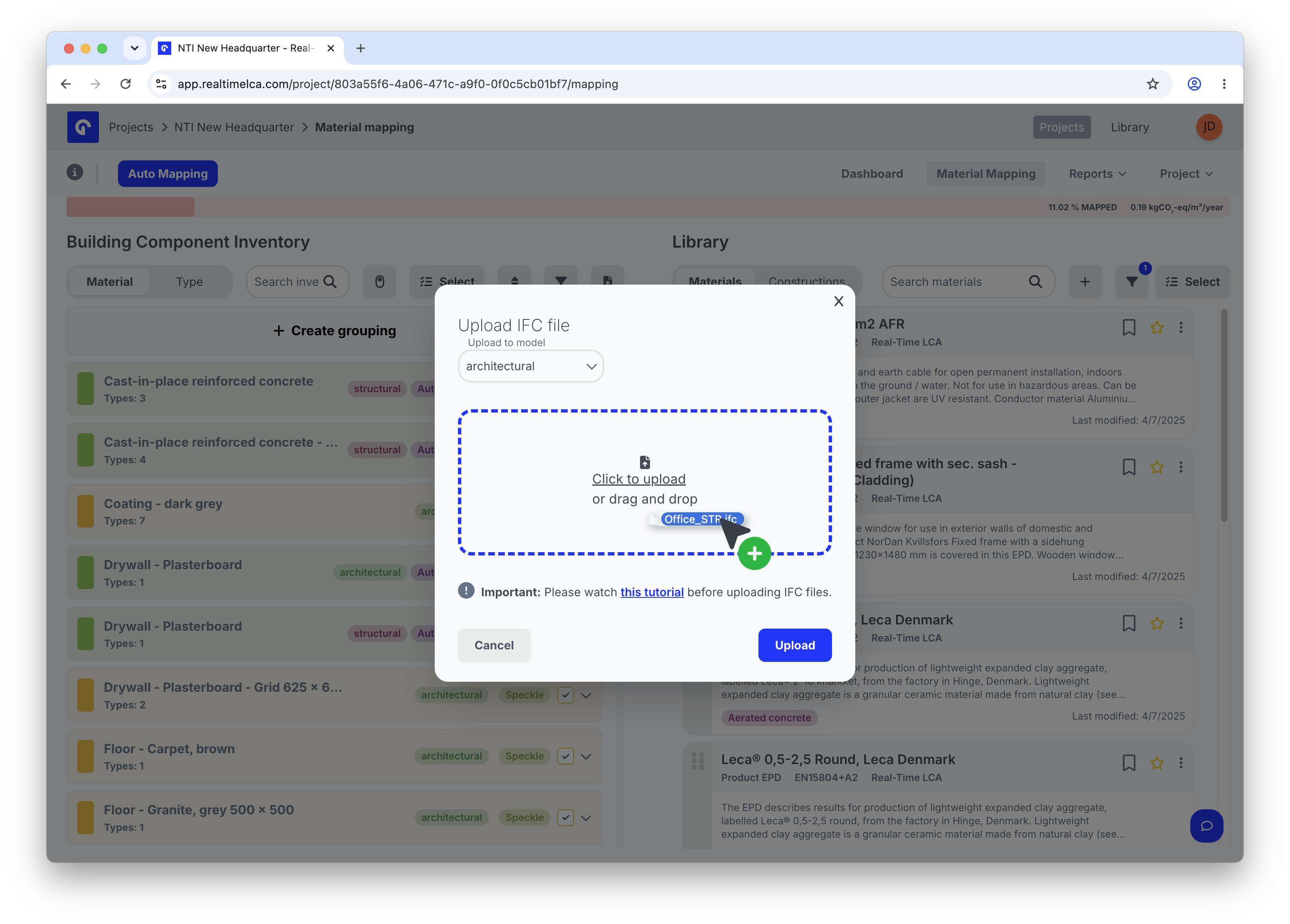 The dropdown lists every model configured on the project. Pick the one that matches the discipline of the IFC export (for example, *structural* for a structural engineer's hand-off).
 ## Upload the file
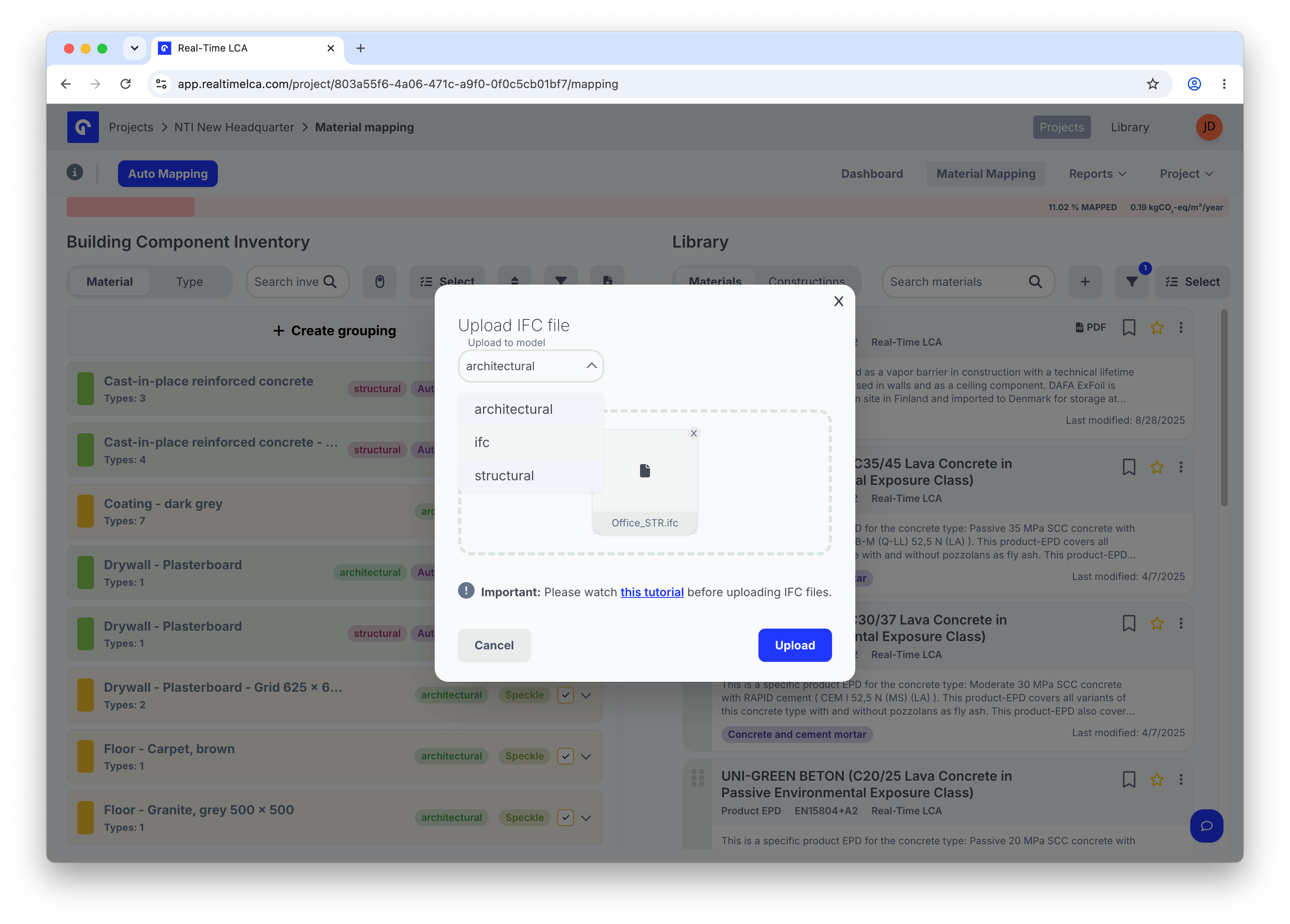
Drop your `.ifc` file in the **Click to upload or drag and drop** area, or click to browse. The file appears in the drop zone once it has been added.
## Upload the file
Drop your `.ifc` file in the **Click to upload or drag and drop** area, or click to browse. The file appears in the drop zone once it has been added.
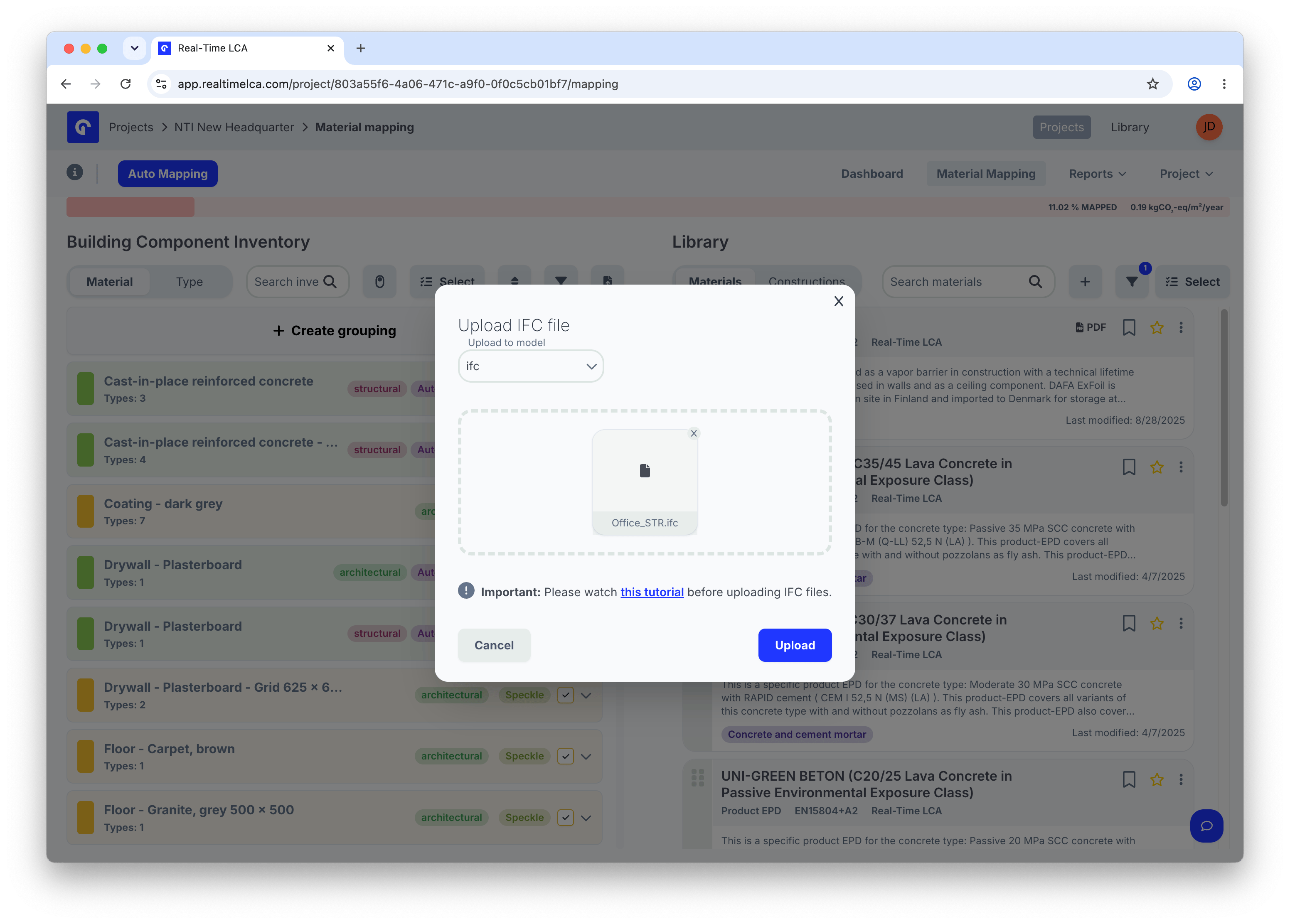 Click **Upload** to start the import. Use **Cancel** or **×** to abort without changes.
Watch the linked tutorial video in the modal before your first upload if you're unsure how to prepare the IFC export.
## Wait for processing
Real-Time LCA parses the file, groups elements into BIM types, and reads their quantities. You can keep using the app in the background — the project updates automatically when processing finishes.
Click **Upload** to start the import. Use **Cancel** or **×** to abort without changes.
Watch the linked tutorial video in the modal before your first upload if you're unsure how to prepare the IFC export.
## Wait for processing
Real-Time LCA parses the file, groups elements into BIM types, and reads their quantities. You can keep using the app in the background — the project updates automatically when processing finishes.
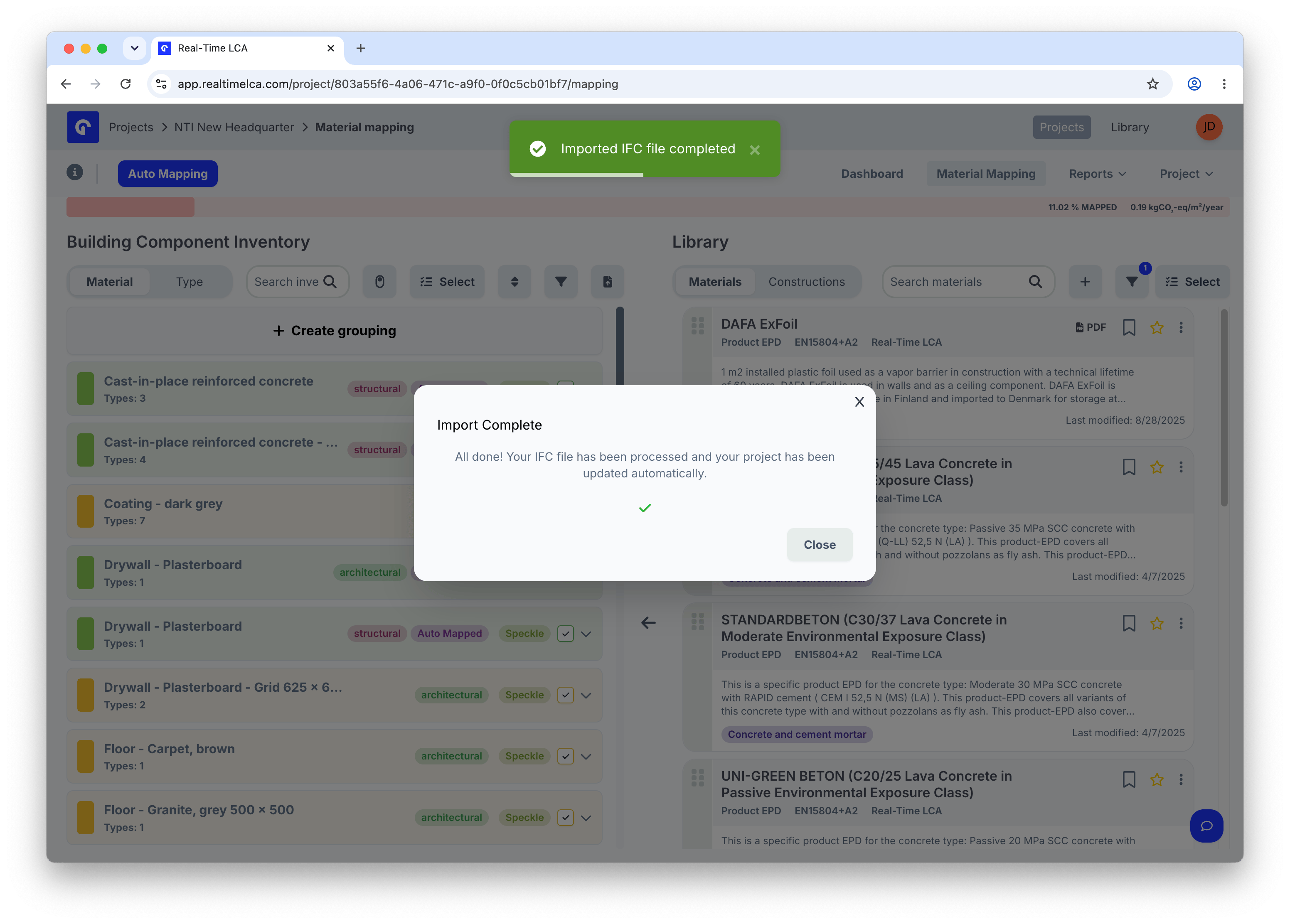
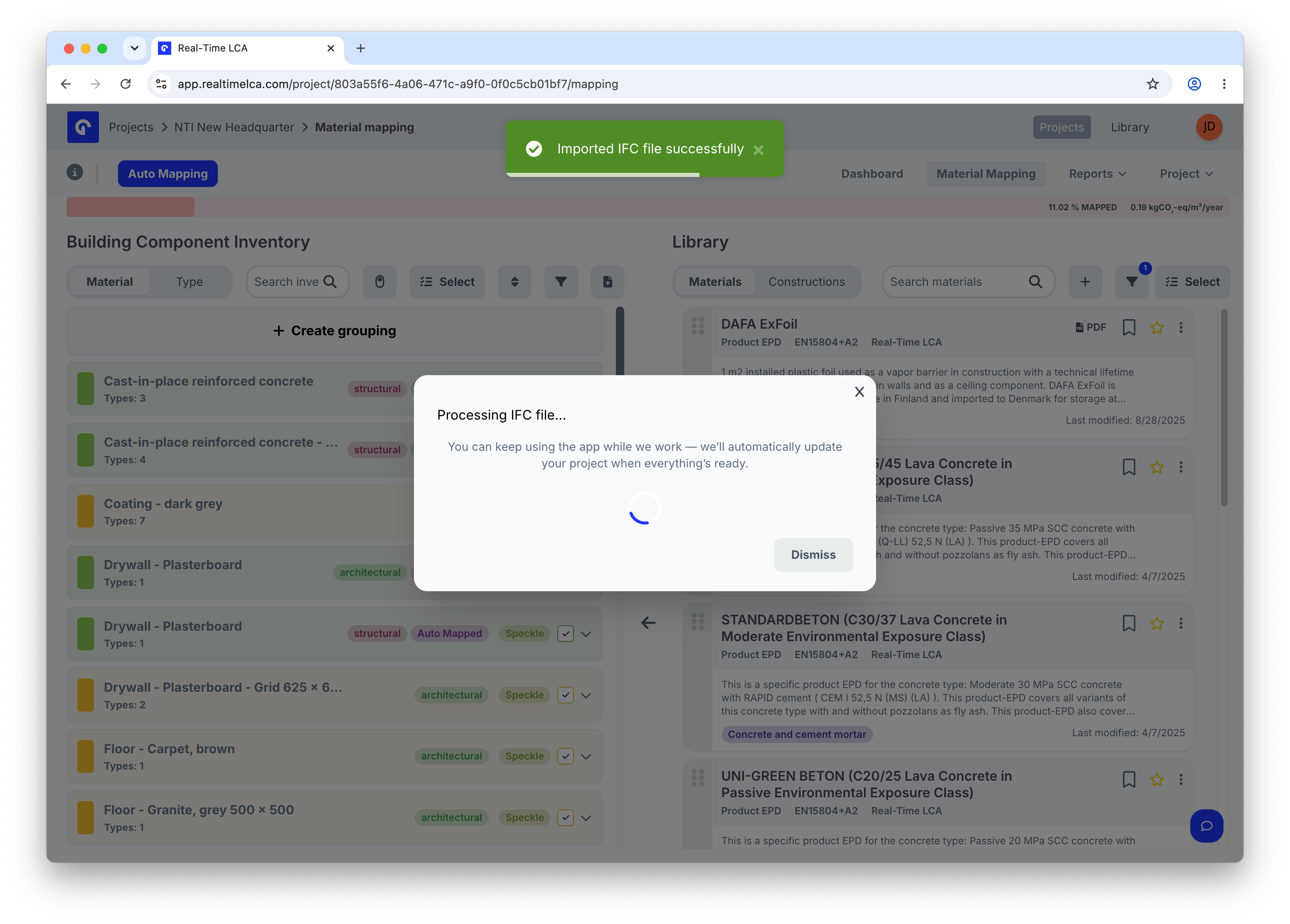 When the import is complete you'll see a confirmation. Click **Close** to return to the Building Component Inventory.
 ## Review the imported BIM types
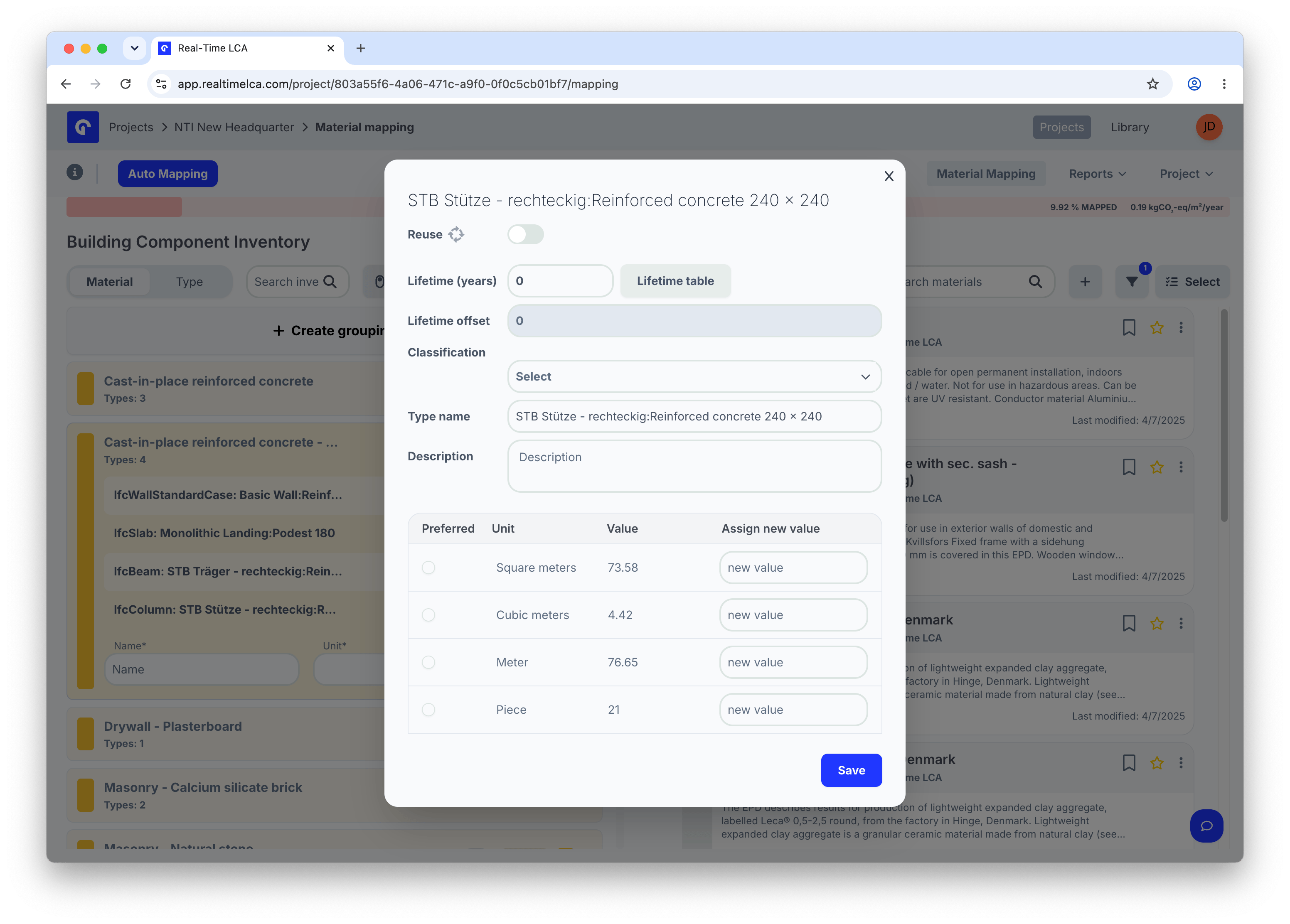
Each BIM type from the IFC now appears in the Building Component Inventory. Click a type to open its properties — Real-Time LCA shows the quantities it read from the file (square meters, cubic meters, meters, pieces) and the classification it inferred. From here, map the type to a material or construction the same way you would for a Speckle stream.
## Review the imported BIM types
Each BIM type from the IFC now appears in the Building Component Inventory. Click a type to open its properties — Real-Time LCA shows the quantities it read from the file (square meters, cubic meters, meters, pieces) and the classification it inferred. From here, map the type to a material or construction the same way you would for a Speckle stream.
 ## Updating the model
Uploading a new IFC creates a new version of the model's data. Existing material mappings carry over for BIM types that still match by identifier.
## Updating the model
Uploading a new IFC creates a new version of the model's data. Existing material mappings carry over for BIM types that still match by identifier.