> ## Documentation Index
> Fetch the complete documentation index at: https://docs.realtimelca.com/llms.txt
> Use this file to discover all available pages before exploring further.
# Excel file upload
> Bring materials or types into a Real-Time LCA project from a spreadsheet.
For early-stage estimates, refurbishments, or any project where you don't have a BIM model, you can upload an **Excel** workbook with materials or types and their quantities. Real-Time LCA turns each row into an item in the **Building Component Inventory** that you can map to a material or construction.
## When to use Excel upload
* Concept and feasibility studies before a model exists.
* Renovation and refurbishment projects driven by quantity take-offs.
* Filling gaps when the BIM model is incomplete (e.g., MEP, finishes).
## Open the upload menu
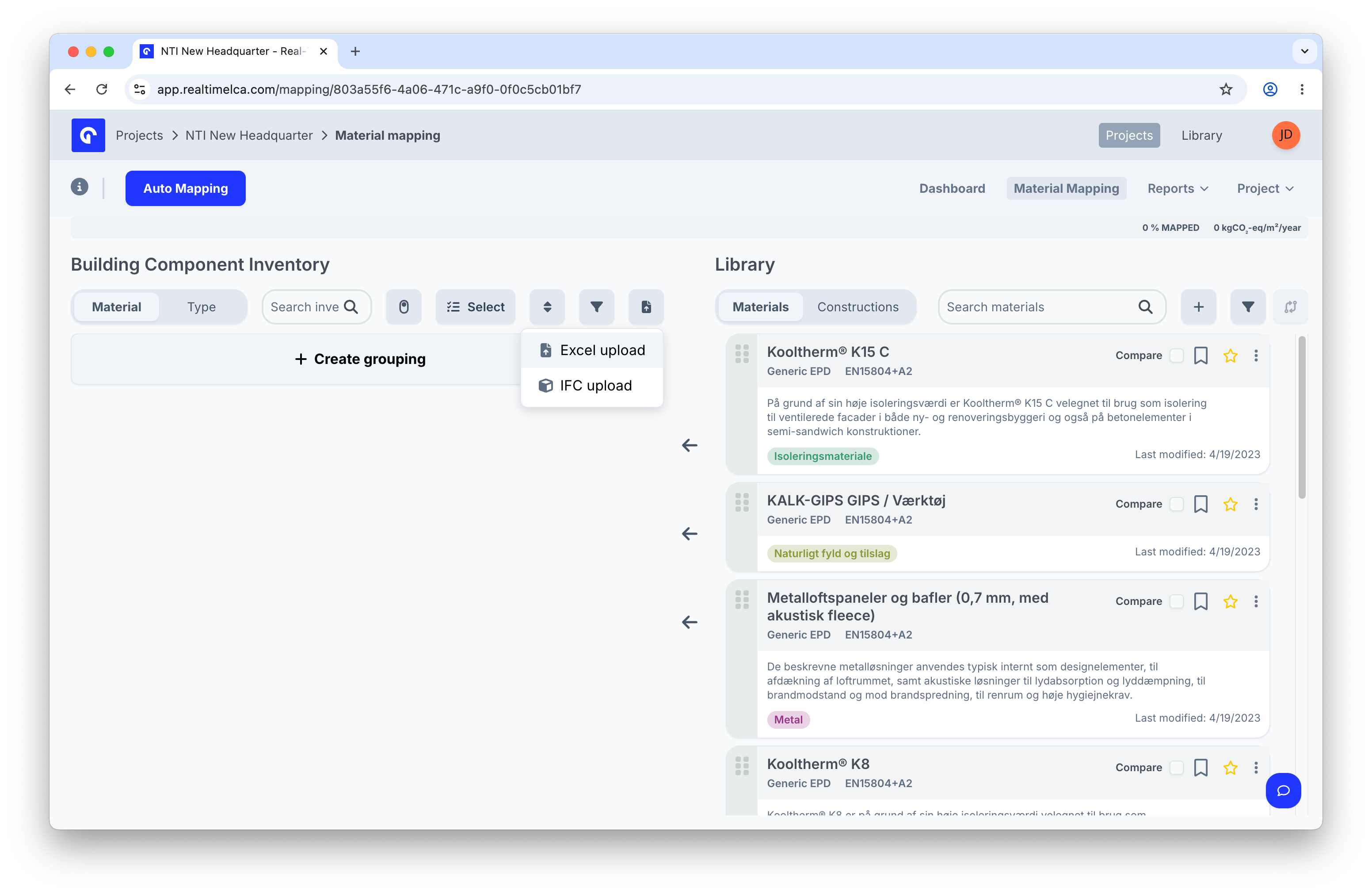
Open the project and switch to the **Material Mapping** tab. Click the upload icon next to **Select** above the Building Component Inventory to open the menu, then choose **Excel upload**.
 ## Download the template
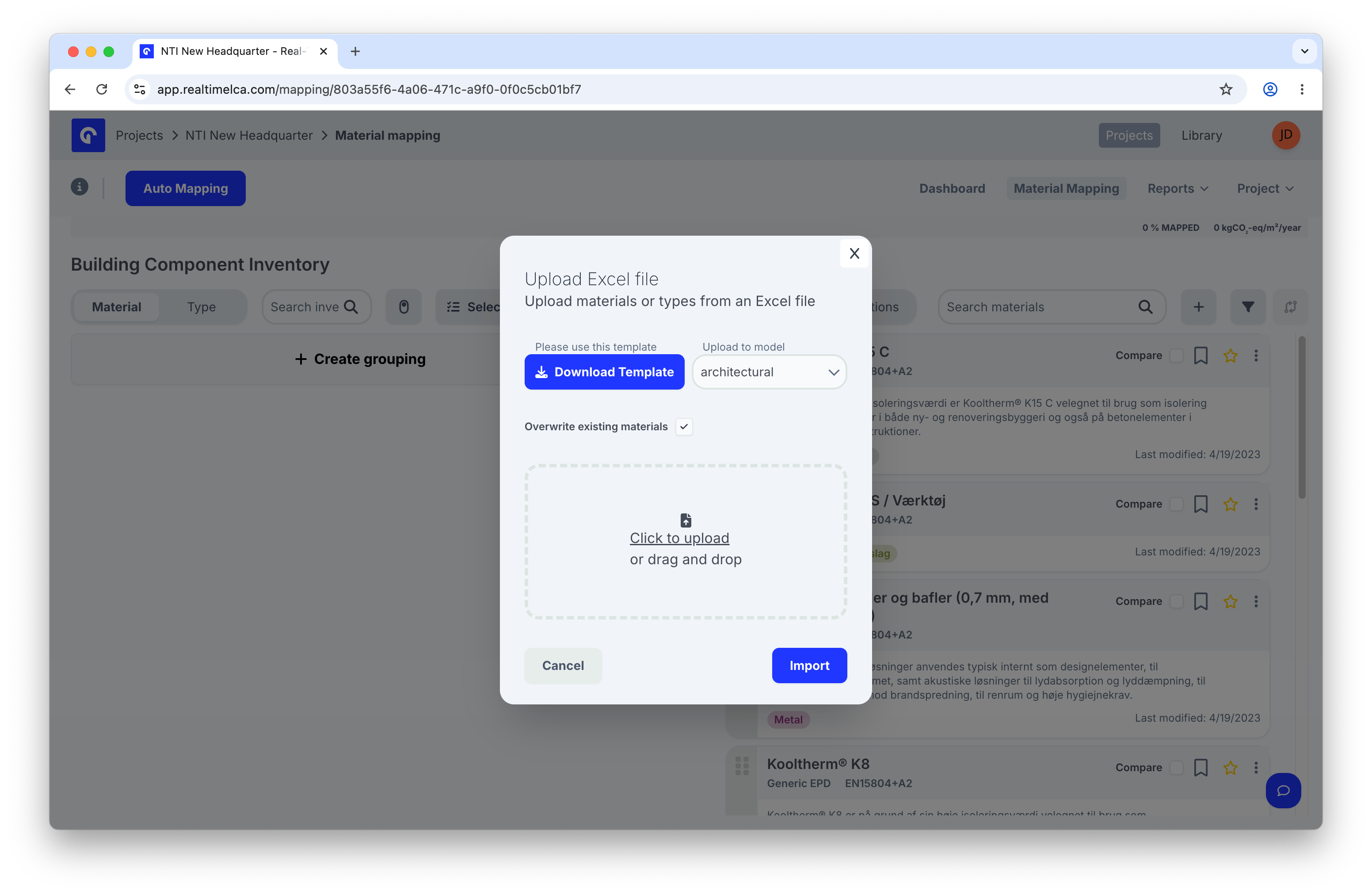
The **Upload Excel file** modal opens. Click **Download Template** to get the official spreadsheet — it has the columns Real-Time LCA expects and a few example rows to copy.
## Download the template
The **Upload Excel file** modal opens. Click **Download Template** to get the official spreadsheet — it has the columns Real-Time LCA expects and a few example rows to copy.
 Download the latest template directly.
## Filling in the template
The template has two sheets:
* **ImportData** — the sheet Real-Time LCA reads when you import. Put your real data here.
* **Example** — a worked example you can copy from. It is ignored on import.
Import only reads the **ImportData** sheet. Anything you add to other sheets — including renamed copies of *Example* — is ignored.
### Step 1: Pick a classification system
Cell **A1** is a dropdown. Open it and choose the classification system you want to use for column A across the whole sheet.
Download the latest template directly.
## Filling in the template
The template has two sheets:
* **ImportData** — the sheet Real-Time LCA reads when you import. Put your real data here.
* **Example** — a worked example you can copy from. It is ignored on import.
Import only reads the **ImportData** sheet. Anything you add to other sheets — including renamed copies of *Example* — is ignored.
### Step 1: Pick a classification system
Cell **A1** is a dropdown. Open it and choose the classification system you want to use for column A across the whole sheet.
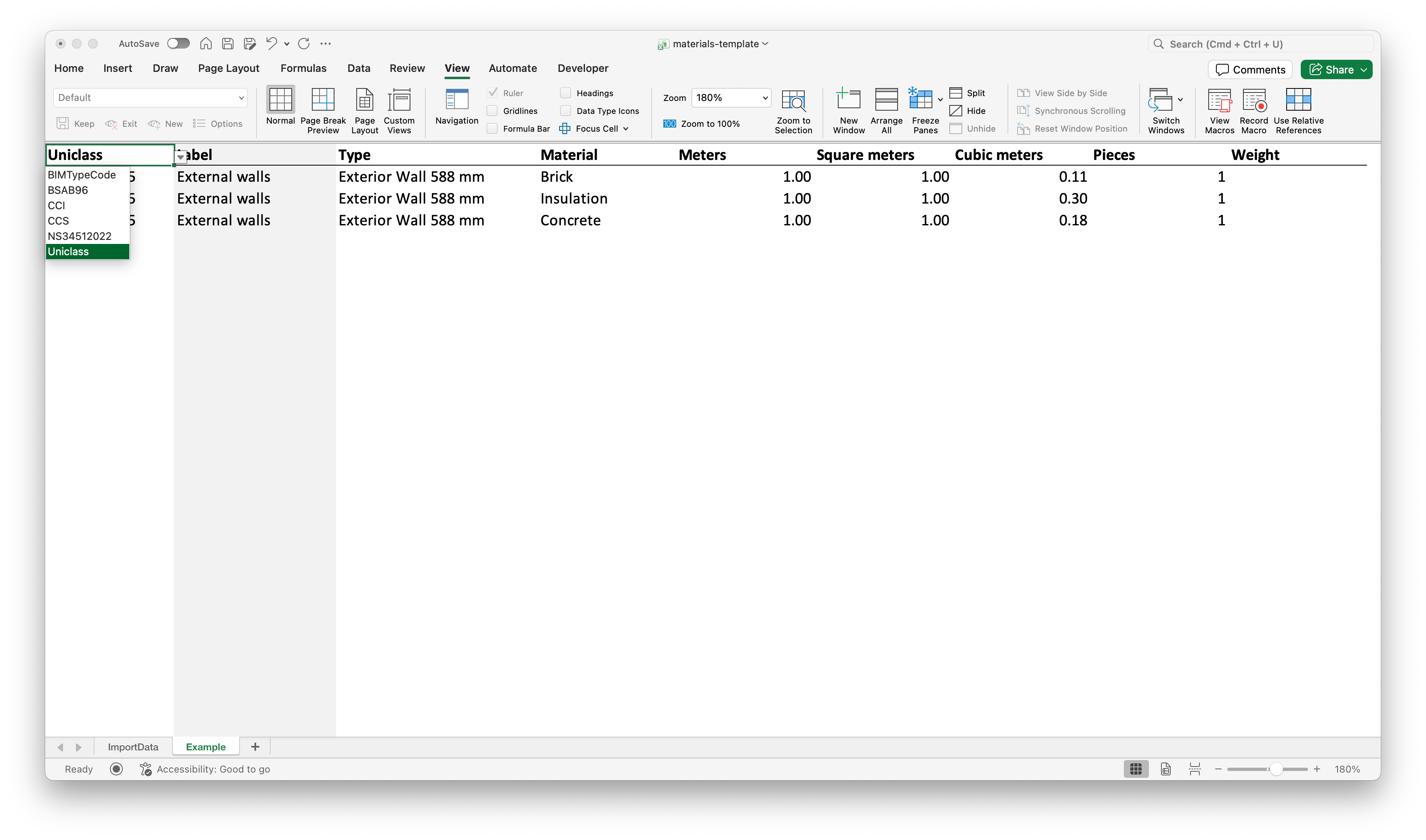 Supported systems:
| Short name | Long name |
| ------------- | ----------------------------------------- |
| `BIMTypeCode` | — |
| `BSAB96` | Klassifikationssystemet BSAB |
| `CCI` | Construction Classification International |
| `CCS` | Cuneco Classification System |
| `NS34512022` | Norsk Standard NS 3451:2022 |
| `Uniclass` | Uniclass 2015 |
Pick the system that matches the **Classification System** you set on the project's [Speckle model configuration](/user-guide/project/create-new-project#configure-the-speckle-models) — otherwise the rows will not group into BIM types correctly.
### Step 2: Enter a code per row
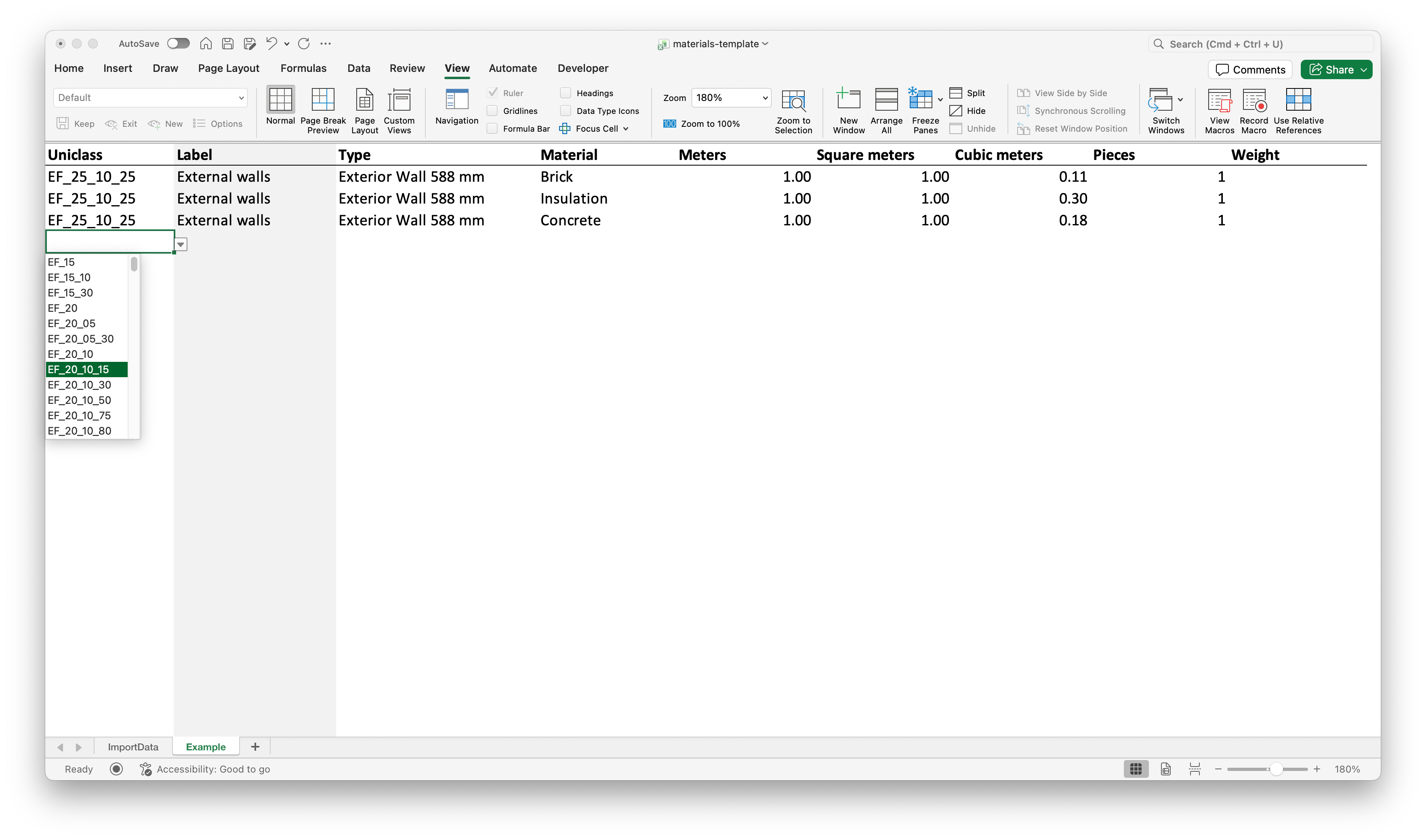
Cells **A2 and below** become validated dropdowns scoped to the classification system from A1. Pick the code for each row.
Supported systems:
| Short name | Long name |
| ------------- | ----------------------------------------- |
| `BIMTypeCode` | — |
| `BSAB96` | Klassifikationssystemet BSAB |
| `CCI` | Construction Classification International |
| `CCS` | Cuneco Classification System |
| `NS34512022` | Norsk Standard NS 3451:2022 |
| `Uniclass` | Uniclass 2015 |
Pick the system that matches the **Classification System** you set on the project's [Speckle model configuration](/user-guide/project/create-new-project#configure-the-speckle-models) — otherwise the rows will not group into BIM types correctly.
### Step 2: Enter a code per row
Cells **A2 and below** become validated dropdowns scoped to the classification system from A1. Pick the code for each row.
 ### Step 3: Fill in the remaining columns
Each row describes **one material layer**. To build a multi-layer type, repeat the same **Classification Code** and **Type** on consecutive rows and change only the **Material** and quantities — that tells Real-Time LCA those layers belong to the same construction.
| Column | Header | Required | What to type |
| ------ | ---------------------------- | -------- | ------------------------------------------------------------------------------------------------------------------------ |
| **A** | Classification System / Code | Yes | A1 sets the system (dropdown). A2+ pick a code from that system. |
| **B** | Label | Yes | A human-readable group, e.g., *External walls*. |
| **C** | Type | Yes | The construction's type name, e.g., *Exterior Wall 588 mm*. Repeat across rows that belong to the same multi-layer type. |
| **D** | Material | Yes | The material in this layer, e.g., *Brick*, *Insulation*, *Concrete*. One material per row. |
| **E** | Meters | Optional | Linear quantity in metres. |
| **F** | Square meters | Optional | Area in square metres. |
| **G** | Cubic meters | Optional | Volume in cubic metres. |
| **H** | Pieces | Optional | Count of discrete items. |
| **I** | Weight | Optional | Mass in kg. |
Use only the quantity columns that apply to the layer — leave the rest at `0` or blank.
#### Example: a three-layer external wall
| A (Uniclass) | B (Label) | C (Type) | D (Material) | F (m²) | G (m³) | I (Weight) |
| ------------- | -------------- | -------------------- | ------------ | ------ | ------ | ---------- |
| `EF_25_10_25` | External walls | Exterior Wall 588 mm | Brick | 1.00 | 0.11 | 1 |
| `EF_25_10_25` | External walls | Exterior Wall 588 mm | Insulation | 1.00 | 0.30 | 1 |
| `EF_25_10_25` | External walls | Exterior Wall 588 mm | Concrete | 1.00 | 0.18 | 1 |
The three rows share the same classification code and type, so Real-Time LCA stacks them as layers of one *Exterior Wall 588 mm* construction.
Import does not accept duplicates — rows with the same **Type** and **Material** combination will be rejected. Each material may only appear once per type, even if the quantities differ.
For example, the following rows would be rejected because both share *Exterior Wall 588 mm* and *Concrete*:
| Uniclass | Label | Type | Material | Meters | Square meters | Cubic meters | Pieces | Weight |
| ------------- | -------------- | -------------------- | -------- | ------ | ------------- | ------------ | ------ | ------ |
| `EF_25_10_25` | External walls | Exterior Wall 588 mm | Concrete | 1 | 0.18 | 1 | | |
| `EF_25_10_25` | External walls | Exterior Wall 588 mm | Concrete | 2 | 0.18 | 6 | | |
Merge the quantities into a single row instead.
Save the workbook when you are done.
## Upload the file
Back in the **Upload Excel file** modal:
1. Choose **Upload to model** — the Speckle model in your project the rows should be attached to (for example, *architectural*).
2. Toggle **Overwrite existing materials** if you want this upload to replace materials and types previously imported for that model. Leave it off to add to what is already there.
3. Drop your `.xlsx` file in the **Click to upload or drag and drop** area, or click to browse.
4. Click **Import**. Use **Cancel** or **×** to abort without changes.
The rows appear in the Building Component Inventory, ready for material and construction mapping.
## Updating quantities
Re-uploading the workbook creates a new version of the rows. Existing mappings carry over for items whose identifier is unchanged.
If you re-upload a corrected sheet for the same model, enable **Overwrite existing materials** so the previous import is replaced rather than duplicated.
### Step 3: Fill in the remaining columns
Each row describes **one material layer**. To build a multi-layer type, repeat the same **Classification Code** and **Type** on consecutive rows and change only the **Material** and quantities — that tells Real-Time LCA those layers belong to the same construction.
| Column | Header | Required | What to type |
| ------ | ---------------------------- | -------- | ------------------------------------------------------------------------------------------------------------------------ |
| **A** | Classification System / Code | Yes | A1 sets the system (dropdown). A2+ pick a code from that system. |
| **B** | Label | Yes | A human-readable group, e.g., *External walls*. |
| **C** | Type | Yes | The construction's type name, e.g., *Exterior Wall 588 mm*. Repeat across rows that belong to the same multi-layer type. |
| **D** | Material | Yes | The material in this layer, e.g., *Brick*, *Insulation*, *Concrete*. One material per row. |
| **E** | Meters | Optional | Linear quantity in metres. |
| **F** | Square meters | Optional | Area in square metres. |
| **G** | Cubic meters | Optional | Volume in cubic metres. |
| **H** | Pieces | Optional | Count of discrete items. |
| **I** | Weight | Optional | Mass in kg. |
Use only the quantity columns that apply to the layer — leave the rest at `0` or blank.
#### Example: a three-layer external wall
| A (Uniclass) | B (Label) | C (Type) | D (Material) | F (m²) | G (m³) | I (Weight) |
| ------------- | -------------- | -------------------- | ------------ | ------ | ------ | ---------- |
| `EF_25_10_25` | External walls | Exterior Wall 588 mm | Brick | 1.00 | 0.11 | 1 |
| `EF_25_10_25` | External walls | Exterior Wall 588 mm | Insulation | 1.00 | 0.30 | 1 |
| `EF_25_10_25` | External walls | Exterior Wall 588 mm | Concrete | 1.00 | 0.18 | 1 |
The three rows share the same classification code and type, so Real-Time LCA stacks them as layers of one *Exterior Wall 588 mm* construction.
Import does not accept duplicates — rows with the same **Type** and **Material** combination will be rejected. Each material may only appear once per type, even if the quantities differ.
For example, the following rows would be rejected because both share *Exterior Wall 588 mm* and *Concrete*:
| Uniclass | Label | Type | Material | Meters | Square meters | Cubic meters | Pieces | Weight |
| ------------- | -------------- | -------------------- | -------- | ------ | ------------- | ------------ | ------ | ------ |
| `EF_25_10_25` | External walls | Exterior Wall 588 mm | Concrete | 1 | 0.18 | 1 | | |
| `EF_25_10_25` | External walls | Exterior Wall 588 mm | Concrete | 2 | 0.18 | 6 | | |
Merge the quantities into a single row instead.
Save the workbook when you are done.
## Upload the file
Back in the **Upload Excel file** modal:
1. Choose **Upload to model** — the Speckle model in your project the rows should be attached to (for example, *architectural*).
2. Toggle **Overwrite existing materials** if you want this upload to replace materials and types previously imported for that model. Leave it off to add to what is already there.
3. Drop your `.xlsx` file in the **Click to upload or drag and drop** area, or click to browse.
4. Click **Import**. Use **Cancel** or **×** to abort without changes.
The rows appear in the Building Component Inventory, ready for material and construction mapping.
## Updating quantities
Re-uploading the workbook creates a new version of the rows. Existing mappings carry over for items whose identifier is unchanged.
If you re-upload a corrected sheet for the same model, enable **Overwrite existing materials** so the previous import is replaced rather than duplicated.