> ## Documentation Index
> Fetch the complete documentation index at: https://docs.realtimelca.com/llms.txt
> Use this file to discover all available pages before exploring further.
# Activate your account
> Activate your Real-Time LCA user and sign in for the first time.
Before you can sign in to Real-Time LCA, you need to activate the user that was created for you. Activation links you to an authentication method — either a Real-Time LCA password or your Microsoft 365 account — and confirms your identity.
## Before you start
You need:
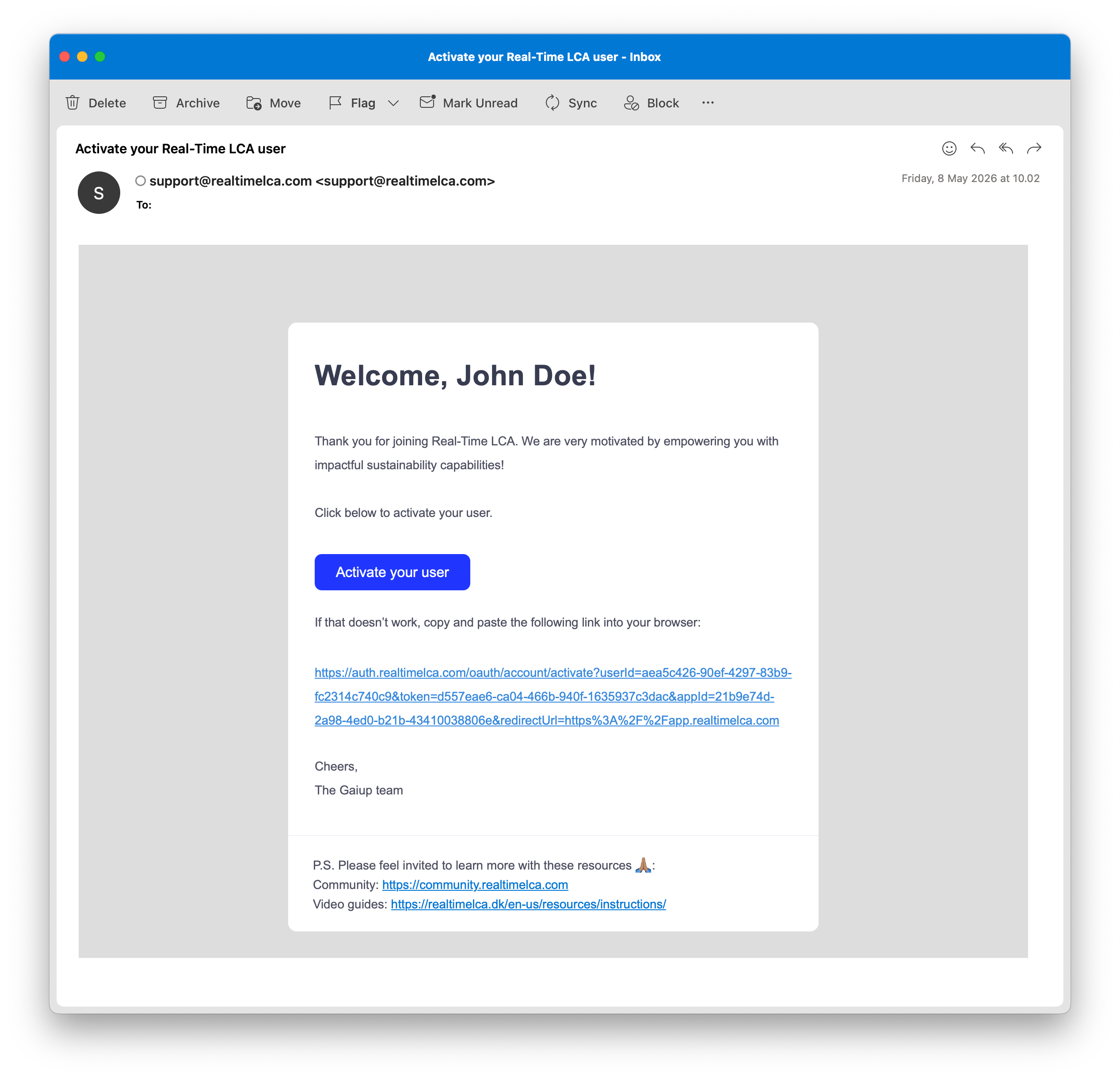
* An activation email from `support@realtimelca.com` with the subject **Activate your Real-Time LCA user**.
* Access to the inbox the email was sent to.
If you cannot find the email, check your spam folder. If it still does not appear, reach out to [support@realtimelca.com](mailto:support@realtimelca.com) and we will resend the invite.
## Step 1: Open the activation email
Open the **Activate your Real-Time LCA user** email and click **Activate your user**. If the button does not work, copy the link below it and paste it into your browser.
 The activation link is single-use and time-limited. If it expires before you activate, contact support to receive a new invite.
## Step 2: Choose how to activate
The activation link takes you to **Activate your account**. You can either set a Real-Time LCA password or activate with your Microsoft account.
The activation link is single-use and time-limited. If it expires before you activate, contact support to receive a new invite.
## Step 2: Choose how to activate
The activation link takes you to **Activate your account**. You can either set a Real-Time LCA password or activate with your Microsoft account.
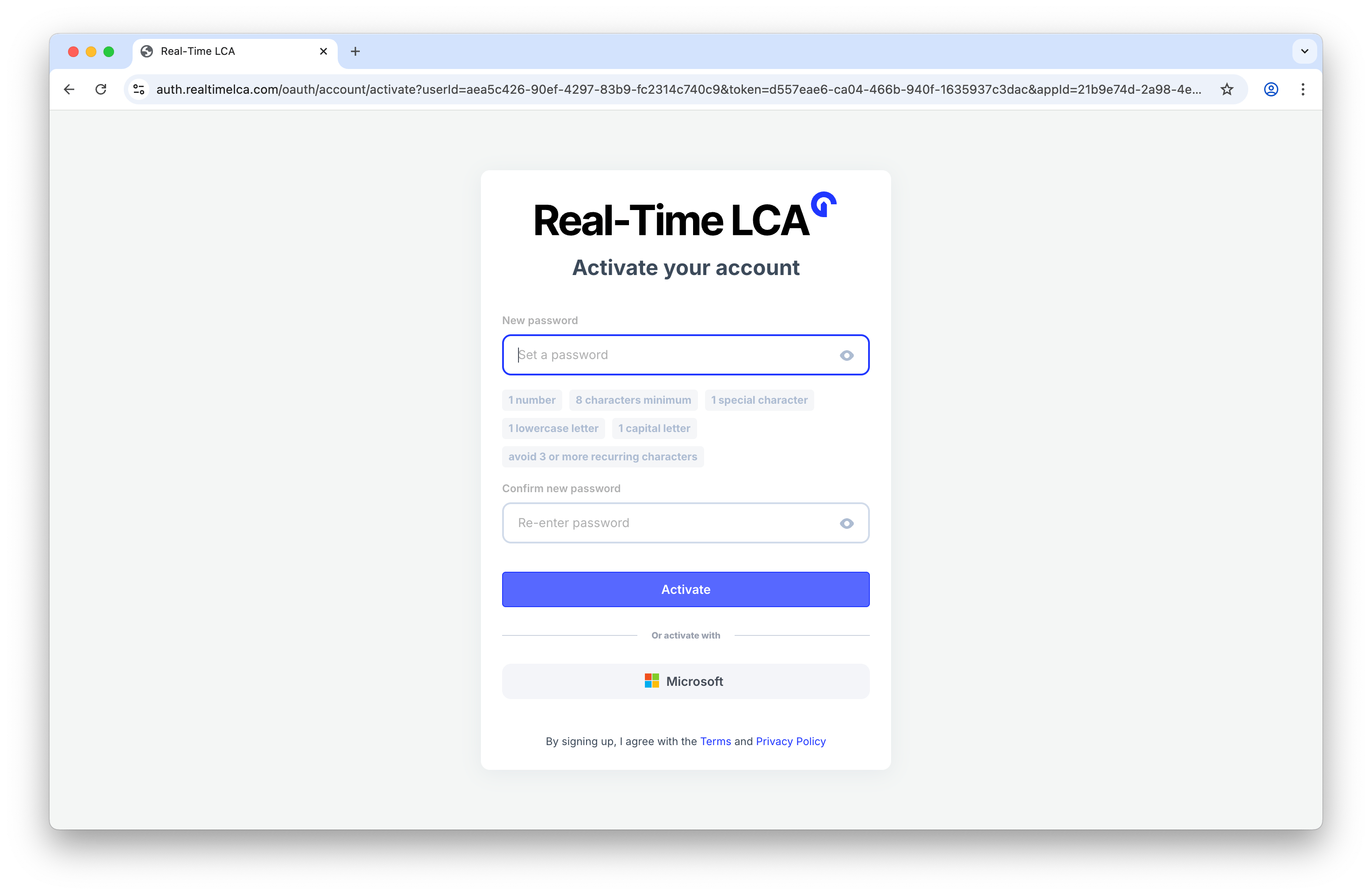 1. Enter a password in **New password**.
2. Re-enter the same password in **Confirm new password**.
3. Click **Activate**.
1. Click **Microsoft** under **Or activate with**.
2. Sign in with your work or personal Microsoft account and approve the access request.
After approval, your Real-Time LCA user is linked to your Microsoft identity and you can sign in with single sign-on from now on.
By activating, you agree to the **Terms** and **Privacy Policy** linked at the bottom of the form.
## Step 3: Meet the password requirements
As you type, each requirement turns green when satisfied. Your password must contain:
* At least **8 characters**
* At least **1 number**
* At least **1 special character**
* At least **1 lowercase letter**
* At least **1 capital letter**
* No 3 or more recurring characters
1. Enter a password in **New password**.
2. Re-enter the same password in **Confirm new password**.
3. Click **Activate**.
1. Click **Microsoft** under **Or activate with**.
2. Sign in with your work or personal Microsoft account and approve the access request.
After approval, your Real-Time LCA user is linked to your Microsoft identity and you can sign in with single sign-on from now on.
By activating, you agree to the **Terms** and **Privacy Policy** linked at the bottom of the form.
## Step 3: Meet the password requirements
As you type, each requirement turns green when satisfied. Your password must contain:
* At least **8 characters**
* At least **1 number**
* At least **1 special character**
* At least **1 lowercase letter**
* At least **1 capital letter**
* No 3 or more recurring characters
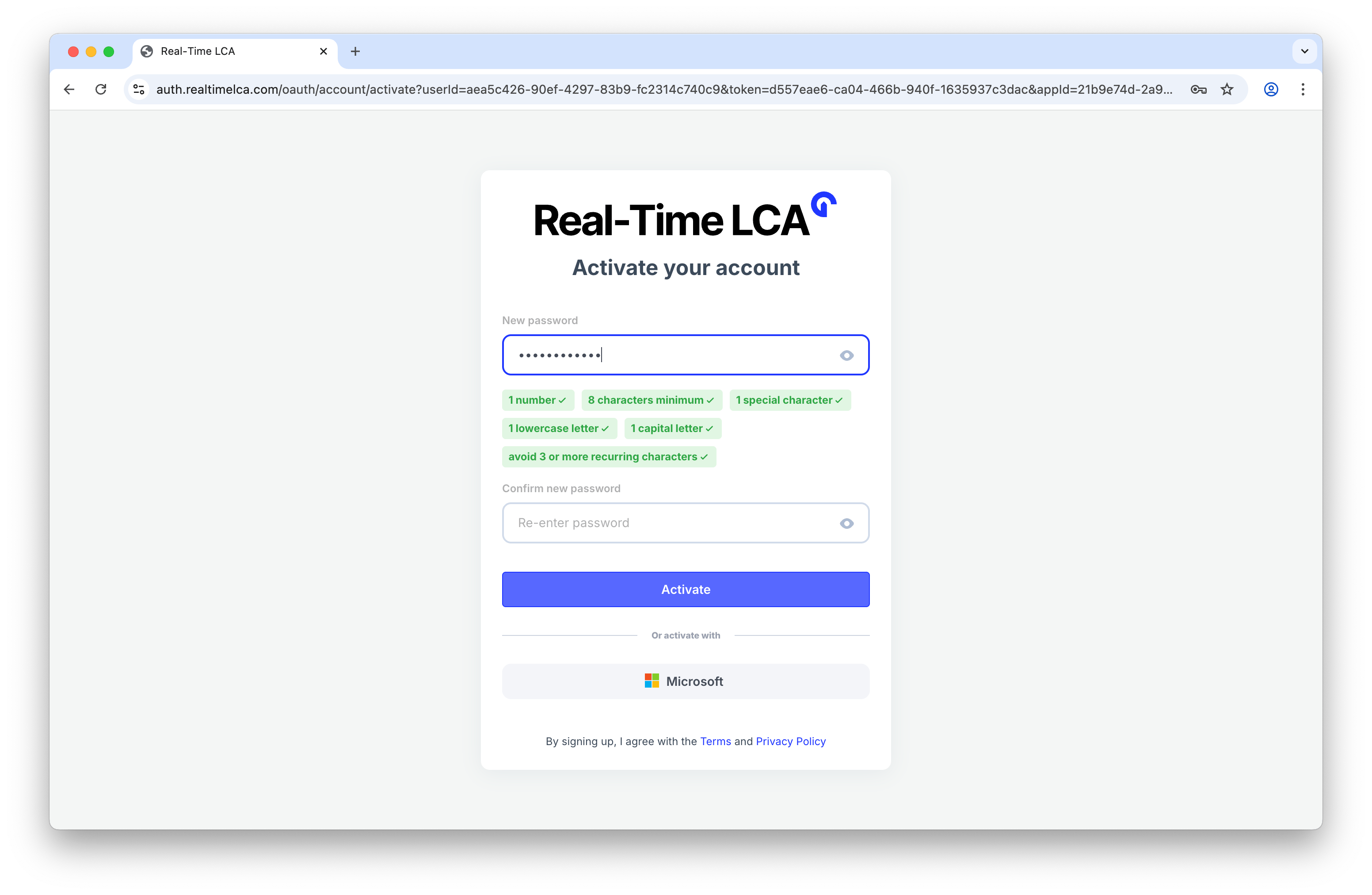 The **Activate** button stays disabled until every requirement is met and the two password fields match.
## Step 4: Confirm activation
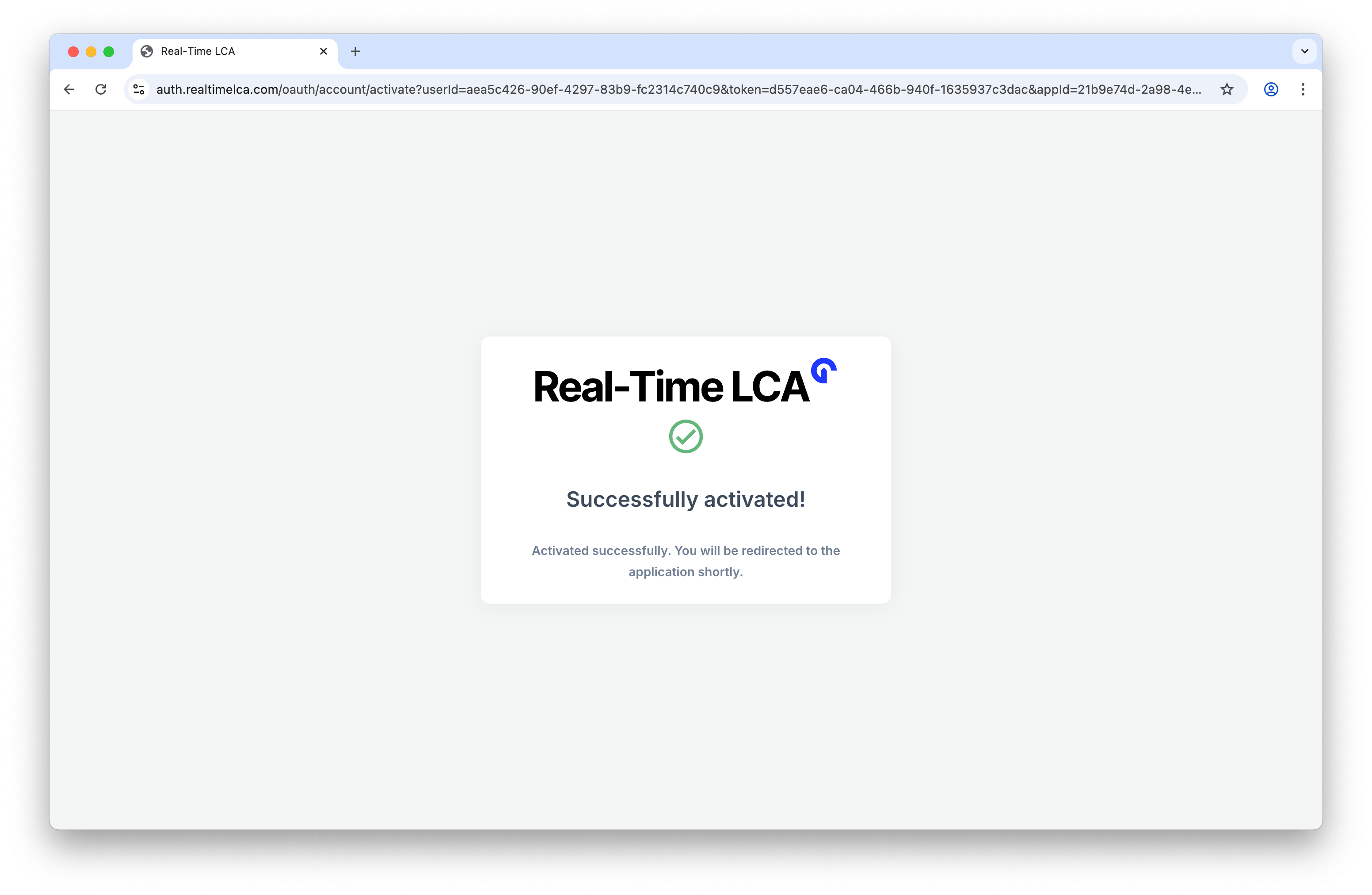
When activation succeeds you see a confirmation screen, and the browser redirects to the Real-Time LCA app shortly after.
The **Activate** button stays disabled until every requirement is met and the two password fields match.
## Step 4: Confirm activation
When activation succeeds you see a confirmation screen, and the browser redirects to the Real-Time LCA app shortly after.
 ## A second email: your Speckle credentials
Alongside activation, Real-Time LCA automatically provisions a **Speckle user** for you on our own Speckle server and sends a follow-up email with the server URL and a temporary password. You only need this if you plan to connect a design authoring tool (Revit, Rhino, ArchiCAD, Grasshopper) to Real-Time LCA — otherwise you can ignore it.
See [Introduction to Speckle](/user-guide/integrations/speckle) for the install steps and how the connection fits together.
## Next steps
Start the project wizard and run your first calculation.
Install the Speckle Connector and sign in with your Speckle credentials.
## A second email: your Speckle credentials
Alongside activation, Real-Time LCA automatically provisions a **Speckle user** for you on our own Speckle server and sends a follow-up email with the server URL and a temporary password. You only need this if you plan to connect a design authoring tool (Revit, Rhino, ArchiCAD, Grasshopper) to Real-Time LCA — otherwise you can ignore it.
See [Introduction to Speckle](/user-guide/integrations/speckle) for the install steps and how the connection fits together.
## Next steps
Start the project wizard and run your first calculation.
Install the Speckle Connector and sign in with your Speckle credentials.