> ## Documentation Index
> Fetch the complete documentation index at: https://docs.realtimelca.com/llms.txt
> Use this file to discover all available pages before exploring further.
# Account and User settings
> Manage your profile, security, workspace users, organizations, and language.
Your account settings let you keep your profile up to date, secure your access, and manage the people in your workspace. Everything in this section is reached from the **Account menu** in the top-right corner of the app.
## Open the Account menu
Click your avatar in the top-right corner to open the menu.
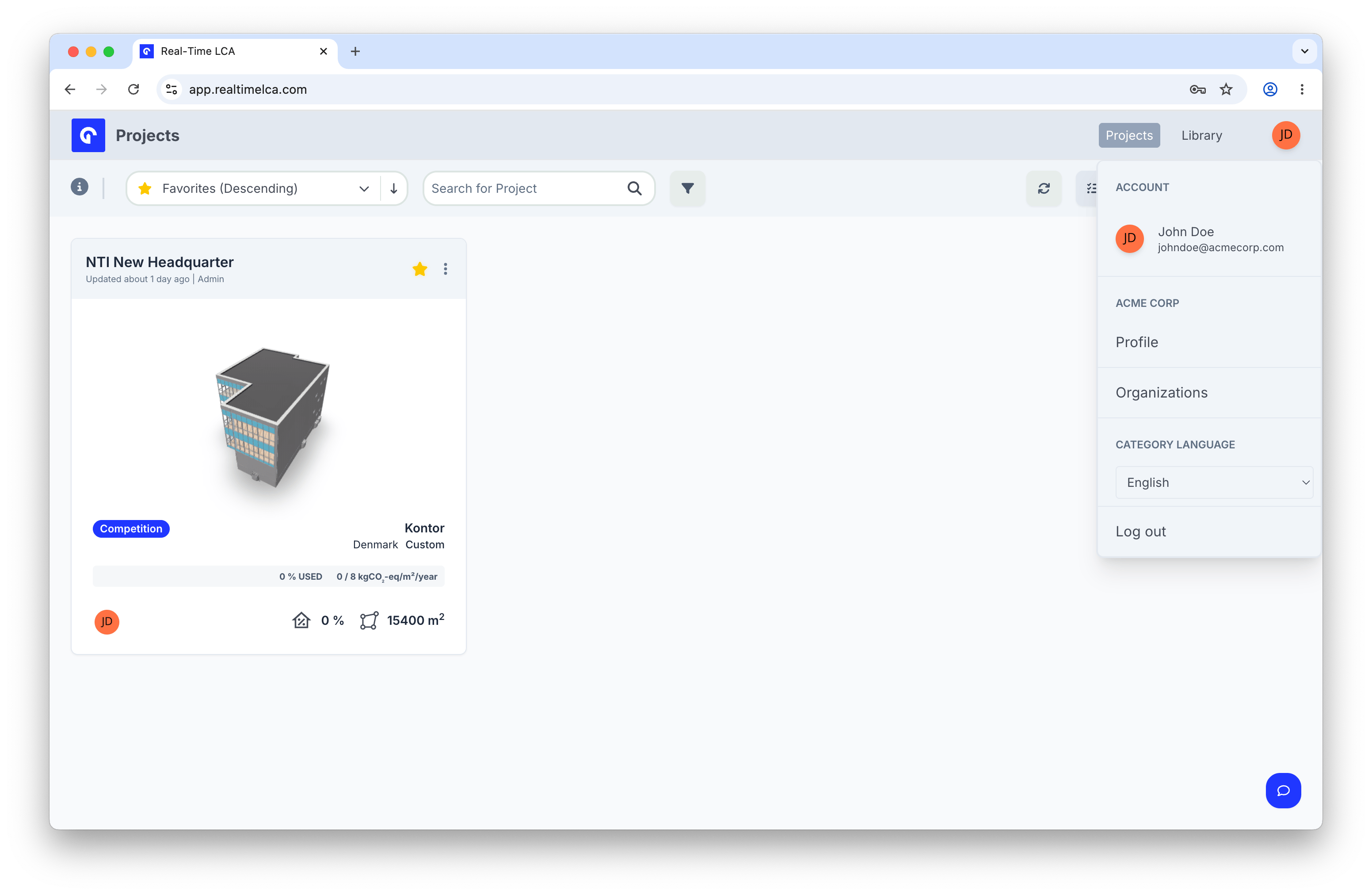 The menu is split into:
* **ACCOUNT** — your signed-in user.
* **Organization** — quick links to **Profile** and **Organizations** for the current workspace.
* **CATEGORY LANGUAGE** — the language used for material categories and other content.
* **Log out** — end your session.
## Profile
Choose **Profile** to open your personal account settings. The Profile page is split into the **My Account** and **Workspace** sections in the left sidebar.
The menu is split into:
* **ACCOUNT** — your signed-in user.
* **Organization** — quick links to **Profile** and **Organizations** for the current workspace.
* **CATEGORY LANGUAGE** — the language used for material categories and other content.
* **Log out** — end your session.
## Profile
Choose **Profile** to open your personal account settings. The Profile page is split into the **My Account** and **Workspace** sections in the left sidebar.
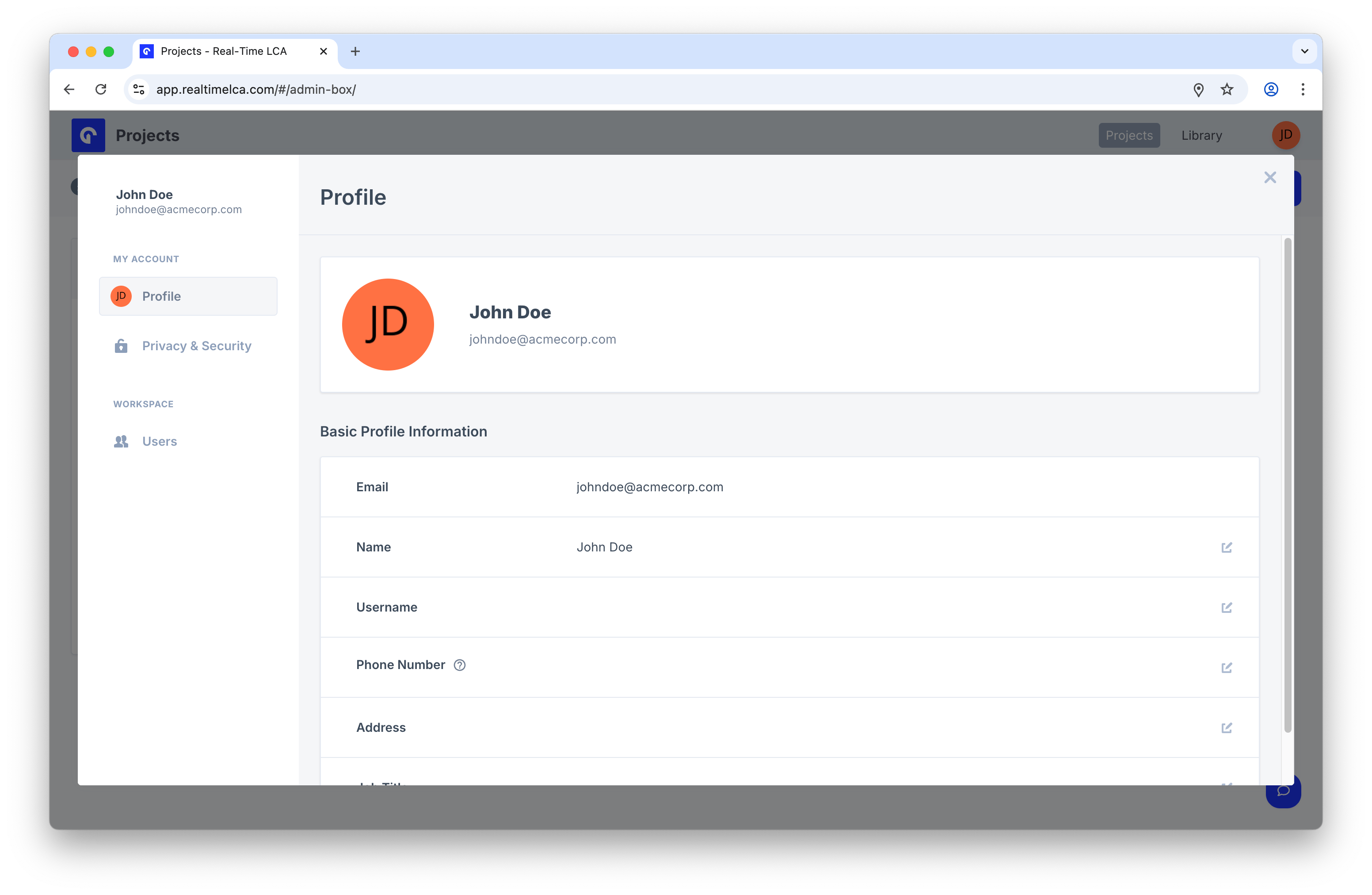 Under **Basic Profile Information** you can review or update:
* **Email** — the email used to sign in.
* **Name** — your display name.
* **Username** — optional handle.
* **Phone Number** — used for account recovery and notifications.
* **Address** — your work address.
* **Job Title** — your role at the organization.
Click the pencil icon at the end of any row to edit that field.
## Privacy & Security
Open **Privacy & Security** in the left sidebar to manage how you authenticate.
Under **Basic Profile Information** you can review or update:
* **Email** — the email used to sign in.
* **Name** — your display name.
* **Username** — optional handle.
* **Phone Number** — used for account recovery and notifications.
* **Address** — your work address.
* **Job Title** — your role at the organization.
Click the pencil icon at the end of any row to edit that field.
## Privacy & Security
Open **Privacy & Security** in the left sidebar to manage how you authenticate.
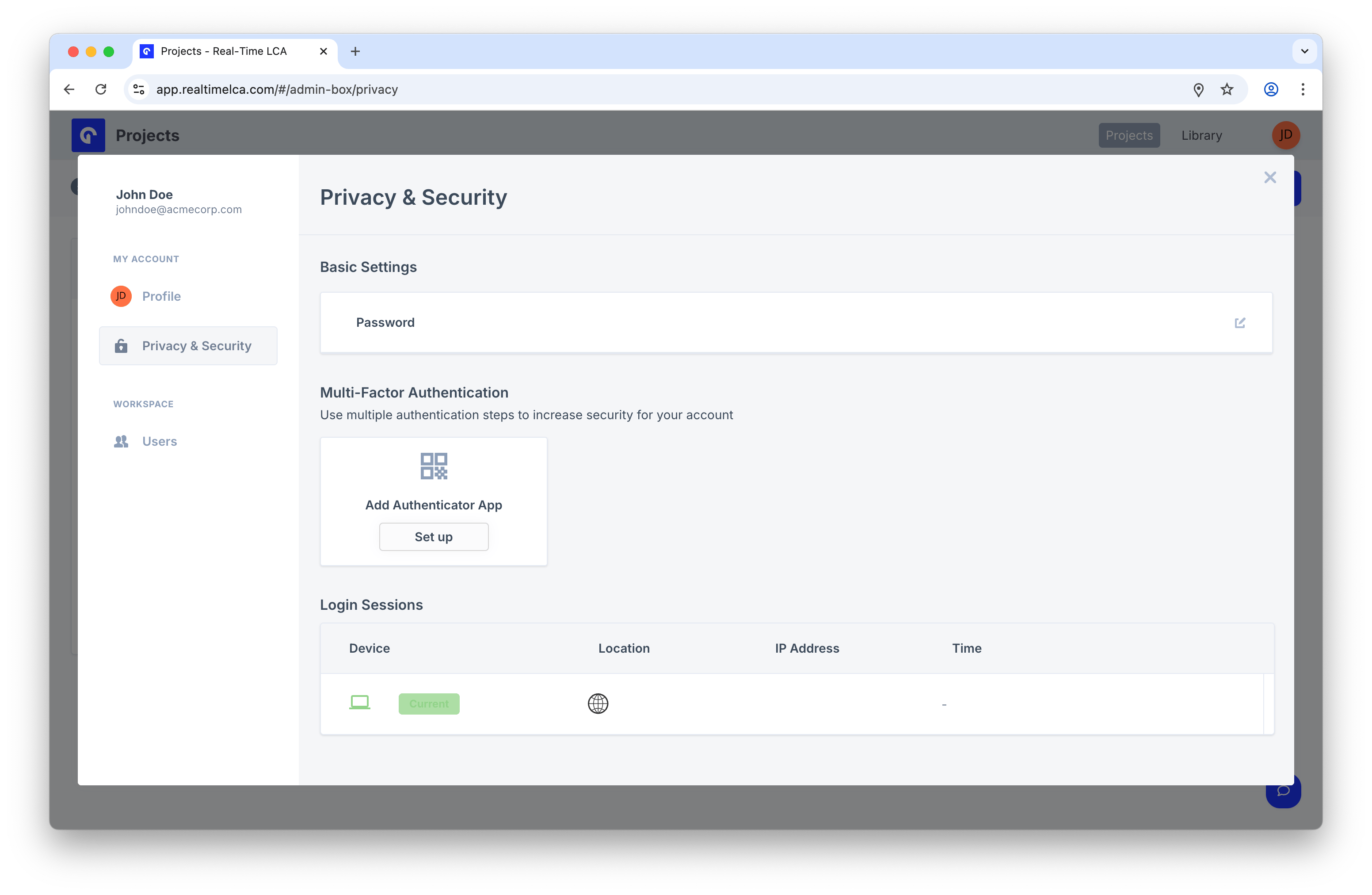 From here you can:
Under **Basic Settings**, click **Password** to set a new password. The same rules as the [activation form](/user-guide/activate-account#step-3-meet-the-password-requirements) apply.
Under **Multi-Factor Authentication**, click **Set up** under **Add Authenticator App** and follow the prompts in your authenticator (for example, 1Password, Authy, Google Authenticator). After MFA is on, you will be asked for a code every time you sign in.
The **Login Sessions** table lists every device that is currently signed in to your account, along with its location, IP address, and last activity time. If you see something you do not recognize, change your password and contact [support@realtimelca.com](mailto:support@realtimelca.com).
## Organizations
Click **Organizations** in the Account menu to see which organizations your user belongs to and to switch between them.
From here you can:
Under **Basic Settings**, click **Password** to set a new password. The same rules as the [activation form](/user-guide/activate-account#step-3-meet-the-password-requirements) apply.
Under **Multi-Factor Authentication**, click **Set up** under **Add Authenticator App** and follow the prompts in your authenticator (for example, 1Password, Authy, Google Authenticator). After MFA is on, you will be asked for a code every time you sign in.
The **Login Sessions** table lists every device that is currently signed in to your account, along with its location, IP address, and last activity time. If you see something you do not recognize, change your password and contact [support@realtimelca.com](mailto:support@realtimelca.com).
## Organizations
Click **Organizations** in the Account menu to see which organizations your user belongs to and to switch between them.
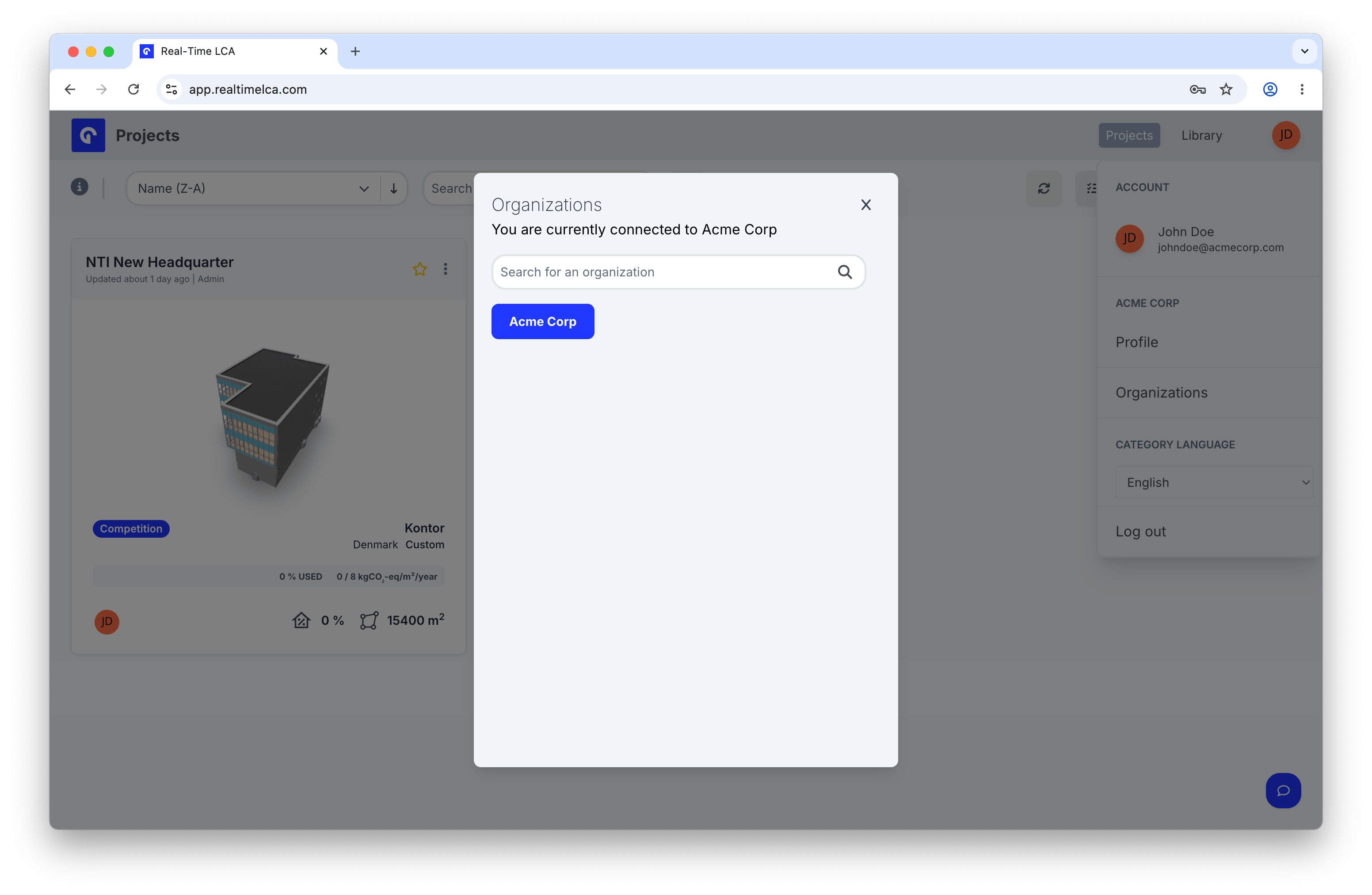 * The text under **Organizations** tells you which organization you are currently connected to.
* Click an organization's button to switch into its workspace — projects, users, and library all change to that organization.
* Use **Search for an organization** if you belong to many.
## Category Language
Under **CATEGORY LANGUAGE** in the Account menu, pick the language used for material categories and other content fields.
* The text under **Organizations** tells you which organization you are currently connected to.
* Click an organization's button to switch into its workspace — projects, users, and library all change to that organization.
* Use **Search for an organization** if you belong to many.
## Category Language
Under **CATEGORY LANGUAGE** in the Account menu, pick the language used for material categories and other content fields.
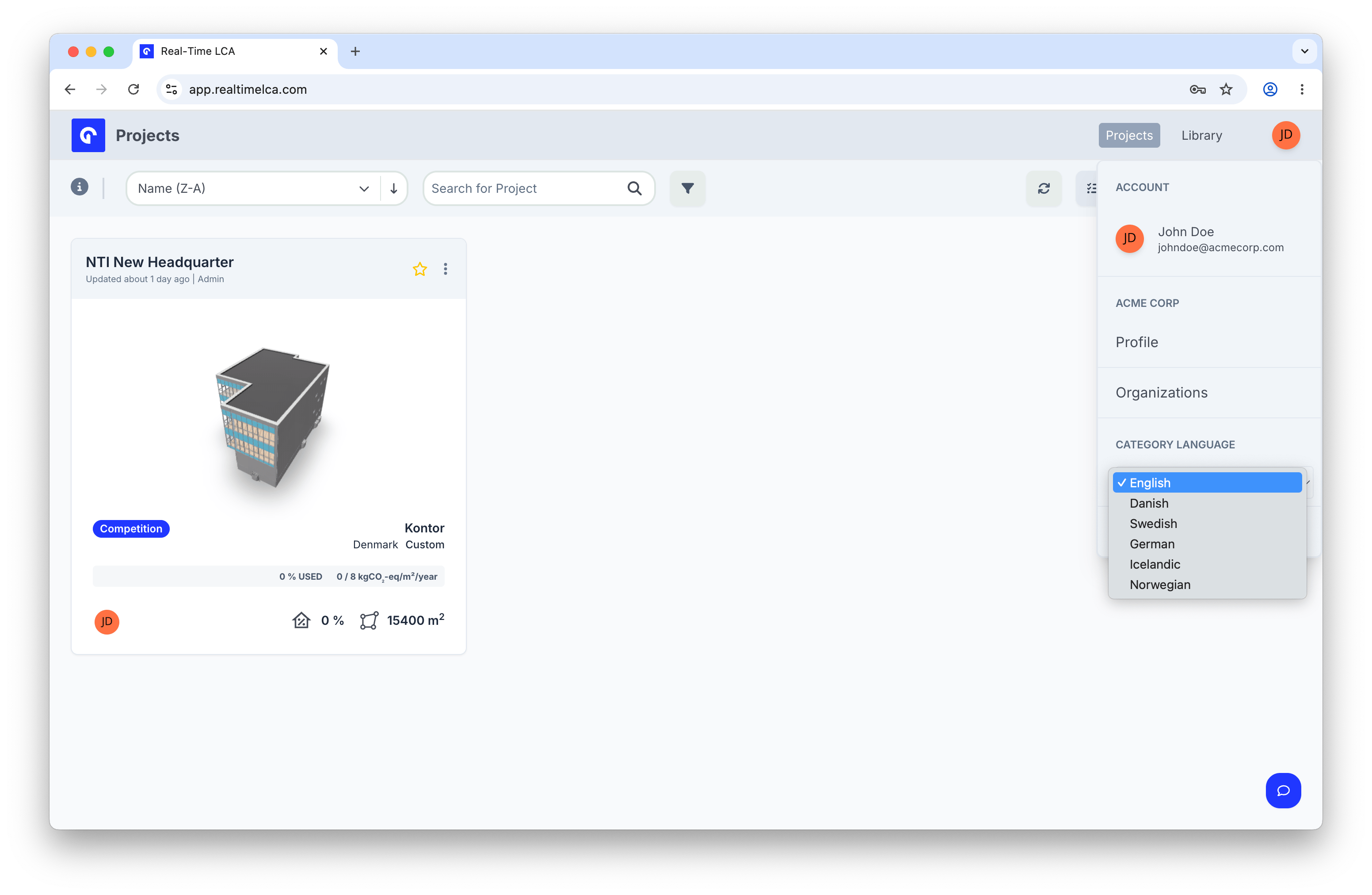 Supported languages:
* English
* Danish
* Swedish
* German
* Icelandic
* Norwegian
Selecting a language takes effect immediately.
## Workspace users
If you are an administrator in the current organization, open **Users** in the left sidebar to manage who has access.
Supported languages:
* English
* Danish
* Swedish
* German
* Icelandic
* Norwegian
Selecting a language takes effect immediately.
## Workspace users
If you are an administrator in the current organization, open **Users** in the left sidebar to manage who has access.
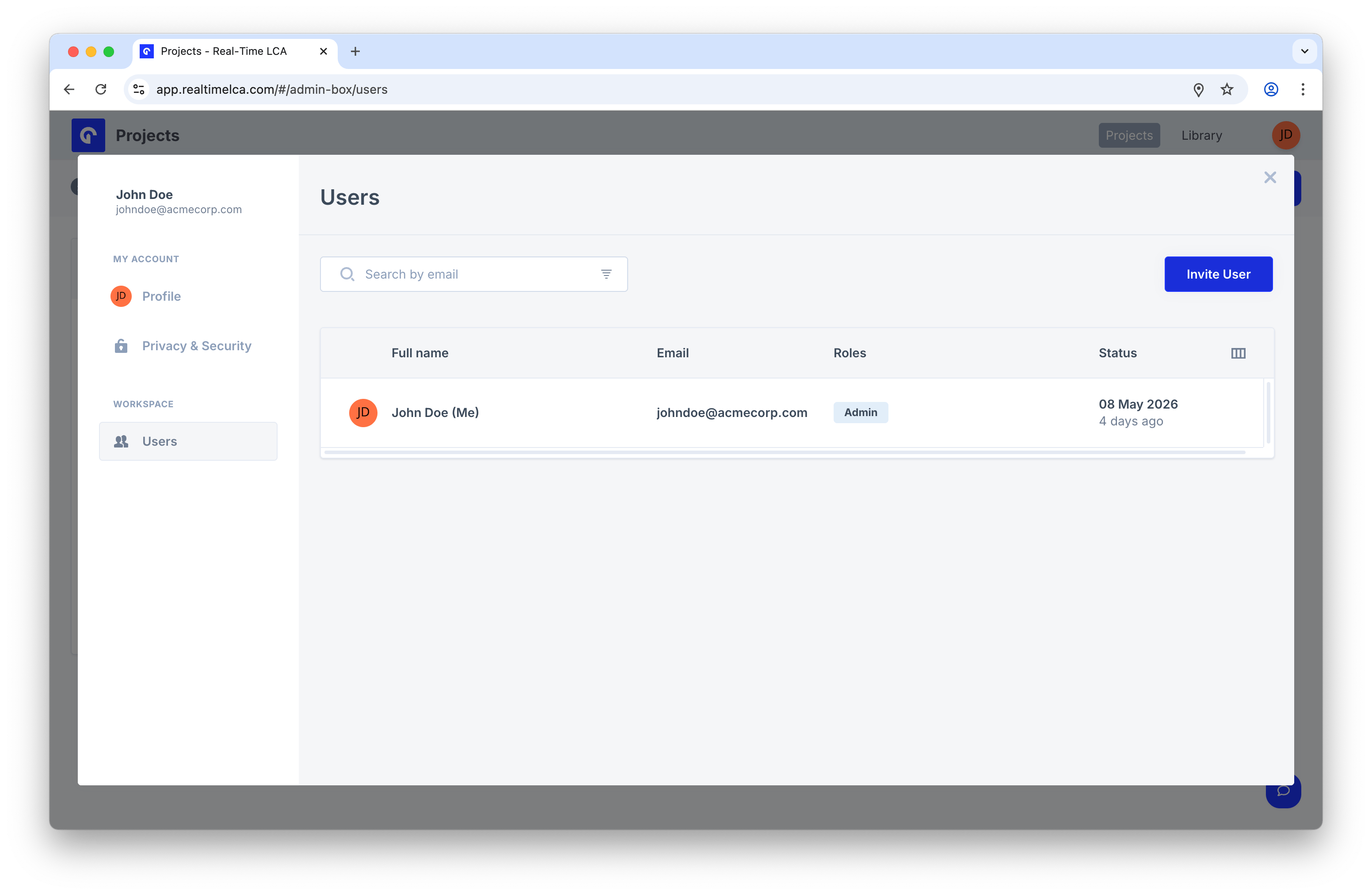 The list shows each user's full name, email, roles, and last-active status. Use **Search by email** at the top to find a specific person.
### Invite a user
Click **Invite User** in the top-right of the Users page.
The list shows each user's full name, email, roles, and last-active status. Use **Search by email** at the top to find a specific person.
### Invite a user
Click **Invite User** in the top-right of the Users page.
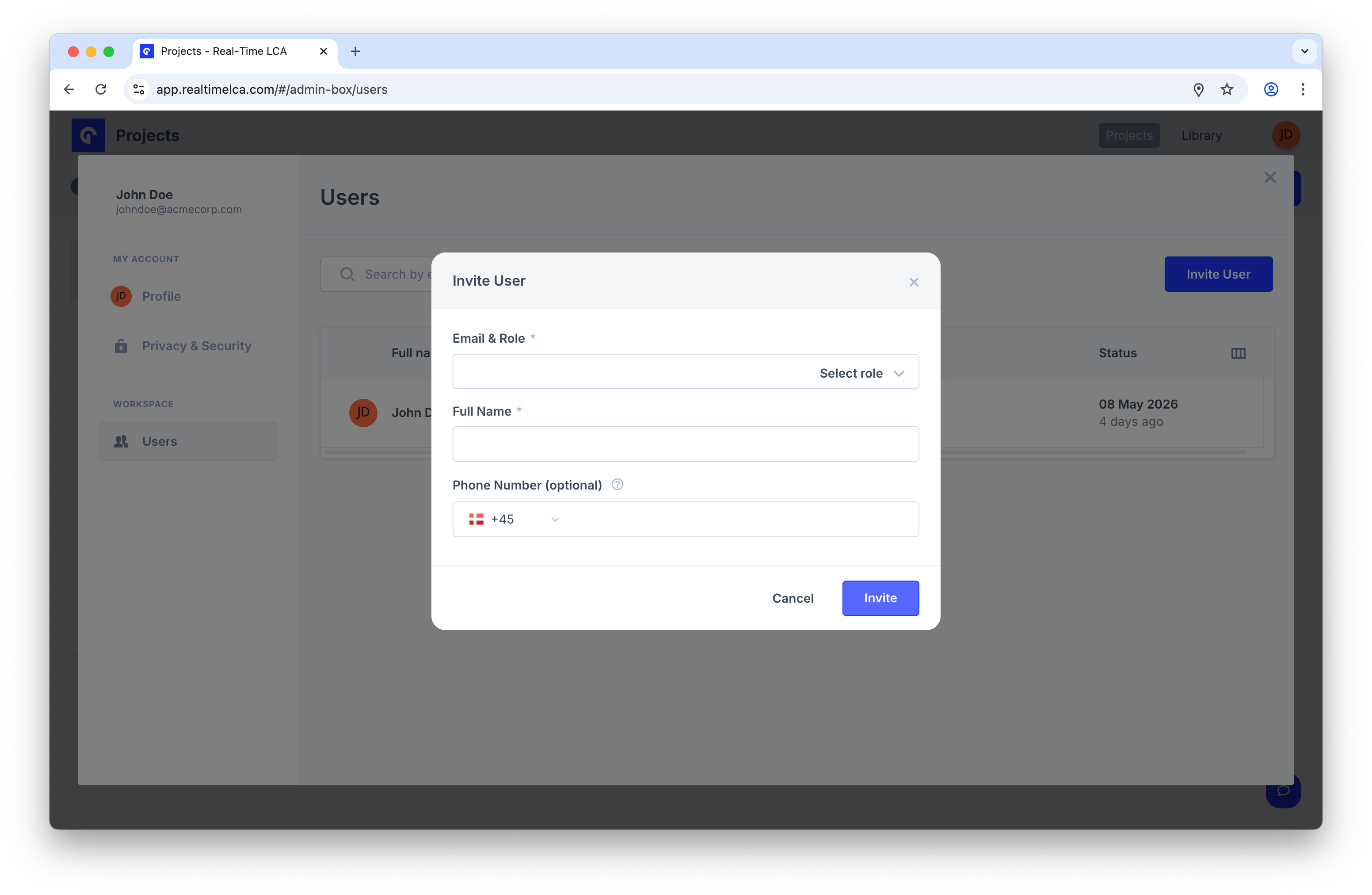 1. Enter the new user's **Email** and pick a **Role** from the dropdown.
2. Add their **Full Name**.
3. Optionally add a **Phone Number** (the country code defaults to your organization's country).
4. Click **Invite**.
The invited user receives an [activation email](/user-guide/activate-account) and can sign in as soon as they activate their account.
### Choose a role
1. Enter the new user's **Email** and pick a **Role** from the dropdown.
2. Add their **Full Name**.
3. Optionally add a **Phone Number** (the country code defaults to your organization's country).
4. Click **Invite**.
The invited user receives an [activation email](/user-guide/activate-account) and can sign in as soon as they activate their account.
### Choose a role
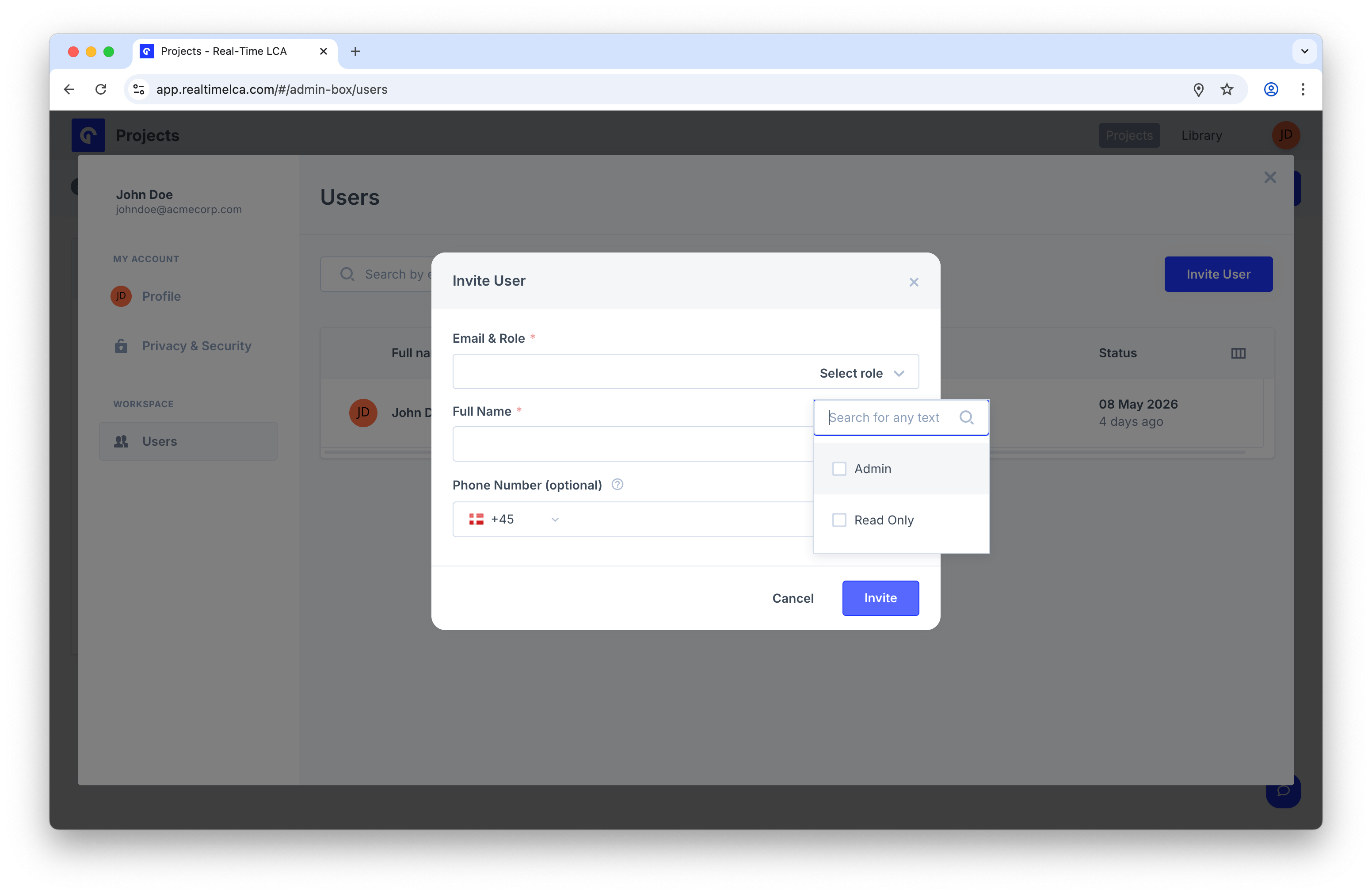 Available roles:
| Role | What they can do |
| ------------- | --------------------------------------------------------------------------------------- |
| **Admin** | Full access — create and edit projects, manage users, and change organization settings. |
| **Read Only** | View projects and reports without making changes. |
Per-project roles can be assigned from inside the project itself; the role chosen here is the user's workspace-level role.
## Log out
Click **Log out** at the bottom of the Account menu to end your session on this device. To sign back in, open the app and authenticate again.
Available roles:
| Role | What they can do |
| ------------- | --------------------------------------------------------------------------------------- |
| **Admin** | Full access — create and edit projects, manage users, and change organization settings. |
| **Read Only** | View projects and reports without making changes. |
Per-project roles can be assigned from inside the project itself; the role chosen here is the user's workspace-level role.
## Log out
Click **Log out** at the bottom of the Account menu to end your session on this device. To sign back in, open the app and authenticate again.